> ## Documentation Index
> Fetch the complete documentation index at: https://help.broadstripes.com/llms.txt
> Use this file to discover all available pages before exploring further.
# Leadership roles
> Set up and manage leader roles to identify and track leadership within your organizing campaign
## Overview
An important part of many kinds of organizing is the identification of **leaders** within the bargaining unit or worker group. Leadership is usually defined by roles.
Labor organizing (internal or external) often uses "Committee" and "Key Leader," while "Activist" or "Mobilizer" are more common in community organizing.
With Broadstripes, it is simple to set up leader roles to suit the style of organizing you're doing.
## Set up new leader roles
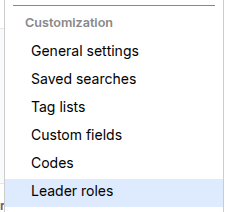 1. Go to **Settings > Leader roles**.\
This takes you to the **leader role index page** that lists any existing roles in your project.
2. Click on the button to add **+ New Leader Role**.
3. Select the **Standard leader role** from the drop-down chooser that's the best match for the role you're creating.
Selecting a **standard leader role** *is required* if you plan to generate cross-project reports that can aggregate roles with different names but equivalent function. If that's not relevant to you, you can skip the standard leader role input.
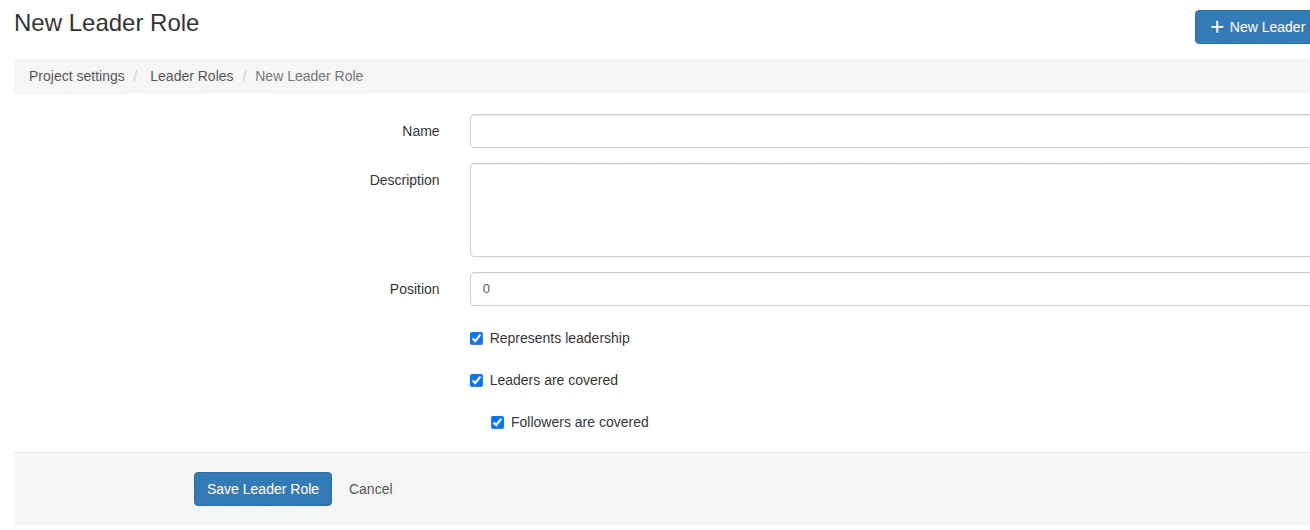
4. Give the new role a one- or two-word **name** that's meaningful to the organizers on your campaign. (This is the text that will appear on-screen and in reports.)
5. Add a **description** (optional). If your project has many roles, it can be useful to create a short descriptive sentence for each.
6. Enter a **position number**. The position number conveys where the role fits in the hierarchy of leadership. It determines where the role will appear in the leader role drop-down chooser as seen by your end users.
When setting **position numbers**, a lower number means a higher position in the hierarchy, so a role with position 1 will appear at the top of the list, and so on. Leaving the number value as "0" will make Broadstripes automatically assign the next available number, placing your new role at the bottom of the list.
7. Check **Represents leadership** if you are creating some roles that do not represent leadership and wish to have the ability to distinguish between people in leadership roles and those with non-leadership roles. An example of a non-leadership role is a "Target," a person who may have influence in the bargaining but who has not yet committed to using that influence to support your campaign's goals.
8. Configure the **coverage settings** for this role. New leader roles open with both coverage checkboxes already enabled, so you only need to change these if you want different behavior for this role:
* **Leaders are covered** — When checked, people with this role are counted as covered in Broadstripes' automatic calculation of coverage within the shop/department turf. (This organizing metric can be shown on the Turf Panel and added to status reports at your discretion.)
* **Followers are covered** — When checked, the followers of leaders with this role are also counted as covered. For example, if a "Committee" leader has this option enabled, anyone assigned to that leader will automatically be counted as covered, even if they don't have a leadership role themselves.
**Followers are covered** depends on **Leaders are covered**. If you uncheck **Leaders are covered**, the **Followers are covered** option is automatically cleared and disabled — followers cannot count as covered if their leaders do not. Re-checking **Leaders are covered** restores **Followers are covered** to checked.
1. Go to **Settings > Leader roles**.\
This takes you to the **leader role index page** that lists any existing roles in your project.
2. Click on the button to add **+ New Leader Role**.
3. Select the **Standard leader role** from the drop-down chooser that's the best match for the role you're creating.
Selecting a **standard leader role** *is required* if you plan to generate cross-project reports that can aggregate roles with different names but equivalent function. If that's not relevant to you, you can skip the standard leader role input.
4. Give the new role a one- or two-word **name** that's meaningful to the organizers on your campaign. (This is the text that will appear on-screen and in reports.)
5. Add a **description** (optional). If your project has many roles, it can be useful to create a short descriptive sentence for each.
6. Enter a **position number**. The position number conveys where the role fits in the hierarchy of leadership. It determines where the role will appear in the leader role drop-down chooser as seen by your end users.
When setting **position numbers**, a lower number means a higher position in the hierarchy, so a role with position 1 will appear at the top of the list, and so on. Leaving the number value as "0" will make Broadstripes automatically assign the next available number, placing your new role at the bottom of the list.
7. Check **Represents leadership** if you are creating some roles that do not represent leadership and wish to have the ability to distinguish between people in leadership roles and those with non-leadership roles. An example of a non-leadership role is a "Target," a person who may have influence in the bargaining but who has not yet committed to using that influence to support your campaign's goals.
8. Configure the **coverage settings** for this role. New leader roles open with both coverage checkboxes already enabled, so you only need to change these if you want different behavior for this role:
* **Leaders are covered** — When checked, people with this role are counted as covered in Broadstripes' automatic calculation of coverage within the shop/department turf. (This organizing metric can be shown on the Turf Panel and added to status reports at your discretion.)
* **Followers are covered** — When checked, the followers of leaders with this role are also counted as covered. For example, if a "Committee" leader has this option enabled, anyone assigned to that leader will automatically be counted as covered, even if they don't have a leadership role themselves.
**Followers are covered** depends on **Leaders are covered**. If you uncheck **Leaders are covered**, the **Followers are covered** option is automatically cleared and disabled — followers cannot count as covered if their leaders do not. Re-checking **Leaders are covered** restores **Followers are covered** to checked.
 9. Click **Save Leader Role**. You'll be returned to the leader role index page where all your roles are listed.
10. Repeat these steps until you've created the roles you need.
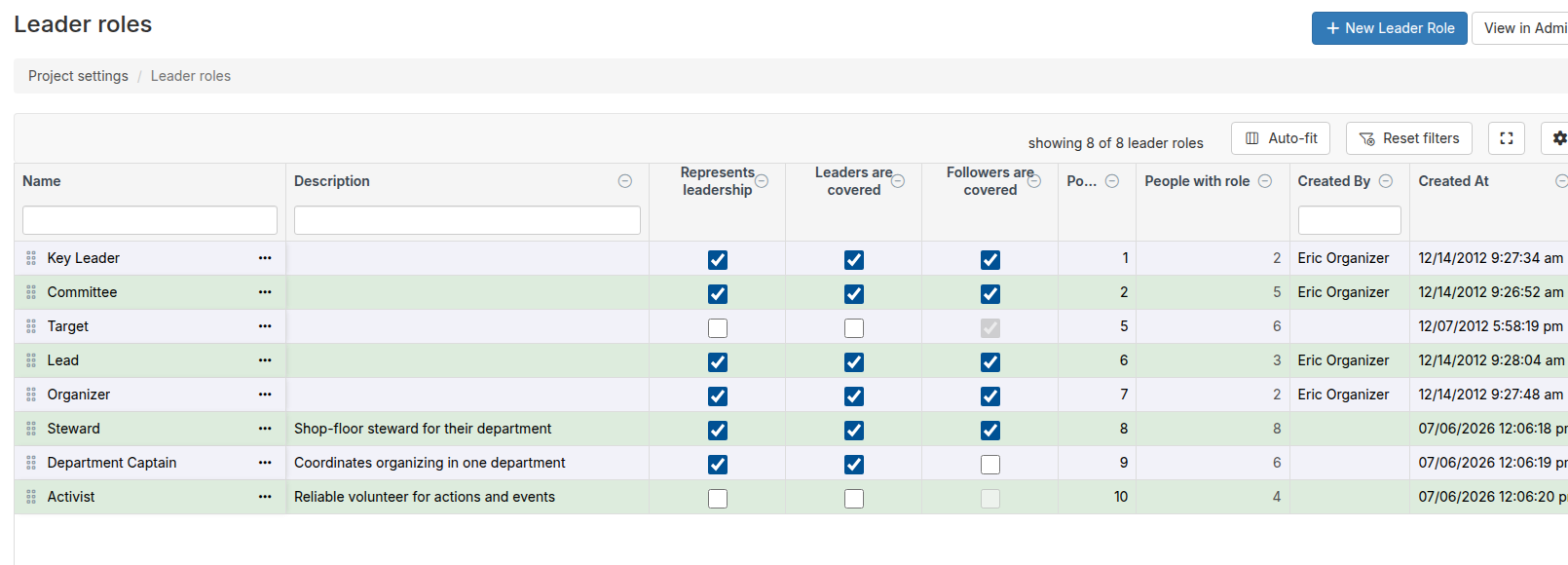
Your finished leader role list might look something like this:
9. Click **Save Leader Role**. You'll be returned to the leader role index page where all your roles are listed.
10. Repeat these steps until you've created the roles you need.
Your finished leader role list might look something like this:
 ## Manage roles in the grid
The leader role index page is an interactive data grid. From here you can reorder roles, toggle settings inline, and access edit and delete actions without leaving the page.
### Reorder roles
Drag any row by its handle on the left side to reposition it in the hierarchy. The **Position** column updates live to reflect the new order. Dragging is disabled while a column filter is active -- clear the filter first to re-enable reordering.
### Toggle settings inline
Three columns can be toggled directly in the grid without opening the edit form:
* **Represents leadership** -- Check or uncheck to control whether this role counts as a leadership role.
* **Leaders are covered** -- Check or uncheck to control whether people with this role count as covered in Broadstripes' coverage calculations.
* **Followers are covered** -- Check or uncheck to control whether the followers of leaders with this role also count as covered. This option is disabled when **Leaders are covered** is unchecked.
Changes take effect immediately. If a save fails, the checkbox reverts to its previous value.
## Edit or delete your leader roles
### Edit
1. To **edit** a leader role, click the actions menu () at the right side of the role's name cell and choose **Edit**.
2. Make the changes you want, and click the **Save Leader Role** button.
3. You'll be returned to the **Leader role index page** where you can see your changes.
### Delete
1. To permanently **delete** a leader role, click the actions menu () at the right side of the role's name cell and choose **Delete**.
2. A confirmation dialog appears showing the role's name and, if any contacts hold that role, how many people will lose it.
3. Click **Delete** to confirm. The leader role is removed from your project, and any contacts who had it will have no leader role assigned.
## Manage roles in the grid
The leader role index page is an interactive data grid. From here you can reorder roles, toggle settings inline, and access edit and delete actions without leaving the page.
### Reorder roles
Drag any row by its handle on the left side to reposition it in the hierarchy. The **Position** column updates live to reflect the new order. Dragging is disabled while a column filter is active -- clear the filter first to re-enable reordering.
### Toggle settings inline
Three columns can be toggled directly in the grid without opening the edit form:
* **Represents leadership** -- Check or uncheck to control whether this role counts as a leadership role.
* **Leaders are covered** -- Check or uncheck to control whether people with this role count as covered in Broadstripes' coverage calculations.
* **Followers are covered** -- Check or uncheck to control whether the followers of leaders with this role also count as covered. This option is disabled when **Leaders are covered** is unchecked.
Changes take effect immediately. If a save fails, the checkbox reverts to its previous value.
## Edit or delete your leader roles
### Edit
1. To **edit** a leader role, click the actions menu () at the right side of the role's name cell and choose **Edit**.
2. Make the changes you want, and click the **Save Leader Role** button.
3. You'll be returned to the **Leader role index page** where you can see your changes.
### Delete
1. To permanently **delete** a leader role, click the actions menu () at the right side of the role's name cell and choose **Delete**.
2. A confirmation dialog appears showing the role's name and, if any contacts hold that role, how many people will lose it.
3. Click **Delete** to confirm. The leader role is removed from your project, and any contacts who had it will have no leader role assigned.