> ## Documentation Index
> Fetch the complete documentation index at: https://help.broadstripes.com/llms.txt
> Use this file to discover all available pages before exploring further.
# Working with calculated columns
> Create custom metrics that combine data from multiple Broadstripes fields for use in turf panels, layouts, and status reports.
## Overview
Calculated columns let administrators create custom metrics by combining or manipulating data from multiple Broadstripes fields. They update automatically when underlying data changes and work like any other column once created.
You can use calculated columns in:
* **Turf panels** — show COUNT columns as donut progress bars and SUM/CHECKOFFCOUNT columns as large standalone numbers
* **Status reports** — calculate totals, especially for time-based metrics like "cards signed in the last week"
* **Search result layouts** — list multiple values in a single column, such as each leader's hostile workers
## The calculated columns table
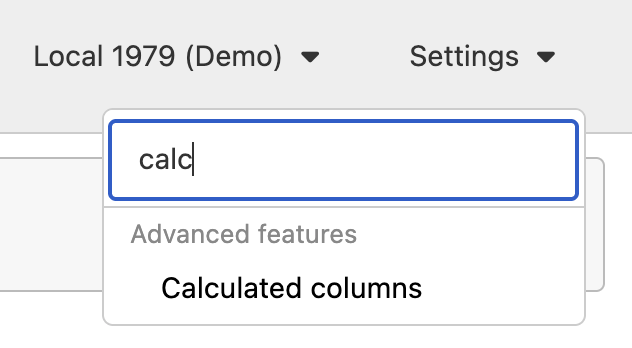
Go to **Settings** and type "calc" in the search box, then select **Calculated columns**.
 The settings page lists all calculated columns in your project.
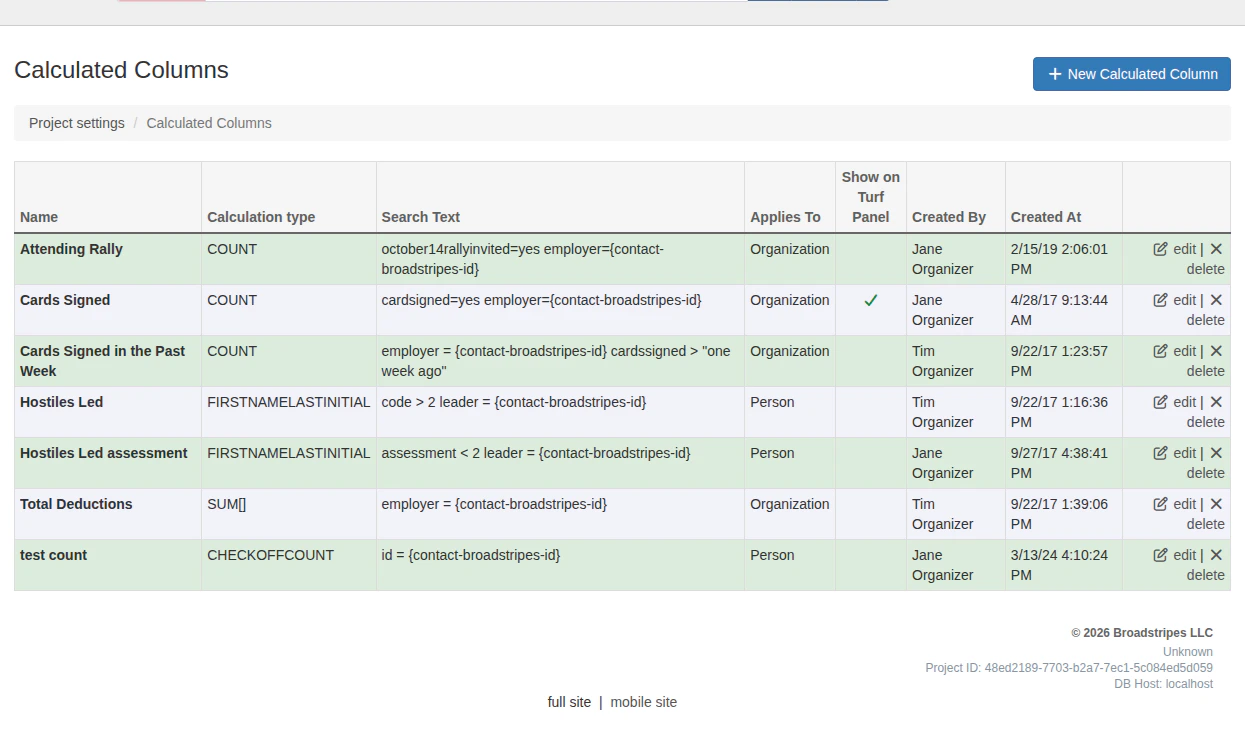 The table displays:
| Column | Description |
| ---------------------- | -------------------------------------------------------------------- |
| **Name** | The column's display name |
| **Calculation type** | The type of calculation (COUNT, SUM, CHECKOFFCOUNT, etc.) |
| **Search Text** | The search query that defines what data to calculate |
| **Applies To** | Whether the column applies to organizations, people, or all contacts |
| **Show on Turf Panel** | A checkmark if the column appears on turf panels |
| **Created By** | The user who created the column |
| **Created At** | When the column was created |
Each row includes **edit** and **delete** links.
## Create a calculated column
1. On the **Calculated Columns** settings page, click the **+ New Calculated Column** button.
2. Fill in the form fields:
The table displays:
| Column | Description |
| ---------------------- | -------------------------------------------------------------------- |
| **Name** | The column's display name |
| **Calculation type** | The type of calculation (COUNT, SUM, CHECKOFFCOUNT, etc.) |
| **Search Text** | The search query that defines what data to calculate |
| **Applies To** | Whether the column applies to organizations, people, or all contacts |
| **Show on Turf Panel** | A checkmark if the column appears on turf panels |
| **Created By** | The user who created the column |
| **Created At** | When the column was created |
Each row includes **edit** and **delete** links.
## Create a calculated column
1. On the **Calculated Columns** settings page, click the **+ New Calculated Column** button.
2. Fill in the form fields:
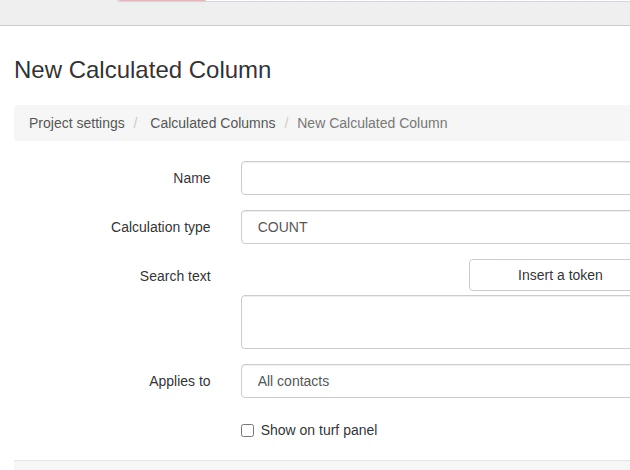 * **Name** — A short, descriptive name your users will recognize (e.g., "Cards Signed" or "Hostiles Led"). Names must be unique within the project.
* **Calculation type** — Choose how to calculate results:
| Type | Description |
| -------------------- | ---------------------------------------- |
| COUNT | Total number of matching contacts |
| SUM | Sum of a numeric custom field value |
| CHECKOFFCOUNT | Count of completed event check-off steps |
| FIRSTNAME | List of first names |
| FULLNAME | List of full names |
| FIRSTNAMELASTINITIAL | List of first names with last initial |
| NAME | List of names |
| HIERARCHICALNAME | List of names in hierarchical format |
* **Custom field for SUM** — Appears when you select **SUM**. Choose which numeric custom field to sum.
* **Events for CHECKOFFCOUNT** — Appears when you select **CHECKOFFCOUNT**. Choose which events to count check-offs for.
* **Search text** — The search query that defines which contacts to include in the calculation. Use the **Insert a token** dropdown to add tokens. See [Search text and tokens](#search-text-and-tokens) below.
* **Applies to** — Choose **Organization**, **Person**, or **All contacts**. This controls when the column displays data. For example, if set to **Organization**, the column only shows values when viewing an organization; it is blank for people.
* **Show on turf panel** — Check this box to display the column on all users' turf panels. COUNT columns appear as a donut progress bar (showing count and percentage); SUM and CHECKOFFCOUNT columns appear as a large standalone number. This option is only available when **Applies to** is set to **Organization**.
3. Click **Save Calculated Column**.
## Search text and tokens
The **Search text** field uses the same search syntax as the Broadstripes search bar. You can combine any search terms with special **tokens** — placeholders inside `{curly brackets}` — that tell Broadstripes how to group and calculate results.
### Available tokens
Use the **Insert a token** dropdown to add these tokens to your search text:
| Token | Purpose |
| --------------------------- | ---------------------------------------------------------------------------------------------------------------------------- |
| `{contact-broadstripes-id}` | Groups results by the unique contact ID. Use with field references like `employer =` or `leader =` to calculate per-contact. |
| `{contact-name}` | Substitutes the contact's name into the search. |
### Common search text patterns
**Count by employer (e.g., cards signed per location):**
```
cardsigned=yes employer={contact-broadstripes-id}
```
**Count with a time window (e.g., cards signed in the last week):**
```
employer = {contact-broadstripes-id} cardsigned > "one week ago"
```
Broadstripes understands natural language date phrases in search text, such as "one week ago," "two months ago," or "yesterday."
**List names by leader (e.g., hostile workers per leader):**
```
code > 2 leader = {contact-broadstripes-id}
```
## Edit a calculated column
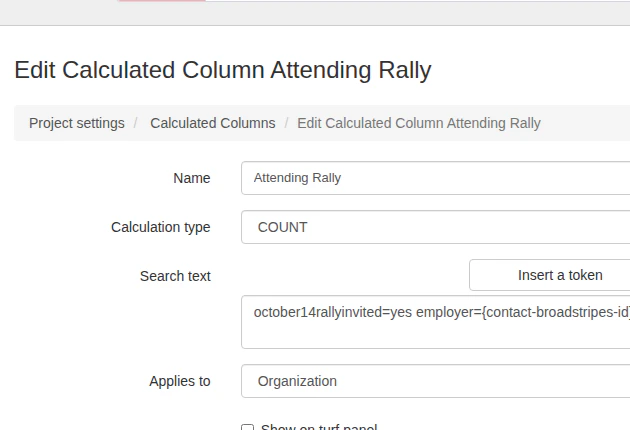
1. On the **Calculated Columns** settings page, click **edit** next to the column you want to change.
2. Update the form fields as needed.
* **Name** — A short, descriptive name your users will recognize (e.g., "Cards Signed" or "Hostiles Led"). Names must be unique within the project.
* **Calculation type** — Choose how to calculate results:
| Type | Description |
| -------------------- | ---------------------------------------- |
| COUNT | Total number of matching contacts |
| SUM | Sum of a numeric custom field value |
| CHECKOFFCOUNT | Count of completed event check-off steps |
| FIRSTNAME | List of first names |
| FULLNAME | List of full names |
| FIRSTNAMELASTINITIAL | List of first names with last initial |
| NAME | List of names |
| HIERARCHICALNAME | List of names in hierarchical format |
* **Custom field for SUM** — Appears when you select **SUM**. Choose which numeric custom field to sum.
* **Events for CHECKOFFCOUNT** — Appears when you select **CHECKOFFCOUNT**. Choose which events to count check-offs for.
* **Search text** — The search query that defines which contacts to include in the calculation. Use the **Insert a token** dropdown to add tokens. See [Search text and tokens](#search-text-and-tokens) below.
* **Applies to** — Choose **Organization**, **Person**, or **All contacts**. This controls when the column displays data. For example, if set to **Organization**, the column only shows values when viewing an organization; it is blank for people.
* **Show on turf panel** — Check this box to display the column on all users' turf panels. COUNT columns appear as a donut progress bar (showing count and percentage); SUM and CHECKOFFCOUNT columns appear as a large standalone number. This option is only available when **Applies to** is set to **Organization**.
3. Click **Save Calculated Column**.
## Search text and tokens
The **Search text** field uses the same search syntax as the Broadstripes search bar. You can combine any search terms with special **tokens** — placeholders inside `{curly brackets}` — that tell Broadstripes how to group and calculate results.
### Available tokens
Use the **Insert a token** dropdown to add these tokens to your search text:
| Token | Purpose |
| --------------------------- | ---------------------------------------------------------------------------------------------------------------------------- |
| `{contact-broadstripes-id}` | Groups results by the unique contact ID. Use with field references like `employer =` or `leader =` to calculate per-contact. |
| `{contact-name}` | Substitutes the contact's name into the search. |
### Common search text patterns
**Count by employer (e.g., cards signed per location):**
```
cardsigned=yes employer={contact-broadstripes-id}
```
**Count with a time window (e.g., cards signed in the last week):**
```
employer = {contact-broadstripes-id} cardsigned > "one week ago"
```
Broadstripes understands natural language date phrases in search text, such as "one week ago," "two months ago," or "yesterday."
**List names by leader (e.g., hostile workers per leader):**
```
code > 2 leader = {contact-broadstripes-id}
```
## Edit a calculated column
1. On the **Calculated Columns** settings page, click **edit** next to the column you want to change.
2. Update the form fields as needed.
 3. Click **Save Calculated Column**.
## Delete a calculated column
1. On the **Calculated Columns** settings page, click **delete** next to the column you want to remove.
2. A confirmation page appears. Click **Delete \[column name]** to permanently remove the column, or **Cancel** to go back.
Deleting a calculated column removes it from all turf panels, layouts, and status reports that use it. This action cannot be undone.
## Using calculated columns
Once created, calculated columns are available wherever you can select columns in Broadstripes.
### On the turf panel
If you check **Show on turf panel** when creating a column, it automatically appears on all users' turf panels. How it displays depends on the calculation type: COUNT columns show as a donut progress bar with the count and percentage; SUM and CHECKOFFCOUNT columns show as a large standalone number (since their totals don't represent a share of the worker count).
### In status reports
To add a calculated column to a status report:
1. Go to **Settings** > **Status reports** and click **edit** on the report you want to modify.
2. Click the **Columns** tab.
3. Select your calculated column from the **Calculated columns** section under **Available Columns**.
4. Configure the column label, orientation, and display format (count or percentage).
5. Click **Save**.
### In search result layouts
To add a calculated column to a search layout:
1. Run a search to display results.
2. Choose **Modify layout** from the **Layout** dropdown menu.
3. Click on your calculated column under **Other available columns** to add it.
4. Click **Save changes**.
3. Click **Save Calculated Column**.
## Delete a calculated column
1. On the **Calculated Columns** settings page, click **delete** next to the column you want to remove.
2. A confirmation page appears. Click **Delete \[column name]** to permanently remove the column, or **Cancel** to go back.
Deleting a calculated column removes it from all turf panels, layouts, and status reports that use it. This action cannot be undone.
## Using calculated columns
Once created, calculated columns are available wherever you can select columns in Broadstripes.
### On the turf panel
If you check **Show on turf panel** when creating a column, it automatically appears on all users' turf panels. How it displays depends on the calculation type: COUNT columns show as a donut progress bar with the count and percentage; SUM and CHECKOFFCOUNT columns show as a large standalone number (since their totals don't represent a share of the worker count).
### In status reports
To add a calculated column to a status report:
1. Go to **Settings** > **Status reports** and click **edit** on the report you want to modify.
2. Click the **Columns** tab.
3. Select your calculated column from the **Calculated columns** section under **Available Columns**.
4. Configure the column label, orientation, and display format (count or percentage).
5. Click **Save**.
### In search result layouts
To add a calculated column to a search layout:
1. Run a search to display results.
2. Choose **Modify layout** from the **Layout** dropdown menu.
3. Click on your calculated column under **Other available columns** to add it.
4. Click **Save changes**.