> ## Documentation Index
> Fetch the complete documentation index at: https://help.broadstripes.com/llms.txt
> Use this file to discover all available pages before exploring further.
# Create a project from the union portal
> Union admins can create new projects for their project group directly from the union portal dashboard.
Union admins can create a new project for their group without leaving the union portal. The new project is set up with your group's core organizing features enabled, and you choose its name, geocoder, and optional features as you create it.
## Open the New project dialog
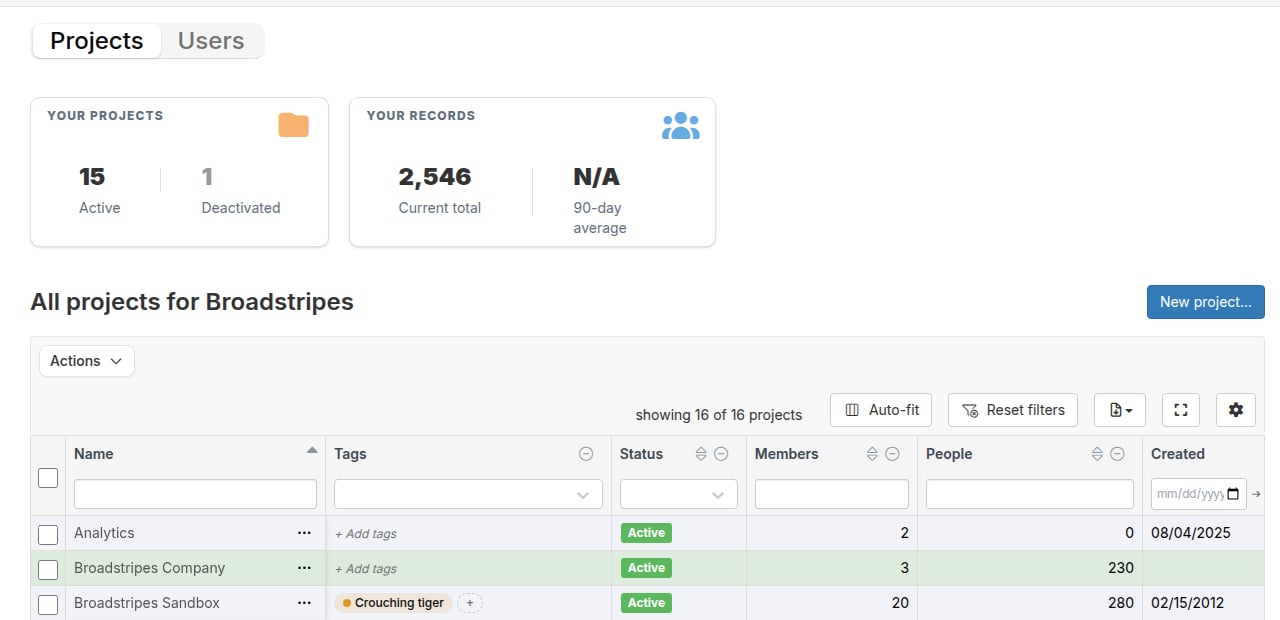
On the **Projects** tab of the union portal dashboard, click the **New project...** button. It appears both above and below the projects table.
 ## Fill in the project details
The **New project** dialog collects everything Broadstripes needs to set up the project.
## Fill in the project details
The **New project** dialog collects everything Broadstripes needs to set up the project.
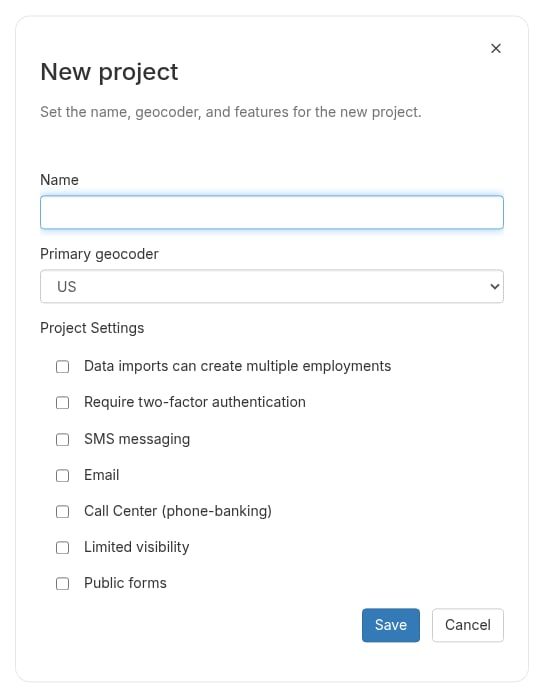 * **Name** -- the project's display name, up to 40 characters. A character counter appears as you approach the limit. The name must be different from every existing project's name; Broadstripes tells you if it conflicts.
* **Primary geocoder** -- which address geocoder the project uses: **US** (the default), **Canada**, or **None**.
* **Project Settings** -- optional features for the project, all off by default:
* **Data imports can create multiple employments**
* **Require two-factor authentication**
* **SMS messaging**
* **Email**
* **Call Center (phone-banking)**
* **Limited visibility**
* **Public forms**
Core organizing features -- labor organizing, employments, community organizing, and telecom opt-in/opt-out tracking -- are always enabled on new projects, so you only choose the optional ones here.
Click **Save** to create the project, or **Cancel** to close the dialog without creating anything.
## After the project is created
When the project is created, a confirmation toast appears, the dialog closes, and the new project shows up as a row in the projects table with its **Active** status. The **Your projects** count at the top of the dashboard updates to include it.
You stay on the union portal dashboard -- to open the new project, click the **actions menu** (⋯) next to its name and select **Go to project**, which opens it in a new browser tab.
Broadstripes generates the project's URL nickname automatically from your group name and the project name -- you don't need to choose one.
## Next steps
Once the project exists, see [Manage project members](/docs/admin-guides/union-portal/manage-project-members) to add organizers to it and set their roles and permissions.
* **Name** -- the project's display name, up to 40 characters. A character counter appears as you approach the limit. The name must be different from every existing project's name; Broadstripes tells you if it conflicts.
* **Primary geocoder** -- which address geocoder the project uses: **US** (the default), **Canada**, or **None**.
* **Project Settings** -- optional features for the project, all off by default:
* **Data imports can create multiple employments**
* **Require two-factor authentication**
* **SMS messaging**
* **Email**
* **Call Center (phone-banking)**
* **Limited visibility**
* **Public forms**
Core organizing features -- labor organizing, employments, community organizing, and telecom opt-in/opt-out tracking -- are always enabled on new projects, so you only choose the optional ones here.
Click **Save** to create the project, or **Cancel** to close the dialog without creating anything.
## After the project is created
When the project is created, a confirmation toast appears, the dialog closes, and the new project shows up as a row in the projects table with its **Active** status. The **Your projects** count at the top of the dashboard updates to include it.
You stay on the union portal dashboard -- to open the new project, click the **actions menu** (⋯) next to its name and select **Go to project**, which opens it in a new browser tab.
Broadstripes generates the project's URL nickname automatically from your group name and the project name -- you don't need to choose one.
## Next steps
Once the project exists, see [Manage project members](/docs/admin-guides/union-portal/manage-project-members) to add organizers to it and set their roles and permissions.