> ## Documentation Index
> Fetch the complete documentation index at: https://help.broadstripes.com/llms.txt
> Use this file to discover all available pages before exploring further.
# Manage project members from the union portal
> Add members to a project, set their roles and permissions, and deactivate or reactivate memberships from the union portal.
Union admins control who belongs to each project in their group from the union portal. You can add existing group members or brand-new people to a project, choose their role and permissions as you add them, and deactivate or reactivate memberships at any time.
## The project actions menu
Each row in the projects table has an **actions menu** (⋯) next to the project name. It contains the member-management entry points:
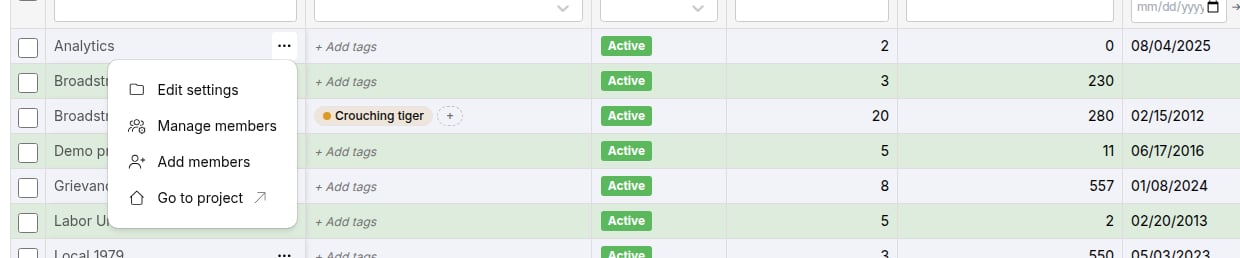 * **Edit settings** -- opens the project's general settings dialog.
* **Manage members** -- opens a panel listing the project's current members, where you can deactivate or reactivate memberships.
* **Add members** -- opens the Add members page for the project.
* **Go to project** -- opens the project itself in a new browser tab.
## Add members to a project
Select **Add members** from a project's actions menu to open its Add members page.
* **Edit settings** -- opens the project's general settings dialog.
* **Manage members** -- opens a panel listing the project's current members, where you can deactivate or reactivate memberships.
* **Add members** -- opens the Add members page for the project.
* **Go to project** -- opens the project itself in a new browser tab.
## Add members to a project
Select **Add members** from a project's actions menu to open its Add members page.
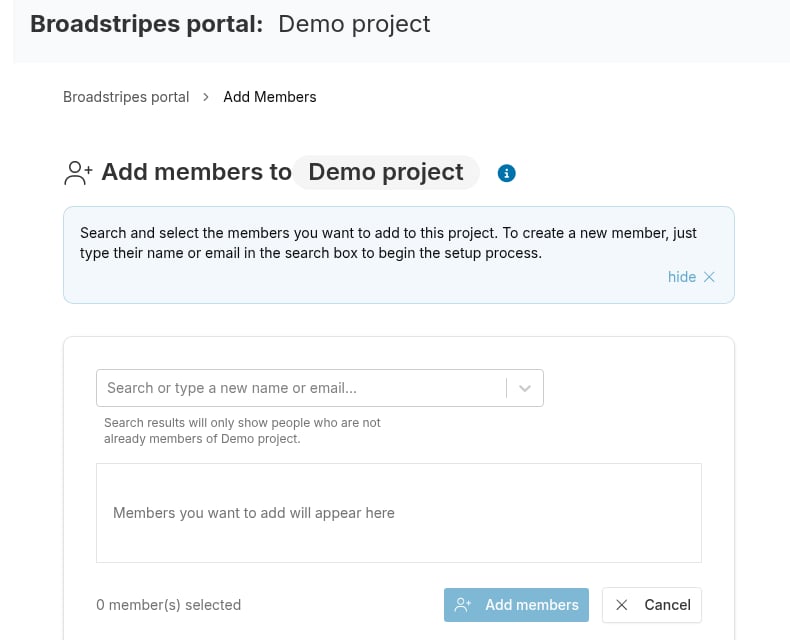 Use the search box to find people. Results only show people who belong to at least one other project in your group and are not already members of this project. Each result shows the person's name, email, and how many of your group's projects they belong to.
### Set the role and permissions
Selecting a person opens the **Assign project membership role** dialog. Your selections apply only to this person's membership in this project.
Use the search box to find people. Results only show people who belong to at least one other project in your group and are not already members of this project. Each result shows the person's name, email, and how many of your group's projects they belong to.
### Set the role and permissions
Selecting a person opens the **Assign project membership role** dialog. Your selections apply only to this person's membership in this project.
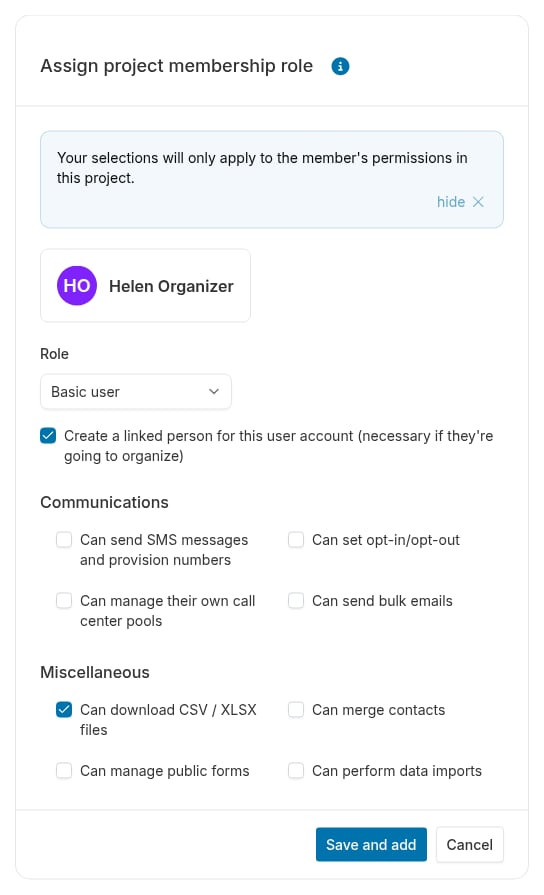 * **Role** (required) -- **Admin** or **Basic user**.
* **Create a linked person for this user account** -- checked by default; creates a person record for the user so they can organize. Not available on read-only projects.
* **Permissions** -- once you pick a role, checkboxes appear for communications permissions (sending SMS, setting opt-in/opt-out, managing call center pools, sending bulk emails) and miscellaneous permissions (downloading files, merging contacts, and more). The available options vary by role -- for example, only admins can be given **Can manage members**, and only basic users need **Can manage public forms** or **Can perform data imports** granted explicitly.
Click **Save and add** to stage the person, or **Cancel** to close without adding them.
### Add someone who is new to Broadstripes
To invite a person who doesn't have a user account yet, type their name or email address in the search box and select **Create a new member named "..."**. A short setup wizard walks you through three steps:
1. **Create user account** -- first name, last name, and email address, plus an optional note for the invitation email.
2. **Assign membership role** -- the same role and permission choices described above.
3. **Finish** -- a review of what happens next.
The new person is staged in your selection list; their account isn't created until you save the whole list.
### Save your selections
Staged people appear as removable chips with their role badge, and an amber reminder reads **Pending. Click 'Add members' to save.** Nothing is saved until you click the **Add members** button, which shows a count of how many people you're adding.
When you save, Broadstripes adds the members, emails an activation link to anyone you invited as a new user, and returns you to the union portal dashboard with a confirmation toast.
If you leave the Add members page with people still staged, your selections are discarded. Broadstripes warns you before you leave.
## Deactivate or reactivate a membership
Removing someone from a project is done by **deactivating** their membership -- memberships are never deleted, so you can always reactivate them later.
Select **Manage members** from a project's actions menu to open the project members panel. It lists each member's name, email, last active date, membership status, and role.
* **Role** (required) -- **Admin** or **Basic user**.
* **Create a linked person for this user account** -- checked by default; creates a person record for the user so they can organize. Not available on read-only projects.
* **Permissions** -- once you pick a role, checkboxes appear for communications permissions (sending SMS, setting opt-in/opt-out, managing call center pools, sending bulk emails) and miscellaneous permissions (downloading files, merging contacts, and more). The available options vary by role -- for example, only admins can be given **Can manage members**, and only basic users need **Can manage public forms** or **Can perform data imports** granted explicitly.
Click **Save and add** to stage the person, or **Cancel** to close without adding them.
### Add someone who is new to Broadstripes
To invite a person who doesn't have a user account yet, type their name or email address in the search box and select **Create a new member named "..."**. A short setup wizard walks you through three steps:
1. **Create user account** -- first name, last name, and email address, plus an optional note for the invitation email.
2. **Assign membership role** -- the same role and permission choices described above.
3. **Finish** -- a review of what happens next.
The new person is staged in your selection list; their account isn't created until you save the whole list.
### Save your selections
Staged people appear as removable chips with their role badge, and an amber reminder reads **Pending. Click 'Add members' to save.** Nothing is saved until you click the **Add members** button, which shows a count of how many people you're adding.
When you save, Broadstripes adds the members, emails an activation link to anyone you invited as a new user, and returns you to the union portal dashboard with a confirmation toast.
If you leave the Add members page with people still staged, your selections are discarded. Broadstripes warns you before you leave.
## Deactivate or reactivate a membership
Removing someone from a project is done by **deactivating** their membership -- memberships are never deleted, so you can always reactivate them later.
Select **Manage members** from a project's actions menu to open the project members panel. It lists each member's name, email, last active date, membership status, and role.
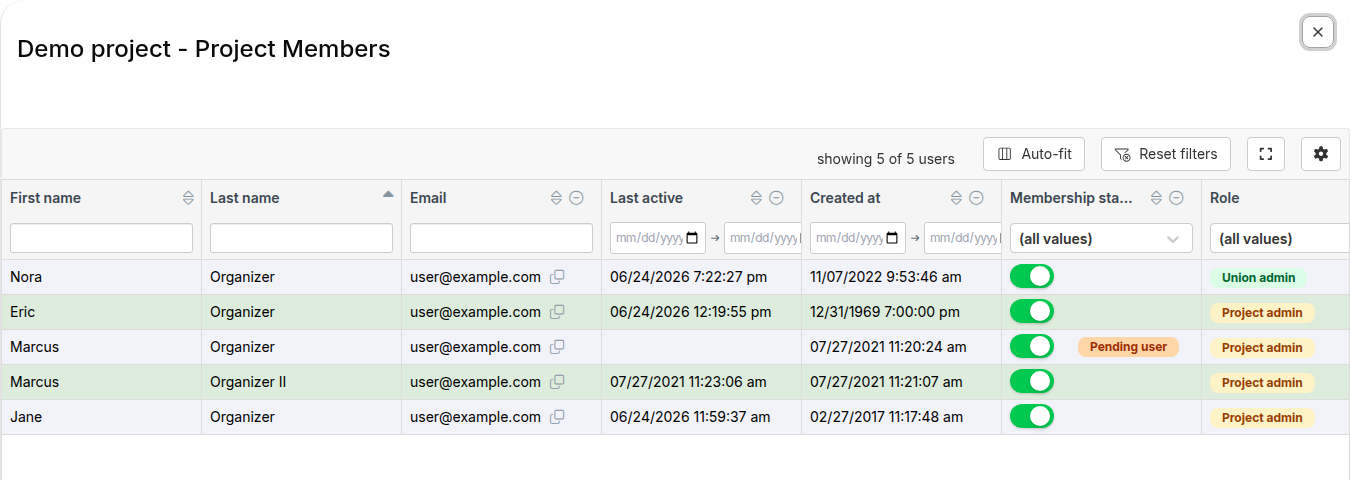 The **Membership status** column holds a toggle for each member. Switch it off to deactivate the membership, or on to reactivate it. The change takes effect immediately -- there is no confirmation step -- and a toast confirms the update.
## View one person's memberships across projects
From the **Users** tab of the dashboard, hover over a person's **Membership status** cell and click the **View user memberships** icon (). You can also select a person from the union portal header search.
The **Membership status** column holds a toggle for each member. Switch it off to deactivate the membership, or on to reactivate it. The change takes effect immediately -- there is no confirmation step -- and a toast confirms the update.
## View one person's memberships across projects
From the **Users** tab of the dashboard, hover over a person's **Membership status** cell and click the **View user memberships** icon (). You can also select a person from the union portal header search.
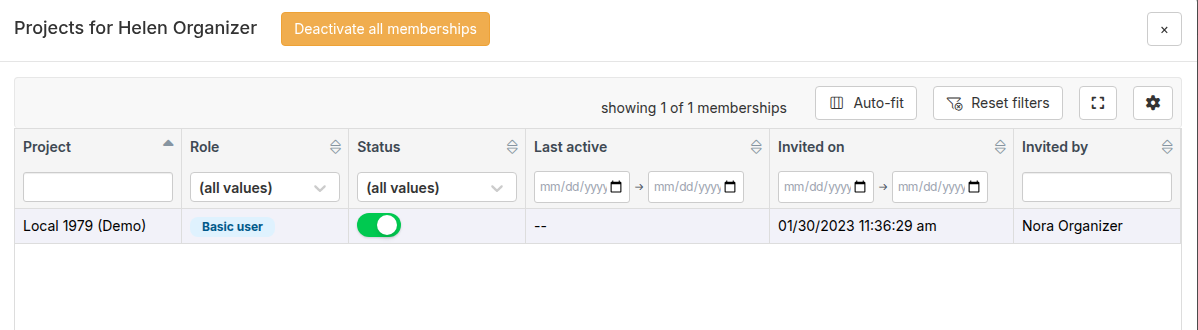 The dialog lists every project membership the person has in your group, with their role, status, last active date, and who invited them. From here you can:
* Toggle any single membership's **Status** to deactivate or reactivate it, just like in the project members panel.
* Click **Deactivate all memberships** to deactivate the person's memberships in every project at once -- useful when someone leaves your organization.
This dialog is for reviewing and deactivating only. To add the person to another project, use that project's **Add members** page.
The dialog lists every project membership the person has in your group, with their role, status, last active date, and who invited them. From here you can:
* Toggle any single membership's **Status** to deactivate or reactivate it, just like in the project members panel.
* Click **Deactivate all memberships** to deactivate the person's memberships in every project at once -- useful when someone leaves your organization.
This dialog is for reviewing and deactivating only. To add the person to another project, use that project's **Add members** page.