> ## Documentation Index
> Fetch the complete documentation index at: https://help.broadstripes.com/llms.txt
> Use this file to discover all available pages before exploring further.
# Making call center calls
This guide walks you through making calls using the Broadstripes call center. Whether you're calling for a phone bank, voter outreach, or member engagement campaign, you'll use the same interface and follow similar steps. The call center handles all the technical details—you focus on having great conversations with people.
### Starting a call session
**Step 1: Access the call pool link**
A project admin will provide a link that looks like:
`https://crm.broadstripes.com/call_center/ABC123/start`
Click the link to begin.
**Step 2: Enter your information**
You'll see a form requesting:
* **Full name**: Enter your first and last name as you want it to appear to people you call
* Example: "Maria Garcia" not "M. Garcia" or "Maria G."
* This name will appear in call records and may be visible in scripts
* **Email** (optional but recommended)
* **Phone number** (optional): Your contact number
 **Important**: Your information is saved in cookies, so you won't need to re-enter it next time you call from the same device.
**Step 3: Enter password (if required)**
Some pools are password-protected. Enter the password provided by your project admin.
**Step 4: Review instructions**
Read any special instructions provided for this calling campaign.
**Step 5: Start calling**
What you see at this point depends on the pool type the project admin set up.
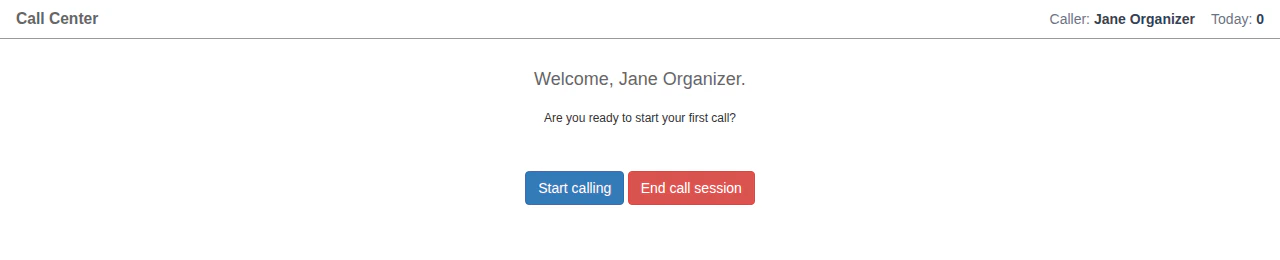
**Random pools**: You see a simple welcome screen with a single **Start calling** button. The system picks who to call next — you don't choose. Click **Start calling** and the system assigns you the first person.
**Important**: Your information is saved in cookies, so you won't need to re-enter it next time you call from the same device.
**Step 3: Enter password (if required)**
Some pools are password-protected. Enter the password provided by your project admin.
**Step 4: Review instructions**
Read any special instructions provided for this calling campaign.
**Step 5: Start calling**
What you see at this point depends on the pool type the project admin set up.
**Random pools**: You see a simple welcome screen with a single **Start calling** button. The system picks who to call next — you don't choose. Click **Start calling** and the system assigns you the first person.
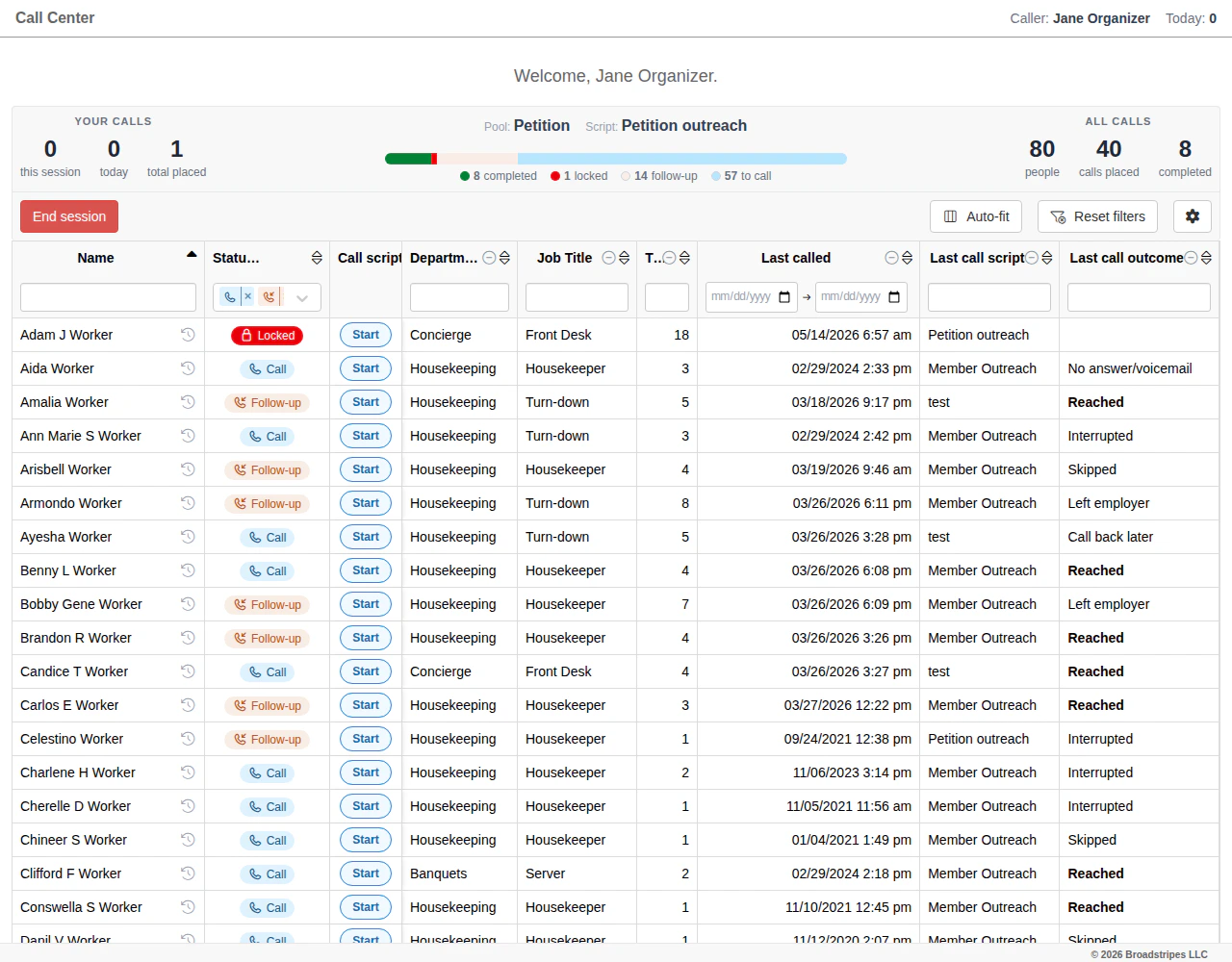
 **List call pools**: You see the full list of people in the pool along with a session metrics dashboard at the top. Each person displays a **Status** badge showing whether they still need to be called (**Call**), need a follow-up (**Follow-up**), have already been reached (**Complete**), or are currently being called by someone else (**Locked**). By default, the list shows only people with **Call** and **Follow-up** statuses. Click the **Start** button next to the person you want to call.
 ### The calling interface
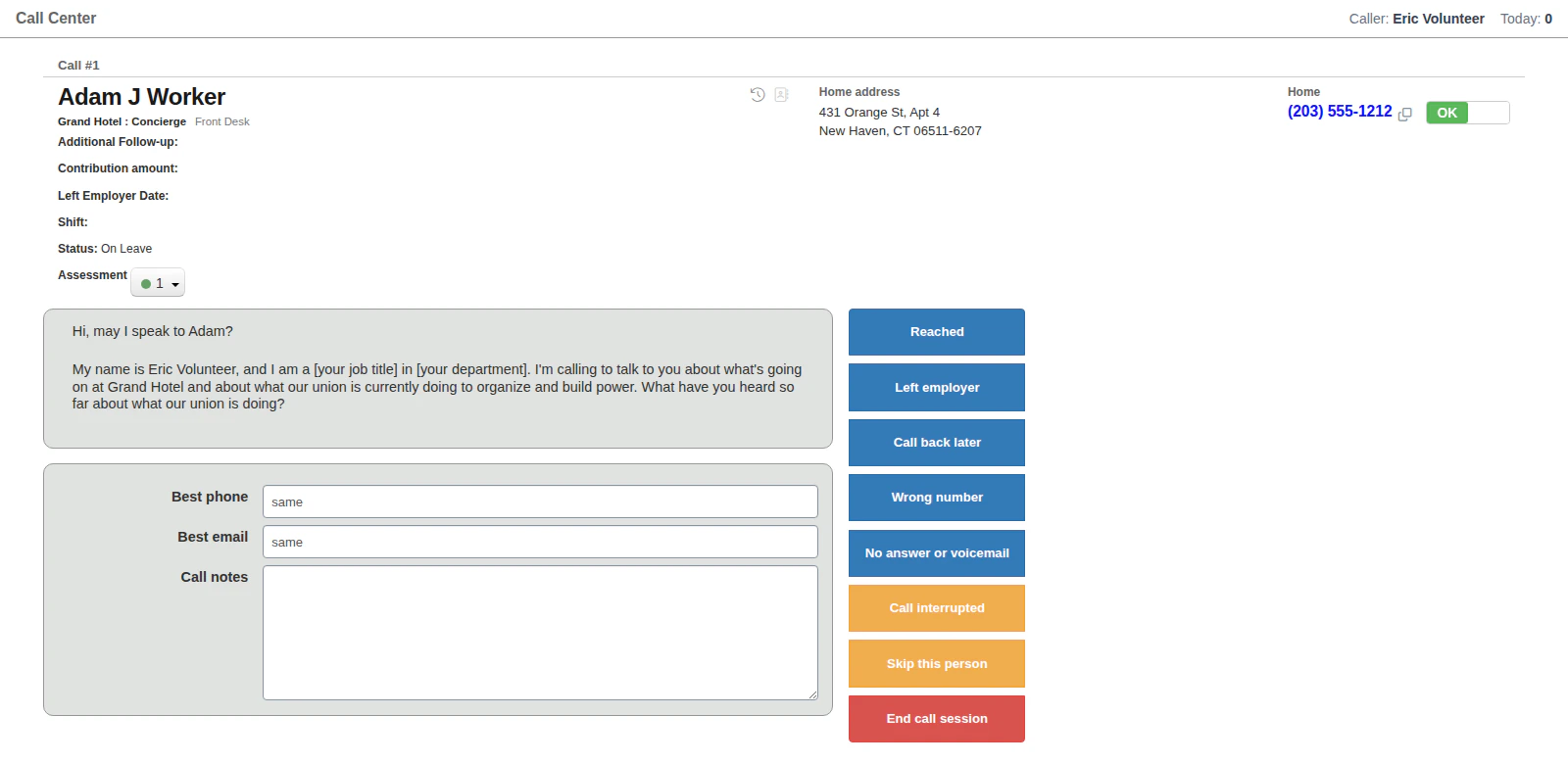
Once you start a call, you'll see:
### The calling interface
Once you start a call, you'll see:
 **Header Section**:
* **Call #**: Your current call number (e.g., "Call #1", "Call #23")
* **Person's name**: Large, clear display
* **Phone numbers**: All available numbers with status toggle
* **Custom fields**: Fields marked by a project admin as "Show in call center"
* **Call history**: Past calls with this person
* **Assessment or code**: Current organizing strength (if enabled)
* **External system data**: External system IDs marked by a project admin as "Show in call center"
**Main Content Area**:
* **Script prompt**: The current conversation text
* **Variables populated**: Names, workplaces, etc. filled in based on person being called
**Navigation Panel**:
(Right side of screen on desktop; Bottom of screen on mobile)
* **Navigation buttons**: Options to progress through the script
* **Go back**: Return to previous script step
* **Skip this person**: Move to next call without completing
* **Call interrupted**: Handle dropped calls
* **End call session**: Stop calling
* **Custom buttons**: Any custom buttons added to the script (may be used for navigation or event step checkoffs)
### Viewing Call History
Click the **rotating clock icon** :
* **Date and time** of previous calls
* **Caller name**: Who made the call
* **Script used**: Which campaign
* **Outcome**: How the call ended
**Why This Helps**:
* Avoid asking questions they already answered
* Reference previous conversations ("Last time we talked, you mentioned...")
* Understand their engagement level
* Provide continuity across calls
### Following the Script Flow
The call center does not automatically dial a phone number for you. You will need to dial the phone number provided in the call center header yourself.
##### Reading Prompts
Prompts display with variables filled in. Read naturally:
**Script Shows**:
> "Hi Maria, this is John Smith calling from Local 123. According to our records, you work at ABC Manufacturing. Do you have a moment?"
**You Say** (naturally):
> "Hi Maria, this is John Smith calling from Local 123. I see you work at ABC Manufacturing - do you have a quick moment to chat?"
##### Clicking buttons
When the person responds, click the button that matches their answer:
**Person Says**: "Yes, I have a few minutes"
**You Click**: "Yes, I have time" button
**Person Says**: "I'm really busy right now"
**You Click**: "Not right now" button
The script automatically moves to the next node.
##### Filling in custom fields
When you reach a custom field on a page:
1. Read the prompt/question to the person
2. Listen to their response
3. Enter their answer in the field
4. Click the appropriate button to continue
**Example**:
* **Prompt**: "What's your biggest workplace concern?"
* **Person responds**: "The mandatory overtime is exhausting"
* **You type**: "Mandatory overtime causing exhaustion"
* **Click**: "Continue"
- Type while the person talks to save time
- Paraphrase if needed to keep it concise
- Use their words when possible for authenticity
##### Handling required fields
Fields marked REQUIRED must be filled before you can proceed:
* The button won't work until the field has content
* If the person refuses to answer, type "Declined to answer" or similar
### Managing phone numbers
All phone numbers for the person are displayed at the top:
* (203) 555-1234 (Home)
* (203) 555-5678 (Cell)
* (203) 555-9012 (Other)
#### Marking bad numbers
If a number doesn't work:
1. Click the **toggle** next to the number
**Header Section**:
* **Call #**: Your current call number (e.g., "Call #1", "Call #23")
* **Person's name**: Large, clear display
* **Phone numbers**: All available numbers with status toggle
* **Custom fields**: Fields marked by a project admin as "Show in call center"
* **Call history**: Past calls with this person
* **Assessment or code**: Current organizing strength (if enabled)
* **External system data**: External system IDs marked by a project admin as "Show in call center"
**Main Content Area**:
* **Script prompt**: The current conversation text
* **Variables populated**: Names, workplaces, etc. filled in based on person being called
**Navigation Panel**:
(Right side of screen on desktop; Bottom of screen on mobile)
* **Navigation buttons**: Options to progress through the script
* **Go back**: Return to previous script step
* **Skip this person**: Move to next call without completing
* **Call interrupted**: Handle dropped calls
* **End call session**: Stop calling
* **Custom buttons**: Any custom buttons added to the script (may be used for navigation or event step checkoffs)
### Viewing Call History
Click the **rotating clock icon** :
* **Date and time** of previous calls
* **Caller name**: Who made the call
* **Script used**: Which campaign
* **Outcome**: How the call ended
**Why This Helps**:
* Avoid asking questions they already answered
* Reference previous conversations ("Last time we talked, you mentioned...")
* Understand their engagement level
* Provide continuity across calls
### Following the Script Flow
The call center does not automatically dial a phone number for you. You will need to dial the phone number provided in the call center header yourself.
##### Reading Prompts
Prompts display with variables filled in. Read naturally:
**Script Shows**:
> "Hi Maria, this is John Smith calling from Local 123. According to our records, you work at ABC Manufacturing. Do you have a moment?"
**You Say** (naturally):
> "Hi Maria, this is John Smith calling from Local 123. I see you work at ABC Manufacturing - do you have a quick moment to chat?"
##### Clicking buttons
When the person responds, click the button that matches their answer:
**Person Says**: "Yes, I have a few minutes"
**You Click**: "Yes, I have time" button
**Person Says**: "I'm really busy right now"
**You Click**: "Not right now" button
The script automatically moves to the next node.
##### Filling in custom fields
When you reach a custom field on a page:
1. Read the prompt/question to the person
2. Listen to their response
3. Enter their answer in the field
4. Click the appropriate button to continue
**Example**:
* **Prompt**: "What's your biggest workplace concern?"
* **Person responds**: "The mandatory overtime is exhausting"
* **You type**: "Mandatory overtime causing exhaustion"
* **Click**: "Continue"
- Type while the person talks to save time
- Paraphrase if needed to keep it concise
- Use their words when possible for authenticity
##### Handling required fields
Fields marked REQUIRED must be filled before you can proceed:
* The button won't work until the field has content
* If the person refuses to answer, type "Declined to answer" or similar
### Managing phone numbers
All phone numbers for the person are displayed at the top:
* (203) 555-1234 (Home)
* (203) 555-5678 (Cell)
* (203) 555-9012 (Other)
#### Marking bad numbers
If a number doesn't work:
1. Click the **toggle** next to the number
 2. It changes from ✓ (OK) to ✗ (BAD)
3. Changes save when you complete the call
**Why this matters**:
* Future callers won't waste time on bad numbers
* Data quality improves over time
**Common bad number scenarios**:
* "This number is not in service"
* "Wrong person answers"
* "Number constantly busy"
* "Voicemail says person doesn't live there"
### Sending SMS messages
If your script includes SMS capability:
**When to send**
The script will show a button like:
* "Send to (123) 555-1234 (opted-in)"
2. It changes from ✓ (OK) to ✗ (BAD)
3. Changes save when you complete the call
**Why this matters**:
* Future callers won't waste time on bad numbers
* Data quality improves over time
**Common bad number scenarios**:
* "This number is not in service"
* "Wrong person answers"
* "Number constantly busy"
* "Voicemail says person doesn't live there"
### Sending SMS messages
If your script includes SMS capability:
**When to send**
The script will show a button like:
* "Send to (123) 555-1234 (opted-in)"
 This appears when:
* The person has a cell phone number
* Your project has a SMS number provisioned
* The script includes an SMS message
**How to send**
1. Verbally confirm: "Can I text you this information?"
2. If they agree, click the **Send** button
3. The message is sent immediately
**SMS template example**:
> "Hi %first-name%! Union info meeting Thursday 6pm at Local 123 Hall, 100 Main St. Questions? Reply to this text."
* Messages are sent from a virtual SMS number provisioned in the project This means the people you call won't see your actual phone number.
* People can reply to texts
* Merge tokens (like %VoterFile-ID%) are automatically replaced
### Working with assessment/codes
If enabled in your project, you can view and update assessment/codes during calls (Assessments will vary based on your union and project).
**Assessment scale** (typical):
* **0**: Unassessed
* **1**: Strong Union supporter
* **2**: Union supporter
* **3**: Undecided
* **4**: Leaning Hostile
* **5**: Hostile
**How to update**:
1. Click the current assessment code
2. Select the new code from the dropdown
3. Change saves when you complete the call
### Viewing call history
Click the **rotating clock icon** :
* **Date and time** of previous calls
* **Caller name**: Who made the call
* **Script used**: Which campaign
* **Outcome**: How the call ended
**Why this helps**:
* Avoid asking questions they already answered
* Reference previous conversations ("Last time we talked, you mentioned...")
* Understand their engagement level
* Provide continuity across calls
### Handling common scenarios
**Wrong number**
1. Mark the phone number as bad
2. If other numbers are available, try another
3. If no working numbers, skip the person
**Person asks to be removed from calling list**
1. Follow the script's "Do not call" or "Remove from list" path
2. If no such path exists:
* Click **Skip**
* Make a note in a supplemental field if available
3. Report to project admin that this person requested removal
**Call gets disconnected**
1. Click **Call interrupted**
2. Choose:
* **Resume call** if attempts to reconnect to person are successful
* **End call** if attempts to reconnect to person are not successful. This will move you to the next person in the pool.
#### Technical issues
**Page freezes or won't advance**:
1. Click **Go back** in the navigation panel and try again
2. If that doesn't work, refresh the page (you'll lose progress on this call)
3. Report the issue to Broadstripes support
**Can't hear them / they can't hear you**:
* This is a phone issue, not an app issue
* Use your regular phone troubleshooting (check volume, connection, etc.)
### Completing a call
When you reach a `Call Complete` button in the script:
**Automatic data save**
1. Review all the data you collected
2. Verify custom fields are filled correctly
3. Check that bad phone numbers are marked
4. Assessment updates are noted
**Supplemental fields**
If the script includes supplemental fields, you'll see them at the bottom of every page of the call:
* "Any additional notes?"
* "Caller observations"
Fill these out if you have relevant information.
**Complete the call**
1. Click **Call complete**
2. All data is saved immediately
3. The person is marked as called in this pool
4. Timeline notes are created to log the call on the person's timeline
5. Custom fields are updated
##### What happens after the call is complete
**Random pools**:
* You're immediately shown the next person to call
* Click **Start calling** to continue
* Or click **End session** to stop
**List call pools**:
* You return to the list
* The person you just called updates to **Complete** or **Follow-up** depending on the call outcome
* Choose the next person to call
* Or click **End session**
### Ending your call session
When you're done calling:
1. Click **End session** in the navigation panel or in the list view.
2. You'll see a Thank You message.
3. Close the browser tab to leave the call center.
**Important**: Always end your session properly to ensure:
* Call locks are released
* Final data is saved
* Accurate time tracking
***
### Caller training tips
**Before the Phone Bank**:
1. **Review the Script**
* Walk through the script together
* Practice different paths
* Role-play common scenarios
2. **Set Expectations**
* How many calls are expected
* What outcomes are good
* How to handle difficult calls
3. **Technical Walkthrough**
* Show the interface
* Demonstrate navigation
* Practice marking bad numbers
* Test SMS sending (if applicable)
4. **Provide Talking Points**
* Key facts and figures
* Answers to common questions
* Campaign messaging
5. **Establish Support**
* Who to ask if stuck
* How to escalate issues
This appears when:
* The person has a cell phone number
* Your project has a SMS number provisioned
* The script includes an SMS message
**How to send**
1. Verbally confirm: "Can I text you this information?"
2. If they agree, click the **Send** button
3. The message is sent immediately
**SMS template example**:
> "Hi %first-name%! Union info meeting Thursday 6pm at Local 123 Hall, 100 Main St. Questions? Reply to this text."
* Messages are sent from a virtual SMS number provisioned in the project This means the people you call won't see your actual phone number.
* People can reply to texts
* Merge tokens (like %VoterFile-ID%) are automatically replaced
### Working with assessment/codes
If enabled in your project, you can view and update assessment/codes during calls (Assessments will vary based on your union and project).
**Assessment scale** (typical):
* **0**: Unassessed
* **1**: Strong Union supporter
* **2**: Union supporter
* **3**: Undecided
* **4**: Leaning Hostile
* **5**: Hostile
**How to update**:
1. Click the current assessment code
2. Select the new code from the dropdown
3. Change saves when you complete the call
### Viewing call history
Click the **rotating clock icon** :
* **Date and time** of previous calls
* **Caller name**: Who made the call
* **Script used**: Which campaign
* **Outcome**: How the call ended
**Why this helps**:
* Avoid asking questions they already answered
* Reference previous conversations ("Last time we talked, you mentioned...")
* Understand their engagement level
* Provide continuity across calls
### Handling common scenarios
**Wrong number**
1. Mark the phone number as bad
2. If other numbers are available, try another
3. If no working numbers, skip the person
**Person asks to be removed from calling list**
1. Follow the script's "Do not call" or "Remove from list" path
2. If no such path exists:
* Click **Skip**
* Make a note in a supplemental field if available
3. Report to project admin that this person requested removal
**Call gets disconnected**
1. Click **Call interrupted**
2. Choose:
* **Resume call** if attempts to reconnect to person are successful
* **End call** if attempts to reconnect to person are not successful. This will move you to the next person in the pool.
#### Technical issues
**Page freezes or won't advance**:
1. Click **Go back** in the navigation panel and try again
2. If that doesn't work, refresh the page (you'll lose progress on this call)
3. Report the issue to Broadstripes support
**Can't hear them / they can't hear you**:
* This is a phone issue, not an app issue
* Use your regular phone troubleshooting (check volume, connection, etc.)
### Completing a call
When you reach a `Call Complete` button in the script:
**Automatic data save**
1. Review all the data you collected
2. Verify custom fields are filled correctly
3. Check that bad phone numbers are marked
4. Assessment updates are noted
**Supplemental fields**
If the script includes supplemental fields, you'll see them at the bottom of every page of the call:
* "Any additional notes?"
* "Caller observations"
Fill these out if you have relevant information.
**Complete the call**
1. Click **Call complete**
2. All data is saved immediately
3. The person is marked as called in this pool
4. Timeline notes are created to log the call on the person's timeline
5. Custom fields are updated
##### What happens after the call is complete
**Random pools**:
* You're immediately shown the next person to call
* Click **Start calling** to continue
* Or click **End session** to stop
**List call pools**:
* You return to the list
* The person you just called updates to **Complete** or **Follow-up** depending on the call outcome
* Choose the next person to call
* Or click **End session**
### Ending your call session
When you're done calling:
1. Click **End session** in the navigation panel or in the list view.
2. You'll see a Thank You message.
3. Close the browser tab to leave the call center.
**Important**: Always end your session properly to ensure:
* Call locks are released
* Final data is saved
* Accurate time tracking
***
### Caller training tips
**Before the Phone Bank**:
1. **Review the Script**
* Walk through the script together
* Practice different paths
* Role-play common scenarios
2. **Set Expectations**
* How many calls are expected
* What outcomes are good
* How to handle difficult calls
3. **Technical Walkthrough**
* Show the interface
* Demonstrate navigation
* Practice marking bad numbers
* Test SMS sending (if applicable)
4. **Provide Talking Points**
* Key facts and figures
* Answers to common questions
* Campaign messaging
5. **Establish Support**
* Who to ask if stuck
* How to escalate issues