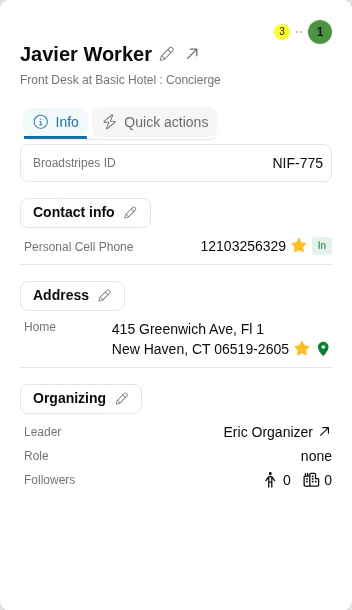
 2. In the **Quick view** dialog, click the **Contact info** section header (which displays a **pencil icon**) to open the contact info editor.
 3. Click the **+Add phone/email button** to add a new phone number, or just begin typing to update an existing number.
4. Select **"Cell Phone"** as the phone type.
3. Click the **+Add phone/email button** to add a new phone number, or just begin typing to update an existing number.
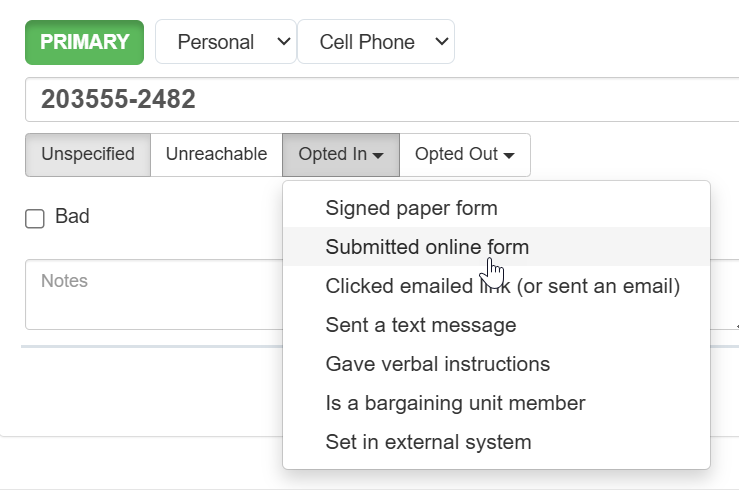
4. Select **"Cell Phone"** as the phone type.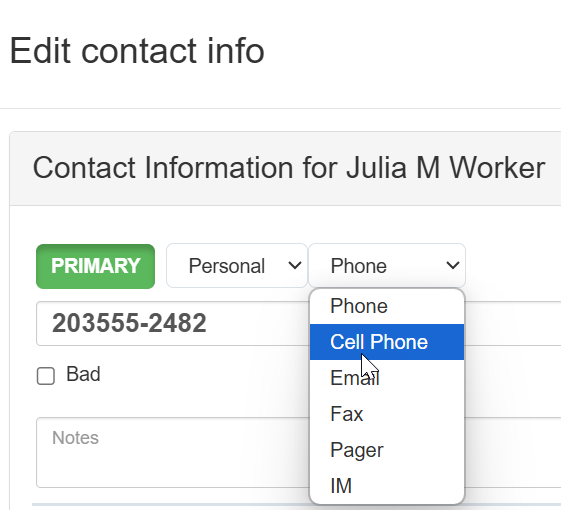 5. Choose the appropriate opted in reason under the **"Opted In"** drop-down menu.
 6. Scroll down and click **Save**.\\
 7. The worker has now been opted in to receive SMS text messages using Broadstripes. Check out the full [Text messaging article](/docs/communications/bulk-actions-send-sms-text-message/) if you'd like to learn about how to send SMS text messages.
### Opt in multiple workers' cell phones at one time with a Bulk Action
1. Open a tag list or run a search to find all of the workers you want opted in. (If you need help running a search, check out the [Search documentation](/docs/search/search-builder-build-an-advanced-search) articles.)
2. [Select the workers](/docs/viewing-search-results-and-edit/selecting-deselecting-contacts/) you want to mark "Opted In." For this example we'll select all 95 workers in our search results.
7. The worker has now been opted in to receive SMS text messages using Broadstripes. Check out the full [Text messaging article](/docs/communications/bulk-actions-send-sms-text-message/) if you'd like to learn about how to send SMS text messages.
### Opt in multiple workers' cell phones at one time with a Bulk Action
1. Open a tag list or run a search to find all of the workers you want opted in. (If you need help running a search, check out the [Search documentation](/docs/search/search-builder-build-an-advanced-search) articles.)
2. [Select the workers](/docs/viewing-search-results-and-edit/selecting-deselecting-contacts/) you want to mark "Opted In." For this example we'll select all 95 workers in our search results. 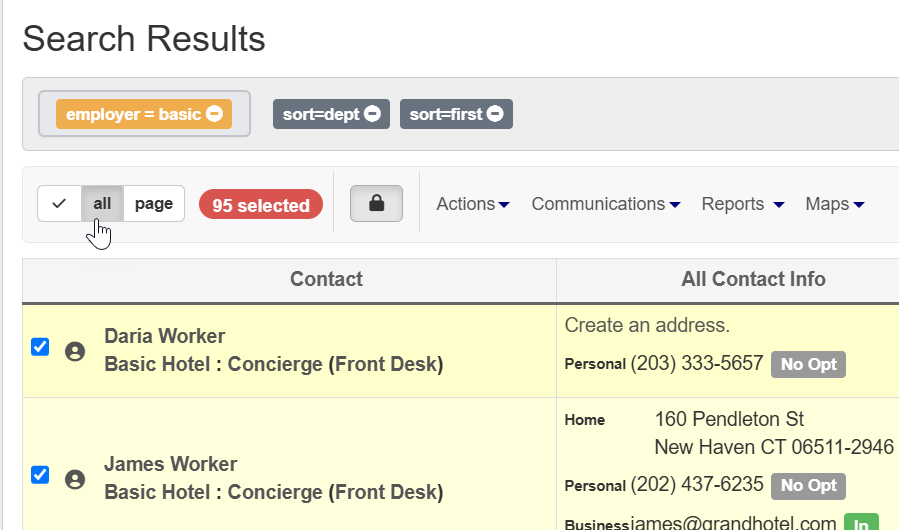 3. Under **Actions**, choose “**Text Messaging Permissions.**”
 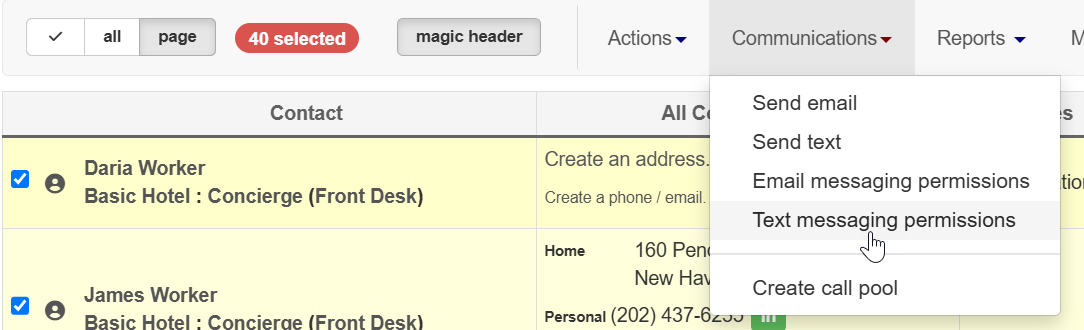 4. Choose an opted in reason from the **"Opted In"** drop-down menu.
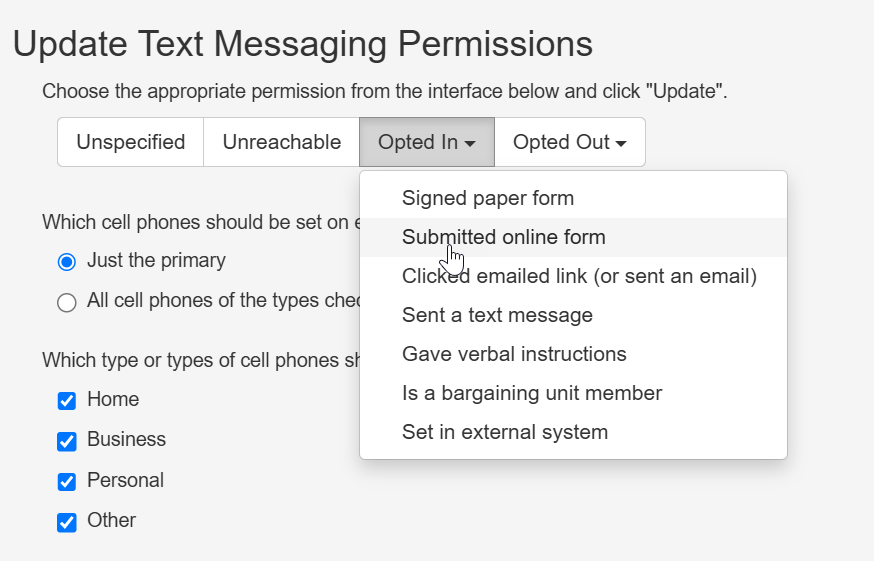 5. Click **Update** to save.
6. All of the selected workers have now been opted in to receive SMS text messages from Broadstripes. Check out the full [Text messaging article](/docs/communications/bulk-actions-send-sms-text-message/) if you'd like to learn about how to send SMS text messages.
5. Click **Update** to save.
6. All of the selected workers have now been opted in to receive SMS text messages from Broadstripes. Check out the full [Text messaging article](/docs/communications/bulk-actions-send-sms-text-message/) if you'd like to learn about how to send SMS text messages.