> ## Documentation Index
> Fetch the complete documentation index at: https://help.broadstripes.com/llms.txt
> Use this file to discover all available pages before exploring further.
# Quick check-off
> Check off event steps for multiple people quickly using the Quick check-off dialog
The **Quick check-off** dialog lets you record event step check-offs for multiple contacts in rapid succession -- search by name, click (or press Enter) to check off, and move on to the next person without leaving the dialog. It is designed for high-volume field-reporting situations where you need to log the same step for a long list of people quickly.
## Opening Quick check-off
There are three ways to open the Quick check-off dialog:
* **Sidebar link** -- click **Quick check-off...** ( with a lightning bolt badge) in the left sidebar. This option is visible to all non-read-only users.
* **Keyboard shortcut** -- press **Ctrl+Q** (Windows/Linux) or **Control+Q** (Mac) from any page.
* **Events page** -- on the Events admin page, hover over any event step row and click the Quick check-off button that appears. The dialog opens pre-targeted at that step.
 ## Using the dialog
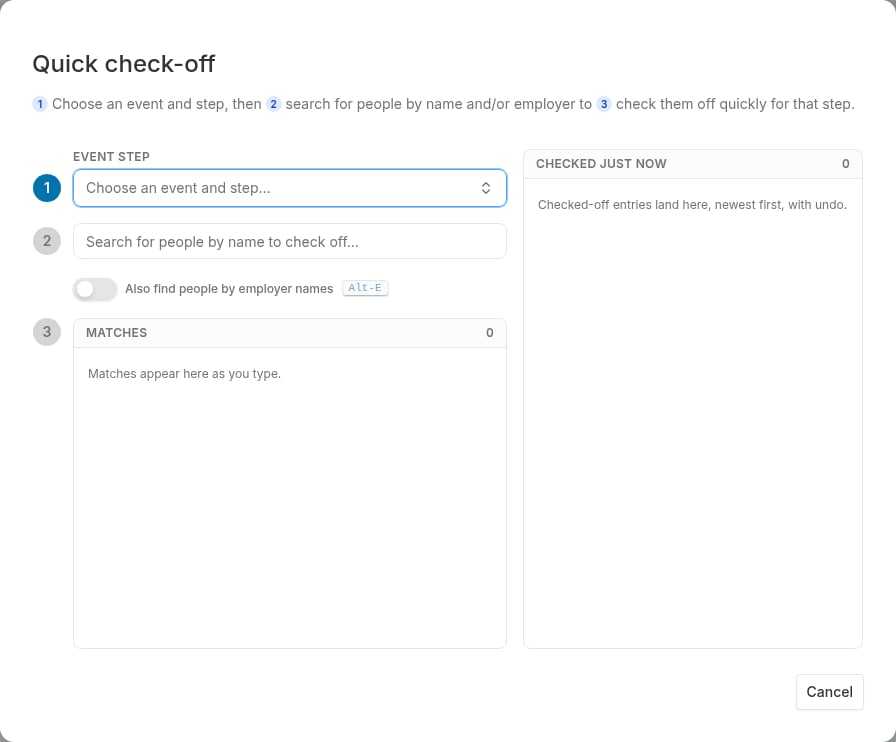
The dialog is divided into two panes: a **left pane** for the check-off loop and a **right pane** showing the session log.
### Step 1: Choose an event step
The first row in the left pane is the **Event step** chooser. Click it to open a searchable menu of all active event steps, grouped by event. Steps you have used recently appear at the top under **Recently used**.
* Start typing in the chooser to filter steps by event or step name. Multiple words are supported -- "rally att" finds "Rally: Attending".
* If you opened the dialog from the Events page, the step is already selected and focus moves to the search box.
### Step 2: Search for people
Type a name (at least two characters) in the search box to find matching contacts. Results appear in the **Matches** list as you type.
* Use the **arrow keys** or **Page Up/Down** to move through the list without leaving the search box.
* Press **Enter** to check off the highlighted match, or click any row.
If there are more matches than the dialog can display, a note at the bottom of the list shows the total count: "Showing first 100 of N -- keep typing to narrow."
#### Find people by employer name
Turn on **Also find people by employer names** to include people whose workplace matches your search term in addition to their own name. The dialog also searches parent organizations in the employer hierarchy, so searching for a parent company name surfaces workers at all its subsidiaries.
Toggle this setting with the **Alt+E** (Windows/Linux) or **Option+E** (Mac) shortcut from anywhere in the dialog.
### Step 3: Check people off
Click a match (or press **Enter**) to check that person into the currently selected step. Each check-off is applied immediately -- the dialog does not require a final confirm. The person's name appears in the **Checked just now** log on the right.
Checked-off entries disappear from the Matches list automatically. Switch to a different step at any time to continue checking off for that step.
## The session log and undo
The right pane, **Checked just now**, shows everyone you have checked off during this session, newest first. Click **Undo** on any entry to reverse that check-off. Undone entries are removed from the log.
Undo is not available for single-choice replacements. When you check someone into a step in a single-choice event and that check-off automatically replaced a previous step, the log shows what was replaced but does not offer an Undo button, because reversing only one half of the replacement could leave the record in an inconsistent state.
## Single-choice and timeline-tracked events
The step chooser shows badges next to steps to help you understand how they behave:
* **Single choice** -- only one step in this event can be checked at a time. Checking a new step automatically unchecks the previous one.
* **Timeline** () -- checking or unchecking this step adds a note to the contact's timeline.
The **Event step details** panel in the upper-right corner of the dialog also shows the event description and the number of contacts previously checked for the selected step.
## Closing the dialog
* Click **Cancel** (if no check-offs have been recorded) or **Done** (once you have checked someone off) to close the dialog.
* Press **Cmd+Enter** (Mac) or **Ctrl+Enter** (Windows/Linux) to close from anywhere in the dialog.
Check-offs are applied immediately as they happen, so closing the dialog at any point is safe.
## First-time walkthrough
When you open Quick check-off from the sidebar link for the first time (with no step pre-selected), a four-stop guided tour highlights the key areas of the dialog. Click **Next** to advance through the stops, or **Got it** (or **Done** on the last stop) to dismiss the tour. The tour will not appear again after it is dismissed.
## Learn more
* [Create events to track your goals](/docs/customize/create-events-to-track-goals) -- overview of events and event steps
* [Check/uncheck event steps (bulk action)](/docs/viewing-search-results-and-edit/bulk-actions/bulk-actions-assign-event-steps) -- check off a step for many pre-selected contacts at once using bulk actions
## Using the dialog
The dialog is divided into two panes: a **left pane** for the check-off loop and a **right pane** showing the session log.
### Step 1: Choose an event step
The first row in the left pane is the **Event step** chooser. Click it to open a searchable menu of all active event steps, grouped by event. Steps you have used recently appear at the top under **Recently used**.
* Start typing in the chooser to filter steps by event or step name. Multiple words are supported -- "rally att" finds "Rally: Attending".
* If you opened the dialog from the Events page, the step is already selected and focus moves to the search box.
### Step 2: Search for people
Type a name (at least two characters) in the search box to find matching contacts. Results appear in the **Matches** list as you type.
* Use the **arrow keys** or **Page Up/Down** to move through the list without leaving the search box.
* Press **Enter** to check off the highlighted match, or click any row.
If there are more matches than the dialog can display, a note at the bottom of the list shows the total count: "Showing first 100 of N -- keep typing to narrow."
#### Find people by employer name
Turn on **Also find people by employer names** to include people whose workplace matches your search term in addition to their own name. The dialog also searches parent organizations in the employer hierarchy, so searching for a parent company name surfaces workers at all its subsidiaries.
Toggle this setting with the **Alt+E** (Windows/Linux) or **Option+E** (Mac) shortcut from anywhere in the dialog.
### Step 3: Check people off
Click a match (or press **Enter**) to check that person into the currently selected step. Each check-off is applied immediately -- the dialog does not require a final confirm. The person's name appears in the **Checked just now** log on the right.
Checked-off entries disappear from the Matches list automatically. Switch to a different step at any time to continue checking off for that step.
## The session log and undo
The right pane, **Checked just now**, shows everyone you have checked off during this session, newest first. Click **Undo** on any entry to reverse that check-off. Undone entries are removed from the log.
Undo is not available for single-choice replacements. When you check someone into a step in a single-choice event and that check-off automatically replaced a previous step, the log shows what was replaced but does not offer an Undo button, because reversing only one half of the replacement could leave the record in an inconsistent state.
## Single-choice and timeline-tracked events
The step chooser shows badges next to steps to help you understand how they behave:
* **Single choice** -- only one step in this event can be checked at a time. Checking a new step automatically unchecks the previous one.
* **Timeline** () -- checking or unchecking this step adds a note to the contact's timeline.
The **Event step details** panel in the upper-right corner of the dialog also shows the event description and the number of contacts previously checked for the selected step.
## Closing the dialog
* Click **Cancel** (if no check-offs have been recorded) or **Done** (once you have checked someone off) to close the dialog.
* Press **Cmd+Enter** (Mac) or **Ctrl+Enter** (Windows/Linux) to close from anywhere in the dialog.
Check-offs are applied immediately as they happen, so closing the dialog at any point is safe.
## First-time walkthrough
When you open Quick check-off from the sidebar link for the first time (with no step pre-selected), a four-stop guided tour highlights the key areas of the dialog. Click **Next** to advance through the stops, or **Got it** (or **Done** on the last stop) to dismiss the tour. The tour will not appear again after it is dismissed.
## Learn more
* [Create events to track your goals](/docs/customize/create-events-to-track-goals) -- overview of events and event steps
* [Check/uncheck event steps (bulk action)](/docs/viewing-search-results-and-edit/bulk-actions/bulk-actions-assign-event-steps) -- check off a step for many pre-selected contacts at once using bulk actions