> ## Documentation Index
> Fetch the complete documentation index at: https://help.broadstripes.com/llms.txt
> Use this file to discover all available pages before exploring further.
# Saved search quick links
> Create quick links from the saved search dialog to access your most-used searches with one click.
## Overview
If you have a few saved searches that you use more than the rest, **quick links** let you access them with a single click from your dashboard. You can create a quick link directly from any saved search dialog — just choose the output format and you're done.
Quick links support four output formats:
* **Search results** — view records on-screen where you can browse and edit them
* **PDF** — download a PDF file of the search results
* **Spreadsheet (XLSX)** — download a Microsoft Excel spreadsheet
* **Spreadsheet (CSV)** — download a comma-separated values file
## Create a quick link from the saved search dialog
The fastest way to create a quick link is directly from the saved search dialog. You can do this when editing an existing search or when saving a new one.
1. Open the saved search dialog. You can do this from:
* The **Saved Searches** page — click the **actions menu** (⋯) on a search and select **Edit**
* The **search dropdown** in the top navigation — click the edit icon on a saved search
* The **search results** page — click **Save this search** to save a new search
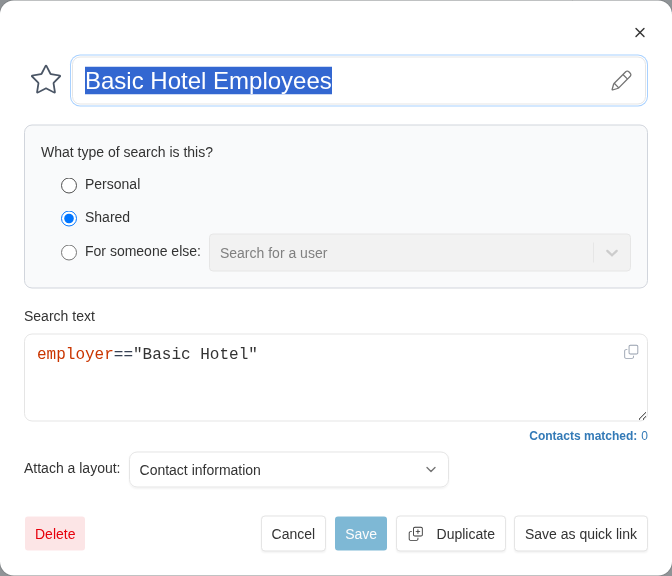
2. In the dialog footer, click **Save as quick link**.
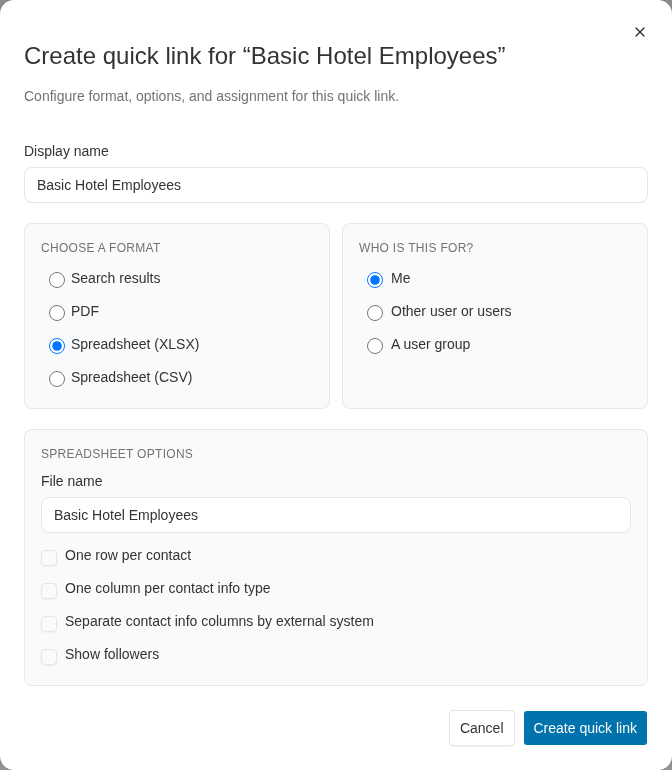
 3. The **Create quick link** dialog opens. Here you can configure:
* **Display name** — the label that appears on your dashboard (defaults to the search name)
* **Format** — choose how you want to see the results
3. The **Create quick link** dialog opens. Here you can configure:
* **Display name** — the label that appears on your dashboard (defaults to the search name)
* **Format** — choose how you want to see the results
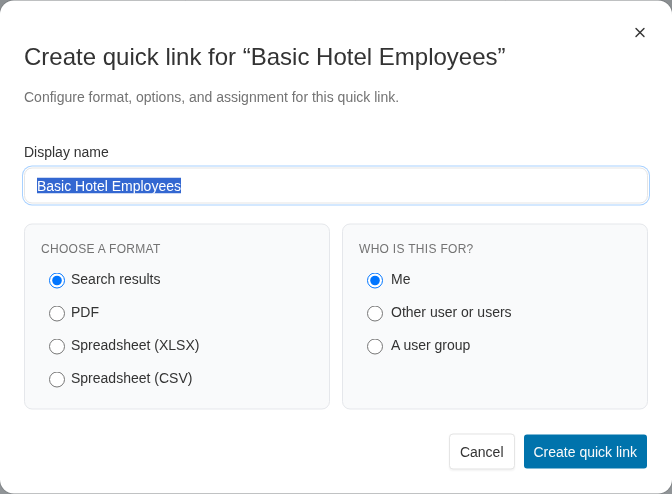 4. Click **Create quick link** to finish. The quick link is added to your dashboard immediately.
If you haven't saved the search yet (creating a new search), clicking **Save as quick link** saves the search first, then opens the quick link dialog. You don't need to save separately.
### PDF options
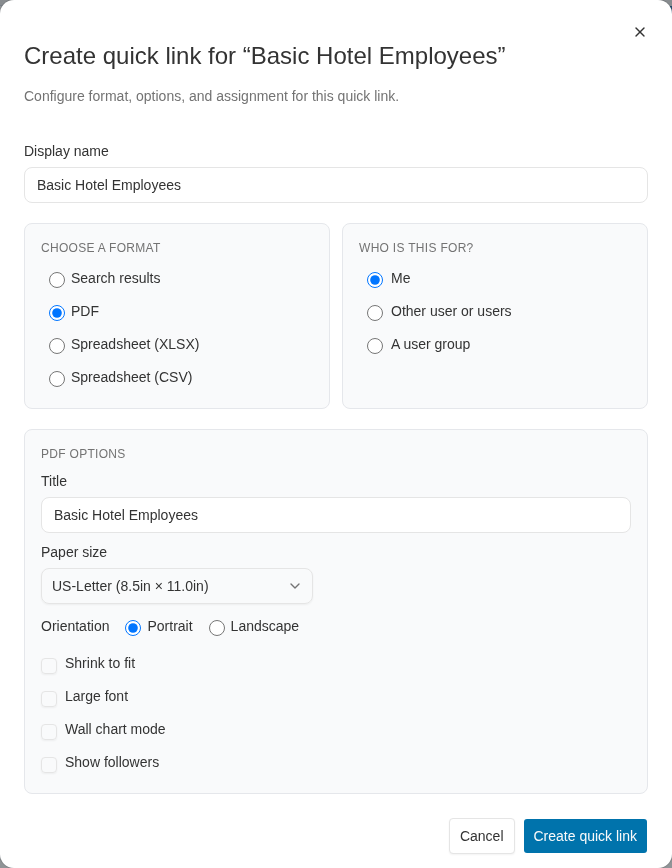
When you select **PDF** as the format, additional options appear:
* **Title** — the title printed on the PDF
* **Paper size** — choose from US-Letter, A4, and other standard sizes
* **Orientation** — portrait or landscape
* **Shrink to fit** — scale content to fit the page width
* **Large font** — increase the font size for readability
* **Wall chart mode** — format the output for large-format printing
* **Show followers** — include follower records in the output
4. Click **Create quick link** to finish. The quick link is added to your dashboard immediately.
If you haven't saved the search yet (creating a new search), clicking **Save as quick link** saves the search first, then opens the quick link dialog. You don't need to save separately.
### PDF options
When you select **PDF** as the format, additional options appear:
* **Title** — the title printed on the PDF
* **Paper size** — choose from US-Letter, A4, and other standard sizes
* **Orientation** — portrait or landscape
* **Shrink to fit** — scale content to fit the page width
* **Large font** — increase the font size for readability
* **Wall chart mode** — format the output for large-format printing
* **Show followers** — include follower records in the output
 ### Spreadsheet options
When you select **Spreadsheet (XLSX)** or **Spreadsheet (CSV)**, additional options appear:
* **File name** — the name of the downloaded file
* **One row per contact** — consolidate multiple rows for the same contact into a single row
* **Value separator** — when using one row per contact, choose how multi-values are separated
* **One column per contact info type** — split contact info into separate columns (with options for metadata placement)
* **Separate contact info columns by external system** — create separate columns for each external system
* **Show followers** — include follower records in the output
### Spreadsheet options
When you select **Spreadsheet (XLSX)** or **Spreadsheet (CSV)**, additional options appear:
* **File name** — the name of the downloaded file
* **One row per contact** — consolidate multiple rows for the same contact into a single row
* **Value separator** — when using one row per contact, choose how multi-values are separated
* **One column per contact info type** — split contact info into separate columns (with options for metadata placement)
* **Separate contact info columns by external system** — create separate columns for each external system
* **Show followers** — include follower records in the output
 ## Assign quick links to other users (administrators)
Administrators see an additional **Who is this for?** section in the quick link creation dialog. This lets you create quick links on behalf of other people:
* **Me** — create the quick link for yourself (the default)
* **Other user or users** — search for and select one or more users to receive the quick link
* **A user group** — select a user group, and all members will receive the quick link
## Assign quick links to other users (administrators)
Administrators see an additional **Who is this for?** section in the quick link creation dialog. This lets you create quick links on behalf of other people:
* **Me** — create the quick link for yourself (the default)
* **Other user or users** — search for and select one or more users to receive the quick link
* **A user group** — select a user group, and all members will receive the quick link
 When you assign a quick link to multiple users or a user group, Broadstripes creates individual quick links for each user. A summary message shows how many were created and how many were skipped (if some users already had that quick link).
If you already have a quick link for a particular search in a given format, the **Me** option will be disabled for that format and a note will indicate the quick link already exists.
## Create a quick link from the Quick Links tab
You can also create quick links from the **Quick Links** tab on your homepage dashboard. This method uses a step-by-step wizard:
1. Go to your **homepage** and open the **Quick Links** tab.
2. Click **edit**, then click **Add new quick link**.
3. Choose **a saved search** as the type of quick link.
4. Select the saved search you want from the list and click **Next**.
5. Choose the **output format** and click **Next**.
6. **Name** the quick link and click **Done**.
For full details on creating quick links from the dashboard, see [Create quick links](/docs/customize/create-a-quick-link).
## Delete a quick link
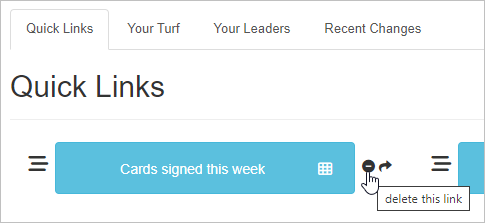
To remove a quick link from your dashboard, click the minus icon next to the quick link button on the **Quick Links** tab. Deleting the link removes it from your dashboard but does not delete the underlying saved search.
When you assign a quick link to multiple users or a user group, Broadstripes creates individual quick links for each user. A summary message shows how many were created and how many were skipped (if some users already had that quick link).
If you already have a quick link for a particular search in a given format, the **Me** option will be disabled for that format and a note will indicate the quick link already exists.
## Create a quick link from the Quick Links tab
You can also create quick links from the **Quick Links** tab on your homepage dashboard. This method uses a step-by-step wizard:
1. Go to your **homepage** and open the **Quick Links** tab.
2. Click **edit**, then click **Add new quick link**.
3. Choose **a saved search** as the type of quick link.
4. Select the saved search you want from the list and click **Next**.
5. Choose the **output format** and click **Next**.
6. **Name** the quick link and click **Done**.
For full details on creating quick links from the dashboard, see [Create quick links](/docs/customize/create-a-quick-link).
## Delete a quick link
To remove a quick link from your dashboard, click the minus icon next to the quick link button on the **Quick Links** tab. Deleting the link removes it from your dashboard but does not delete the underlying saved search.