> ## Documentation Index
> Fetch the complete documentation index at: https://help.broadstripes.com/llms.txt
> Use this file to discover all available pages before exploring further.
# Status report quick links
## Intro
Adding a **status report** to your quick links tab puts up-to-date aggregate counts just a click away. What's more, when you create the quick link, you can select how you want Broadstripes to present the reports: on-screen, or as PDF or Excel files that you can download and use offline.
Once your links are created, Broadstripes remembers your preferences. You'll see the data you need in the correct format – each time – with just the click of a button.
For this example, we want to add a quick link that shows us a status report for all our shops. We'll create the quick link based on a saved status report that's already in Broadstripes, and we'll choose to have the results exported to a PDF so we can print it and share it with others offline.
## Create a quick link for a status report
1. Start on the quick links tab and follow the steps outlined in the article [create a quick link](/docs/customize/create-a-quick-link) to begin.
2. Choose **a status report** as the type of link you want to add and click **Next**.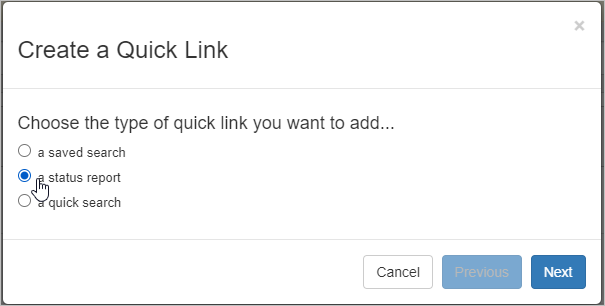 3. You'll see a list of all your saved status reports. Choose the report you want and click **Next**.
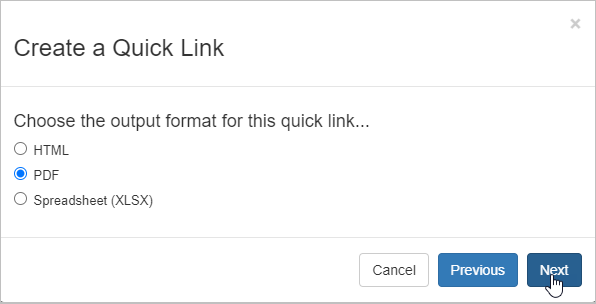
 4. Choose the **output format** you want.
 #### Choosing output formats
**View on-screen:**
* **HTML** – your report appears on-screen where you can view (but not edit) the data.
**Export and save:**
* **PDF** – report is exported as a PDF file (ideal for printing).
* **Spreadsheet (XLSX)** – report is exported as a Microsoft Excel spreadsheet file.
5. For our example, we'll choose **PDF**.
6. **Name** the quick link. This is the name that will appear on the quick link button on our dashboard, so we've noted that it's a PDF to help us remember. Click **Done** to save.
#### Choosing output formats
**View on-screen:**
* **HTML** – your report appears on-screen where you can view (but not edit) the data.
**Export and save:**
* **PDF** – report is exported as a PDF file (ideal for printing).
* **Spreadsheet (XLSX)** – report is exported as a Microsoft Excel spreadsheet file.
5. For our example, we'll choose **PDF**.
6. **Name** the quick link. This is the name that will appear on the quick link button on our dashboard, so we've noted that it's a PDF to help us remember. Click **Done** to save.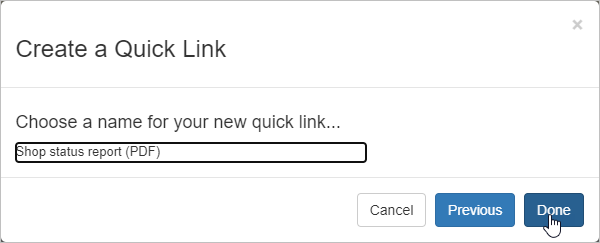 7. The new quick link now appears on our quick links tab.
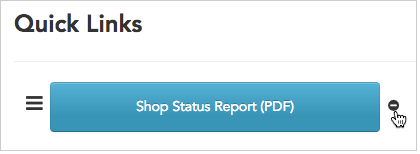
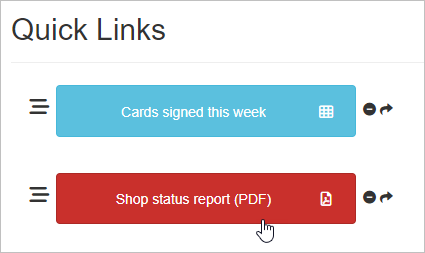 8. Clicking the **Shop Status Report (PDF)** quick link button will generate the report.
9. To download and view your PDF, you have two choices:
* you can **stay on the current page** and wait for the report's **download dialog** to appear.
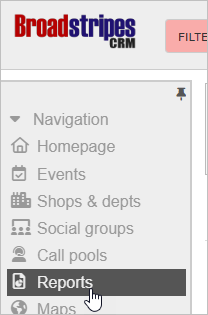
* you can **leave the current page** and **check in later** to see if the report is ready. To check for the report later, click the **Reports** link in the navigation panel. That link brings you to the **Requested Reports** page where you can download any requested report at any time.
8. Clicking the **Shop Status Report (PDF)** quick link button will generate the report.
9. To download and view your PDF, you have two choices:
* you can **stay on the current page** and wait for the report's **download dialog** to appear.
* you can **leave the current page** and **check in later** to see if the report is ready. To check for the report later, click the **Reports** link in the navigation panel. That link brings you to the **Requested Reports** page where you can download any requested report at any time.
 10. Any quick link you create will remain on your **quick links tab** even after you've logged out and logged back in again.
11. If you ever need to **delete** a quick link, just click the icon next to its name. Deleting the link will remove it from your tab, but it won’t delete the underlying saved report.
10. Any quick link you create will remain on your **quick links tab** even after you've logged out and logged back in again.
11. If you ever need to **delete** a quick link, just click the icon next to its name. Deleting the link will remove it from your tab, but it won’t delete the underlying saved report.