> ## Documentation Index
> Fetch the complete documentation index at: https://help.broadstripes.com/llms.txt
> Use this file to discover all available pages before exploring further.
# What's new panel
> Stay current with recent Broadstripes updates from the What's new panel in the user menu.
# What's new panel
The **What's new** panel shows recent product updates -- new features and improvements -- directly inside Broadstripes. You can open it any time from the user menu, or let it open on its own when something new has been released.
## Opening the panel
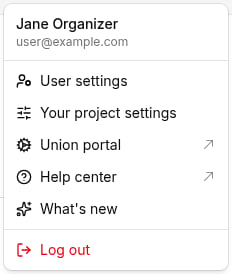
1. Click your **user disc** () in the top-right corner to open the user menu.
2. Select **What's new** () from the menu.
The panel slides in from the right side of the screen.
 ## The unread indicator
When new updates have been released since you last opened the panel, a small blue dot appears on your avatar disc and a count badge appears next to the **What's new** menu item. The dot and badge clear the next time you open the panel.
## What the panel shows
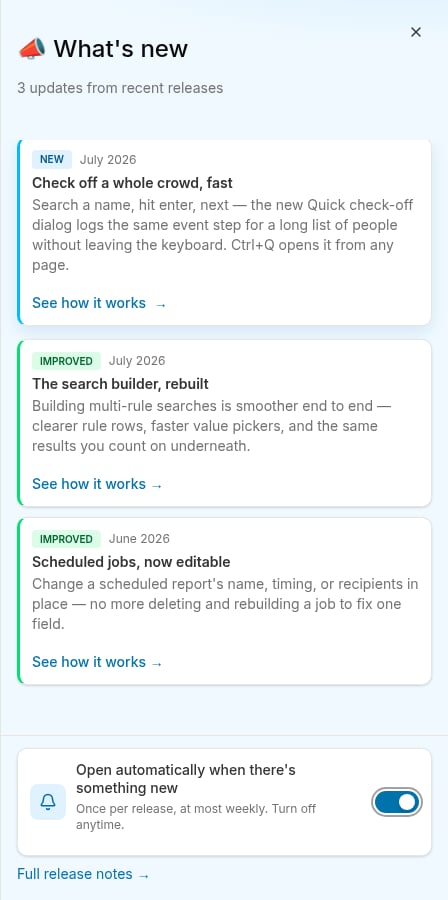
Each update appears as a card with:
* A colored badge: **NEW** (blue) for new features or **IMPROVED** (green) for enhancements.
* The release month.
* A title and short description.
* An optional preview image.
* A **See how it works** link that opens the relevant help article.
## The unread indicator
When new updates have been released since you last opened the panel, a small blue dot appears on your avatar disc and a count badge appears next to the **What's new** menu item. The dot and badge clear the next time you open the panel.
## What the panel shows
Each update appears as a card with:
* A colored badge: **NEW** (blue) for new features or **IMPROVED** (green) for enhancements.
* The release month.
* A title and short description.
* An optional preview image.
* A **See how it works** link that opens the relevant help article.
 ## Auto-open on the dashboard
The **What's new** panel can open on its own when you land on your project dashboard after a new release. This happens at most once per release and no more than once per week, so you won't see it on every visit.
A callout at the bottom of the panel explains why it opened automatically. You can dismiss the callout with the **X** button or turn off auto-opening entirely using the toggle described below.
## Controlling auto-open
A toggle at the bottom of the panel -- **Open automatically when there's something new** -- lets you turn auto-opening on or off without leaving the panel. The setting saves immediately.
You can also control this setting from your account settings:
1. Click your **user disc** and select **User settings**.
2. Scroll to the **Notification preferences** section.
3. Check or uncheck **Open the What's new panel automatically when there's something new**.
4. Click **Update preferences** to save.
## Full release notes
The panel footer includes a **Full release notes** link to the Broadstripes help site where you can browse the complete history of changes.
## Auto-open on the dashboard
The **What's new** panel can open on its own when you land on your project dashboard after a new release. This happens at most once per release and no more than once per week, so you won't see it on every visit.
A callout at the bottom of the panel explains why it opened automatically. You can dismiss the callout with the **X** button or turn off auto-opening entirely using the toggle described below.
## Controlling auto-open
A toggle at the bottom of the panel -- **Open automatically when there's something new** -- lets you turn auto-opening on or off without leaving the panel. The setting saves immediately.
You can also control this setting from your account settings:
1. Click your **user disc** and select **User settings**.
2. Scroll to the **Notification preferences** section.
3. Check or uncheck **Open the What's new panel automatically when there's something new**.
4. Click **Update preferences** to save.
## Full release notes
The panel footer includes a **Full release notes** link to the Broadstripes help site where you can browse the complete history of changes.