> ## Documentation Index
> Fetch the complete documentation index at: https://help.broadstripes.com/llms.txt
> Use this file to discover all available pages before exploring further.
# Update existing contacts with an import
> Use the Match? column and matching policies to update contacts already in Broadstripes from a spreadsheet, instead of creating duplicates.
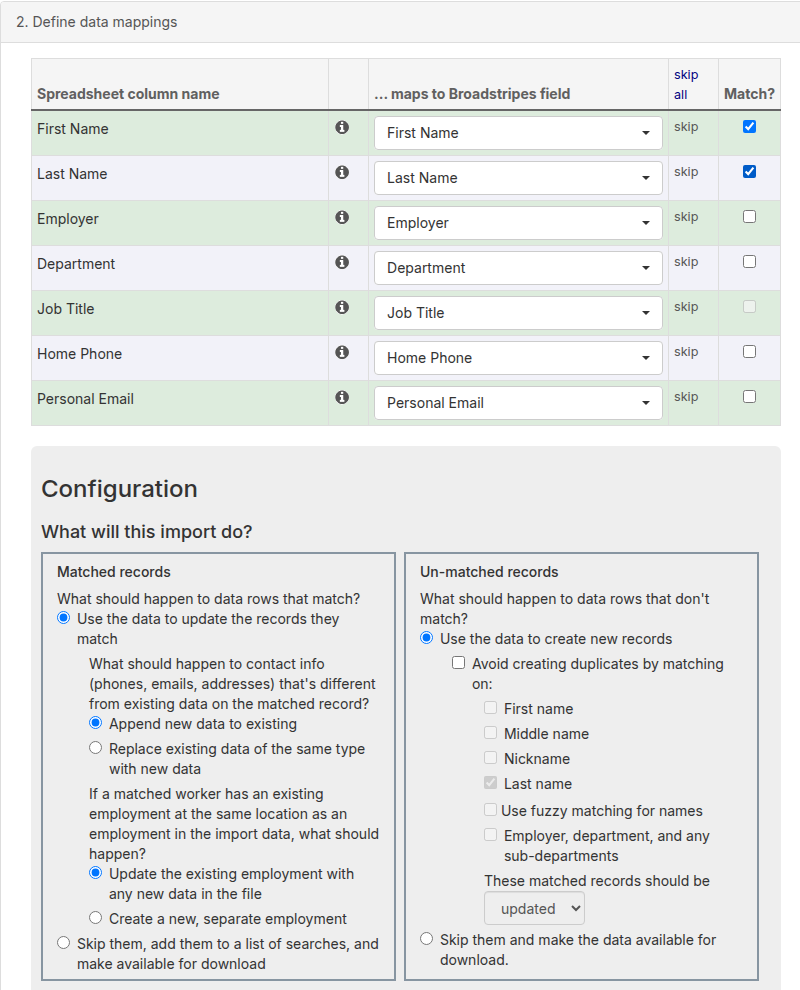
A first import creates new records. Every import after that usually needs to recognize the people who are **already in Broadstripes** — so their records get updated rather than duplicated. That's what the **Match?** column in the mapping table is for.
**Prerequisites:**
* You've read [Import a spreadsheet](/docs/data-import-admin/import-a-spreadsheet) — this article picks up in the **2. Define data mappings** step.
* Your spreadsheet contains at least one column that identifies existing contacts (see below).
## How matching works
Check **Match?** next to a mapped column, and Broadstripes will use that column to look up existing records instead of blindly creating new ones. For each data row, Broadstripes searches for a record whose field value equals the row's value (comparison ignores capitalization and surrounding spaces). You can check **Match?** on more than one column — a row matches only if **all** the match fields agree on the same record.
 ### Which fields can be used for matching?
Not every column can be a match key. Broadstripes allows matching on:
* **Broadstripes ID** — the unique ID Broadstripes assigns to every contact. This is the most reliable match key, and it's included in every spreadsheet you [download from search results](/docs/getting-started/download-a-spreadsheet-list). When you match on Broadstripes ID, it is used exclusively — no other match fields apply.
* **External system IDs** — unique IDs from another database (membership number, employee ID, and so on) stored in an [external system](/docs/project-settings/external-systems-settings). Like Broadstripes IDs, these are exact and dependable.
* **Phones and emails** — any mapped phone or email column.
* **First, middle, and last name**
* **Employer, department, and sub-department** — useful in combination with names to narrow matches to a workplace.
It is not currently possible to match on a custom field. If your unique IDs live in a custom field today, see [Converting custom fields to external systems](/docs/data-import-admin/converting-custom-fields-to-external-systems).
Match on a unique identifier whenever you have one. Matching on names alone is risky — two different "Maria Garcia" rows can collide, and a nickname or typo prevents a match entirely. If you must match on names, combine them with employer fields, or use the duplicate-avoidance options described in [Import a spreadsheet](/docs/data-import-admin/import-a-spreadsheet#configuration-what-will-this-import-do) instead.
If you map an external system ID column but don't check any **Match?** box, Broadstripes automatically matches on that ID column — external IDs exist to identify records, so imports treat them that way.
## Choose what happens to matched rows
As soon as at least one **Match?** box is checked, the **Configuration** panel's **Matched records** section asks: *What should happen to data rows that match?*
* **Use the data to update the records they match** — the usual choice. Two follow-up questions tune the update:
* *What should happen to contact info (phones, emails, addresses) that's different from existing data on the matched record?* Choose **Append new data to existing** (keep what's there, add the new) or **Replace existing data of the same type with new data**. Your project's default comes from the **Importing addresses, phones or emails** setting in [General settings](/docs/project-settings/general-settings).
* *If a matched worker has an existing employment at the same location as an employment in the import data, what should happen?* Choose **Update the existing employment with any new data in the file** or **Create a new, separate employment**. The second option is available only if your project's **Data imports can create multiple employments** setting is on.
* **Skip them, add them to a list of searches, and make available for download** — leave matched records untouched. Skipped rows are counted, searchable, and downloadable after the import, so nothing is silently lost.
## Choose what happens to unmatched rows
The **Un-matched records** section asks the mirror-image question: *What should happen to data rows that don't match?*
* **Use the data to create new records** — add rows that didn't match as new contacts. You can add the duplicate-avoidance name check here as a safety net.
* **Skip them and make the data available for download.** — only update existing contacts, never create. This is the right choice when you're syncing data from another system and don't want strangers added to your project.
## What if a row matches more than one record?
If a row's match fields find **multiple** existing records, Broadstripes can't safely choose between them. The row is recorded as an error ("Multiple records in Broadstripes matched the selected fields in the import row") and no changes are made to any of the candidate records. You'll see these rows in the [import results](/docs/data-import-admin/analyze-import-results), where you can download them, fix the ambiguity, and re-import just those rows.
## A worked example: updating in bulk from a download
The most dependable update workflow is a round trip:
1. Search for the contacts you want to update, and [download them as a spreadsheet](/docs/getting-started/download-a-spreadsheet-list) with the fields you need. The download includes each contact's **Broadstripes ID**.
2. Edit the spreadsheet — change values, add columns — but leave the **Broadstripes ID** column intact.
3. [Import the spreadsheet](/docs/data-import-admin/import-a-spreadsheet). Check **Match?** on the **Broadstripes ID** column, and map only the columns you changed (leave the rest on **(Skip this field)**).
4. Under **Matched records**, choose **Use the data to update the records they match**; under **Un-matched records**, choose **Skip them** — every row in your file came from Broadstripes, so anything unmatched signals a problem.
5. **Preview**, confirm the counts, and **Submit**.
For a complete recipe using this pattern, see [Changing phone contact info in bulk](/docs/data-import-admin/changing-phone-contact-info-in-bulk).
### Which fields can be used for matching?
Not every column can be a match key. Broadstripes allows matching on:
* **Broadstripes ID** — the unique ID Broadstripes assigns to every contact. This is the most reliable match key, and it's included in every spreadsheet you [download from search results](/docs/getting-started/download-a-spreadsheet-list). When you match on Broadstripes ID, it is used exclusively — no other match fields apply.
* **External system IDs** — unique IDs from another database (membership number, employee ID, and so on) stored in an [external system](/docs/project-settings/external-systems-settings). Like Broadstripes IDs, these are exact and dependable.
* **Phones and emails** — any mapped phone or email column.
* **First, middle, and last name**
* **Employer, department, and sub-department** — useful in combination with names to narrow matches to a workplace.
It is not currently possible to match on a custom field. If your unique IDs live in a custom field today, see [Converting custom fields to external systems](/docs/data-import-admin/converting-custom-fields-to-external-systems).
Match on a unique identifier whenever you have one. Matching on names alone is risky — two different "Maria Garcia" rows can collide, and a nickname or typo prevents a match entirely. If you must match on names, combine them with employer fields, or use the duplicate-avoidance options described in [Import a spreadsheet](/docs/data-import-admin/import-a-spreadsheet#configuration-what-will-this-import-do) instead.
If you map an external system ID column but don't check any **Match?** box, Broadstripes automatically matches on that ID column — external IDs exist to identify records, so imports treat them that way.
## Choose what happens to matched rows
As soon as at least one **Match?** box is checked, the **Configuration** panel's **Matched records** section asks: *What should happen to data rows that match?*
* **Use the data to update the records they match** — the usual choice. Two follow-up questions tune the update:
* *What should happen to contact info (phones, emails, addresses) that's different from existing data on the matched record?* Choose **Append new data to existing** (keep what's there, add the new) or **Replace existing data of the same type with new data**. Your project's default comes from the **Importing addresses, phones or emails** setting in [General settings](/docs/project-settings/general-settings).
* *If a matched worker has an existing employment at the same location as an employment in the import data, what should happen?* Choose **Update the existing employment with any new data in the file** or **Create a new, separate employment**. The second option is available only if your project's **Data imports can create multiple employments** setting is on.
* **Skip them, add them to a list of searches, and make available for download** — leave matched records untouched. Skipped rows are counted, searchable, and downloadable after the import, so nothing is silently lost.
## Choose what happens to unmatched rows
The **Un-matched records** section asks the mirror-image question: *What should happen to data rows that don't match?*
* **Use the data to create new records** — add rows that didn't match as new contacts. You can add the duplicate-avoidance name check here as a safety net.
* **Skip them and make the data available for download.** — only update existing contacts, never create. This is the right choice when you're syncing data from another system and don't want strangers added to your project.
## What if a row matches more than one record?
If a row's match fields find **multiple** existing records, Broadstripes can't safely choose between them. The row is recorded as an error ("Multiple records in Broadstripes matched the selected fields in the import row") and no changes are made to any of the candidate records. You'll see these rows in the [import results](/docs/data-import-admin/analyze-import-results), where you can download them, fix the ambiguity, and re-import just those rows.
## A worked example: updating in bulk from a download
The most dependable update workflow is a round trip:
1. Search for the contacts you want to update, and [download them as a spreadsheet](/docs/getting-started/download-a-spreadsheet-list) with the fields you need. The download includes each contact's **Broadstripes ID**.
2. Edit the spreadsheet — change values, add columns — but leave the **Broadstripes ID** column intact.
3. [Import the spreadsheet](/docs/data-import-admin/import-a-spreadsheet). Check **Match?** on the **Broadstripes ID** column, and map only the columns you changed (leave the rest on **(Skip this field)**).
4. Under **Matched records**, choose **Use the data to update the records they match**; under **Un-matched records**, choose **Skip them** — every row in your file came from Broadstripes, so anything unmatched signals a problem.
5. **Preview**, confirm the counts, and **Submit**.
For a complete recipe using this pattern, see [Changing phone contact info in bulk](/docs/data-import-admin/changing-phone-contact-info-in-bulk).