> ## Documentation Index
> Fetch the complete documentation index at: https://help.broadstripes.com/llms.txt
> Use this file to discover all available pages before exploring further.
# Tour search results
> How to use the search results onboarding tour and the Tour this page button to learn the key tools on the search results page.
The first time you view search results in a project, Broadstripes walks you through four key tools: Quick View, Layouts, Bulk Actions, and Save Search. You can reopen this tour at any time using the **Tour this page** button in the search results header.
## What the tour covers
The tour highlights the four main tools you will use on the search results page:
| Tool | What it does |
| ---------------------------------------------------------------------------- | ---------------------------------------------------------------------------------------------------------------- |
| **Quick View** () | Opens a contact card with phones, emails, and a place to add a note -- without leaving the list. |
| **Layouts** () | Switches between column sets so you can see different fields or custom data. |
| **Bulk Actions** | Selects all contacts in your list so you can assign leaders, send texts or emails, print PDFs, and more at once. |
| **Save Search** () | Saves any list so you can return to it from your homepage. |
## Desktop: the guided rail
On a wide screen, a dimmed overlay highlights each tool with a spotlight and a description panel on the right side. The panel shows all four tools at once so you can read ahead before trying each one.
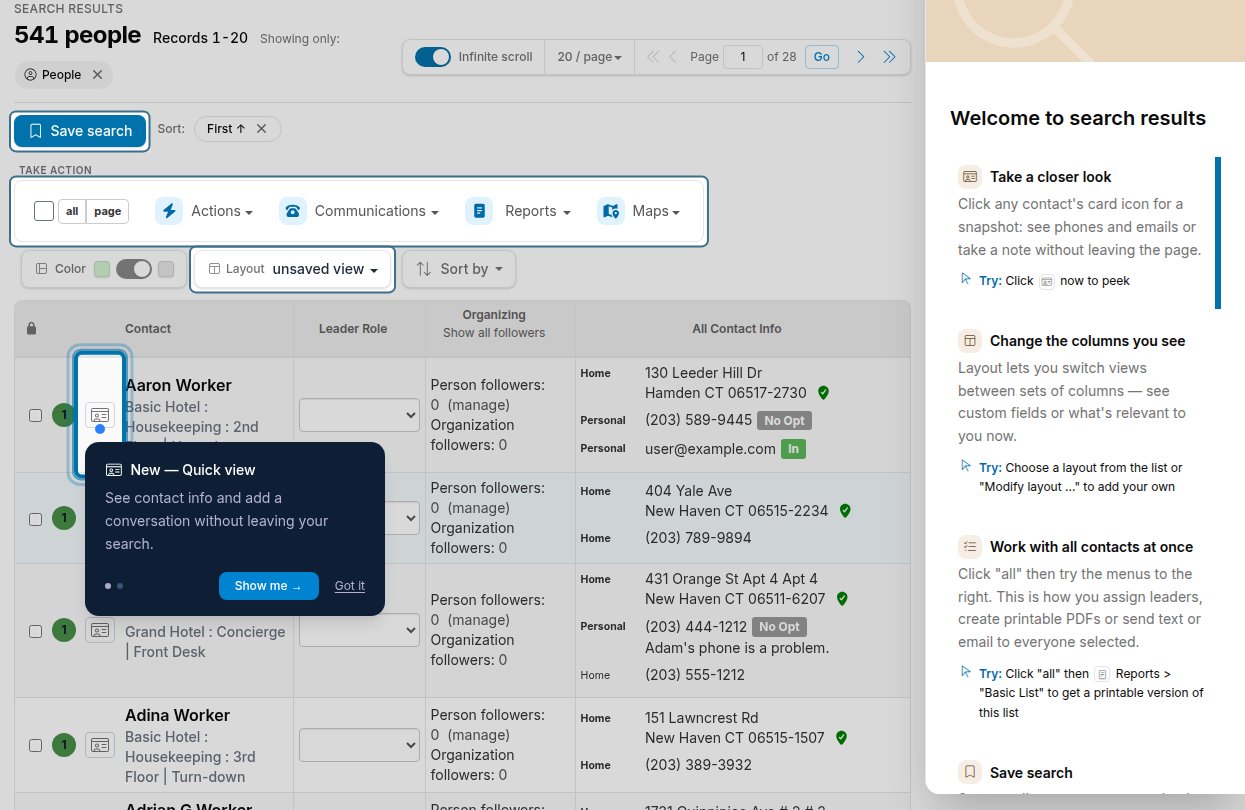 Click **Got it** at the bottom of the panel or press **Escape** to close the tour.
## Mobile: the welcome dialog
On a phone or narrow screen, a welcome dialog appears with callouts for the three tools that are hardest to discover on mobile:
* **Quick View** -- tap the contact card icon on any row.
* **Bulk Actions** -- tap the hamburger menu (), then tap 'all' and choose an action.
* **Layouts** -- also inside the hamburger menu; switch views to see custom fields or other info.
Tap **Got it** or the **X** in the corner to close.
## Reopening the tour
After the tour closes, a **Tour this page** () link appears in the search results header. Click it any time results are showing to reopen the full tour. Reopening does not affect onboarding for other users and does not re-record the tour as seen.
Click **Got it** at the bottom of the panel or press **Escape** to close the tour.
## Mobile: the welcome dialog
On a phone or narrow screen, a welcome dialog appears with callouts for the three tools that are hardest to discover on mobile:
* **Quick View** -- tap the contact card icon on any row.
* **Bulk Actions** -- tap the hamburger menu (), then tap 'all' and choose an action.
* **Layouts** -- also inside the hamburger menu; switch views to see custom fields or other info.
Tap **Got it** or the **X** in the corner to close.
## Reopening the tour
After the tour closes, a **Tour this page** () link appears in the search results header. Click it any time results are showing to reopen the full tour. Reopening does not affect onboarding for other users and does not re-record the tour as seen.
 The link stays hidden while the tour is already open and disappears when the results list is empty, since some callouts (Quick View, select-all) have nothing to point at without rows.