> ## Documentation Index
> Fetch the complete documentation index at: https://help.broadstripes.com/llms.txt
> Use this file to discover all available pages before exploring further.
# Basic Lists PDF
> Print your organizing information as a PDF list using the Basic List report, with options for layout, formatting, and scheduling.
## Overview
With Broadstripes, it's easy to use the **Reports** feature to print your organizing information as a **list**. Here are a few reasons you might want to print a list:
* Bring your information with you in hard copy to house visits and check-in meetings
* Quick reference or to record information when you don't have a computer
* A tool for non-Broadstripes users to view and collect information
There are different types of lists that you can choose from, but we'll focus here on the **Basic List**.
The **Basic List** is a printed version of your records using whatever layout you choose for your organizing project. For instance, if your layout includes **name**, **home address**, and a checkbox indicating **attendance** at an upcoming event, that is what your printed list will display. Learn more about working with layouts in the [save a layout](/docs/customize/save-a-layout) article.
## Using a printed list in your workflow
You can use the information displayed on a printed list in the same way you'd use it in the Broadstripes app. For instance, if you take a printed list with you on a house visit, use the informational columns on the list (**name**, **home address**) to find who you're looking for. Once you have talked to people, use the **attendance checkboxes** on the list to manually record information about your conversations.
Later, when you are back at your computer, you can use the notes you took on the printed list to update Broadstripes. Using the same layout in Broadstripes to update this data that you used when you printed your list greatly simplifies your task of data entry.
## Print a basic list
1. Start by **running a search** for the contacts on your list. Learn about running a search in the [search by workplace](/docs/getting-started/search-by-workplace) or [save and share searches](/docs/search/save-and-share-searches) articles.
2. When your search results appear, click **all** in the toolbar to include all the displayed results in your printed list.
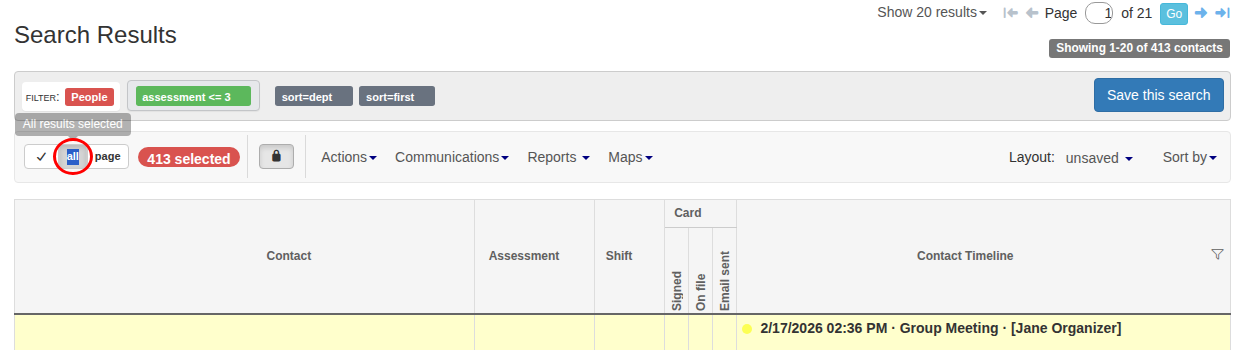 3. All contacts will be selected (indicated by a selection count badge like **413 selected**). You can also click **page** to select only the contacts on the current page, or individually uncheck any contact you want to exclude.
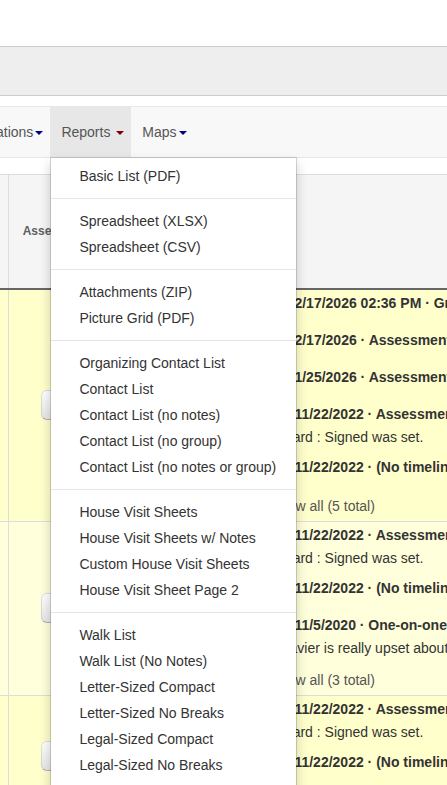
4. Click the **Reports** menu and choose **Basic List (PDF)**.
3. All contacts will be selected (indicated by a selection count badge like **413 selected**). You can also click **page** to select only the contacts on the current page, or individually uncheck any contact you want to exclude.
4. Click the **Reports** menu and choose **Basic List (PDF)**.
 5. The **Report options** dialog opens. Give the report a **Title** and choose a **Column Layout** to determine which columns of data will be included in your printed list. For more information about using layouts, see the [choose a layout](/docs/getting-started/choose-a-layout) or [save a layout](/docs/customize/save-a-layout) articles.
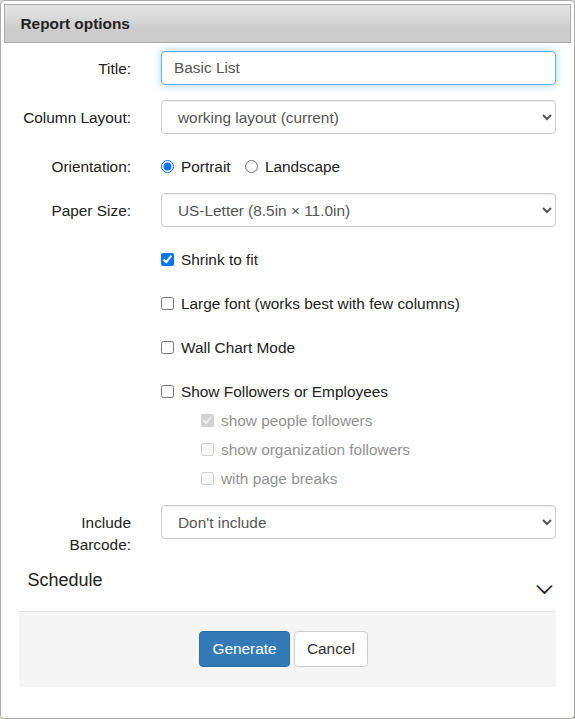 The dialog includes the following options:
| Option | Description |
| ------------------------------- | ----------------------------------------------------------------------------------------------------------------------------------------------------------------------------------------------------------- |
| **Title** | The title that appears at the top of your printed list |
| **Column Layout** | Choose a saved layout to determine which columns appear on the list |
| **Orientation** | **Portrait** (lengthwise) or **Landscape** (widthwise) |
| **Paper Size** | Select a paper size — US-Letter (8.5" × 11") is the default, with options for Legal, Ledger, Tabloid, and more |
| **Shrink to fit** | Automatically fits the list to the selected paper size. Recommended in most cases |
| **Large font** | Generates the list in a bigger font. Works best with few columns |
| **Wall Chart Mode** | Formats the list as a wall chart to be hung up in an office. Automatically switches to Landscape orientation |
| **Show Followers or Employees** | Lists everyone that a given person leads or manages. Sub-options let you include **people followers**, **organization followers**, and add **page breaks** to keep each person's followers on the same page |
| **Include Barcode** | Adds a barcode column using an external system ID. Only needed if you are entering data from a canvass using scanners |
| **Schedule** | Optionally schedule the report to be generated at a future time, or set up a recurring schedule |
6. Click **Generate**. Broadstripes will create a PDF report that downloads automatically.
7. You'll see a message that your PDF report is being created. You have two choices:
* **Stay on the current page** and wait for the report's download dialog to appear.
* **Leave the current page** and check in later. Click **Reports** in the sidebar to go to the **Reports** page where you can download any requested report at any time. A badge on the **Reports** link shows how many reports are ready for download.
8. Once you've downloaded your PDF list, **open** and **print** it just as you would any other PDF document.
The dialog includes the following options:
| Option | Description |
| ------------------------------- | ----------------------------------------------------------------------------------------------------------------------------------------------------------------------------------------------------------- |
| **Title** | The title that appears at the top of your printed list |
| **Column Layout** | Choose a saved layout to determine which columns appear on the list |
| **Orientation** | **Portrait** (lengthwise) or **Landscape** (widthwise) |
| **Paper Size** | Select a paper size — US-Letter (8.5" × 11") is the default, with options for Legal, Ledger, Tabloid, and more |
| **Shrink to fit** | Automatically fits the list to the selected paper size. Recommended in most cases |
| **Large font** | Generates the list in a bigger font. Works best with few columns |
| **Wall Chart Mode** | Formats the list as a wall chart to be hung up in an office. Automatically switches to Landscape orientation |
| **Show Followers or Employees** | Lists everyone that a given person leads or manages. Sub-options let you include **people followers**, **organization followers**, and add **page breaks** to keep each person's followers on the same page |
| **Include Barcode** | Adds a barcode column using an external system ID. Only needed if you are entering data from a canvass using scanners |
| **Schedule** | Optionally schedule the report to be generated at a future time, or set up a recurring schedule |
6. Click **Generate**. Broadstripes will create a PDF report that downloads automatically.
7. You'll see a message that your PDF report is being created. You have two choices:
* **Stay on the current page** and wait for the report's download dialog to appear.
* **Leave the current page** and check in later. Click **Reports** in the sidebar to go to the **Reports** page where you can download any requested report at any time. A badge on the **Reports** link shows how many reports are ready for download.
8. Once you've downloaded your PDF list, **open** and **print** it just as you would any other PDF document.