> ## Documentation Index
> Fetch the complete documentation index at: https://help.broadstripes.com/llms.txt
> Use this file to discover all available pages before exploring further.
# Codes and Assessments
#### What's the difference between "Assessments" and "Codes"?
To give a short answer – well, nothing! "Assessment" and "Code" refer to the exact same piece of employment information in Broadstripes; it's just a matter of how it is labeled. In fact, you may use the label "Assessment" in one Broadstripes project and "Code" in another.
You can change this label at any time in your [General settings](/docs/project-settings/project-settings-overview/).
Assessments help your users track where the workers stand in relation to your campaign's goals. Broadstripes makes it easy to set up a customized set of **assessment codes** to match your campaign's style.
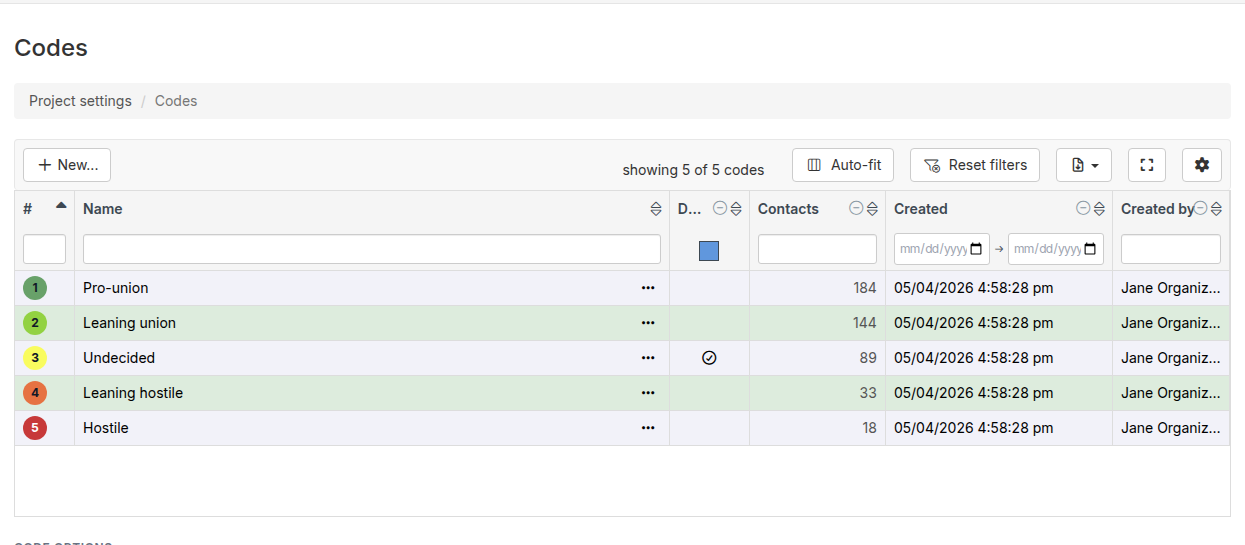
Commonly, administrators will set up assessments using a 1 through 5 numeric scale, with 1 indicating the strongest support and 5 indicating hostility. However, with Broadstripes, you can create as many codes as you require to meet your needs.
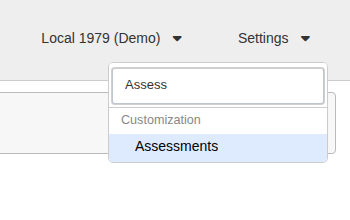
1. To get started, you can access your codes in one of two ways: Click **Settings** and search for **Assessments** (or **Codes**, depending on your [General settings](/docs/project-settings/general-settings) label) in the upper right corner of any page.
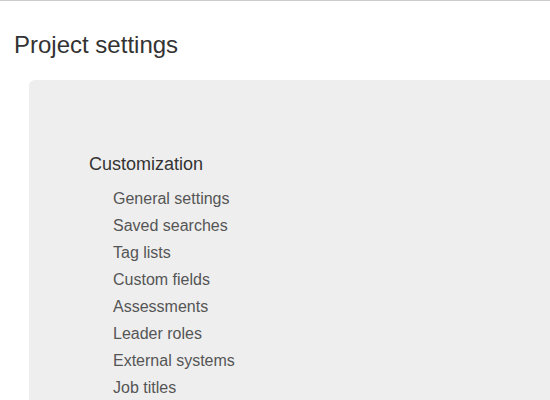
 Or, from the **Project settings page**, click the **Assessments** (or **Codes**) link under **Customization**.
 2. The **Assessment codes table** will open, displaying all of the codes you have set up to measure workers' support in an interactive data grid. You can sort, filter, and manage your project's codes from this page.
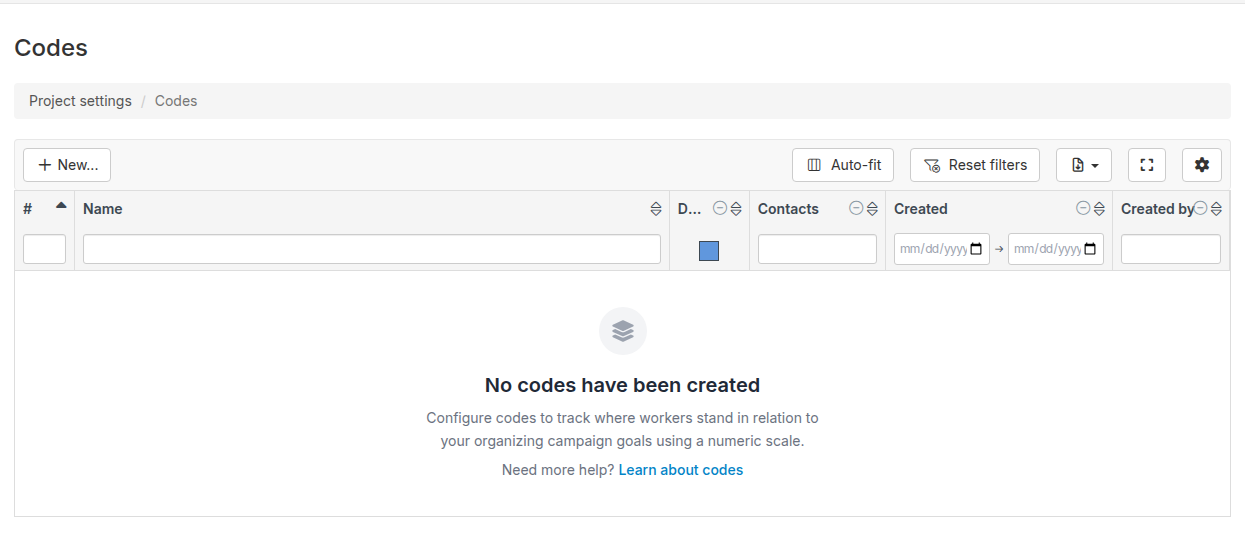
 If you haven't yet set up any assessments, the page will display a **New Assessment** button to get started.
 3. For details on how to edit, delete, or create new assessment codes, or to configure assessment options (including enabling assessments for organizations), go to the [assessment codes](/docs/admin-guides/data-tools/assessment-codes/) article.