> ## Documentation Index
> Fetch the complete documentation index at: https://help.broadstripes.com/llms.txt
> Use this file to discover all available pages before exploring further.
# User groups
User groups allow you to pull users together into small groups to simplify sharing and communication tasks.
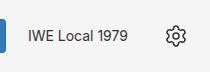
1. To get started, access **User Groups** by clicking the **Settings** icon in the upper right corner of any page.
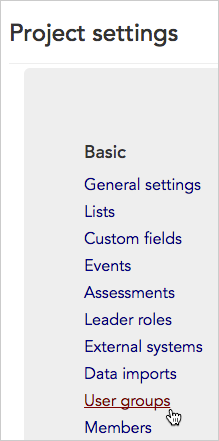
 2. From the **Project settings page**, click the **Basic > User groups** link.
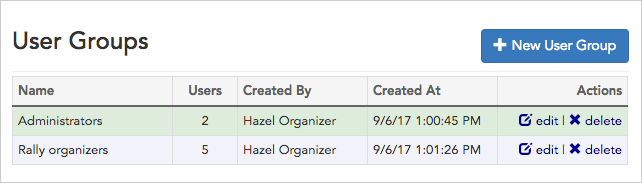
 3. The **User groups index page** will open listing all of the existing user groups in your project.
 4. From this page, you can:
* See basic information about existing user groups like how many users they contain, who created them, and when.
* Click the links to **edit** or **delete** your existing user groups.
* Create a new group by clicking the **+ New User Group** button in the upper-right corner of the page.
4. From this page, you can:
* See basic information about existing user groups like how many users they contain, who created them, and when.
* Click the links to **edit** or **delete** your existing user groups.
* Create a new group by clicking the **+ New User Group** button in the upper-right corner of the page.