> ## Documentation Index
> Fetch the complete documentation index at: https://help.broadstripes.com/llms.txt
> Use this file to discover all available pages before exploring further.
# Save and share useful searches
## Intro
When you've built a useful search that you think you might want to run again, you can choose to save it. You can also share your saved searches with a single user, or all users in your project.
## Save a search
In this example, we'll save a search and share it with another organizer, Jane.
1. Start by [running a search](/docs/search/search-builder-build-an-advanced-search). From the **Search Results** panel, click the **Save this search** button in the upper-right corner of the page.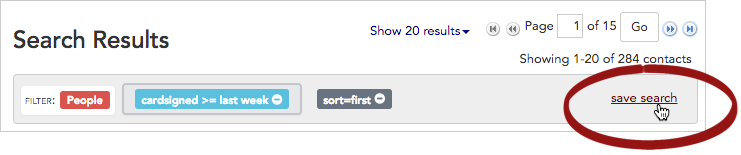 2. Give your search a **name**.
3. Next, choose whether you want to share the search. You can:
* Save it for your own use only (select **Personal**)
* Share it with all Broadstripes users on the project (select **Shared**)
* Share it with a specific user (select **For someone else**, then type the user's name). Note that when you save for someone else, it will *only* appear in that designated user's list. If you want a copy of the search for yourself, save it first as a **personal** search, then repeat the process and choose to save it for that other user.
2. Give your search a **name**.
3. Next, choose whether you want to share the search. You can:
* Save it for your own use only (select **Personal**)
* Share it with all Broadstripes users on the project (select **Shared**)
* Share it with a specific user (select **For someone else**, then type the user's name). Note that when you save for someone else, it will *only* appear in that designated user's list. If you want a copy of the search for yourself, save it first as a **personal** search, then repeat the process and choose to save it for that other user. 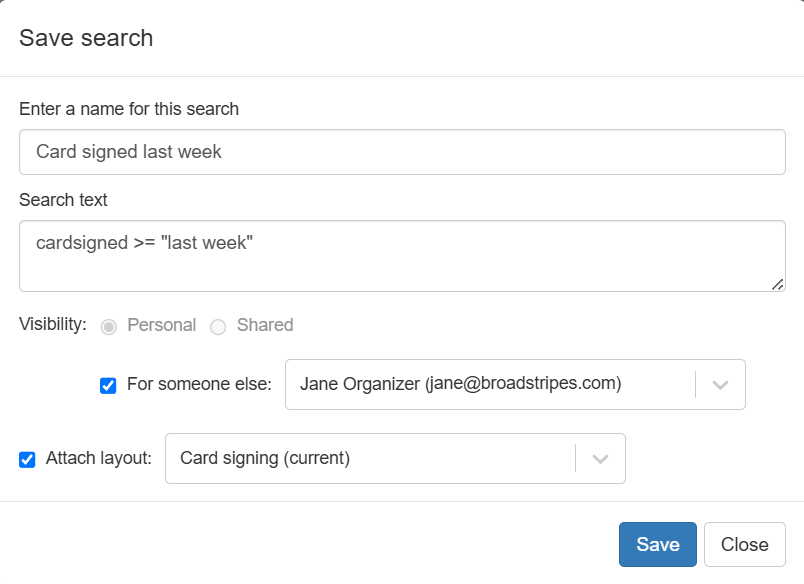 4. We'll choose this option to share the search with Jane.
5. Last, check "**Attach layout**" if you want Broadstripes to display the columns of data in a specific saved layout each time the search is run in the future. Then choose which saved layout you want to use. This is called "embedding a layout" in the search. If you want to learn more, check out the articles [Create and save a layout](/docs/customize/save-a-layout) and [Embed a layout with a saved search](/docs/customize/embed-a-layout-with-a-saved-search).
6. Click **Save** to save. The search will now appear in Jane's **YOUR SEARCHES** list in the menu on the left-hand side of her Broadstripes page.
## Where are searches saved?
In the previous step, you learned how to save and share searches. If you want to retrieve a saved search, you'll need to know where to find it. Searches are saved in the left-hand Broadstripes menu, ordered by how they were saved or shared:
* **Personal**: Personal saved searches will appear under **Your searches** in the left-hand Broadstripes menu.
* **Shared** (with all users): Shared searches will be listed under **Shared searches** in the left-hand Broadstripes menu for you and all users in your project.
* **For someone else**: These saved searches will *only* appear under that designated user's **Your searches** list (in their left-hand Broadstripes menu). You will not have a copy of these shared search in your own saved searches list. (If you want a copy of the search for yourself, save it first as a **personal** search, then repeat the process and choose to save it for that other user.)
You will also find your recent and saved searches by clicking the dropdown menu next to the magnifying glass icon.
4. We'll choose this option to share the search with Jane.
5. Last, check "**Attach layout**" if you want Broadstripes to display the columns of data in a specific saved layout each time the search is run in the future. Then choose which saved layout you want to use. This is called "embedding a layout" in the search. If you want to learn more, check out the articles [Create and save a layout](/docs/customize/save-a-layout) and [Embed a layout with a saved search](/docs/customize/embed-a-layout-with-a-saved-search).
6. Click **Save** to save. The search will now appear in Jane's **YOUR SEARCHES** list in the menu on the left-hand side of her Broadstripes page.
## Where are searches saved?
In the previous step, you learned how to save and share searches. If you want to retrieve a saved search, you'll need to know where to find it. Searches are saved in the left-hand Broadstripes menu, ordered by how they were saved or shared:
* **Personal**: Personal saved searches will appear under **Your searches** in the left-hand Broadstripes menu.
* **Shared** (with all users): Shared searches will be listed under **Shared searches** in the left-hand Broadstripes menu for you and all users in your project.
* **For someone else**: These saved searches will *only* appear under that designated user's **Your searches** list (in their left-hand Broadstripes menu). You will not have a copy of these shared search in your own saved searches list. (If you want a copy of the search for yourself, save it first as a **personal** search, then repeat the process and choose to save it for that other user.)
You will also find your recent and saved searches by clicking the dropdown menu next to the magnifying glass icon.  ## Manage all saved searches
The **Saved Searches** page provides a centralized view where you can browse, organize, and manage all the saved searches you have access to. This index page offers powerful features for viewing, filtering, editing, duplicating, and deleting searches.
### Access the Saved Searches page
You can access the **Saved Searches** page in two ways:
1. Click **Saved searches** from the sidebar navigation menu
2. Navigate to **Settings** > **Saved searches** from the Settings menu
3. Go directly to `/:project_nickname/saved_searches` in your browser
### What you'll see
The page displays a table with all saved searches you can access. The table includes powerful filtering and sorting capabilities for each column:
| Column | Description |
| -------------------- | ----------------------------------------------------------------------- |
| **Name** | The search name, with an actions dropdown menu |
| **Type** | Either "Shared" (blue badge) or "Personal" (green badge) |
| **Owner** | The user who owns the search |
| **Search text** | The BSQL query (long queries are truncated; hover to see the full text) |
| **Attached layout** | The associated search layout, or "(none)" if no layout is attached |
| **Contacts matched** | The number of results from the last time the search was run |
| **Created by** | The user who originally created the search |
| **Created at** | When the search was created |
| **Last Updated by** | The user who most recently modified the search |
| **Last Updated at** | When the search was last modified |
Click the **Contacts matched** count to open the search results in a new tab. Note that this count reflects the last time the search was executed and may not represent real-time results.
## Manage all saved searches
The **Saved Searches** page provides a centralized view where you can browse, organize, and manage all the saved searches you have access to. This index page offers powerful features for viewing, filtering, editing, duplicating, and deleting searches.
### Access the Saved Searches page
You can access the **Saved Searches** page in two ways:
1. Click **Saved searches** from the sidebar navigation menu
2. Navigate to **Settings** > **Saved searches** from the Settings menu
3. Go directly to `/:project_nickname/saved_searches` in your browser
### What you'll see
The page displays a table with all saved searches you can access. The table includes powerful filtering and sorting capabilities for each column:
| Column | Description |
| -------------------- | ----------------------------------------------------------------------- |
| **Name** | The search name, with an actions dropdown menu |
| **Type** | Either "Shared" (blue badge) or "Personal" (green badge) |
| **Owner** | The user who owns the search |
| **Search text** | The BSQL query (long queries are truncated; hover to see the full text) |
| **Attached layout** | The associated search layout, or "(none)" if no layout is attached |
| **Contacts matched** | The number of results from the last time the search was run |
| **Created by** | The user who originally created the search |
| **Created at** | When the search was created |
| **Last Updated by** | The user who most recently modified the search |
| **Last Updated at** | When the search was last modified |
Click the **Contacts matched** count to open the search results in a new tab. Note that this count reflects the last time the search was executed and may not represent real-time results.
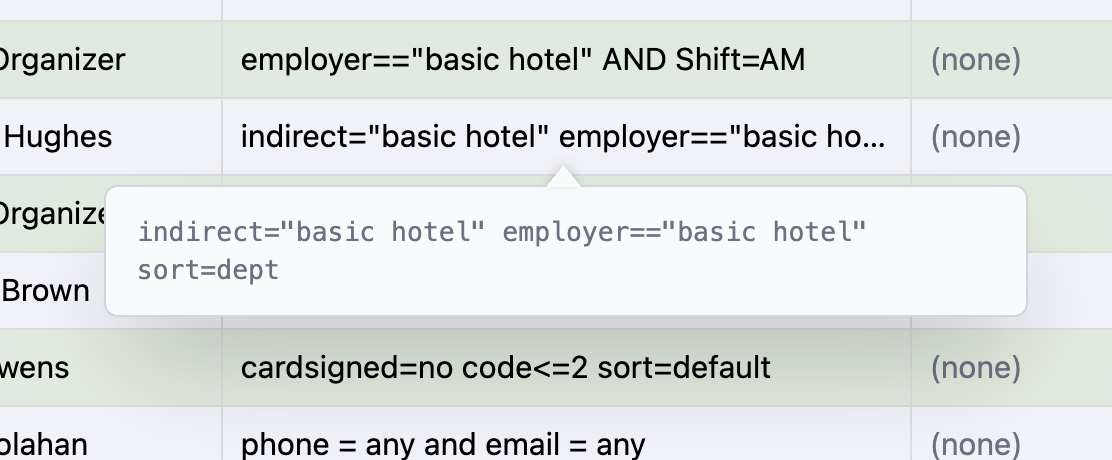 Viewing the full search text for a long search on the Saved searches page.
### Filter and sort searches
Use the filter inputs below each column header to narrow down your search list:
* **Text filters** - Filter by name, owner, search text, or layout name
* **Numeric filters** - Filter contacts matched by exact count, range, or comparison
* **Date filters** - Filter by creation or update dates
Click any column header to sort the table by that column. Click again to reverse the sort order.
### Work with individual searches
Click the dropdown menu (three dots) on any search row to access these actions:
* **Edit** - Modify the search name, BSQL query, visibility settings, or attached layout. The edit modal includes real-time BSQL validation that shows the number of contacts matched as you type. Admins can also transfer ownership of an existing search to another user by setting visibility to **For someone else** and choosing the target user.
* **Duplicate** - Create a copy of any accessible search as a personal search. The duplicate will have "(copy)" appended to the name, and you can modify it before saving.
* **Save as quick link** - From the edit or create dialog, click **Save as quick link** to add a one-click shortcut to your dashboard. See [Saved search quick links](/docs/customize/saved-search-quick-links) for details.
* **Delete** - Remove the search (you'll be asked to confirm). Only available for searches you own or if you're an admin.
When you edit or create a search, the modal validates your BSQL query in real-time and displays the number of contacts that match your search criteria. This helps you verify your query is working correctly before saving.
### Duplicate any search
The duplicate action allows you to create a personal copy of any search you can access, including shared searches created by other users:
1. Click the dropdown menu on the search you want to duplicate
2. Select **Duplicate**
3. The save modal opens with the search pre-populated and "(copy)" added to the name
4. Modify the name, query, or settings as needed
5. Click **Save** to create your personal copy
This is useful when you want to use someone else's shared search as a starting point for your own customized version.
### Delete multiple searches at once
The bulk delete feature allows you to remove multiple searches in one action:
1. Use the checkboxes on the left side of the table to select the searches you want to delete
2. Click the **Delete** button that appears in the toolbar
3. Confirm the deletion in the dialog
You can only bulk delete searches that you own (or all searches if you're an admin). The Delete button will be disabled if none of your selected searches are deletable.
### Create a new saved search
Click the **New\...** button at the top of the page to create a new search from scratch:
1. Enter a name for your search
2. Write your BSQL query in the search text field
3. Choose the visibility: **Personal** or **Shared**
4. Optionally attach a layout
5. Watch the real-time validation to see how many contacts match your query
6. Click **Save** when ready
Admins can create saved searches on behalf of other users by selecting "For someone else" and choosing the user. Admins can also transfer ownership of an existing saved search to another user by editing it and setting visibility to "For someone else".
### Create a quick link for a saved search
When editing or creating a saved search, click the **Save as quick link** button in the dialog footer to add this search as a one-click shortcut on your dashboard. You can choose the output format (search results, PDF, or spreadsheet) and configure format-specific options.
For detailed instructions, see [Saved search quick links](/docs/customize/saved-search-quick-links).
### Who can see and edit searches?
Permissions are enforced throughout the Saved Searches page:
* **Personal searches** are visible only to their owner and project admins
* **Shared searches** are visible to all members of the project
* You can only edit or delete searches that you own, unless you are an admin
* The Edit and Delete options only appear in the dropdown menu for searches you have permission to modify
* Bulk delete only removes searches you have permission to delete
Viewing the full search text for a long search on the Saved searches page.
### Filter and sort searches
Use the filter inputs below each column header to narrow down your search list:
* **Text filters** - Filter by name, owner, search text, or layout name
* **Numeric filters** - Filter contacts matched by exact count, range, or comparison
* **Date filters** - Filter by creation or update dates
Click any column header to sort the table by that column. Click again to reverse the sort order.
### Work with individual searches
Click the dropdown menu (three dots) on any search row to access these actions:
* **Edit** - Modify the search name, BSQL query, visibility settings, or attached layout. The edit modal includes real-time BSQL validation that shows the number of contacts matched as you type. Admins can also transfer ownership of an existing search to another user by setting visibility to **For someone else** and choosing the target user.
* **Duplicate** - Create a copy of any accessible search as a personal search. The duplicate will have "(copy)" appended to the name, and you can modify it before saving.
* **Save as quick link** - From the edit or create dialog, click **Save as quick link** to add a one-click shortcut to your dashboard. See [Saved search quick links](/docs/customize/saved-search-quick-links) for details.
* **Delete** - Remove the search (you'll be asked to confirm). Only available for searches you own or if you're an admin.
When you edit or create a search, the modal validates your BSQL query in real-time and displays the number of contacts that match your search criteria. This helps you verify your query is working correctly before saving.
### Duplicate any search
The duplicate action allows you to create a personal copy of any search you can access, including shared searches created by other users:
1. Click the dropdown menu on the search you want to duplicate
2. Select **Duplicate**
3. The save modal opens with the search pre-populated and "(copy)" added to the name
4. Modify the name, query, or settings as needed
5. Click **Save** to create your personal copy
This is useful when you want to use someone else's shared search as a starting point for your own customized version.
### Delete multiple searches at once
The bulk delete feature allows you to remove multiple searches in one action:
1. Use the checkboxes on the left side of the table to select the searches you want to delete
2. Click the **Delete** button that appears in the toolbar
3. Confirm the deletion in the dialog
You can only bulk delete searches that you own (or all searches if you're an admin). The Delete button will be disabled if none of your selected searches are deletable.
### Create a new saved search
Click the **New\...** button at the top of the page to create a new search from scratch:
1. Enter a name for your search
2. Write your BSQL query in the search text field
3. Choose the visibility: **Personal** or **Shared**
4. Optionally attach a layout
5. Watch the real-time validation to see how many contacts match your query
6. Click **Save** when ready
Admins can create saved searches on behalf of other users by selecting "For someone else" and choosing the user. Admins can also transfer ownership of an existing saved search to another user by editing it and setting visibility to "For someone else".
### Create a quick link for a saved search
When editing or creating a saved search, click the **Save as quick link** button in the dialog footer to add this search as a one-click shortcut on your dashboard. You can choose the output format (search results, PDF, or spreadsheet) and configure format-specific options.
For detailed instructions, see [Saved search quick links](/docs/customize/saved-search-quick-links).
### Who can see and edit searches?
Permissions are enforced throughout the Saved Searches page:
* **Personal searches** are visible only to their owner and project admins
* **Shared searches** are visible to all members of the project
* You can only edit or delete searches that you own, unless you are an admin
* The Edit and Delete options only appear in the dropdown menu for searches you have permission to modify
* Bulk delete only removes searches you have permission to delete