> ## Documentation Index
> Fetch the complete documentation index at: https://help.broadstripes.com/llms.txt
> Use this file to discover all available pages before exploring further.
# Search by event-related info
## Intro
Many Broadstripes projects use **events** and **event steps** to capture particular actions in the workflow of a given campaign activity, for example:
* To track petition signatures
* To track invitations, RSVPs, and attendance for a meeting or rally
* To record whether someone has signed a membership card
Keep in mind that **events** are created and customized by users and admins, so each project will have its own unique events. (Learn more in the [creating events](/docs/customize/create-events-to-track-goals) article.) Even though events are unique to your project, **Broadstripes search** allows you to search by any event step you create. You can even combine event-based information with other search criteria.
## Search by event step
For this example, we're going to show you how to do a search for anyone who has showed support for our campaign, but hasn't actually signed a card yet.
1. Start your search by clicking the **Search builder button** to the right of the search box at the top of the page.
2. A **search building panel** will open below the search box.
3. Initially, the panel will offer to search for people by **Name**, but you can easily change that to search by a whether or not their card has been signed, their assessment, or any other criteria.
4. Since we want to limit our search to workers who haven't yet signed a card, we'll set that up first. We'll do the search based on an event in our project called "**Card**" to find all the people who have a certain status for the event step "**Signed**." From the left-hand drop-down menu in the search builder, we'll choose the **Card - Signed** step under the **Events** section of the menu.
5. Next, from the middle drop-down list, we'll choose "**is not checked**," since we only want to see those workers who have *not* signed a card.
6. Our first search criteria (also called a "**rule**" in Broadstripes) is complete.
7. Next, we’ll need to **add another rule** to the search, since we also want to see only those people who we know were assessed as supporters. Add an additional search rule by clicking the **+ Add rule** button located above and to the right of the existing search rule.
Click the + Add rule button to add another rule to the search.
8. We'll leave the first rule we created as it is and begin configuring our second rule. This rule will limit our search results to the workers who have shown support (those with an assessment code of 1 or 2).
9. To create the second rule, we'll start by selecting **Assessment** in the left-hand drop-down list.
10. In the center drop-down list, we'll choose "**is less than or equal to**."
11. To complete this rule, in the right-hand text box, we’ll type **2**.
A **search for “Assessment is less than or equal to 2”** will show us supporters with assessment codes of **“1”** and **“2”** but not **“3”** or higher.
12. Last, we need to check our Boolean operator **“AND”**. Since our search depends on both of our rules being true to find people who have not yet signed a card and who have a supportive assessment, we want to confirm we’re using the **“AND”** operator in our search.
The dark blue box indicates that **“AND”** is selected.
Boolean operators are used in searches to connect and define the relationship between search rules. Broadstripes uses two Boolean operators: AND and OR.
Use "**AND**" to run a search where *all* of the rules are true.\
Use "**OR**" to run a search where *at least one* of the rules is true.
13. Click the **Search** button to run the search. All the workers who have not yet signed a card and who have a supportive assessment will display in the **Search results page**.
## More
Great work! You've learned how to search events for unsigned cards. What if you'd like to run this search again in a week to see how many new cards have been signed? Check out our article on building a date-based search to learn how:
* [Search event-related info using dates or a time-frame](/docs/search/search-by-event-using-dates/)

 2. A **search building panel** will open below the search box.
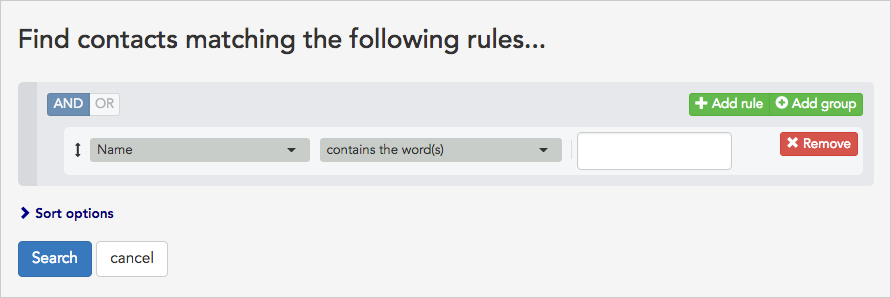 3. Initially, the panel will offer to search for people by **Name**, but you can easily change that to search by a whether or not their card has been signed, their assessment, or any other criteria.
4. Since we want to limit our search to workers who haven't yet signed a card, we'll set that up first. We'll do the search based on an event in our project called "**Card**" to find all the people who have a certain status for the event step "**Signed**." From the left-hand drop-down menu in the search builder, we'll choose the **Card - Signed** step under the **Events** section of the menu.
3. Initially, the panel will offer to search for people by **Name**, but you can easily change that to search by a whether or not their card has been signed, their assessment, or any other criteria.
4. Since we want to limit our search to workers who haven't yet signed a card, we'll set that up first. We'll do the search based on an event in our project called "**Card**" to find all the people who have a certain status for the event step "**Signed**." From the left-hand drop-down menu in the search builder, we'll choose the **Card - Signed** step under the **Events** section of the menu.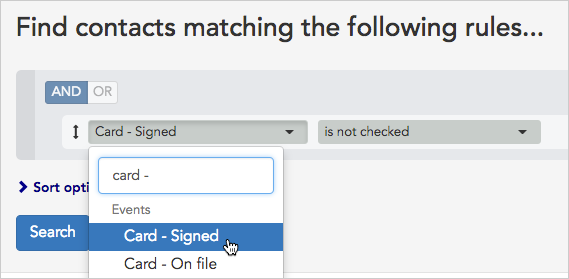 5. Next, from the middle drop-down list, we'll choose "**is not checked**," since we only want to see those workers who have *not* signed a card.
6. Our first search criteria (also called a "**rule**" in Broadstripes) is complete.
7. Next, we’ll need to **add another rule** to the search, since we also want to see only those people who we know were assessed as supporters. Add an additional search rule by clicking the **+ Add rule** button located above and to the right of the existing search rule.
5. Next, from the middle drop-down list, we'll choose "**is not checked**," since we only want to see those workers who have *not* signed a card.
6. Our first search criteria (also called a "**rule**" in Broadstripes) is complete.
7. Next, we’ll need to **add another rule** to the search, since we also want to see only those people who we know were assessed as supporters. Add an additional search rule by clicking the **+ Add rule** button located above and to the right of the existing search rule.

