> ## Documentation Index
> Fetch the complete documentation index at: https://help.broadstripes.com/llms.txt
> Use this file to discover all available pages before exploring further.
# Actions - Assign (check or uncheck) event steps
> Use bulk actions to check or uncheck event steps for multiple contacts
## Set (check) event steps
When you are checking off an event or an event step for multiple contacts at once, using an action can be a great time-saver. (If you are new to events, check out the [Events](/docs/customize/create-events-to-track-goals) overview article for more information.)
For this example, we'll show how to check off signed cards for a group of contacts we visited last week.
1. First, we'll run a search for people on our house visit list. Then, from the **Search Results** page, we'll [select the contacts](/docs/viewing-search-results-and-edit/selecting-deselecting-contacts/) who have just signed their cards. (If you need help running a search, check out the [Search builder how-to article](/docs/search/search-builder-build-an-advanced-search).)
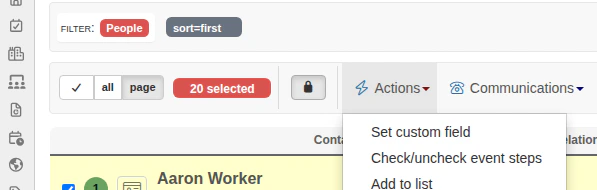
2. With the contacts selected, we'll go to the **Actions** drop-down menu and choose **Check/uncheck event steps**.
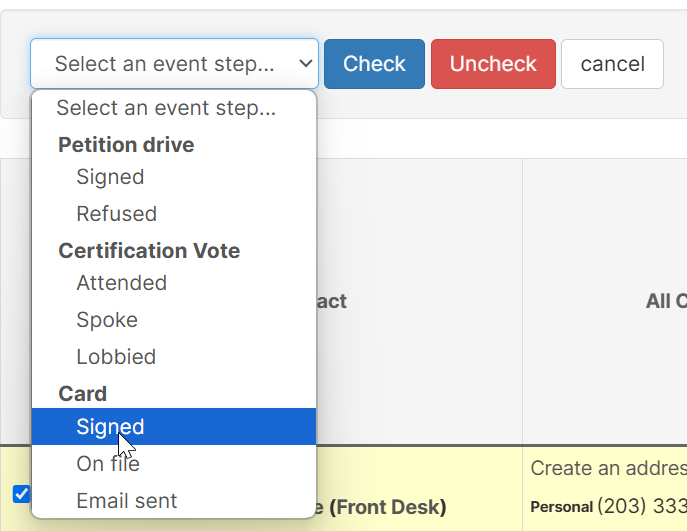
 3. When prompted to select an event step, we'll choose the **Card > Signed** step and click **Check**.

 4. Broadstripes will automatically update all of the contact records that we selected to show that their cards are signed. A **notification box** will appear at the bottom center of the screen to confirm our update.
 ## Unset (uncheck) an event step
If you want to uncheck (rather than check) an event step for a group of contacts all at once, you can do that from the actions drop-down menu, too. In this example, we have a list of people who were accidentally marked as having signed cards. We need to correct their records to show that they haven't yet signed a card.
1. Again, we'll start by running a search. From the **Search Results** page, we'll [select the contacts](/docs/viewing-search-results-and-edit/selecting-deselecting-contacts/) we need to correct. (If you need help running a search, check out the[Search builder how-to article](/docs/search/search-builder-build-an-advanced-search)article.)
2. With the contacts selected, we'll go to the **Actions** drop-down menu and choose **Assign Event Steps**.
3. When prompted to select an event step, we'll choose the **Card > Signed** step.
4. Finally, we'll click **Uncheck** to unset (uncheck) the Card > Signed event step.
5. Broadstripes will automatically update all of the contact records that we selected to show that their cards are no longer signed. A **notification box** will appear at the bottom center of the screen to confirm our update.
## Unset (uncheck) an event step
If you want to uncheck (rather than check) an event step for a group of contacts all at once, you can do that from the actions drop-down menu, too. In this example, we have a list of people who were accidentally marked as having signed cards. We need to correct their records to show that they haven't yet signed a card.
1. Again, we'll start by running a search. From the **Search Results** page, we'll [select the contacts](/docs/viewing-search-results-and-edit/selecting-deselecting-contacts/) we need to correct. (If you need help running a search, check out the[Search builder how-to article](/docs/search/search-builder-build-an-advanced-search)article.)
2. With the contacts selected, we'll go to the **Actions** drop-down menu and choose **Assign Event Steps**.
3. When prompted to select an event step, we'll choose the **Card > Signed** step.
4. Finally, we'll click **Uncheck** to unset (uncheck) the Card > Signed event step.
5. Broadstripes will automatically update all of the contact records that we selected to show that their cards are no longer signed. A **notification box** will appear at the bottom center of the screen to confirm our update.
