> ## Documentation Index
> Fetch the complete documentation index at: https://help.broadstripes.com/llms.txt
> Use this file to discover all available pages before exploring further.
# Actions - Change employment info
> Use bulk actions to create, terminate, delete employments, and change departments or job titles
## Update employment information
Use a bulk action to update workers' department or job title or to create, terminate, or delete entire employment records for a group of workers.
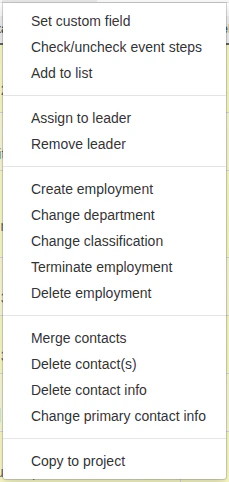
Working from your search results, you can easily update employment information for a group of workers from the **Actions drop-down menu**.
You can add new employments, show that a worker has been terminated from an employment, or even completely delete all history of an employment. You can also easily use a bulk action to change specific employment information for a group of workers. This includes the department they work in or their job title (sometimes labeled "classification").
 ***
## Create employments
For this example, we'll show how to assign a group of workers a **new employment** as Houseperson in Housekeeping on the second floor of the Grand Hotel.
If any of our workers already have an employment, this new employment will be added as an *additional* employment – existing employments will not be affected (to *replace* a worker's employment, first terminate any current employments).
1. To create an employment for our group of workers, we'll start by running a search. From the **Search Results** page, we'll [select the workers](/docs/viewing-search-results-and-edit/selecting-deselecting-contacts) whose employment we are adding. (If you need help running a search, check out the [Search builder](/docs/search/search-builder-build-an-advanced-search) article.)
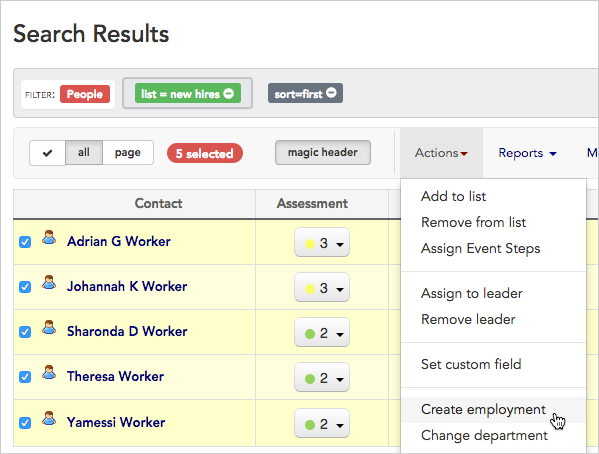
2. With the contacts selected, we'll go to the **Actions** drop-down menu and choose **Create employment**.
***
## Create employments
For this example, we'll show how to assign a group of workers a **new employment** as Houseperson in Housekeeping on the second floor of the Grand Hotel.
If any of our workers already have an employment, this new employment will be added as an *additional* employment – existing employments will not be affected (to *replace* a worker's employment, first terminate any current employments).
1. To create an employment for our group of workers, we'll start by running a search. From the **Search Results** page, we'll [select the workers](/docs/viewing-search-results-and-edit/selecting-deselecting-contacts) whose employment we are adding. (If you need help running a search, check out the [Search builder](/docs/search/search-builder-build-an-advanced-search) article.)
2. With the contacts selected, we'll go to the **Actions** drop-down menu and choose **Create employment**.
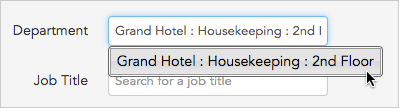
 3. When prompted for the department, **begin typing the department name** in the text box. Broadstripes will suggest names that match. **Select the department** from the list and move to the **Job title** field.
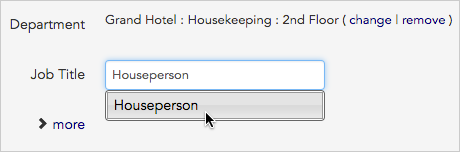
 4. If you use job titles (sometimes labeled "**Classifications**"), **begin typing the job title name** in the text box and choose a job title from the list that appears.
 5. Broadstripes is able to record a number of additional employment details including employees' hourly rate, start date, and whether or not they are part of the bargaining unit. Click the link labeled **more** to view or update this optional information.
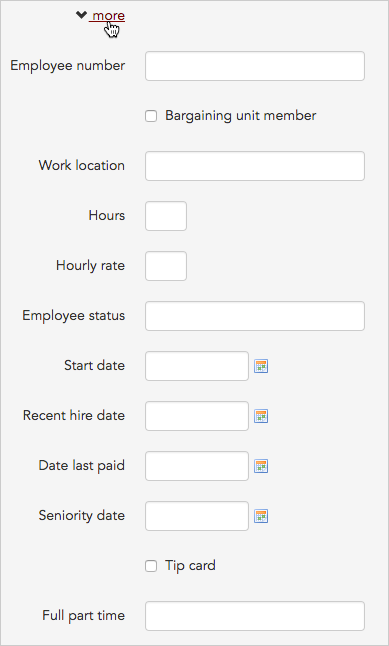 Adding additional employment data is optional.
6. When you've finished adding the workers' employment information, click the **Create employments** button.
7. Broadstripes will automatically update all of the contact records that we selected with their new employment. A **notification** will appear to confirm our update.
Adding additional employment data is optional.
6. When you've finished adding the workers' employment information, click the **Create employments** button.
7. Broadstripes will automatically update all of the contact records that we selected with their new employment. A **notification** will appear to confirm our update.
 ***
## Terminate employments
If you want to **terminate an employment** for a group of contacts at one time, you can do that from the actions drop-down menu, too. A record of any terminated employment will be visible on the **Employment tab** of each worker's profile page.
In this example, we will terminate an employment for three workers who are no longer working in Housekeeping on the second floor of the Grand Hotel.
1. Again, we'll start by running a search. From the **Search Results** page, we'll [select the workers](/docs/viewing-search-results-and-edit/selecting-deselecting-contacts) whose employments we need to terminate. (If you need help running a search, check out the [Search builder](/docs/search/search-builder-build-an-advanced-search) article.)
2. With the contacts selected, we'll go to the **Actions** drop-down menu and choose **Terminate employment**.
***
## Terminate employments
If you want to **terminate an employment** for a group of contacts at one time, you can do that from the actions drop-down menu, too. A record of any terminated employment will be visible on the **Employment tab** of each worker's profile page.
In this example, we will terminate an employment for three workers who are no longer working in Housekeeping on the second floor of the Grand Hotel.
1. Again, we'll start by running a search. From the **Search Results** page, we'll [select the workers](/docs/viewing-search-results-and-edit/selecting-deselecting-contacts) whose employments we need to terminate. (If you need help running a search, check out the [Search builder](/docs/search/search-builder-build-an-advanced-search) article.)
2. With the contacts selected, we'll go to the **Actions** drop-down menu and choose **Terminate employment**.
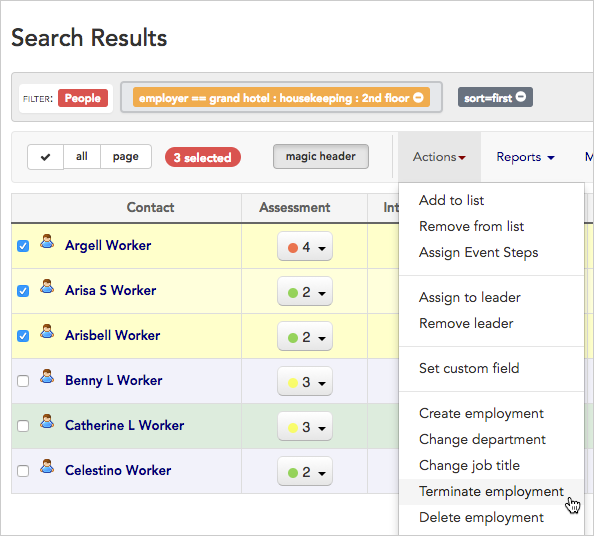 3. We'll be prompted to choose between **terminating all employments** and **terminating a particular employment**. We'll choose a specific employment (Grand Hotel : Housekeeping : 2nd Floor), enter the termination date, and give a brief explanation of why the employment ended. If this employment had child records, we could choose to terminate those as well by checking the **Include children** checkbox.
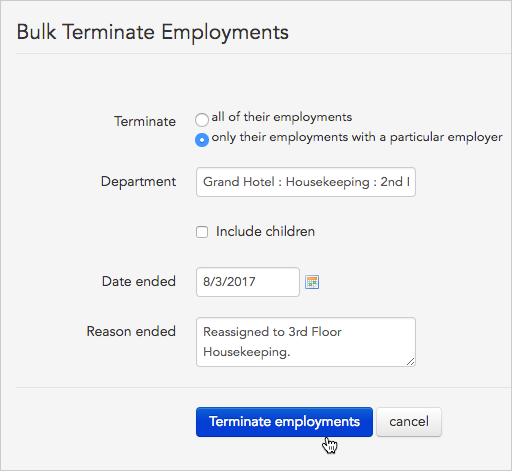 4. Finally, we'll click the **Terminate employments** button to complete our bulk action.
5. Broadstripes will automatically update all of the contact records that we selected to show that their 2nd floor Housekeeping employment is terminated. A record of this terminated employment will be visible on the **Employment tab** of each worker's profile page.
***
## Delete employments
Sometimes you may want to completely **delete an employment record**. Unlike termination, the deletion of an employment will not leave any historical record of the employment on a worker's profile.
In this example, we will delete an employment for four workers who were entered incorrectly as 3rd floor Housekeeping employees at the Grand Hotel.
1. Again, we'll start by running a search. From the **Search Results** page, we'll [select the workers](/docs/viewing-search-results-and-edit/selecting-deselecting-contacts) whose employments we need to delete. (If you need help running a search, check out the [Search builder](/docs/search/search-builder-build-an-advanced-search) article.)
2. With the contacts selected, we'll go to the **Actions** drop-down menu and choose **Delete employment**.
4. Finally, we'll click the **Terminate employments** button to complete our bulk action.
5. Broadstripes will automatically update all of the contact records that we selected to show that their 2nd floor Housekeeping employment is terminated. A record of this terminated employment will be visible on the **Employment tab** of each worker's profile page.
***
## Delete employments
Sometimes you may want to completely **delete an employment record**. Unlike termination, the deletion of an employment will not leave any historical record of the employment on a worker's profile.
In this example, we will delete an employment for four workers who were entered incorrectly as 3rd floor Housekeeping employees at the Grand Hotel.
1. Again, we'll start by running a search. From the **Search Results** page, we'll [select the workers](/docs/viewing-search-results-and-edit/selecting-deselecting-contacts) whose employments we need to delete. (If you need help running a search, check out the [Search builder](/docs/search/search-builder-build-an-advanced-search) article.)
2. With the contacts selected, we'll go to the **Actions** drop-down menu and choose **Delete employment**.
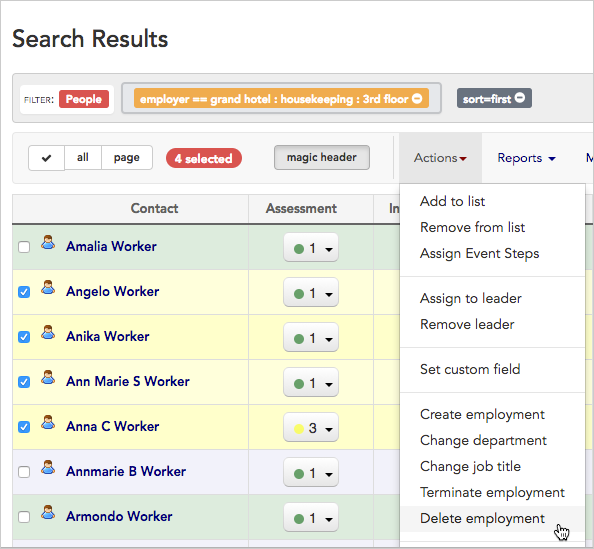 3. We'll be prompted to choose what to delete:
* **all of their employments** permanently removes all employment records
* **only their employments with a particular employer** permanently removes only the employment you specify in the next step
* **only their employments with no employer** permanently removes an employment that may have been created without a specified employer
3. We'll be prompted to choose what to delete:
* **all of their employments** permanently removes all employment records
* **only their employments with a particular employer** permanently removes only the employment you specify in the next step
* **only their employments with no employer** permanently removes an employment that may have been created without a specified employer
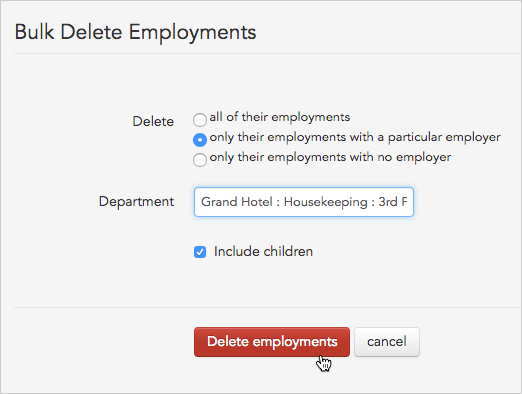 We'll choose a specific employment (Grand Hotel : Housekeeping : 3rd Floor) and check the **Include children** checkbox so no child employment records remain.
4. We'll click the **Delete employments** button to complete our bulk action.
5. Broadstripes will automatically delete the 3rd Floor Housekeeping employment record for all of the contact records that we selected. This deletion will be permanent, and there will be no history showing that the employment ever existed.
***
## Change departments
For this example, we'll **change the department** for a group of workers who were previously in Housekeeping, but are now working in Concierge services at the Deluxe Hotel.
1. To make this change for our group of workers, we'll start by running a search. From the **Search Results** page, we'll [select the workers](/docs/viewing-search-results-and-edit/selecting-deselecting-contacts) whose department we are changing. (If you need help running a search, check out the [Search builder](/docs/search/search-builder-build-an-advanced-search) article.)
2. With the contacts selected, we'll go to the **Actions** drop-down menu and choose **Change department**.
We'll choose a specific employment (Grand Hotel : Housekeeping : 3rd Floor) and check the **Include children** checkbox so no child employment records remain.
4. We'll click the **Delete employments** button to complete our bulk action.
5. Broadstripes will automatically delete the 3rd Floor Housekeeping employment record for all of the contact records that we selected. This deletion will be permanent, and there will be no history showing that the employment ever existed.
***
## Change departments
For this example, we'll **change the department** for a group of workers who were previously in Housekeeping, but are now working in Concierge services at the Deluxe Hotel.
1. To make this change for our group of workers, we'll start by running a search. From the **Search Results** page, we'll [select the workers](/docs/viewing-search-results-and-edit/selecting-deselecting-contacts) whose department we are changing. (If you need help running a search, check out the [Search builder](/docs/search/search-builder-build-an-advanced-search) article.)
2. With the contacts selected, we'll go to the **Actions** drop-down menu and choose **Change department**.
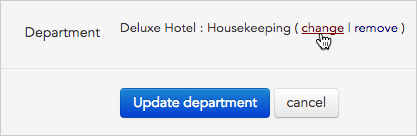
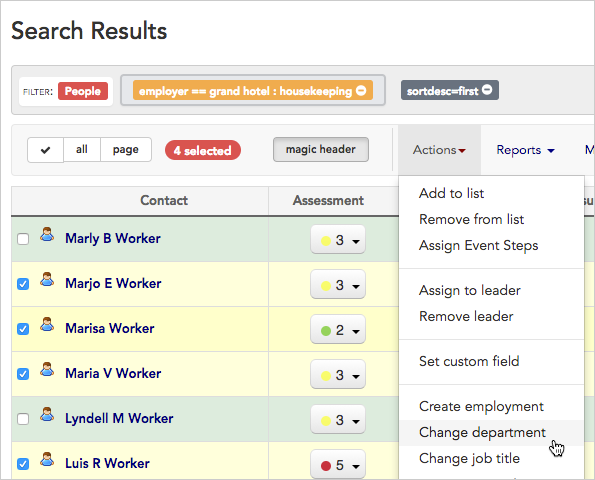 3. Click the **change** link to change the department.
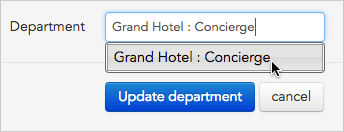
 4. When prompted for the department, **begin typing the department name** in the text box. Broadstripes will suggest names that match. **Select the department** from the list and click **Update department**.
 5. Broadstripes will automatically update all of the contact records that we selected with their new department. A **pop-up box** will appear to confirm our update.
 ***
## Change job titles (classifications)
Depending on the project settings set up by your administrator, you may see either the label "classification" or "job title" in your Broadstripes project – both refer to the same field, only the label is different.
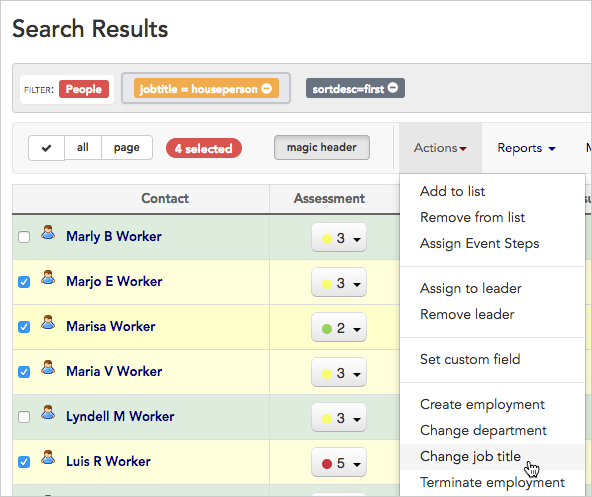
In this example, we'll **change the job title (classification)** for the four workers whose departments we updated in the previous step. We'll change their job titles from "Houseperson" to "Front Desk", their new role.
1. Again, we'll start by running a search. From the **Search Results** page, we'll [select the workers](/docs/viewing-search-results-and-edit/selecting-deselecting-contacts) whose job titles we need to change. (If you need help running a search, check out the [Search builder](/docs/search/search-builder-build-an-advanced-search) article.)
2. With the contacts selected, we'll go to the **Actions** drop-down menu and choose **Change job title**.
***
## Change job titles (classifications)
Depending on the project settings set up by your administrator, you may see either the label "classification" or "job title" in your Broadstripes project – both refer to the same field, only the label is different.
In this example, we'll **change the job title (classification)** for the four workers whose departments we updated in the previous step. We'll change their job titles from "Houseperson" to "Front Desk", their new role.
1. Again, we'll start by running a search. From the **Search Results** page, we'll [select the workers](/docs/viewing-search-results-and-edit/selecting-deselecting-contacts) whose job titles we need to change. (If you need help running a search, check out the [Search builder](/docs/search/search-builder-build-an-advanced-search) article.)
2. With the contacts selected, we'll go to the **Actions** drop-down menu and choose **Change job title**.
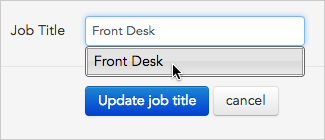
 3. When prompted for the new job title, **begin typing the job title** in the text box. Broadstripes will suggest names that match. **Select the job title** from the list and click **Update job title**.
 4. Broadstripes will automatically update all of the contact records that we selected to show their new Front desk role. A **pop-up box** will appear to confirm the changes.