> ## Documentation Index
> Fetch the complete documentation index at: https://help.broadstripes.com/llms.txt
> Use this file to discover all available pages before exploring further.
# Scrolling and paging through search results
## Overview
Running a search is a great way to narrow down the contact records you're working with – instead of wading through every record in the project, with search results you'll see just the contacts you're interested in.
However, even after running a search, you may still have a large number of contacts included in the results. This article will help you learn to navigate those records.
## The search results page
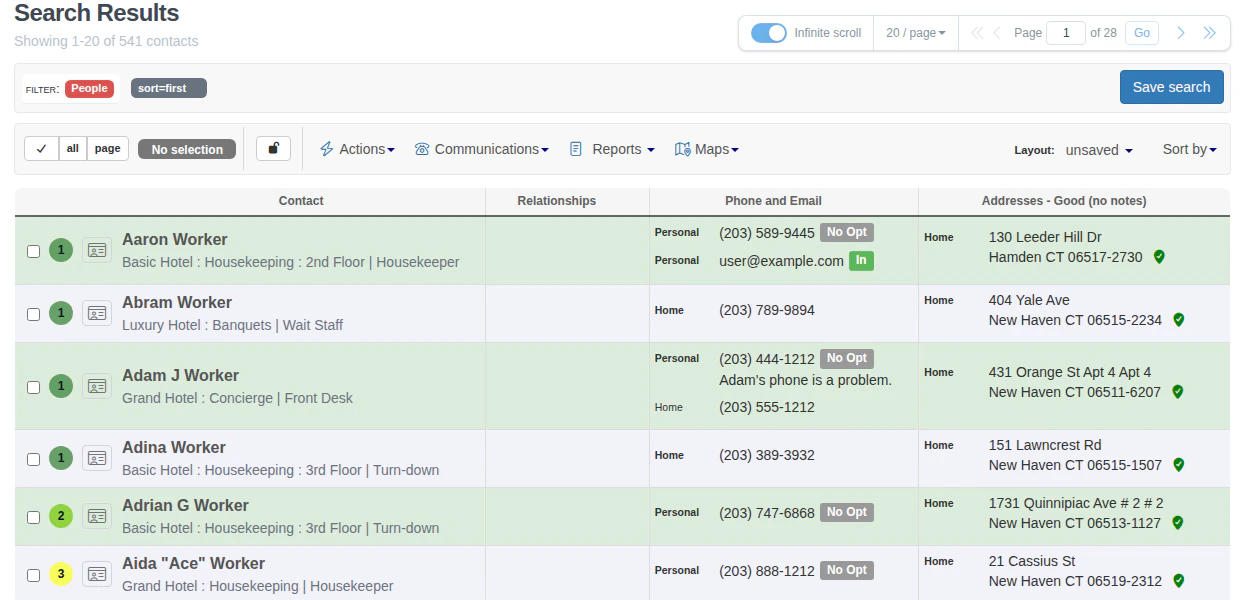
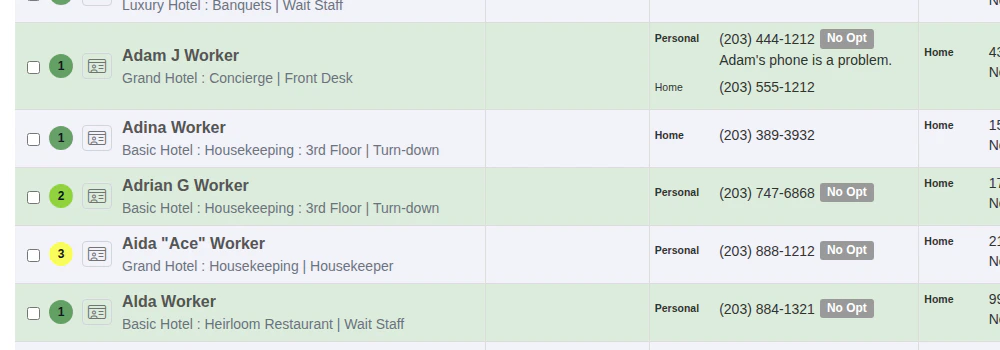
We'll begin by getting to know the search page. There's a lot of information displayed here. There are also helpful tools for navigating – you just need to know where to look. Below we look at four areas of the search results page.
### 1. Contacts
 ### 2. Result count and page range
The search results header shows two pieces of information side by side:
* **Total count** - a large, prominent number with an entity label that reflects what is in your results. If all matched records are people it shows "people" (for example, "121 people"); if all are organizations it shows "orgs" (for example, "37 orgs"); for any mix of record types it shows "contacts".
* **Page range** - a smaller "Showing X-Y" indicator that updates as you page or scroll through results.
### 2. Result count and page range
The search results header shows two pieces of information side by side:
* **Total count** - a large, prominent number with an entity label that reflects what is in your results. If all matched records are people it shows "people" (for example, "121 people"); if all are organizations it shows "orgs" (for example, "37 orgs"); for any mix of record types it shows "contacts".
* **Page range** - a smaller "Showing X-Y" indicator that updates as you page or scroll through results.
 ### 3. Contact records shown per page
 ### 4. Page navigation
 ### 5. Infinite scroll toggle
The **Infinite scroll** () toggle switch is in the search controls bar at the top right of the results. When on (the default), Broadstripes automatically loads more records as you reach the bottom of the visible results. Toggle it off to keep results on individual pages and navigate with the page controls instead. Your preference is saved automatically and applies to all future searches.
### 5. Infinite scroll toggle
The **Infinite scroll** () toggle switch is in the search controls bar at the top right of the results. When on (the default), Broadstripes automatically loads more records as you reach the bottom of the visible results. Toggle it off to keep results on individual pages and navigate with the page controls instead. Your preference is saved automatically and applies to all future searches.
 ## Scrolling through results
You can **scroll down** through your search results in a few ways:
> * use your keyboard's **down arrow** or **page down key**.
> * use your **mouse** to scroll down, just as you would with any other web page.
> As you scroll down, Broadstripes **dynamically loads additional records** as you reach the end of your search results. The page range beside the result count updates as more records load (for instance "**Showing 1-20**" will change to "**Showing 1-40**") so you can always see which records are currently displayed. To turn off infinite scrolling and navigate page by page instead, use the **Infinite scroll** toggle in the search controls bar.
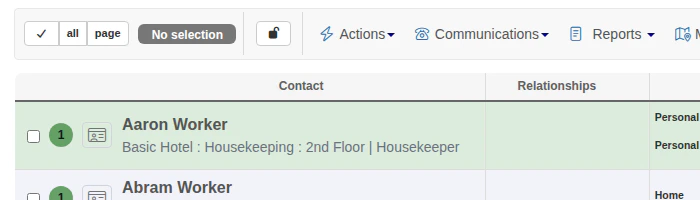
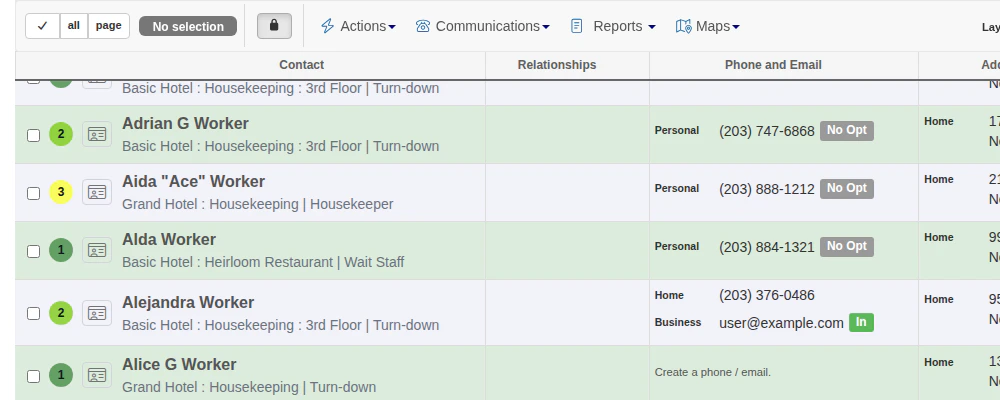
> You can keep the header information visible even as you scroll down the search results by clicking the "**magic header"** button. This will "lock" the labels in place at the top of the page.
## Scrolling through results
You can **scroll down** through your search results in a few ways:
> * use your keyboard's **down arrow** or **page down key**.
> * use your **mouse** to scroll down, just as you would with any other web page.
> As you scroll down, Broadstripes **dynamically loads additional records** as you reach the end of your search results. The page range beside the result count updates as more records load (for instance "**Showing 1-20**" will change to "**Showing 1-40**") so you can always see which records are currently displayed. To turn off infinite scrolling and navigate page by page instead, use the **Infinite scroll** toggle in the search controls bar.
> You can keep the header information visible even as you scroll down the search results by clicking the "**magic header"** button. This will "lock" the labels in place at the top of the page.
 ## Paging through results
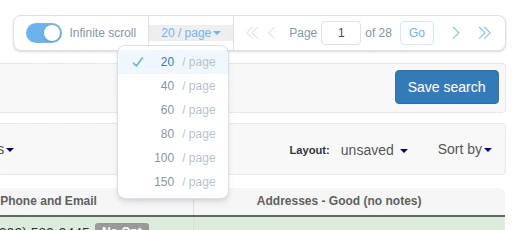
If you want to move more quickly through your search results, you can view them a page at a time. First, set the number of results you want to see per page using the **20 / page** drop-down menu in the search controls bar at the top of the page.
Next, use the **page navigation tool** in the search controls bar to move from page to page.
## Paging through results
If you want to move more quickly through your search results, you can view them a page at a time. First, set the number of results you want to see per page using the **20 / page** drop-down menu in the search controls bar at the top of the page.
Next, use the **page navigation tool** in the search controls bar to move from page to page.
 You can either **type the page number** you want to view and click **Go** to jump there, or use the navigation arrows. Click the **right-facing arrow** to step forward one page at a time, or click the **double right-facing arrow** to go to the very last page of your search results. (Move backward through your results using the and **paging arrows**.)