> ## Documentation Index
> Fetch the complete documentation index at: https://help.broadstripes.com/llms.txt
> Use this file to discover all available pages before exploring further.
# Add a shop or department (organization)
Shops, departments, or sub-departments, broadly termed "organizations" by Broadstripes, are usually created in one of two ways:
* **during data import** using a worker spreadsheet with employment information
* **manually** (either before or after importing data) using the **CREATE A NEW ...** link in the Broadstripes toolbar
This article will look at creating new organizations manually using the **CREATE A NEW ...** link after data has been imported, as in the case where a shop is adding a new department or sub-department.
To learn about creating organizations *during* import, see the [data import oveview](/docs/data-import-admin/data-import-overview) articles of the knowledge base.
## Create an organization manually
In this example, we'll be adding a new sub-department called "**4th Floor**" to the **Pediatrics** department in our hospital structure.
**Note** that since how you build and label the tiers of your shop or department hierarchy is all customizable (ours is set up for a hospital with departments and sub-departments), your choices may look different than ours.
1. To start, click the appropriate organization link under the “CREATE A NEW …” header in the left-hand navigation panel.
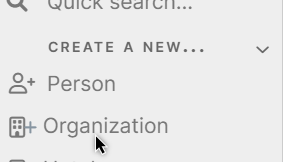 1. **Add** the new organization and specify a **Parent Organization**. Here's a simple look at our shop structure:
 This means that when adding "**4th Floor**", we need to specify "**Pediatrics**" as the “**Parent Organization**,” so that the 4th Floor sub-department is placed *under* Pediatrics (and not placed on the same tier as Pediatrics and Emergency Room).
 1. **Add additional information** about the organization. Use the lower portion of the **New Department form** to record any other notes or information you want to track about the organization you are adding.
2. Click **Save** to add the new organization to your project.
3. **Add workers** using a bulk action. Since you've manually added this new sub-department after importing your worker lists, you'll need to assign workers to that employment using a **bulk action**. You can learn more about this in the [bulk actions](/docs/viewing-search-results-and-edit/bulk-actions/bulk-actions-change-employment-info) section of the knowledge base.
1. **Add additional information** about the organization. Use the lower portion of the **New Department form** to record any other notes or information you want to track about the organization you are adding.
2. Click **Save** to add the new organization to your project.
3. **Add workers** using a bulk action. Since you've manually added this new sub-department after importing your worker lists, you'll need to assign workers to that employment using a **bulk action**. You can learn more about this in the [bulk actions](/docs/viewing-search-results-and-edit/bulk-actions/bulk-actions-change-employment-info) section of the knowledge base.