

Prerequisites
Before you can merge two contacts, the following conditions must be met:- Both contacts must be the same type (both must be people OR both must be organizations)
- You must have permission to merge contacts. Project admins always do; a basic user can be granted it by a project admin checking Can merge contacts on that user’s membership settings (it then shows as the Merge Contacts flag on the members list).
Understanding the merge process
When you merge contacts, Broadstripes follows specific rules to determine what data is kept: The survivor’s data takes priority - If both contacts have values in the same field, the survivor’s value is kept and the other contact’s value is discarded. Empty fields are filled - If the survivor has a blank field but the deleted contact has a value in that field, the value from the deleted contact is used to fill the blank. See exceptions below. Notes are combined - Unlike other fields, notes from both contacts are merged together with a separator line between them, preserving information from both records. Contact information is deduplicated - Phone numbers, email addresses, and physical addresses are transferred to the survivor, but duplicates are automatically skipped.What gets merged
When you merge two contacts, the following information is transferred from the deleted contact to the survivor:- Contact information - Phone numbers, email addresses, and physical addresses (duplicates are skipped)
- Relationships - All relationships between the contact and other people or organizations
- Employments - Employment records and workplace associations
- Group memberships - Membership in social groups
- Attachments - Files and documents attached to the contact
- Messages - Email and text message history
- Contact timeline entries - Notes and activity logs
-
Custom field values - Data stored in your project’s custom fields
-
Survivor value takes priority. If the survivor has a value, that value is kept. If the survivor’s custom field is blank and the TBD has a value, the TBD’s value is copied to the survivor. Here are the exceptions:
1. Text Area Custom Fields (Multiline)
Both values are merged with a separator if both entities have values:This ensures no data is lost from multiline text fields.
2. Multiple Select Custom Fields
Survivor value is kept; TBD value is ignored even if different options are selected.
-
Survivor value takes priority. If the survivor has a value, that value is kept. If the survivor’s custom field is blank and the TBD has a value, the TBD’s value is copied to the survivor. Here are the exceptions:
- Events - All event steps and timeline activities
- Lists - All unique list memberships from both entities are preserved
Special handling for organizations
When merging organization records, these additional items are also transferred:- Child organizations - Any sub-departments or shops under the organization
- Mapping groups - Geographic mapping associations
- Employee data - All workers employed by the organization
How to merge contacts
You can merge contacts from two locations in Broadstripes: the search results page or the Shops and Departments page.From the search results page
- Search for the contacts - Generata a search to find the two contacts you want to merge. Make sure both contacts appear in your search results.
- Select the contacts - Check the boxes next to both contact records you want to merge. You must select exactly two contacts of the same type (both people or both organizations).
- Open the Actions menu - Click the Actions button at the top of the search results page.
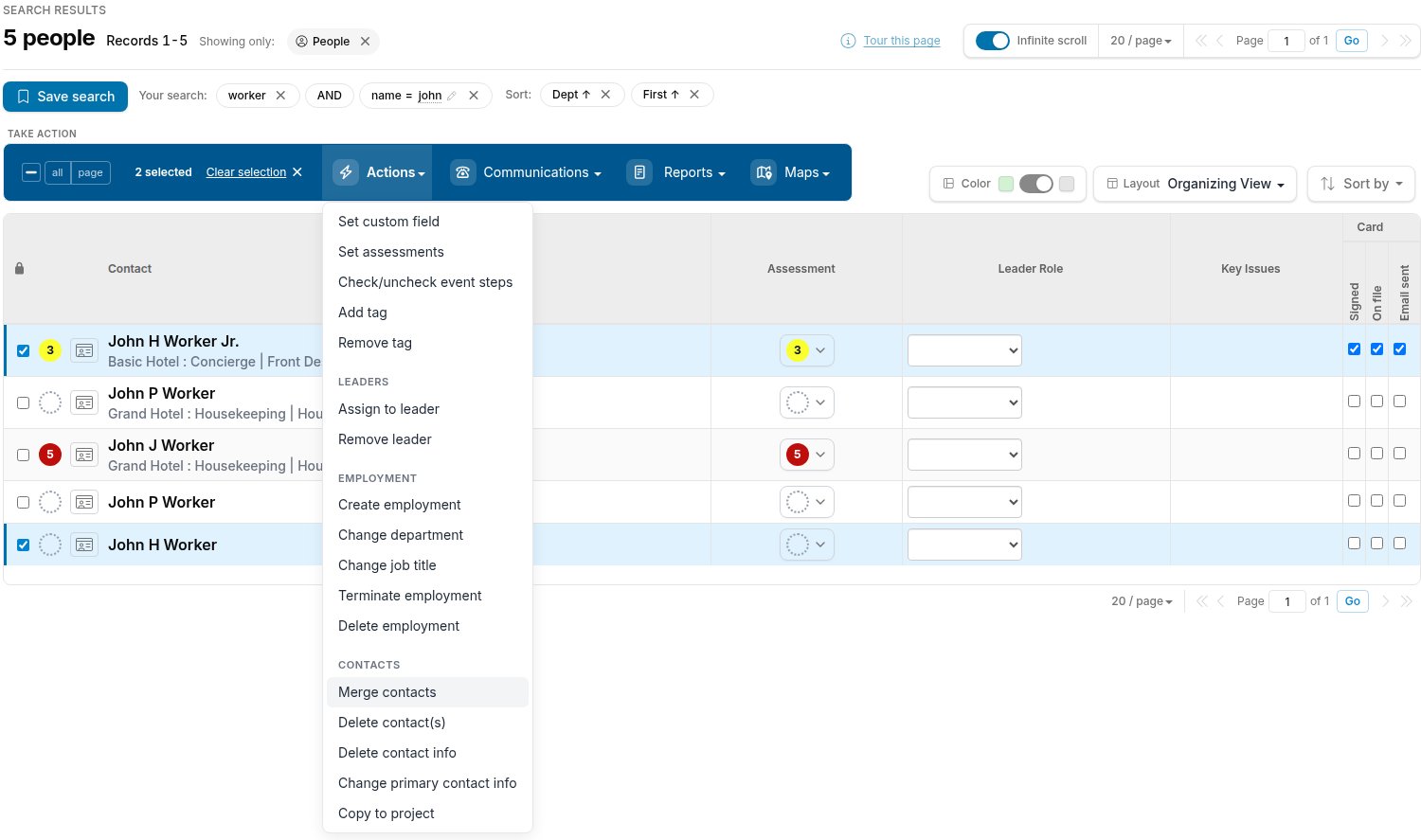
- Select Merge contacts - From the Actions dropdown menu, choose Merge contacts.
- Choose the survivor record - A Merge contacts panel appears showing both contact records. Select which contact should be the survivor (the record that will remain and whose data will take precedence). The other contact will be deleted after the merge.
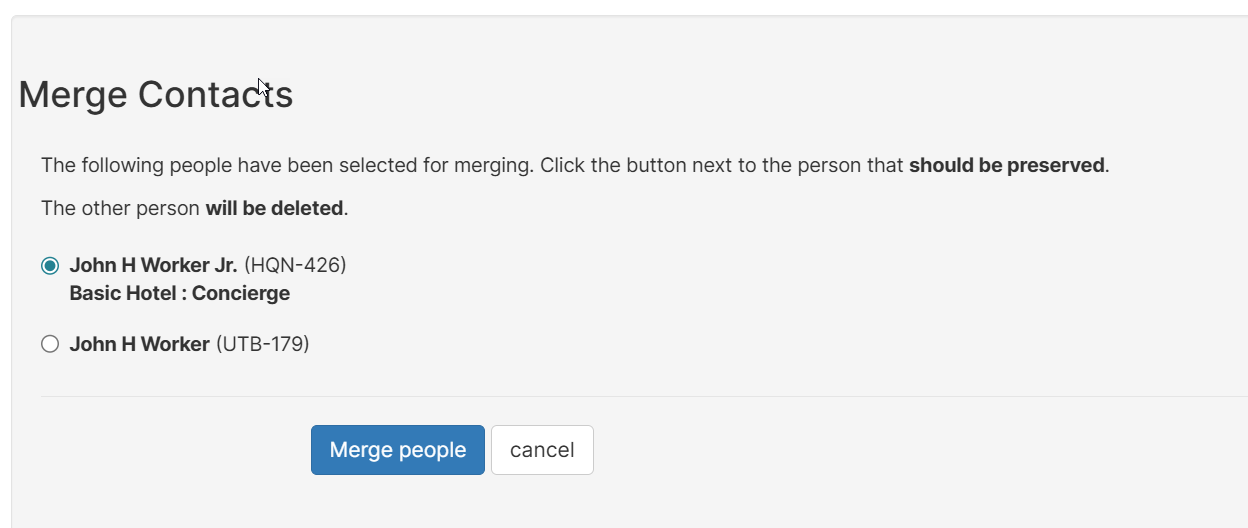
- Confirm the merge - Once you’re satisfied with your selections, click the Merge people or Merge organizations button to proceed. Broadstripes will:
- Transfer all data from the deleted contact to the survivor where applicable
- Update all references and associations
- Permanently delete the duplicate contact
From the Shops and Departments page
- Navigate to the Shops and Departments page - Click Shops and Departments in the navigation panel on the left side of Broadstripes.
- Select the organizations - Check the boxes next to the two organization records you want to merge. You must select exactly two organizations.
- Open the Actions menu - Click the Actions button at the top of the page.
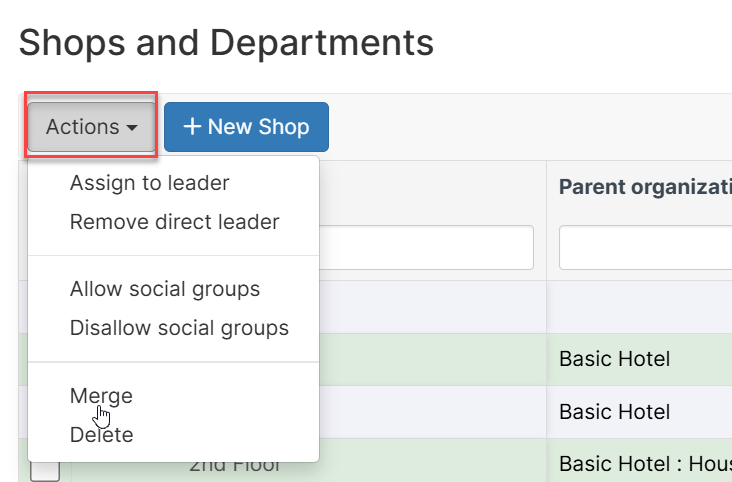
- Select Merge - From the Actions dropdown menu, choose Merge.
- Follow the merge process - Continue with steps 5-7 from the “From the search results page” section above. The merge dialog and confirmation process works the same way for organizations.
Important considerations
Messaging permissionsThe survivor record’s messaging permissions always take precedence.
- If the survivor is opted in and the TBD record is opted out for the same phone number or email address, the survivor will remain opted in.
- If the survivor is opted out and the TBD record is opted in, the survivor will remain opted out.
Tips for successful merging
- Choose the survivor carefully - Select the record with the most complete and accurate information as the survivor. This minimizes data loss.
- Review before merging - Take a moment to compare both records before starting the merge process. You may want to manually update the survivor with important information from the duplicate record before merging.
- Consider the Broadstripes ID - Users may recognize one contact’s Broadstripes ID more than the other. Consider which ID will be easier for your team to remember.
- Check relationships - If the duplicate contacts have different relationships or employments, verify that combining them makes sense for your organizing work.
- Make notes - If you’re consolidating records with significantly different information, consider adding a note to the survivor record explaining what was merged and when.