Overview
If you have a few saved searches that you use more than the rest, quick links let you access them with a single click from your dashboard. You can create a quick link directly from any saved search dialog — just choose the output format and you’re done. Quick links support four output formats:- Search results — view records on-screen where you can browse and edit them
- PDF — download a PDF file of the search results
- Spreadsheet (XLSX) — download a Microsoft Excel spreadsheet
- Spreadsheet (CSV) — download a comma-separated values file
Create a quick link from the saved search dialog
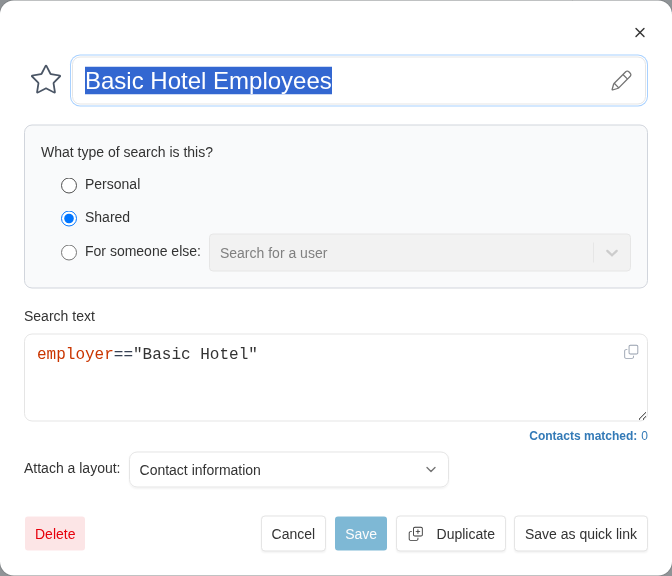
The fastest way to create a quick link is directly from the saved search dialog. You can do this when editing an existing search or when saving a new one.-
Open the saved search dialog. You can do this from:
- The Saved Searches page — click the actions menu (⋯) on a search and select Edit
- The search dropdown in the top navigation — click the edit icon on a saved search
- The search results page — click Save search to save a new search
-
In the dialog footer, click Save as quick link.
-
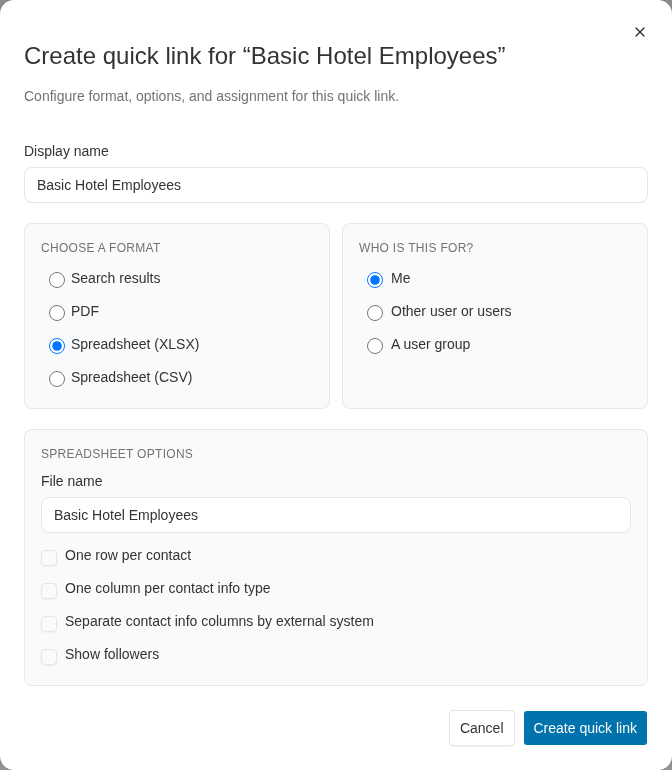
The Create quick link dialog opens. Here you can configure:
- Display name — the label that appears on your dashboard (defaults to the search name)
- Format — choose how you want to see the results
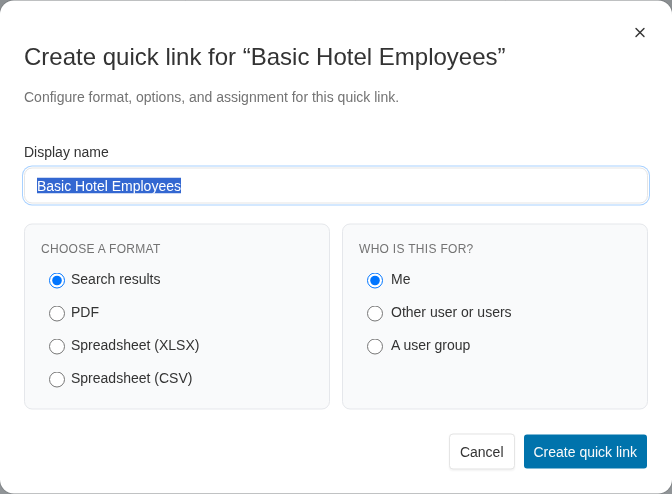
- Click Create quick link to finish. The quick link is added to your dashboard immediately.
PDF options
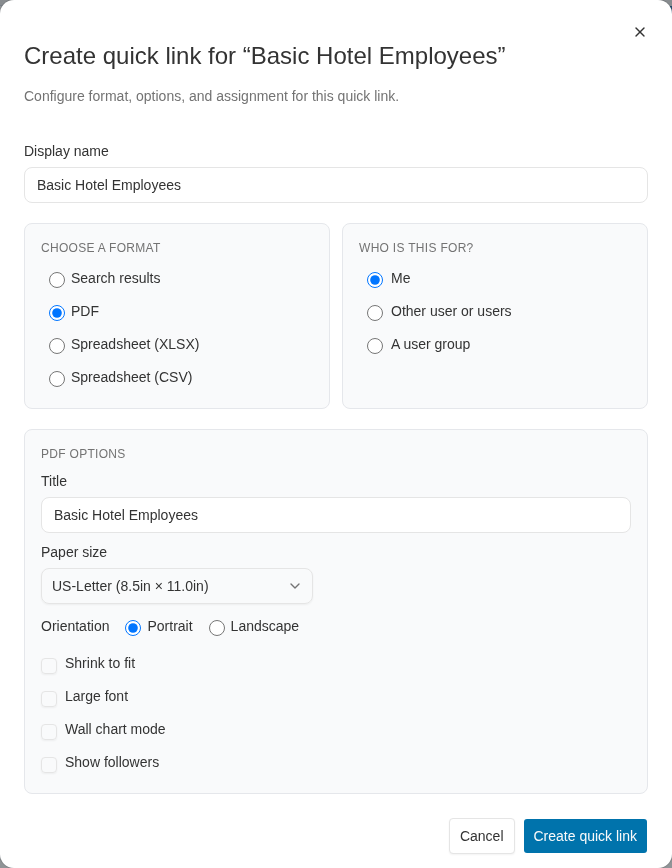
When you select PDF as the format, additional options appear:- Title — the title printed on the PDF
- Paper size — choose from US-Letter, A4, and other standard sizes
- Orientation — portrait or landscape
- Shrink to fit — scale content to fit the page width
- Large font — increase the font size for readability
- Wall chart mode — format the output for large-format printing
- Show followers — include follower records in the output
Spreadsheet options
When you select Spreadsheet (XLSX) or Spreadsheet (CSV), additional options appear:- File name — the name of the downloaded file
- One row per contact — consolidate multiple rows for the same contact into a single row
- Value separator — when using one row per contact, choose how multi-values are separated
- One column per contact info type — split contact info into separate columns (with options for metadata placement)
- Separate contact info columns by external system — create separate columns for each external system
- Show followers — include follower records in the output
Assign quick links to other users (administrators)
Administrators see an additional Who is this for? section in the quick link creation dialog. This lets you create quick links on behalf of other people:- Me — create the quick link for yourself (the default)
- Other user or users — search for and select one or more users to receive the quick link
- A user group — select a user group, and all members will receive the quick link

When you assign a quick link to multiple users or a user group, Broadstripes creates individual quick links for each user. A summary message shows how many were created and how many were skipped (if some users already had that quick link).
If you already have a quick link for a particular search in a given format, the Me option will be disabled for that format and a note will indicate the quick link already exists.
Create a quick link from the Quick Links tab
You can also create quick links from the Quick Links tab on your homepage dashboard. This method uses a step-by-step wizard:- Go to your homepage and open the Quick Links tab.
- Click edit, then click Add new quick link.
- Choose a saved search as the type of quick link.
- Select the saved search you want from the list and click Next.
- Choose the output format and click Next.
- Name the quick link and click Done.
Delete a quick link
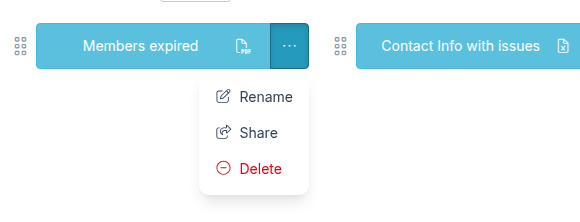
To remove a quick link from your dashboard, click the ellipsis icon on the quick link button on the Quick Links tab to open the Quick link actions menu, then click Delete. Deleting the link removes it from your dashboard but does not delete the underlying saved search.