

Why add a quick search link?
A quick search quick link gives you a fast, dynamic search with fixed layout and output preferences — you choose who to search for each time you run it, and Broadstripes automatically presents the results in the right format with no extra steps.Looking for the quickest way to simply pull up a person or workplace? Use the Find people and Find workplaces cards on your homepage. A quick search quick link is for when you also want saved layout and output settings applied to the results.
Example
Imagine that I frequently create lists of workers from each of the various departments at the shops I organize. After running a department search, I always apply the same “Department list” layout, and always export the list to PDF so I can print it and keep it with me when I’m away from my computer. If I ran an ordinary search to create these printed lists, I’d need to select the layout and output format each time I ran the search. Alternatively, if I used a saved search with a saved layout, I’d have to create a separate search for every single department list I wanted to print. By creating a quick search quick link, I can keep the search flexible but specify the “Department list” layout and the PDF output format. The best part is that I can set it up once, and run the search over and over (choosing any department I want to see) without ever having to specify those output settings again. Here’s how:- Start on the quick links tab and follow the steps outlined in the article create a quick link to create your new quick link.
-
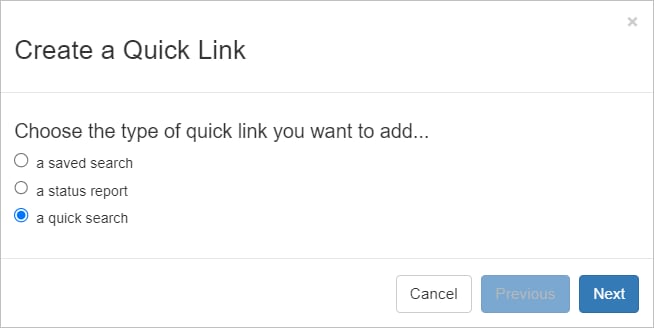
Choose a quick search as the type of link you want to add and click Next.
-
Choose the layout. For this example, I’ll choose Department List since this is the layout I want Broadstripes to use each time the search is run.
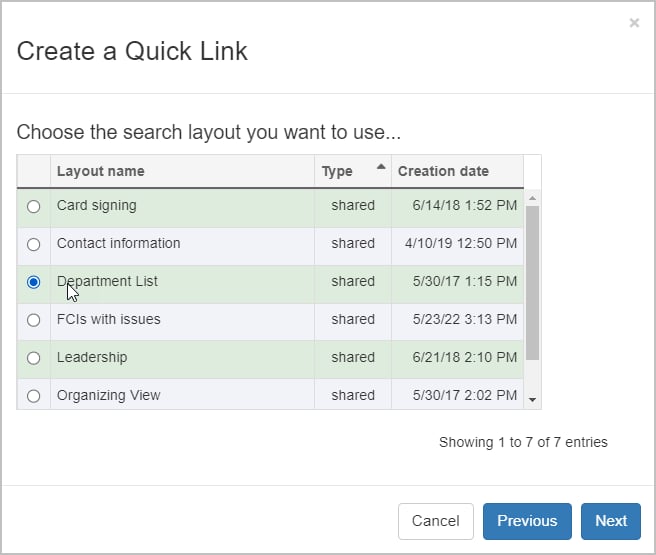
- Click Next.
-
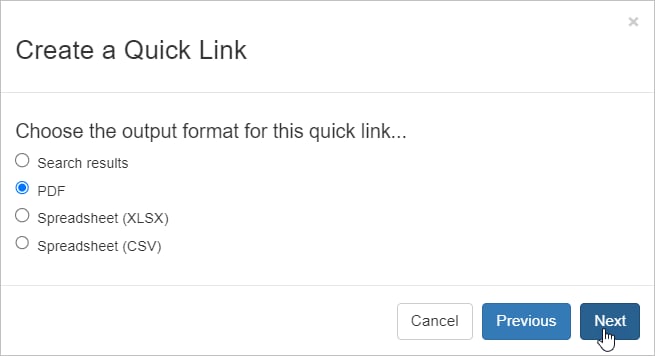
Choose the output type and click Next. For this example, I’ll choose PDF.
-
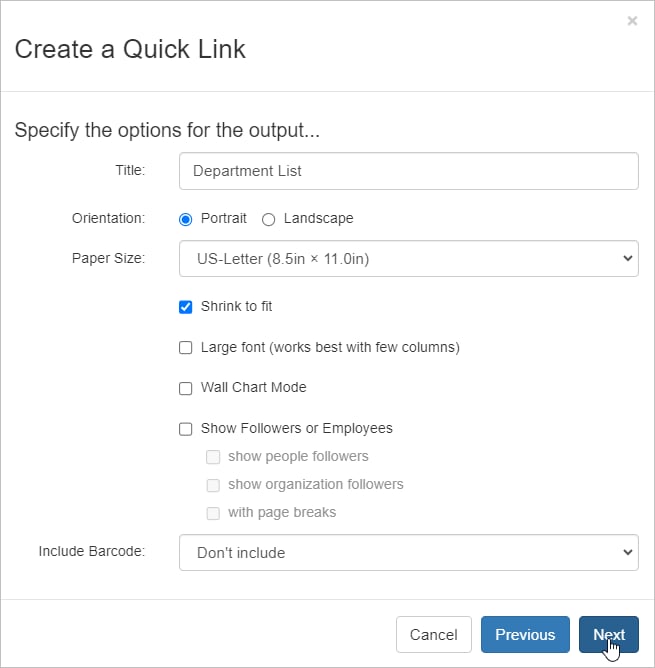
When the output options window opens, give the file a Title and File Name and specify any other output details that are important to you. Click Next.
-
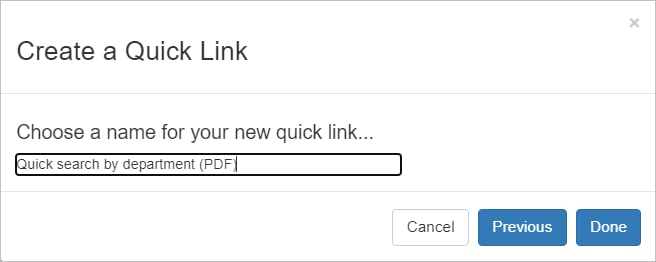
Name the quick link. This is the name that will appear on the quick link button on your quick link tab. Click Done to save.
-
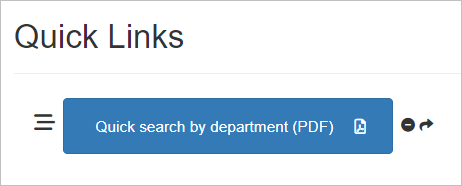
You’ll see the new quick link button on your Quick Links tab. Click it to launch a search.
-
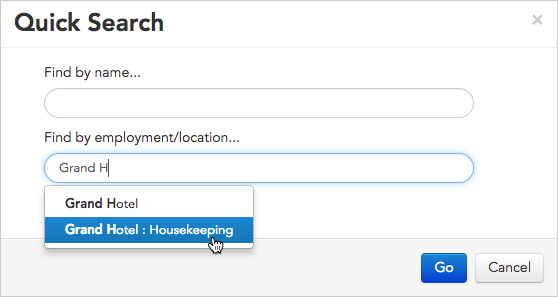
You’ll be prompted to enter search criteria: the employer, location, or department whose people you want to see. We’ll enter the department we want to see (Housekeeping) and click Go.
-
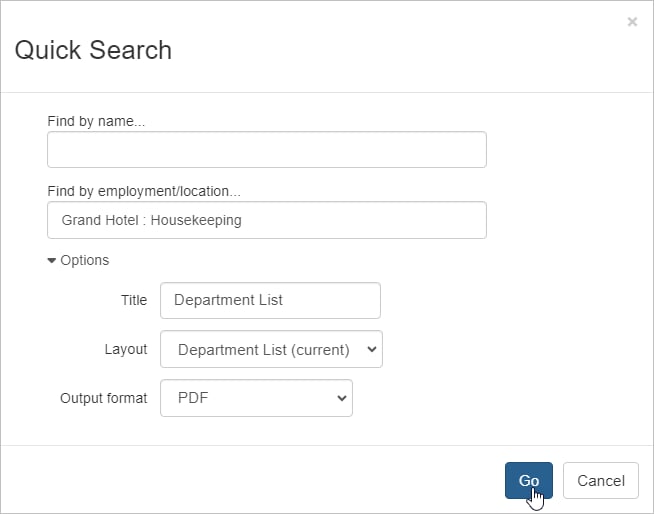
After you have chosen the employer or location, you can open the Options panel to change the report’s name, layout, and format.
-
To view and print your PDF, you have two choices:
- You can stay on the current page and wait for the report to download to your designated download folder.
- You can leave the current page and check in later to see if the report is ready. To check for the report later, click the Reports link in the navigation panel. That link brings you to the Requested Reports page where you can download any requested list at any time.
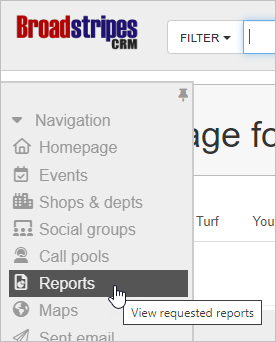
If you want to download the PDF list later, click the Reports link in the navigation panel.
- To generate another list for another department, just click the same quick search button on your quick links tab again. The link will remain there even after you’ve logged out and logged back in again.
-
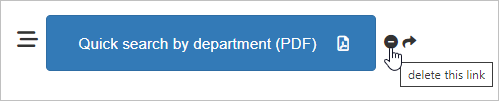
If you ever need to delete a quick link, click the ellipsis icon on the quick link button to open the Quick link actions menu, then click Delete.
- You can also share quick links to a user group.