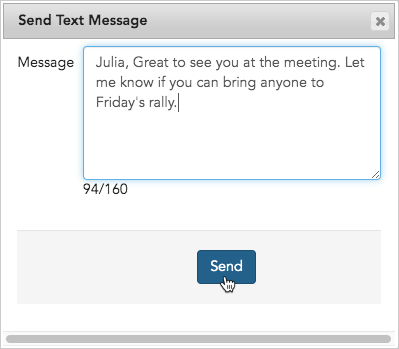
Send SMS texts to multiple workers
This action allows you to send individual text messages to a group of workers all at once. See the Text messaging overview article and watch the text messaging with Broadstripes video to learn more about using Broadstripes to send (and receive) text messages. If you don’t see the “Text” option on your drop down menu, it means you haven’t been granted permission to use the feature. Talk to your admin to get set up.Before you can send a text message
Two things need to happen before you start sending texts in Broadstripes:- You have to have permission to send texts, which an admin can give you.
- You need a virtual cell number, which also must be provided by an admin. Broadstripes uses virtual numbers so that:
- organizers don’t have to give out their real cell numbers
- if an organizer moves on from a campaign, another team member can continue an ongoing text conversation in their place.
To receive notifications when workers reply to your texts, you should also add your own cell number to your Broadstripes user account. This is not required to send messages, but without it you will not receive reply notifications.
Video: How to set up and use text messaging in Broadstripes
Sending a text message to multiple workers at once
Broadstripes can only send a text to workers who have been marked “Opted in,” indicating that they’ve agreed to receive messages.If you’re not sure how to add a new cell phone number or update an existing number indicating it’s been “opted in,” take a look at the Text messaging permissions - Opt in article.
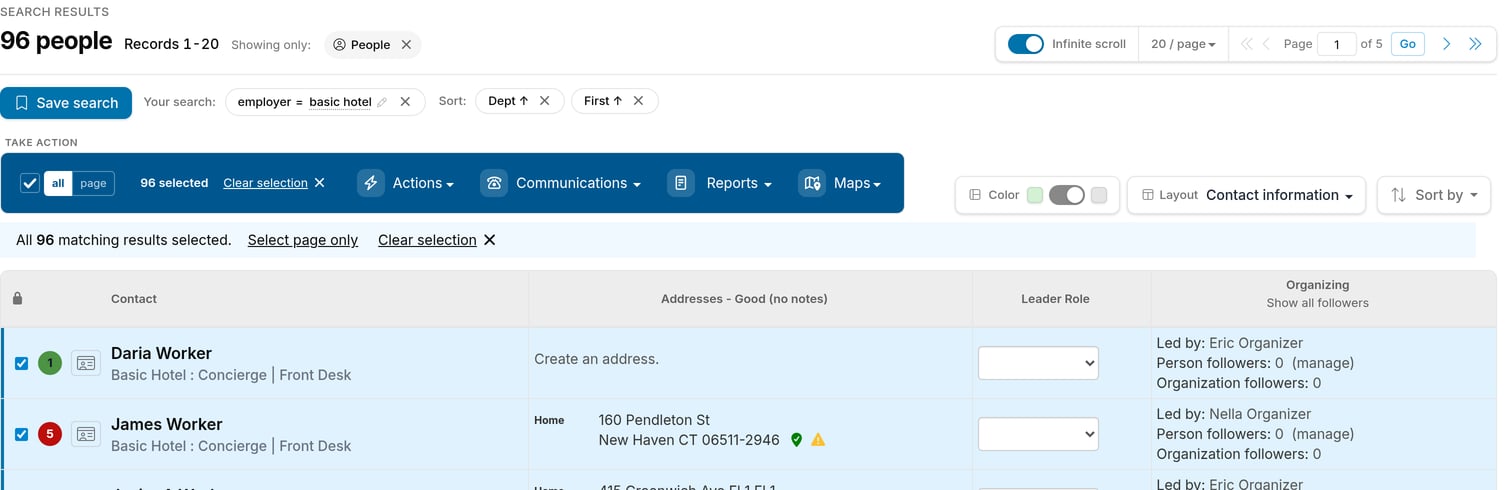
- First, we’ll run a search for people who work at Basic Hotel. (If you need help running a search, check out the Search section.)
-
From the Search Results page, we’ll select all the workers. At the time this article was written, you were allowed to send up to 10,000 messages at once. Check with your admin to find out if that’s changed.
-
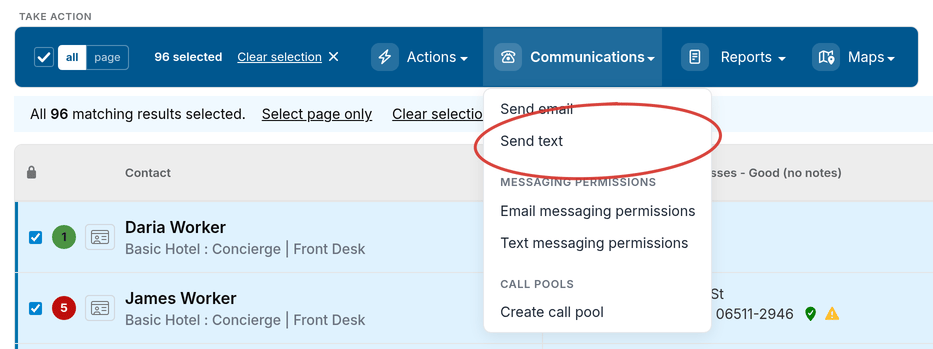
Under the Communications drop-down menu, we’ll choose “Send text.”
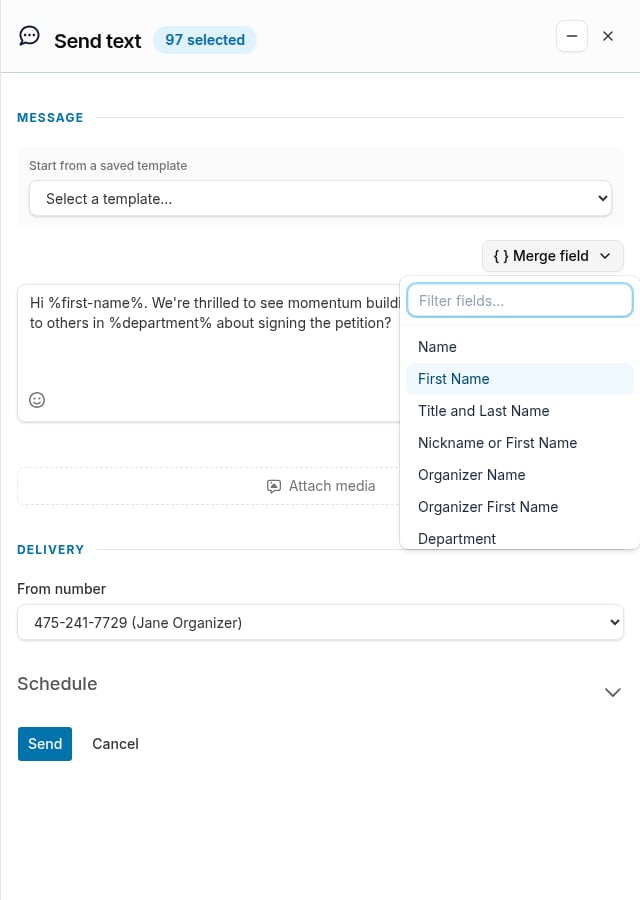
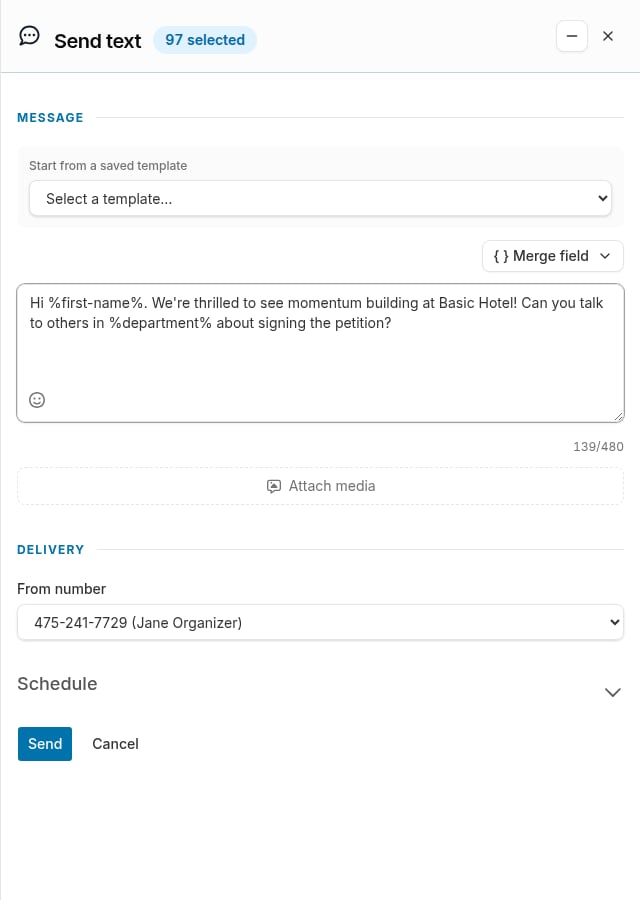
- A Send text drawer slides in from the right side of the screen. If your project has any SMS message templates, you will see a Start from a saved template dropdown at the top of the Message section. Select a template to pre-fill the message body, or skip it and compose from scratch.
- Compose a short text message (160-characters or fewer is considered a standard SMS message). You can edit any text you loaded from a template freely before sending.
-
Broadstripes makes it easy to personalize the message with dynamic merge fields like “First Name” or “Department.” Click the Merge field button and choose a field to insert it at the cursor position.
- You can also add emojis to your message by clicking the emoji icon inside the message field. This opens an emoji picker where you can browse and select emojis to insert into your text.
- You can attach an image (JPEG, PNG, or GIF, up to 600 KB) or a PDF (up to 5 MB) by clicking the Attach a file () button below the message. PDF attachments appear as a downloadable link to recipients.
-
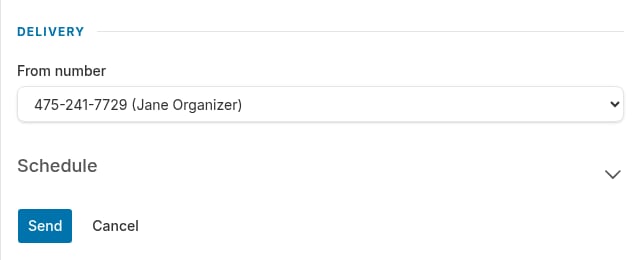
In the Delivery section, you’ll see the virtual phone number you’re sending from. If you have more than one number assigned to you, you can choose which to use from the drop-down menu.
-
Click Send, and an individual message will go out to each person you’ve selected. Remember, text messages will only be sent to workers with cell phones that are opted in. (Workers in the selection who don’t have an opted in cell will be ignored.)
Sending a text to a single worker
You can also send a text to just one worker. You can use the method above (selecting only their name from the search results), or you can use a shortcut from the Quick view dialog:- From the Search Results page, click the Quick view icon () next to the worker’s name.

- Click the Quick actions tab in the Quick view dialog, then click Send SMS.

- Compose a short message (160 characters or fewer) and hit Send