Before you begin
- You need permission to send bulk emails. If you don’t see the Send email option in the Communications menu, ask your admin to enable it.
- Contacts must have a valid email address that is opted in to receive email. Contacts without an opted-in email will be skipped.
- Your organization’s email domain must be authenticated with the Broadstripes bulk email service. If you see a “Bulk email unavailable” message when you try to send, contact your Broadstripes administrator.
Open the email drawer
- Run a search to find the contacts you want to email.
- From the Search Results page, select the contacts you want to email. You can select up to 10,000 contacts at a time.
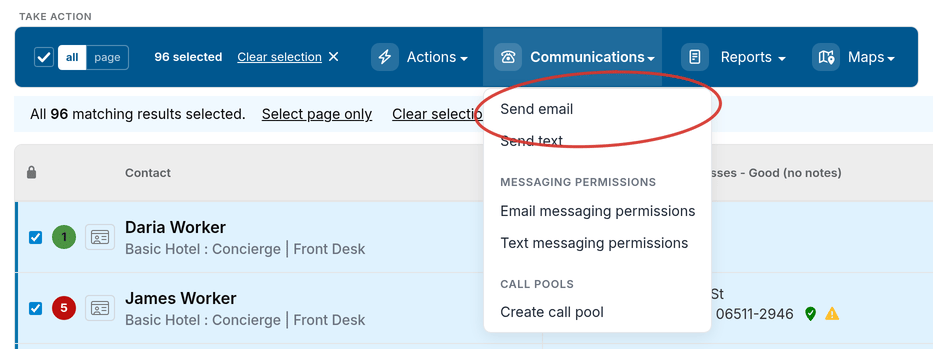
- Open the Communications dropdown menu and select Send email.
Compose your email
The email drawer has four sections — Sender, Content, Attachments, and Recipient addresses — followed by a Schedule for later toggle. The Recipient addresses section is covered in Limiting recipients by address type below.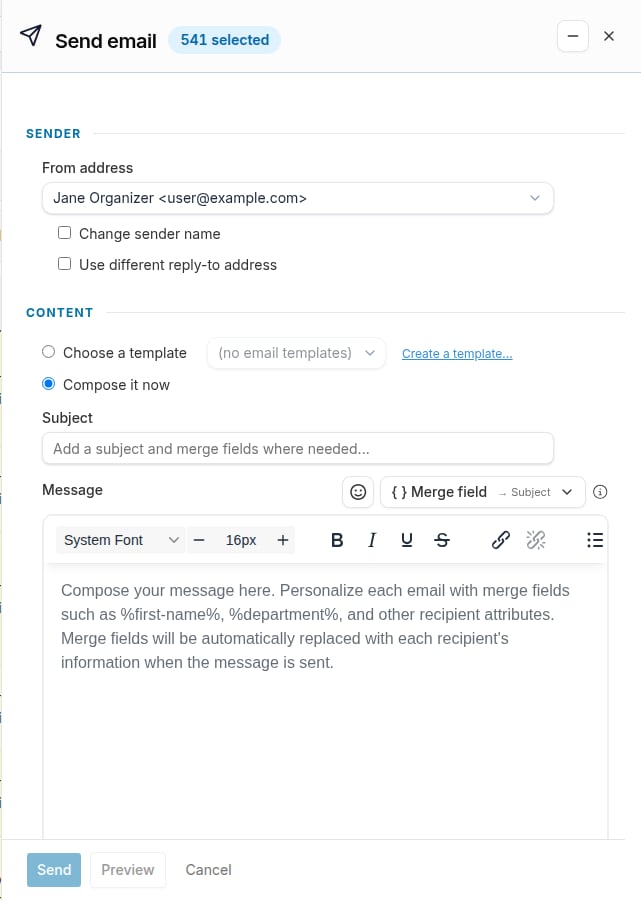
Sender
- From address — Choose the email address that will appear as the sender. The dropdown includes your personal email and any project-level outgoing email addresses that have been set up by your admin.
- Change sender name — Check this box to override the sender display name for this message only.
- Use different reply-to address — Check this box to set a different email address for replies.
Content
You have two options for composing your email content:- Choose a template — Select a pre-built email template from the dropdown. Templates are created on the Email Templates page and can include formatted content with merge fields already configured.
- Compose it now — Write a rich HTML email using a full-featured editor. This option gives you a Subject field and a Message editor with a formatting toolbar (bold, italic, font size, alignment, color, links, images, lists, tables, and more).
- Merge field — Opens a searchable picker to insert a dynamic merge field (such as “First name” or “Department”) into the Subject or Message. A context label on the button shows which field the insertion will target based on where you last clicked. See Using merge fields for details.
- Emoji button — Inserts an emoji at the last cursor position in the Subject or Message.
Attachments
Click Add attachment to attach files to your email. You can also drag and drop files onto the form or paste from your clipboard. The total size of all attachments must be 10 MB or less. Supported file types include PDFs, common document and spreadsheet formats (Word, Excel, CSV), images (PNG, JPG, GIF), plain text and HTML files, and calendar invite files (.ics).Schedule for later
By default, your email is sent immediately when you click Send. To schedule it for a later time, turn on the Schedule for later toggle at the bottom of the drawer (“Pick a time or a repeating schedule”). Two tabs appear:- One time — Click any highlighted token in the schedule sentence to set the date, time, and time zone.
- Recurring — Set up a repeating schedule using the same sentence-token editor. This option is only available when all contacts in your current search are selected; otherwise the tab is greyed out and a tooltip explains why.
How scheduling affects recipients:
- One-time scheduled emails lock in the recipients at the time of scheduling. The contacts who match your search at that moment are the ones who will receive the email.
- Recurring emails re-run your search each time the email is sent. Make sure your search criteria will continue to return the correct set of recipients.
Preview your email
When composing an email directly (not using a template), you can preview how the message will look before sending it. Click Preview at the bottom of the compose panel. The preview pane shows:- How many contacts will receive the email (and how many are excluded)
- The From address and Subject line
- A rendered view of your message body, including the unsubscribe footer
Preview is only available when you compose the email directly. If you selected a template, use the template editor’s built-in preview instead.
Send the email
- Review your email content and settings.
- Click Send (or Schedule if you set a scheduled time).
- A confirmation dialog appears showing how many contacts will receive the email. If any contacts in your selection don’t have a valid opted-in email address, the dialog shows how many will be excluded.
- Click OK to confirm. Broadstripes queues the email for delivery and displays a confirmation message.
Limiting recipients by address type
By default, Broadstripes emails every opted-in address a contact has. In the Recipient addresses section of the Send email drawer — between Attachments and the Schedule for later toggle — you can narrow a send to a single address type, for example sending only to Personal addresses and excluding Business, or vice versa. This is useful when:- A campaign should only contact members at home, not at work
- Your project keeps separate consent records for personal vs. business addresses
- You want to avoid emailing employer-controlled inboxes for sensitive organizing communications
- Send message to all opted-in addresses — the default.
- Send message only to — then pick a type from the dropdown: Personal, Business, Home, Other, Primary, or Non-primary.
View sent emails and delivery stats
After sending, you can track delivery status from the Sent Email page.- Navigate to the Email section by clicking the Sent Email tab in the left sidebar, or go to Communications in the navigation.
- The Sent Email tab shows an interactive data grid with sortable, filterable columns.
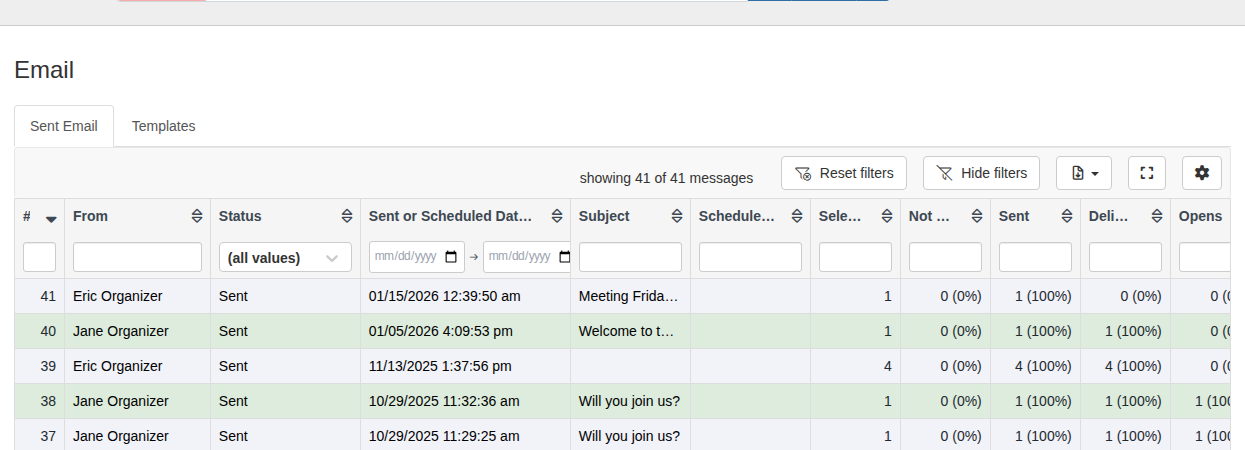
Each count in the table is a clickable link that opens a search showing those specific contacts.
View message details
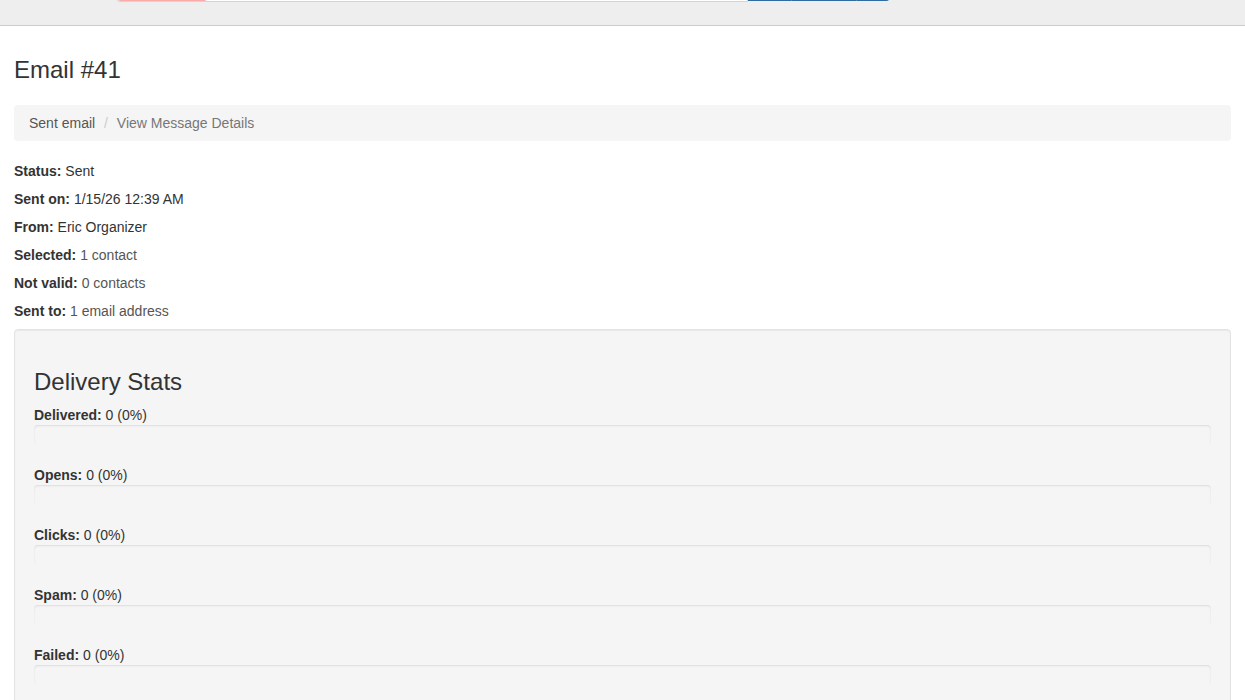
Click the view link in the Actions column to open the message detail page. This page shows:- Status — The current delivery state, with the option to cancel a scheduled message.
- Sent on — The date and time the email was sent.
- From — The user who sent the email.
- Selected / Not valid / Sent to — Counts of contacts at each stage, with links to search results for each group.
- Delivery Stats — Progress bars showing Delivered, Opens, Clicks, Spam, and Failed counts with percentages. These stats update automatically.
- Subject and Body — A preview of the email content.