

Overview
With Broadstripes, it’s easy to use the Reports feature to print your organizing information as a list. Here are a few reasons you might want to print a list:- Bring your information with you in hard copy to house visits and check-in meetings
- Quick reference or to record information when you don’t have a computer
- A tool for non-Broadstripes users to view and collect information
Using a printed list in your workflow
You can use the information displayed on a printed list in the same way you’d use it in the Broadstripes app. For instance, if you take a printed list with you on a house visit, use the informational columns on the list (name, home address) to find who you’re looking for. Once you have talked to people, use the attendance checkboxes on the list to manually record information about your conversations. Later, when you are back at your computer, you can use the notes you took on the printed list to update Broadstripes. Using the same layout in Broadstripes to update this data that you used when you printed your list greatly simplifies your task of data entry.Print a basic list
- Start by running a search for the contacts on your list. Learn about running a search in the search by workplace or save and share searches articles.
-
When your search results appear, click all in the toolbar to include all the displayed results in your printed list.
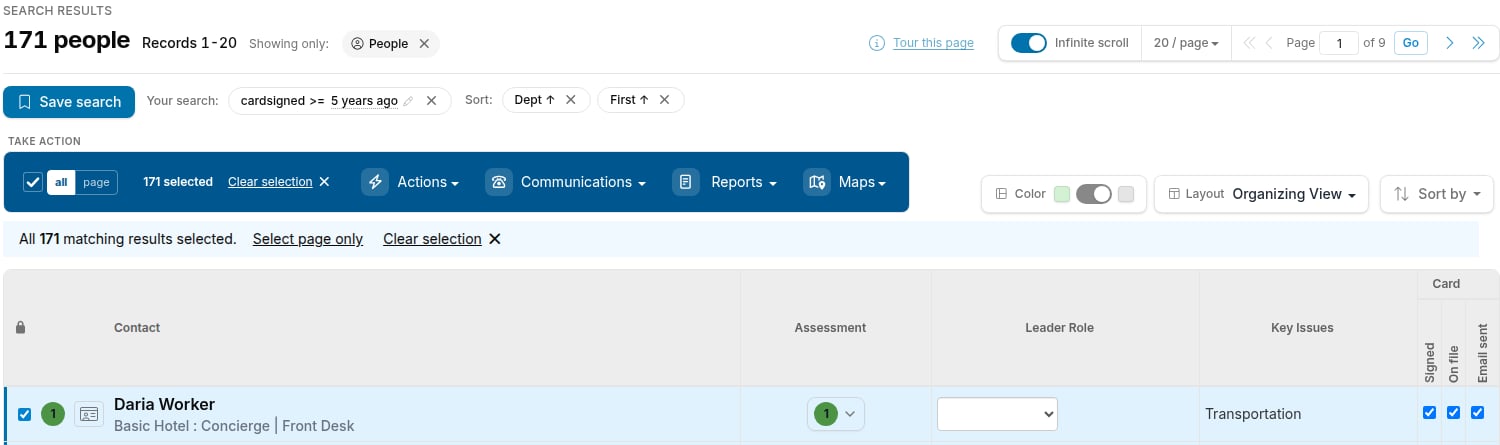
- All contacts will be selected (indicated by a selection count like 171 selected). You can also click page to select only the contacts on the current page, or individually uncheck any contact you want to exclude.
-
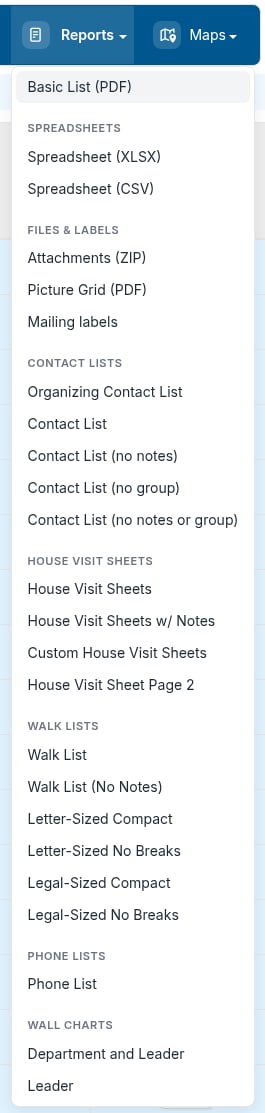
Click the Reports menu and choose Basic List (PDF).
-
The Report options dialog opens. Give the report a Title and choose a Column Layout to determine which columns of data will be included in your printed list. For more information about using layouts, see the choose a layout or save a layout articles.
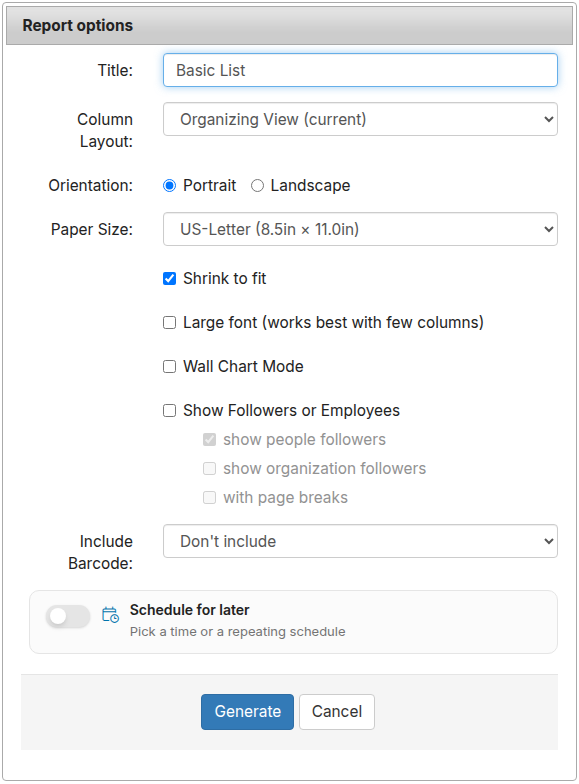
- Click Generate. Broadstripes will create a PDF report that downloads automatically.
-
You’ll see a message that your PDF report is being created. You have two choices:
- Stay on the current page and wait for the report’s download dialog to appear.
- Leave the current page and check in later. Click Reports in the sidebar to go to the Reports page where you can download any requested report at any time. A badge on the Reports link shows how many reports are ready for download.
- Once you’ve downloaded your PDF list, open and print it just as you would any other PDF document.