

The Data Imports page
Broadstripes presents every import in your project on the Data Imports page:- Click the Project settings icon in the top-right corner of any page (or press Ctrl-K / ⌘K), then choose Data imports. (Project admins and basic users with the Can perform data imports permission can open this page.)
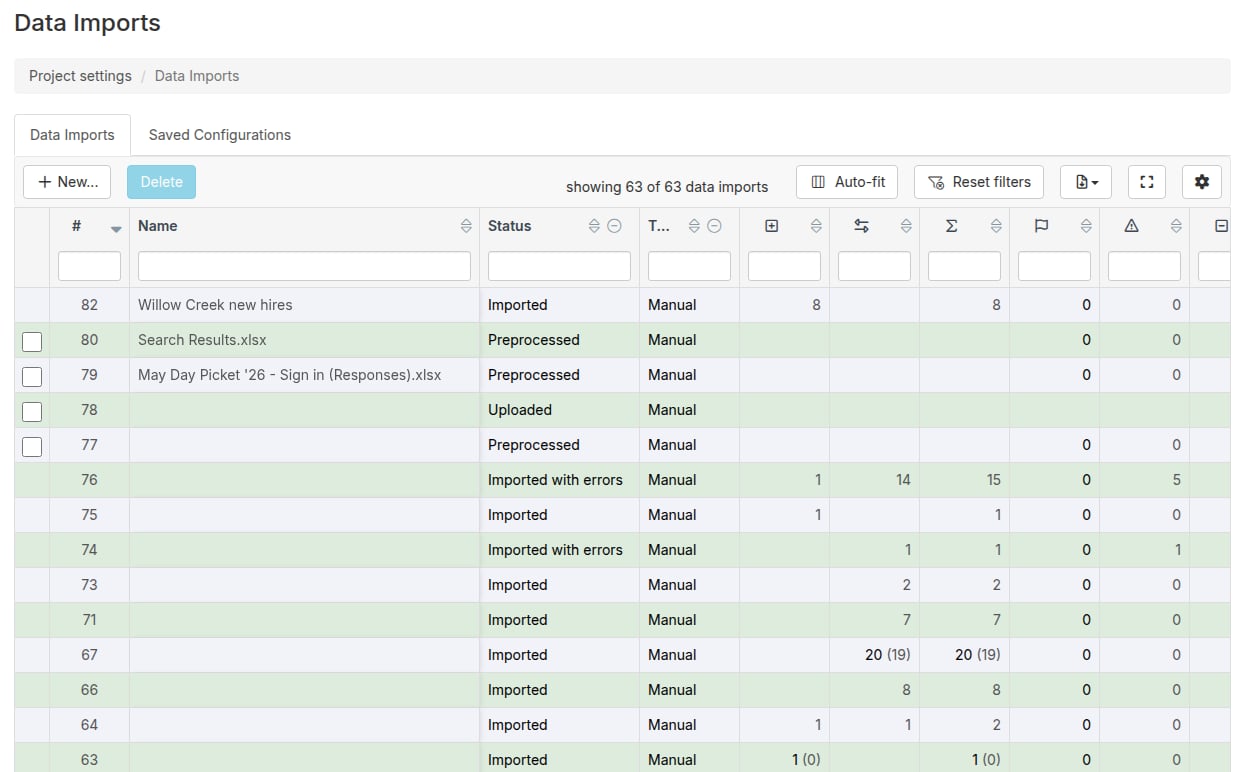
- The Data Imports tab lists every import in the project, one row per import.
Core columns
- # — a unique number for each import (the import’s “short ID”). Click it to open the import’s details.
- Name — the name you gave the import, or the original filename if you didn’t name it.
- Status — where the import is in its lifecycle (see status values below). While an import is processing, this cell shows a live progress bar with the number of rows processed.
- Type — Manual (uploaded by a user) or Automated (delivered by an automated import).
Statistics columns
These columns use icons as headers — hover over an icon to see what it counts. The numbers are clickable:- Contacts created — new contacts this import added.
- Contacts matched — existing contacts this import matched (and possibly updated).
- Contacts created or matched — the combined total of contacts the import touched.
- Rows with warnings — rows that imported but triggered a warning.
- Skipped (error) — rows skipped because of a problem (for example, an ambiguous match or an invalid email address).
- Skipped (no match) — rows skipped because they didn’t match any existing contact (when the import was configured to only update, never create).
- Rows in the import file — total data rows in the uploaded file (excluding the header row).
Click any number in the created/matched/affected columns to open those exact contacts in search results. Click an error or skip count to jump straight to the row-by-row issue list on the import’s detail page.
About counts: if contacts are deleted after an import, you may see two numbers — the original count from when the import ran, and (in parentheses) how many of those contacts still exist.
Timing and audit columns
Start time, End time, and Duration show when the import ran and how long it took. Scheduled to run, Created, Created by, Updated, and Updated by are hidden by default — click the button at the top right of the table to choose which columns are displayed. You can sort by any column, and filter using the boxes under the column headers.Managing imports from this page
- Stop — while an import is processing, a stop button appears in its Status cell. Stopping keeps the changes already made; a stopped import can be restarted and will resume from where it left off.
- Delete — select imports with the checkboxes and click Delete. Only imports that haven’t run yet (uploaded, previewed, or scheduled) can be deleted; completed and in-process imports cannot.
Understanding import status
The Status column tracks the import lifecycle:- New — created, but no file uploaded yet
- Uploaded — file received; mapping in progress
- Preprocessing — analyzing the file for the preview
- Preprocessed — preview complete, ready to run
- Queued / Scheduled for [date] — waiting to run, either immediately or at the scheduled time
- Processing — actively importing (with a live progress bar)
- Indexing values — finishing up; making imported data searchable
- Imported — completed with no errors
- Imported with errors — completed, but some rows were skipped or errored
- Stopped — stopped by a user; can be restarted
- Failed — a critical error stopped the import
In-depth: the import details page
Click an import’s # or Name to open its detail page. For a completed import it shows:- The import’s settings — status, timing, and every configuration choice that was made (matching policy, append or replace, employment handling).
- Data Field Mappings Used — which spreadsheet column went into which Broadstripes field, and which columns were matched on.
- Results from preview — the dry-run numbers from before the import ran.
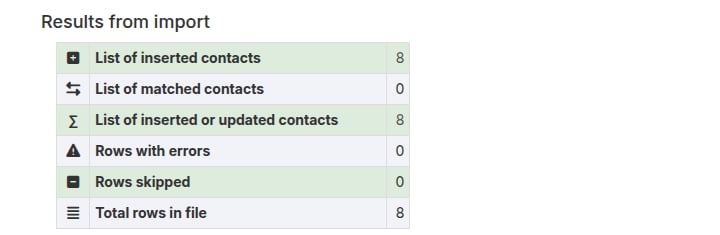
- Results from import — the final statistics, each linked to the actual records:
- List of inserted contacts — contacts the import created
- List of matched contacts — existing contacts the import matched
- List of inserted or updated contacts — everything the import touched
- Rows with errors and Rows skipped — jump to the row-by-row breakdown
- Total rows in file
Data Import Errors and Skips
At the bottom of the detail page, the Data Import Errors and Data Import Skips tables list each problem row with its spreadsheet Row # and the specific Issue — for example, “Multiple records in Broadstripes (2) matched the selected fields in the import row” or an invalid email address. The first 100 rows are shown; the full set is always available via the Download button.Finding imported contacts later
Every import is remembered by search. Use theimport keyword in the search language:
import="Import 62"— all contacts affected by import 62import="Import 62 Added"— only the contacts it createdimport="Import 62 Matched"— only the contacts it matched
Auditing individual changes
To see exactly which fields an import changed on which contacts — old value and new value — use the Change History Explorer on the homepage’s Recent Changes tab. Its Import # column identifies the import responsible for every change, and you can filter by an import number (ormanual for changes people made by hand). See Change Explorer.