

- In your spreadsheet, create three columns to the right of the column that contains the full name. The headers of these columns will be First Name, Middle Name, and Last Name.
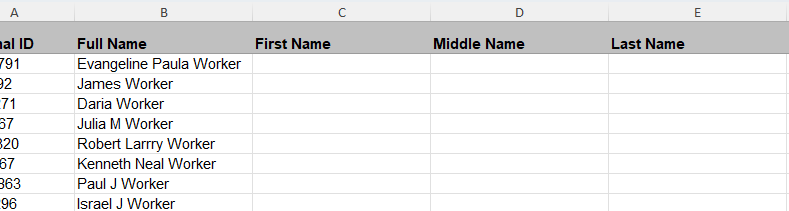
Insert three rows to the right of the full name column.
- In the column named First Name, enter the following formula into the first cell below the header:
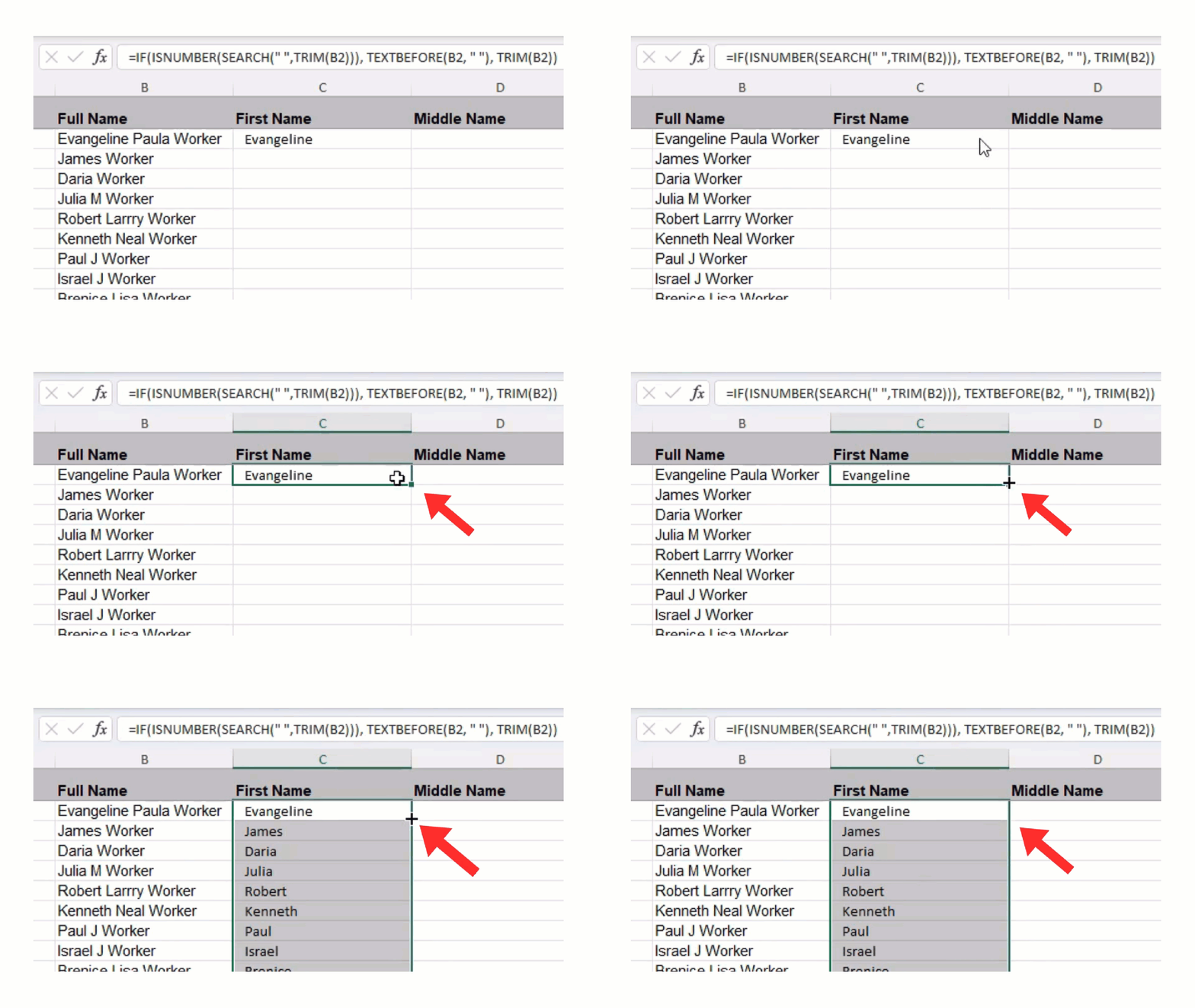
Double-click the square to copy the formula down the column.
- Copy all the cells in the column and paste only the values into the same column. You can paste values by right-clicking in the column and selecting Paste Values (V) in the Paste Options section. This will replace all formulas with the desired values in the First Name column. Removing formulas from your spreadsheet is essential for Broadstripes to import the appropriate data.
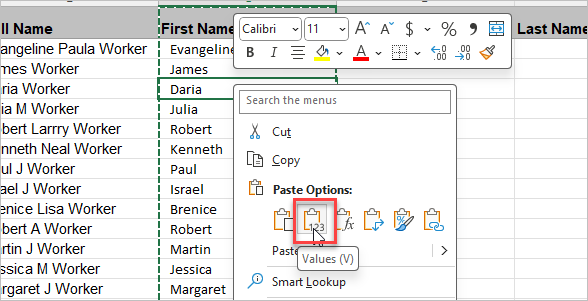
Right-click in the same column and select Paste Values.
- In the Middle Name column, enter the following formula to extract the middle name/initial from the Full Name column:
- Copy all the cells in the Middle Name column and paste only the values into the same column. You can paste values by right-clicking in the column and selecting Paste Values (V) in the Paste Options section. This will replace all formulas with the desired values in the Middle Name column.
- In the Last Name column, enter the following formula to extract the Last Name from the Full Name column:
- Copy all the cells in the Last Name column and paste only the values into the same column. You can paste values by right-clicking in the column and selecting Paste Values (V) in the Paste Options section. This will replace all formulas with the desired values in the Last Name column.
- You may need to do a bit of manual cleanup of the rows that contain last names that include a suffix or collective last names that are not hyphenated.
- Keep the Full Name column to reference the original data later. Change the header of this column to “SKIP,” so Broadstripes will ignore it during the import process.