

Upload a profile photo
- Click your avatar disc () in the top-right navigation bar to open the user menu.
- Select User settings.
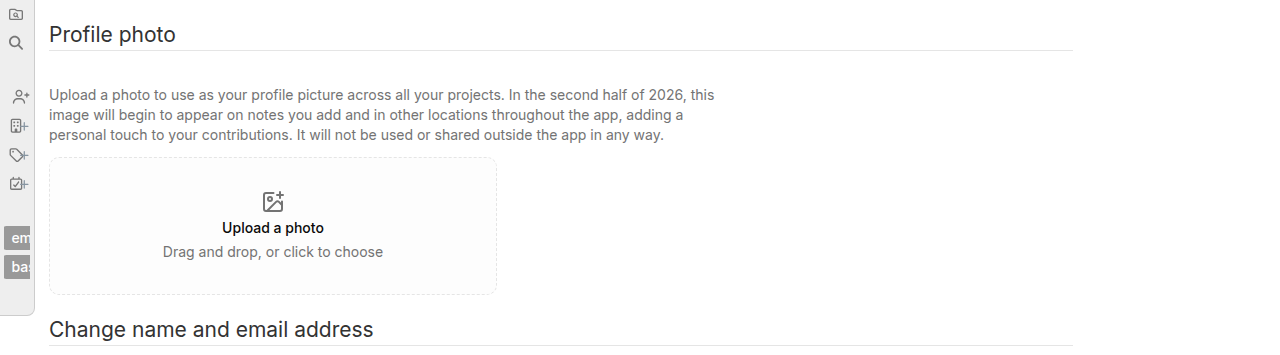
- Scroll to the Profile photo section.
- Click the upload tile labeled Upload a photo, or drag an image file directly onto it.
Crop and save your photo
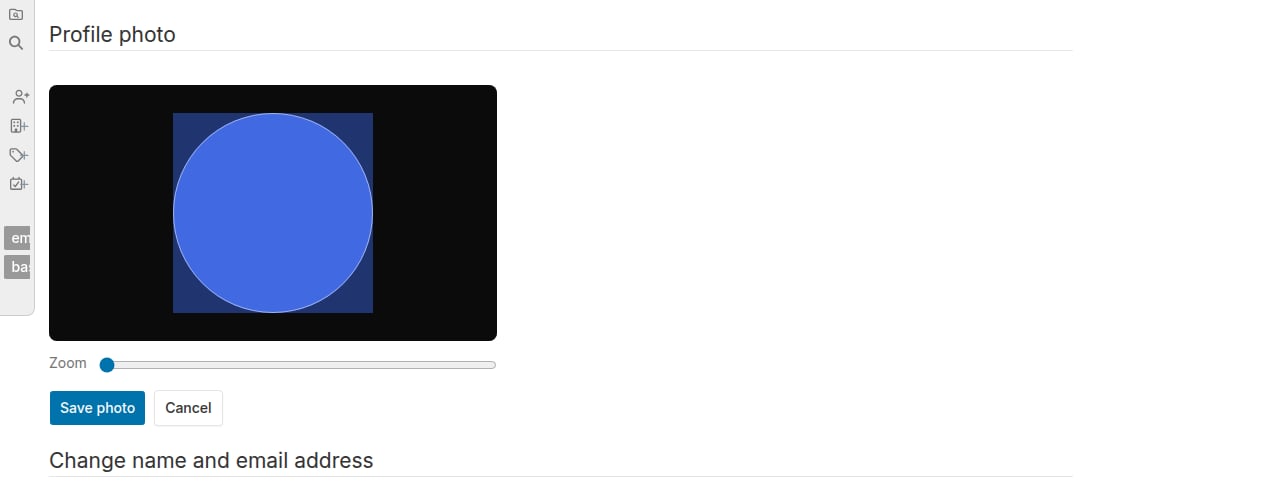
After you select or drop an image, a crop editor opens with a circular preview.- Pan: drag the image to reposition it inside the circle.
- Zoom: drag the Zoom slider to zoom in or out.
Replace or remove your photo
Once you have a photo, two buttons appear next to your photo preview:- Replace photo () — opens the crop editor so you can select and crop a new image.
- Remove photo () — shows a confirmation dialog. Click Remove photo to confirm, or Keep photo to cancel. Removing your photo reverts your disc to showing your initials.
Your disc color and your role
The color of your avatar disc reflects your highest permission tier in the current project:
When you have an uploaded photo, your tier color appears as a thin ring border around the photo. When you are showing initials, the entire disc is filled with the tier color and your initials appear in white.