Overview
The Workplace Explorer is an interactive visual chart you can open from any organization’s Explorer tab. It displays the org hierarchy as nested circles — each organization is a large circle, and the workers employed there appear as smaller dots inside it. Sub-organizations appear as nested rings within their parent, so the full reporting structure is visible at a glance. You can zoom in to any part of the hierarchy, pan the chart freely, color the workers by their assessment code (or, on labor-organizing projects, by role or leadership count), click any worker or sub-org to open its Quick view, and (on labor-organizing projects) drag a worker circle onto another worker to assign leadership.The Explorer tab appears on an organization’s page only when your project has the Employment feature enabled.
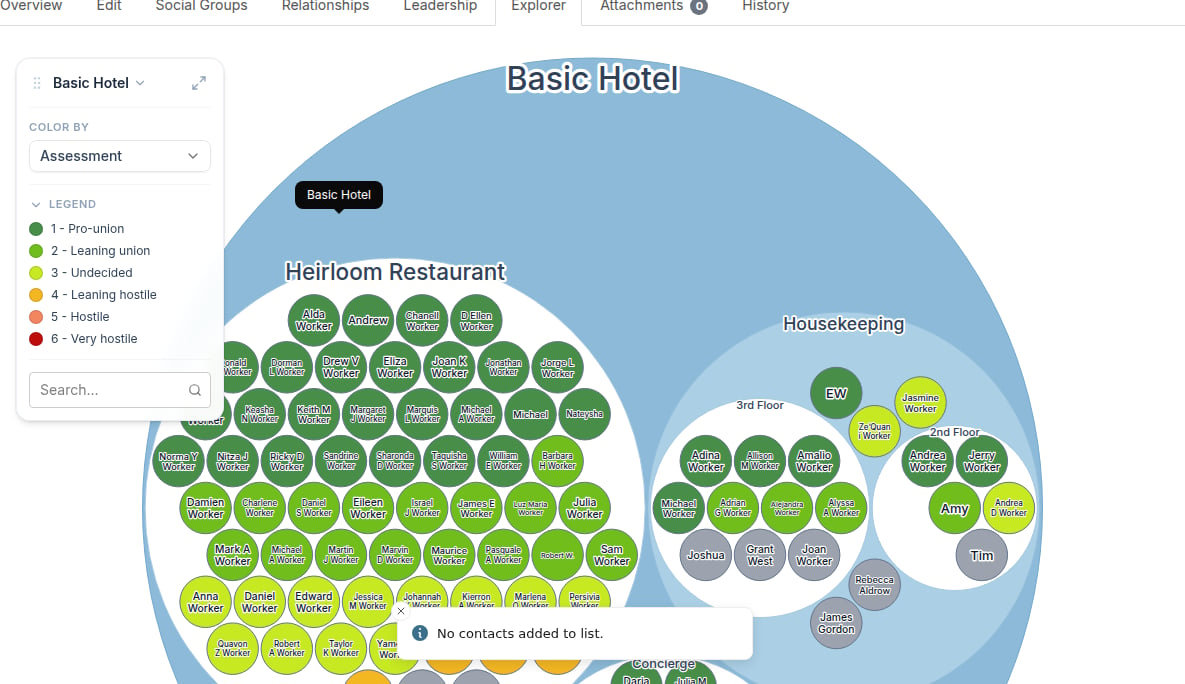
Opening the Explorer
- Navigate to any organization’s record page.
- Click the Explorer tab in the tab bar across the top of the page.
Navigating the chart
Zoom in
Click any organization circle to zoom in and focus the chart on that sub-organization. The focused org expands to fill the chart and its name appears in the toolbar’s breadcrumb.Zoom out
Click Zoom out () in the floating toolbar to move focus up one level in the hierarchy.Browse the hierarchy path
The toolbar shows the name of the currently focused organization. Click it to open a dropdown listing your full ancestor path from the root down to the current focus. Click any entry in the list to jump directly to that level.Pan the chart
Click and drag the chart background to pan the view. A Re-center () button appears in the toolbar when the chart has been panned away from its centered position — click it to snap the focused org back to center.Full-screen mode
Click Full screen () in the toolbar to expand the Explorer to a full-window overlay, hiding the page header and sidebar so the chart fills your entire browser window. Press Escape or click Exit full screen () to return to the normal view.Color by dimension
The workers in the chart are colored by a dimension you choose in the toolbar’s Color by dropdown. The active dimension’s legend appears directly below the dropdown (collapse or expand it with the arrow next to the legend heading). Available dimensions:- Assessment (default) — each worker dot is colored by their current assessment code.
- Role — each worker dot is colored by their organizing role. (Requires the Labor Organizing feature.)
- Leadership — each worker dot is shaded by how many workers they directly lead, from lighter (fewer) to darker (more). (Requires the Labor Organizing feature.)
Search within the subtree
The search box at the bottom of the floating toolbar lets you find a specific person or organization anywhere within the currently rooted subtree.- Click into the search box and type a name to see matching people and organizations.
- Select a result to jump to it: choosing an organization zooms into that org; choosing a person zooms to their employing org and opens their Quick view.
Quick view
Click any worker dot or organization circle to open its Quick view panel. The Quick view shows contact information, timeline entries, organizing details, and quick-action links for that person or organization, just as it does elsewhere in Broadstripes.Moving the toolbar
The floating toolbar panel can be dragged to any position on the chart. Click and hold the grip handle () at the left edge of the toolbar and drag it to a new location.Assign leadership by dragging
This feature requires the Labor Organizing feature to be enabled on your project.
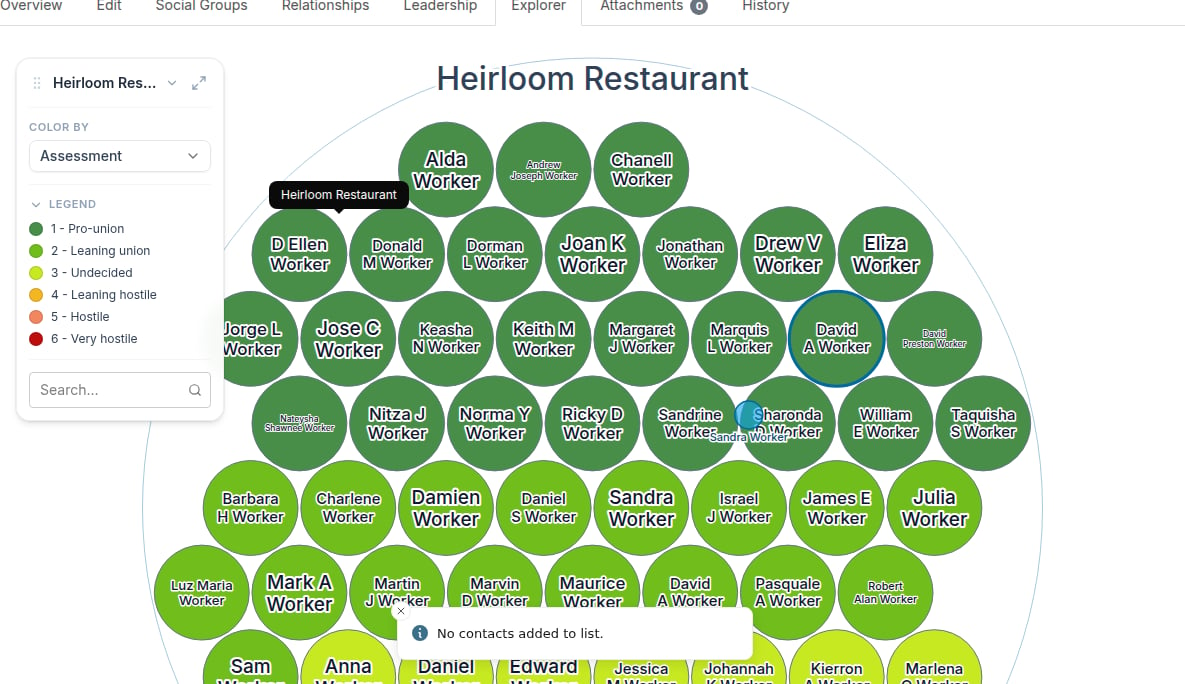
- Hover over the worker you want to assign a leader to. Worker circles show a grab cursor () when they can be dragged.
- Click and drag that worker. A translucent puck labeled with the worker’s name follows your cursor.
- Drag over the worker you want to make their leader. That worker’s circle highlights with a blue ring to indicate it is the active drop target.
- Release. A confirmation dialog appears before any assignment is saved. Review the assignment and confirm or cancel.
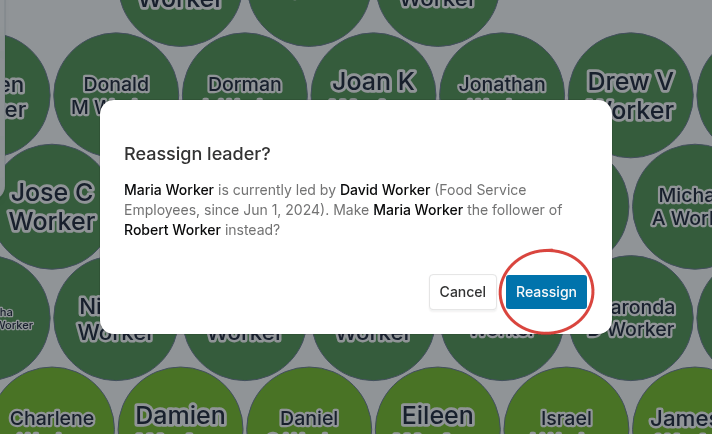
Confirming a leadership assignment
Every drop shows a confirmation dialog before the assignment is saved. The dialog adapts depending on whether the dragged worker already has a leader:- Assign leader? — The dragged worker has no existing leader. The dialog asks you to confirm making them the follower of the drop target. Click Assign to save, or Cancel to leave everything unchanged.
- Reassign leader? — The dragged worker already has a different leader. The dialog shows that leader’s name, employer (when on file), and the date the relationship was assigned, so you can confirm you are reassigning the right person. Click Reassign to save, or Cancel to leave everything unchanged.