

Overview
The Attachments (ZIP) report lets you download the uploaded files (attachments) for a selected group of contacts in one batch. Broadstripes bundles them into a ZIP archive and makes it available for download from the Reports page when it is ready. Use this report when you want to collect signed authorization cards, photos, or other documents from a set of contacts without clicking through each individual profile.Generate an Attachments (ZIP) report
- Run a search for the contacts whose attachments you want to download.
-
From the search results page, select the contacts to include:
- Click all in the toolbar to include every result in the search.
- Click page to include only the contacts visible on the current page.
- Or individually check the box next to specific contacts.
The Attachments (ZIP) report supports up to 1,000 contacts per download. If you have selected more than 1,000, reduce the selection before proceeding. - Click the Reports menu and choose Attachments (ZIP).
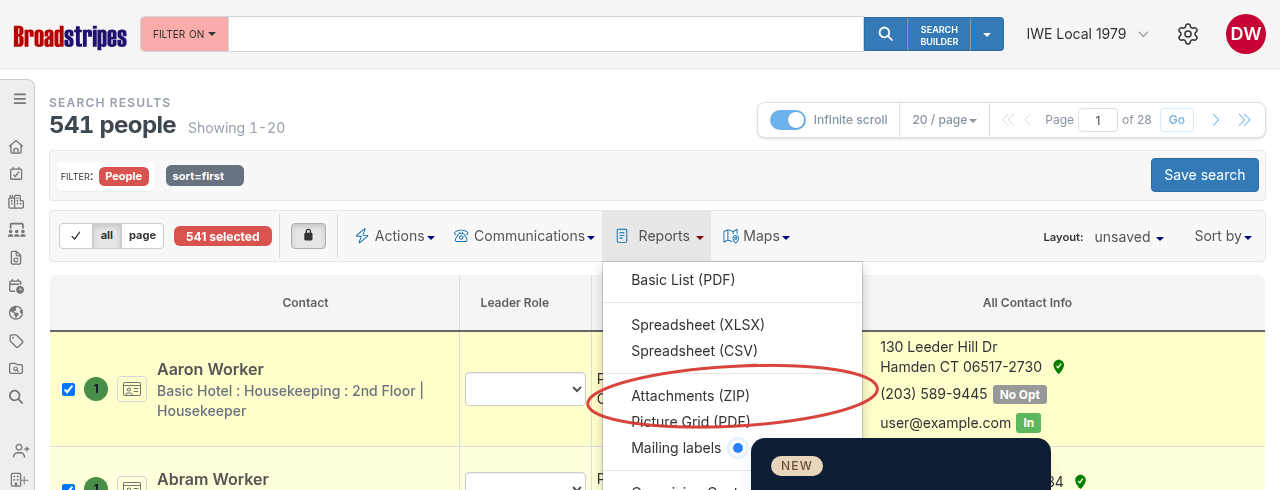
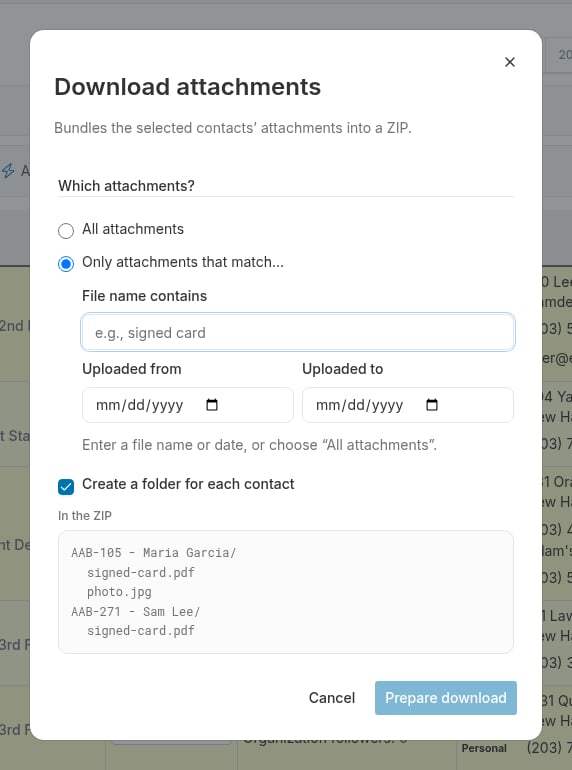
- The Download attachments dialog opens.
-
Under Which attachments?, choose the scope:
- All attachments (default): every file attached to the selected contacts is included in the ZIP.
- Only attachments that match…: expands a set of filter fields so you can narrow which files are included:
- File name contains: enter a word or phrase; only files whose name contains that text are included. The match is case-insensitive and looks for the text anywhere in the file name (for example, entering
cardwould matchsigned-card.pdfandcard-front.jpg). - Uploaded from / Uploaded to: restrict the date range for files included. You can set one or both dates; “Uploaded from” sets the earliest upload date and “Uploaded to” sets the latest.
- File name contains: enter a word or phrase; only files whose name contains that text are included. The match is case-insensitive and looks for the text anywhere in the file name (for example, entering
If you choose Only attachments that match… you must fill in at least one filter field before the Prepare download button becomes active. -
Under Create a folder for each contact, choose how the ZIP is organized:
The dialog shows a live preview of the ZIP structure that updates as you toggle this option or type a file name filter.
- Click Prepare download. The dialog closes, and a notification appears at the bottom of the page while the report is being generated.
- When the ZIP is ready, download it from the Reports page, accessible from the sidebar.
Tips
- Multiple file types: the ZIP includes every attachment type (PDFs, images, documents) that matches your scope and filters.
- Large selections: if you are downloading attachments for many contacts, the job may take a minute or two to complete. You can continue working in Broadstripes while you wait.
- No attachments found: if none of the selected contacts have attachments that match your filter, the report will complete but the ZIP will be empty. Check your filter values and try again with a broader scope.