

What are SMS message templates?
SMS message templates let your team save reusable text messages so that anyone sending bulk texts can start from a consistent, on-brand draft instead of composing from scratch each time. Templates support merge fields and emojis, and merge fields are replaced with each recipient’s real data when the message is sent.Who can manage templates?
- Creating, editing, and deleting templates requires a project admin role and the Provision and send SMS feature enabled on your project.
- Using templates when composing a bulk text is available to any user who has permission to send bulk SMS messages.
Accessing SMS templates
- Navigate to Text messages from the project sidebar menu. This opens the Text Messages page.
- Click the Templates tab at the top of the page. (This tab only appears if you have permission to manage SMS templates.)
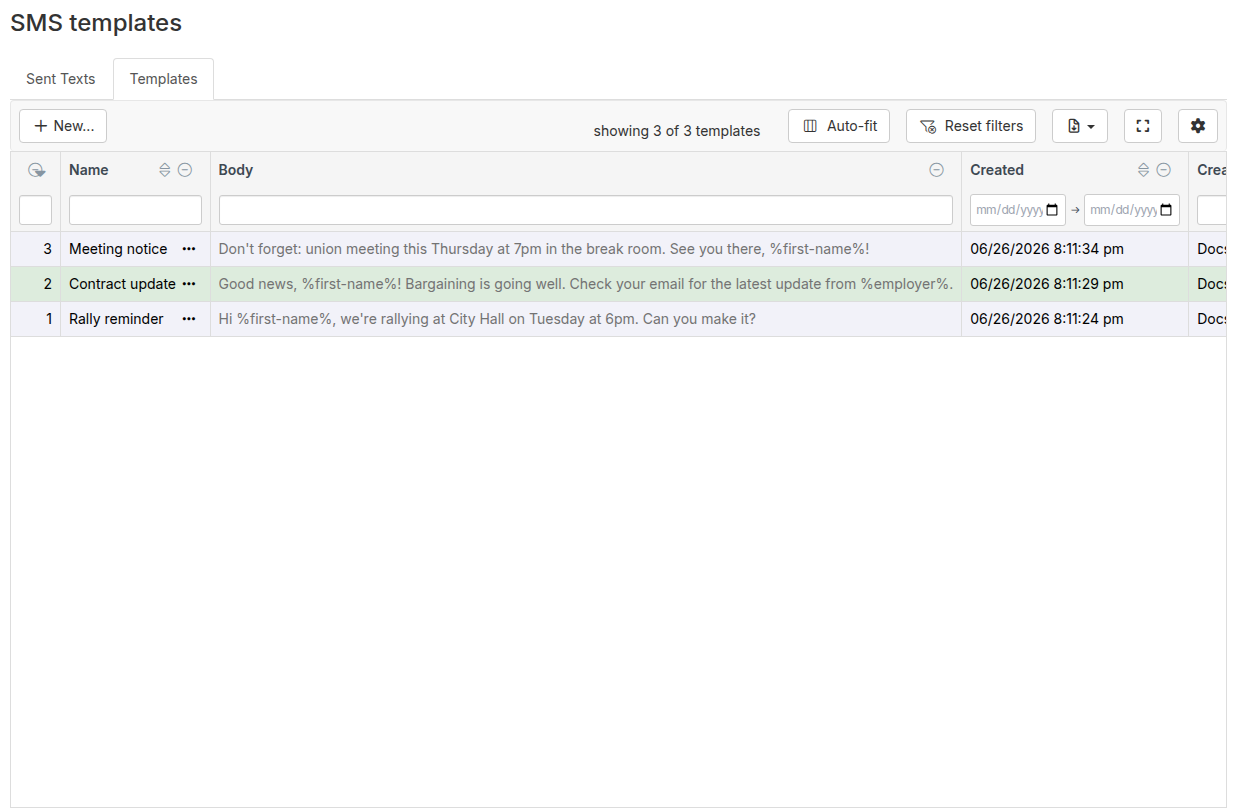
- # - Template number (for easy reference)
- Name - The template’s descriptive name
- Body - A preview of the template text
- Created/Updated - When and by whom the template was created or last modified
Creating a template
- From the Templates page, click the + New… button in the upper left of the table.
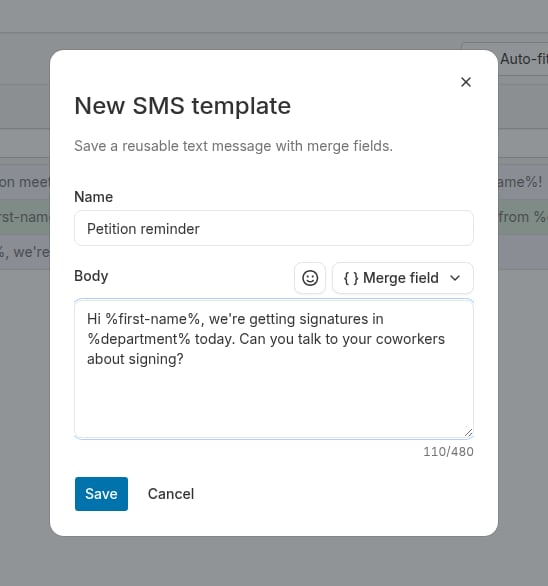
- In the dialog that opens, enter a Name for the template. Names must be unique within your project.
- Enter the Body — the text of your message.
- Optionally, use the Merge field button to insert personalization placeholders like
%first-name%or%employer%. When the template is used to send a text, Broadstripes replaces each placeholder with the recipient’s real data. - Use the emoji button to add emojis to the body if needed.
- The character counter below the body shows how many characters you have used out of the limit. A standard SMS message is 160 characters; messages that exceed this may be split into multiple segments by the carrier.
- Click Save.
Template names must be unique within the project. If you try to save a template with a name that already exists, you will see an error asking you to choose a different name.
Editing a template
- On the Templates page, click the actions menu on the template’s row.
- Select Edit ().
- Make your changes in the dialog and click Save.
Duplicating a template
To create a new template based on an existing one:- Click the actions menu on the template row.
- Select Duplicate ().
- A new dialog opens pre-filled with the original body and a name prefixed with “Copy of”.
- Edit the name and body as needed, then click Save.
Deleting a template
- Click the actions menu on the template row.
- Select Delete ().
- Confirm the deletion in the dialog. Deletion is permanent and cannot be undone.
Using templates when sending bulk texts
When you open the Send text drawer from the search results page, a Start from a saved template dropdown appears at the top of the Message section (only visible if your project has at least one saved template). Select a template from the dropdown to load its body into the message field. You can freely edit the loaded text before sending — selecting a template is just a starting point, not a commitment. If you have already typed text in the message field before selecting a template, Broadstripes will ask you to confirm that you want to replace your current draft before loading the template. After loading a template, merge fields in the body are replaced automatically with each recipient’s data when the message is sent.Permission requirements
- To manage templates (create, edit, delete): Project admin role with the Provision and send SMS feature enabled.
- To use templates when sending: Permission to send bulk SMS messages.