

Prerequisites & Permissions
To use the Copy to Project feature, you must meet the following requirements:Basic users cannot access this feature. If you don’t see “Copy to project” in the Actions menu, contact your project administrator.
When to Use Copy to Project
Common Scenarios- Starting a new campaign from existing contacts
- You have a successful organizing campaign and want to start a related effort with the same worker contacts
- Creating regional or departmental projects
- Splitting a large project into smaller, more manageable projects based on geography or department
- Sharing contacts between affiliate organizations
- Multiple unions or organizations need access to the same pool of contacts
- Creating a test or training project
- Copy real data to a separate project for training new staff or testing workflows
- Backing up critical contacts
- Preserving a snapshot of contact data at a specific point in time or archiving old data
- Consolidating campaign data
- Bringing together contacts from multiple organizing drives
Step-by-Step Instructions
Step 1: Search for Contacts- Navigate to your source project
- Use the Search feature to find the contacts you want to copy
- You can use any search criteria (lists, events, custom fields, etc.) to filter your results
- From the search results page, click the Actions dropdown menu
- Select “Copy to project”
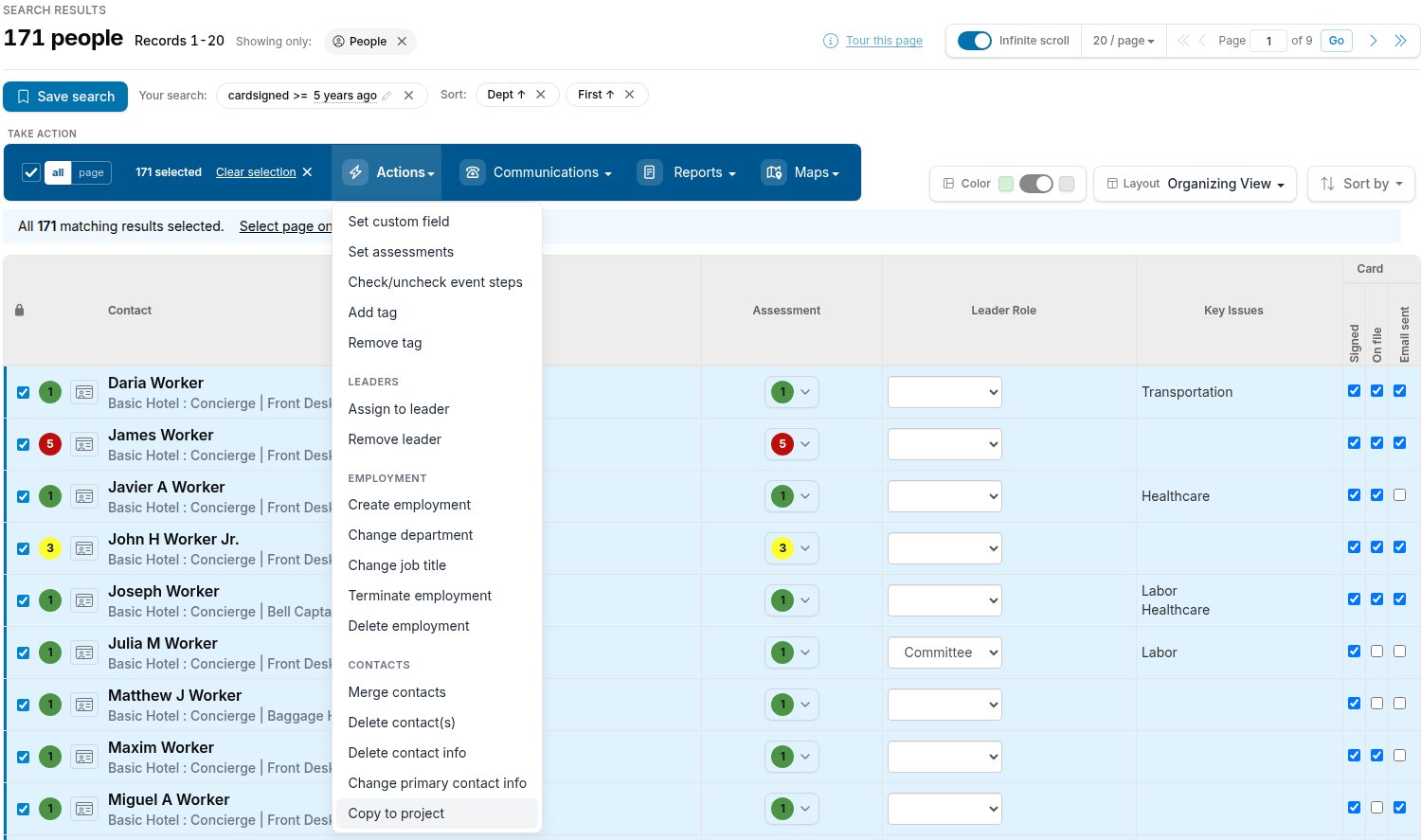
- A panel will appear with a dropdown menu
- Select the destination project from the list
- Only projects where you have Project Admin access will appear
- Click “Review data to be copied”
- Individual selection: Click the checkbox next to each contact you want to copy
- Select all: Use the “Select all” checkbox to select all contacts in the current search results
Important: You must select at least one contact. If no contacts are selected, you’ll see the error: “Please select one or more contacts.”Step 5: Review the Data Preview The review screen shows three important sections:
Settings to be Copied
A list of project settings that will be created in the destination project if they don’t already exist:- External Systems
- Custom Fields
- Leader Roles
- Assessment Codes
- Event Steps
- Lists (Shared tags only)
- Classifications
- Relationship Types
- Parties
Data to be Copied
A count of all data items that will be copied:- People and Organizations
- Addresses and Phone/Email
- Timeline Entries
- Event Steps and Custom Field values
- External IDs and List Assignments
- Employments (active and terminated)
- Department Indicators
- Leaderships (active and terminated)
- Parent Organizations and Primary Organizations
- Relationships
Broken Relationships
Lists relationships that will NOT be copied because the related contact isn’t in your selection. See Broken Relationships Warning for details. Step 6: Execute the Copy- Review the data summary carefully
- (Optional) Check “Send me an email when the copy is complete” to receive notification
- Click “Copy to [Destination Project Name]”
“Your request has been made to copy the data. Refresh the page to check for completion.”Step 7: Monitor Progress
- The copy operation runs in the background
- Navigate to Bulk Tasks to monitor progress (in the source project)
- Once complete, the task will show:
- Number of contacts successfully copied
- Any errors that occurred
What Gets Copied
Project Settings (Created if not existing)
Contact Data
Relationships
Understanding Employment Relationships
Employment records link People to Organizations. To preserve these relationships when copying:Retaining Employment Relationships
Both the person AND the organization must be selected for the employment to be copied. Example:- If you copy Jane Doe who is employed at Acme Corp:
- ✅ Employment IS copied if both Jane Doe AND Acme Corp are in your selection
- ❌ Employment is NOT copied if only Jane Doe is selected
Special Cases
- Employments without organizations
- Some employments may only have a person (no linked organization)
- These are always copied with the person
- Multiple employments
- If a person has multiple employments, each one is evaluated separately
- Only employments where both parties are selected will be copied
- Terminated employments
- Follow the same rules as active employments
- Include additional fields:
date_endedandreason_ended
- Employment external systems
- External system values linked to copied employments are also copied
Previous Copy to Project Jobs May Block Employment Copying
Example scenario:- First copy job: You copy Acme Corp (organization) to the destination project ✅
- Second copy job: You copy Jane Doe (who is employed at Acme Corp) and include Acme Corp in your selection
- Acme Corp is not duplicated (the system recognizes it was already copied)
- But Jane Doe’s employment at Acme Corp is still NOT copied
Workarounds for Previously Copied Contacts
If the organization was already copied in a previous job and employment relationships were not transferred, you can recreate them in the destination project using one of the following approaches: Option 1: Data import in the destination project (recommended) Use the data import feature to create employment relationships from a spreadsheet. This is the best option when you need to link multiple people to organizations that already exist in the destination.- Prepare a spreadsheet containing the affected people and their employment details
- Include columns that allow Broadstripes to match to existing people in the destination — such as a Unique ID (e.g., an external system ID or Broadstripes ID) or name fields (First Name, Last Name)
- Include employment columns such as Employer, Department, Classification, and any other employment subfields you need to transfer
- Import the spreadsheet in the destination project — click the Project settings icon in the upper right corner of any page (or press Ctrl-K / ⌘K), choose Data imports, and click + New…
- During column mapping, map your employment columns to the corresponding Broadstripes fields
- In the Configuration panel, check “Automatically create shops and departments and link employments”
- Preview and run the import
How to Ensure Employments Are Copied
- When selecting contacts, include all related organizations
- Use the Broken Relationships section in the review to identify missing parties
- Click on the numbered button in the Broken Relationships section to see which contacts need to be added
Broken Relationships Warning
The review screen shows a Broken Relationships section that lists relationships that will NOT be transferred because one party is missing from the working set. A contact can be missing from the working set if it was not included in your selection or if it was already copied to the destination in a previous job.Understanding the Warning
Already-copied contacts count as “missing.” If a contact was copied in a previous job, it is removed from the working set before relationship checks run. Relationships involving that contact will appear as broken — even if you included the contact in your current selection. See Previous Copy to Project Jobs May Block Employment Copying for details.
Viewing Affected Contacts
- In the Broken Relationships section, click the numbered button next to each relationship type
- This creates a temporary list and opens a new search showing the affected contacts
- Use this information to decide whether to add more contacts to your selection
Resolving Broken Relationships
- Add missing contacts: Go back and include the missing organizations or people in your selection
- Accept the break: If you don’t need the relationship in the destination, proceed with the copy
- Recreate later: You can manually recreate relationships in the destination project after copying, or use data import to create them in bulk
Option 1 will not work if the missing contact was already copied in a previous job. In that case, the contact is filtered out of the working set regardless of whether you include it in your selection. See Workarounds for Previously Copied Contacts for how to recreate the relationships after the copy.
Common Errors
Validation Errors
Permission Errors
Copy Errors (Shown in Bulk Tasks)
Custom Field Validation Errors
This error occurs when a custom field value in the source project is not a valid option in the destination project. This typically happens when:- The custom field exists in both projects but with different options
- Source project has “Shift” field with options: AM, PM, Night
- Destination project has “Shift” field with options: Day, Evening, Night
- Copying a contact with “AM” fails because “AM” isn’t a valid option in the destination
- The custom field was created in the destination but options weren’t copied
- The copy operation creates new custom fields if they don’t exist
- But if a field with the same name already exists, its options are NOT updated
- Before copying: Ensure custom field options in the destination project match or include all options from the source project
- After error: Add the missing option to the custom field in the destination project, then re-copy the affected contacts
Partial Completion
If some contacts fail to copy:- The Bulk Tasks page shows the number successfully copied
- Detailed error messages list each failure
- Successfully copied contacts remain in the destination
- You can fix the source data and retry copying the failed contacts
Tips & Best Practices
Before Copying- Clean your data first
- Ensure people have valid first or last names
- Fix any data validation issues in the source project
- Plan your selection carefully
- Include all related organizations if you need employments
- Use the preview to understand what will transfer
- Check existing data
- Contacts already copied to the destination will be skipped
- The review shows “Contacts already copied to [project]” count
- Use email notifications for large copies
- Check “Send me an email when the copy is complete” for large batches
- Large copies can take 30+ minutes
- Don’t navigate away too quickly
- Wait for the confirmation message before leaving the page
- The job runs in the background, but ensure it’s queued
- Verify the results
- Check the Bulk Tasks page for the final status
- Review any error messages
- Spot-check the destination
- Open a few copied contacts in the destination project
- Verify relationships, custom fields, and other data transferred correctly
- Re-copy if needed
- Already-copied contacts are automatically skipped
- You can safely re-run the copy to catch any that failed
Understanding Duplicate Prevention Broadstripes tracks which contacts have been copied by creating an External System in the destination project named after the source project’s ID. This prevents duplicate copies if you run the same copy operation multiple times.