

What Are Public forms?

- Collect information from workers, volunteers, or other contacts
- Create new contact records in Broadstripes automatically
- Can match submissions to existing contacts to avoid duplicates
- Send confirmation emails to form submitters
- Track submission history and generate PDFs
- Support both worker (person) and organization forms
Common Uses
- Digital membership cards: Allows workers to legally agree to be represented by the union
- Worker sign-ups: Collect contact information from workers interested in organizing
- Event registrations or check-ins: Register attendees for meetings, actions, or trainings
- Volunteer applications: Gather information from potential volunteers
- Employer relationships: Create employment records linking workers to their employers
- Survey responses: Collect structured information with custom fields
- Organizer debrief forms: Gather information from volunteer organizers after organizing conversations
Key Features
Flexible Field Selection Choose from dozens of standard fields and custom fields specific to your project. Fields can be marked as required or optional, and you control the order they appear on the form. Smart Duplicate Matching When enabled, Broadstripes automatically attempts to match form submissions with existing contacts based on a unique identifier, or name and contact information. This prevents duplicate records and enriches existing contact information. Split Address Fields Choose between a single address text box or separate fields for street, city, state, and postal code. Split address fields can improve data quality and user experience. Email Notifications Send automatic confirmation emails to form submitters (as well as a BCC if desired), with optional PDF attachments of their submission. For employment forms, you can also notify employers when their workers register. Employment Integration For worker forms, collect employer information and automatically create employment relationships. Support multiple selection methods including autocomplete, tiered dropdowns, or external system IDs. Timeline Tracking Can be set to create timeline entries when forms are submitted, tracking the date, time, organizer, assessment, and notes about the interaction. Event Tracking Link form submissions to specific event steps in your campaign, automatically updating the contact’s event status. Custom Branding Upload your logo, customize header and introduction text, add legal agreement text, and even include custom CSS for advanced styling. Attachments Allow form submitters to upload files. Files are stored in the attachments tab of the contact record. Signature Field Allow form submitters to sign the form. The signature is retained on the PDF generated from the form submission.Accessing Public forms
- Click the Project settings icon in the upper right corner of any page (or press Ctrl-K / ⌘K)
- Choose Public forms
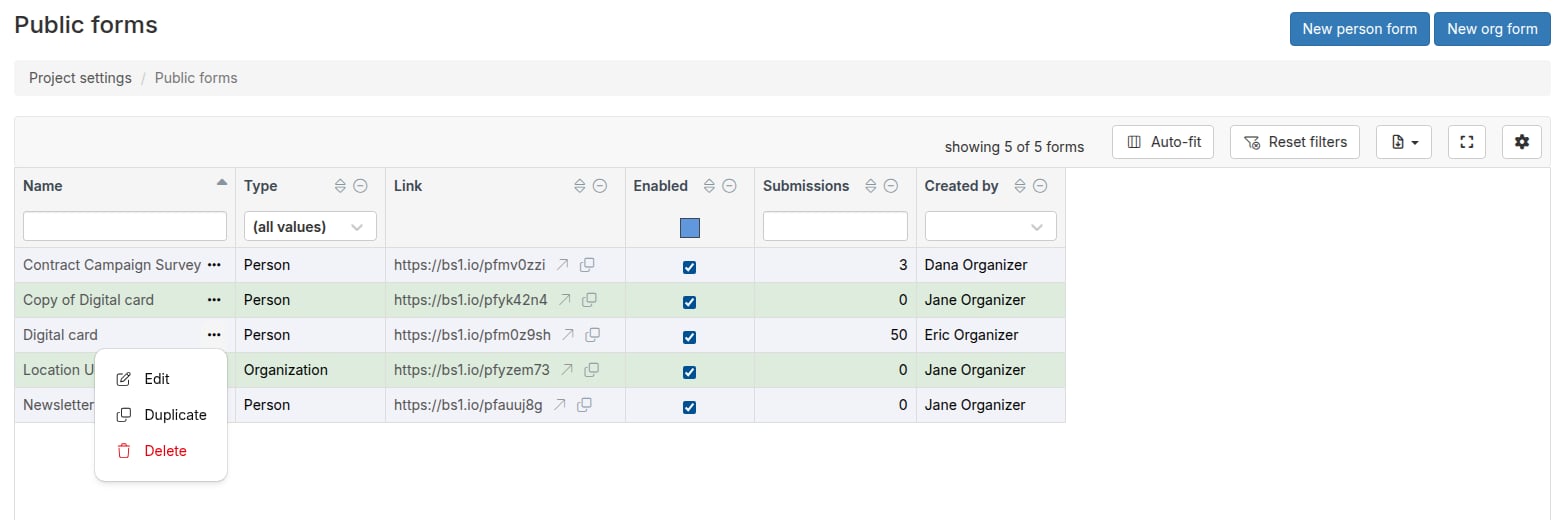
- Form name (click to edit)
- actions dropdown menu (edit, duplicate, delete)
- Type (Person or Organization)
- Public link URL with go to and copy buttons
- Enabled/disabled checkbox
- Amber warning icon next to the form name when a BCC recipient address is undeliverable (open the form and go to the Confirmation email tab to resolve)
- Submissions count
- Created by
Managing Existing Forms
From the Public forms index page, you can:- Edit: Click the form name or use the actions menu (or ellipsis icon in the Name column)
- Duplicate: Create a copy using the actions menu (Click the ellipsis icon in the Name column)
- Delete: Remove unused forms via the actions menu (Click the ellipsis icon in the Name column)
- Copy URL: Click the copy icon next to the form link
- Go to form: Click the go to icon next to the form link
- Enable/Disable: Toggle the checkbox in the Enabled column
What Happens When Someone Submits a Form?
- Validation: Broadstripes checks that all required fields are filled
- Confirmation page: Shows a success message to the submitter
- Duplicate matching: If enabled, searches for existing contacts
- Record creation or update: Creates a new contact, or updates the matched contact in place. Matched records keep their existing Broadstripes ID, timeline history, and references; addresses, phone numbers, emails, and custom field values are deduplicated against the existing record so submissions add information without overwriting it.
- Employment: Creates employment relationships if configured
- Timeline: Adds timeline entry if configured
- Events: Updates event steps if configured
- PDF generation: Creates and stores a PDF of the submission
- Emails: Sends confirmation emails if configured
Next Steps - Create
Since public forms can collect a wide range of information, the interface for creating them has several parts. Therefore, we’ve split the documentation into multiple articles. Together, these articles will guide you through customizing a basic form, collecting different types of data, and viewing the responses you receive. Here’s a roadmap to working with public forms:- First step: create a new public form
- The “Standard fields” tab
- The “Timeline” tab
- The “Workplace” tab
- The “Content and attachments” tab
- The “Confirmation email” tab
- The “After submission” tab
- Viewing and downloading public forms