

Overview
An essential piece of any organizing campaign is figuring out where the workers stand in relation to the campaign’s goals. This is usually done using a numeric assessment scale, with 1 indicating strong support, and the highest number in the scale (usually 5) indicating hostility. The 5-point scale is useful because it gives you a neutral position (3) and two “leaning” options (2 and 4). Broadstripes makes it easy to set up assessment codes to match your campaign’s style. You can create as many codes as you want, and supply descriptive text for each.What’s the difference between “Assessment codes,” “Assessments,” and “Codes”?Absolutely nothing! “Assessment codes,” “Assessments,” and “Codes” all refer to the exact same piece of employment information in Broadstripes; it’s just a matter of how it is labeled.In your general settings, you can choose whether you want Broadstripes to refer to the numbers on the assessment scale as “Codes” or “Assessments,” and you can go back to your general settings to change this label at any time.
The assessment codes table
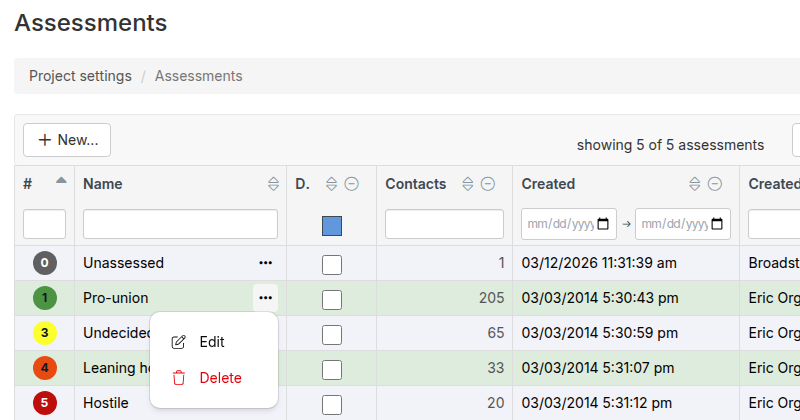
The assessment codes page displays your codes in an interactive data grid with sortable, filterable columns:- # — The code number, shown as a colored circle
- Name — The code description, with an actions menu (⋯) for editing and deleting
- Default — A checkbox indicating the default code; click it to set or clear the project default directly in the table
- Contacts — The number of contacts assigned this code (click to view them in search results)
- Created and Created by — When the code was created and who created it
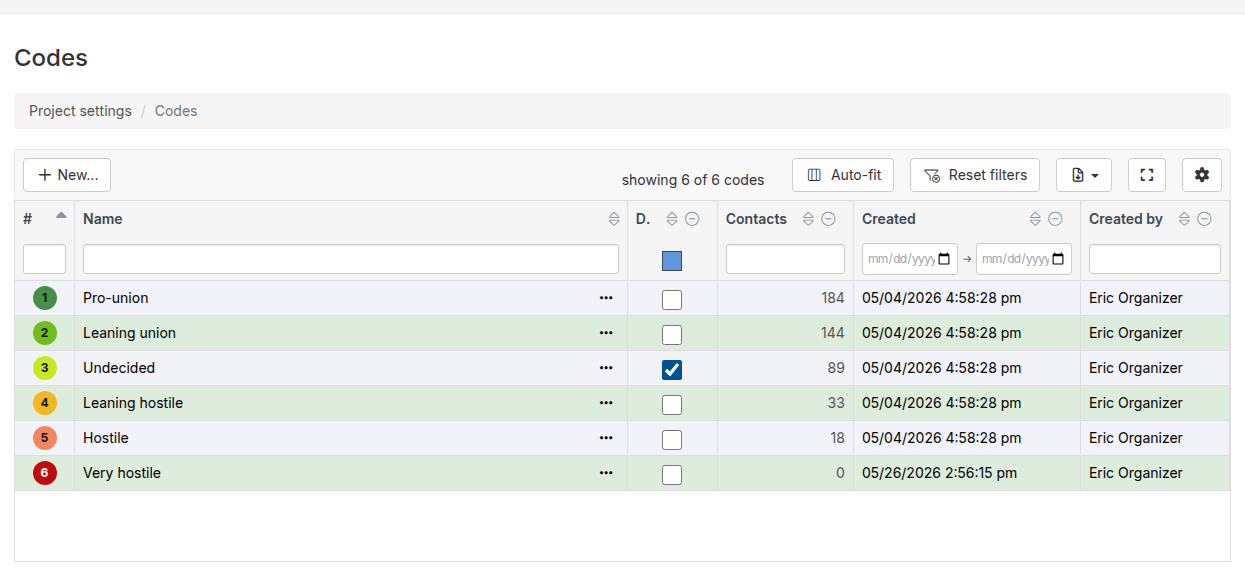
Configure new assessment codes
You can create your whole assessment scale in one step:- Click the Project settings icon in the upper right corner of any page (or press Ctrl-K / ⌘K), then choose Assessments (or Codes, depending on your General settings label).
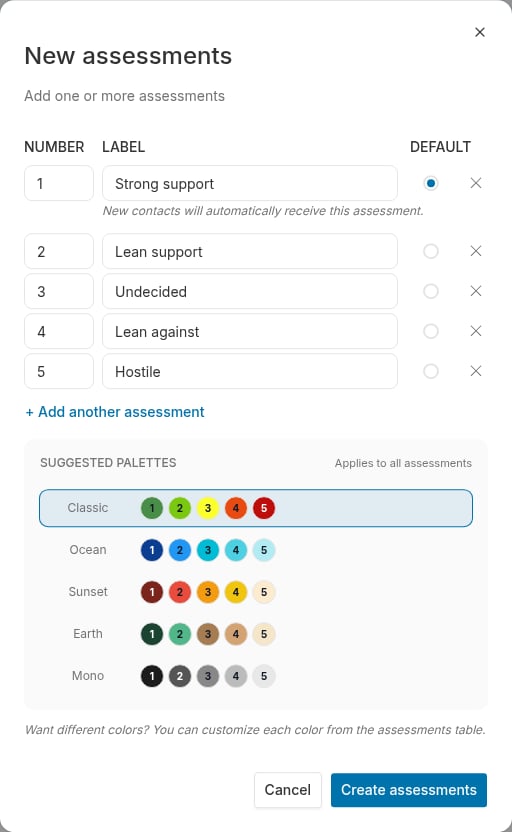
- Click the New… button in the table toolbar. The New assessments dialog opens with one empty row.
- Each row is one assessment code. Enter a number and a short one- or two-word label that will appear on-screen and in reports (most projects use codes 1-5, but you can have as many or as few as you want). Note: Assessment codes must be numbers, and each number can only be used once — the dialog flags duplicates as you type.
- Click + Add another assessment to add a row for each remaining code on your scale.
- If you want one code to be selected automatically when your end users enter a new contact in Broadstripes, click the Default button on its row.
- To color your scale, pick one of the Suggested Palettes (Classic, Ocean, Sunset, Earth, or Mono) — the swatches preview how the colors will be spread across your codes. You can fine-tune individual colors later; see Customize assessment colors.
- Click Create assessments. The dialog closes, a confirmation appears, and your new codes appear in the table.
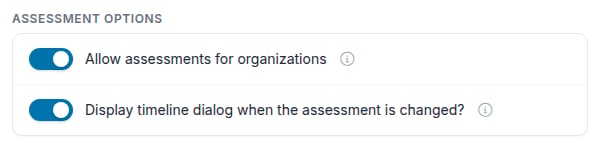
Assessment options
Below the assessment codes table, the Assessment options panel contains toggle switches that control how assessments work in your project. Flip a switch to change a setting — each change saves automatically and a confirmation message appears, so there’s no separate save button. Click the info icon () next to an option for a short explanation. Read-only users can see the options, but the switches are disabled. Allow assessments for organizations People (workers) can always be assessed, but by default organizations (workplaces) cannot. Turn this option on to allow organizations to be assessed as well. When enabled, the assessment disc and code selector appear on organization records just as they do on worker records, and organization assessment codes appear in search results and exports. Display timeline dialog when the assessment is changed? When this option is on, the timeline dialog appears any time someone using the app changes a record’s assessment, asking them to provide more information about why the assessment changed. The dialog does not appear during data imports or other automated processes.Like the rest of the page, the panel and its option labels follow your project’s terminology preference — you’ll see Code options, Allow codes for organizations, and so on if your General settings label is “Codes.”
Customize assessment colors
Broadstripes automatically assigns colors to your assessment codes. You can customize these colors to match your campaign’s preferences or to make certain codes more visually distinct.Change a code’s color
- Click the Project settings icon in the upper right corner of any page (or press Ctrl-K / ⌘K), then choose Assessments (or Codes).
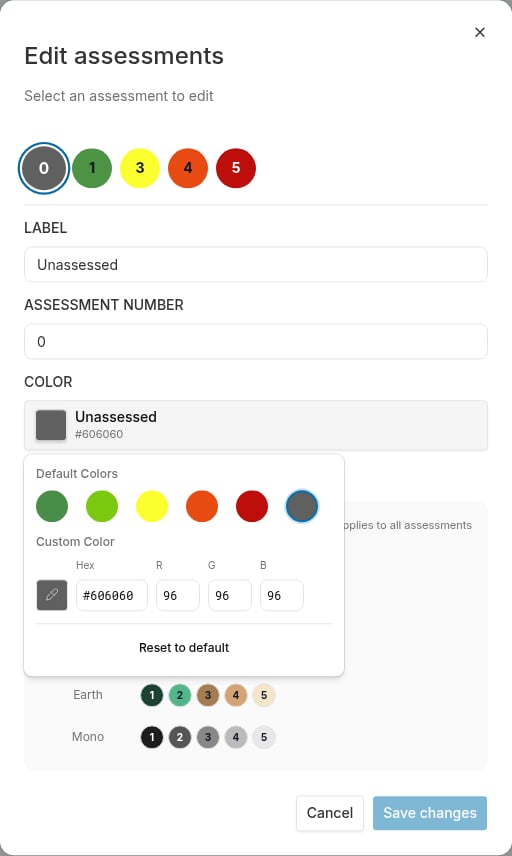
- Find the assessment code you want to customize and open its actions menu (⋯) in the Name column, then click Edit. The Edit assessments dialog opens with that code selected.
- In the Color field, click the button to open the color picker. Choose a color using any of these methods:
- Click one of the six Default Colors swatches (green, light green, yellow, orange, red, or gray)
- Type a custom hex color code (e.g.,
#488E48) into the Hex field, or adjust the R, G, and B values individually - Click the eye-dropper icon to open your browser’s color selection tool, where you can pick any color from the full color gamut
- Click Reset to default to revert to the automatically assigned color
- Click Save changes.
Color best practices
- Use distinct colors that are easy to differentiate at a glance
- Consider using a color gradient that reflects the assessment scale (e.g., green for strong support, red for hostile)
- Ensure colors have sufficient contrast for accessibility
- Keep colors consistent across your campaign materials
Edit or delete your assessment codes
Edit
- Find the assessment code you want to change in the table. Click the actions menu (⋯) in the Name column and select Edit.
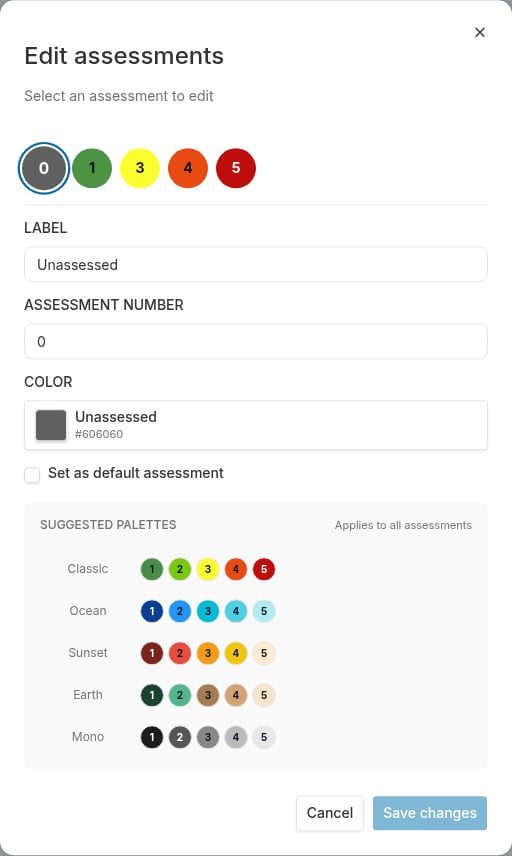
- The Edit assessments dialog opens, showing your full scale as a row of colored discs at the top. The code you chose is selected — click any other disc to switch to that code, so you can edit several codes in one sitting.
- Change the label, number, color, or default setting for each code you want to update. If you change a code’s number, the dialog tells you how many contacts will receive the new number.
- Click Save changes. All of your edits are saved at once, and you’ll see a confirmation.
Delete
- Find the assessment code you want to remove. Click the actions menu (⋯) in the Name column and select Delete.
- Confirm that you want to delete the assessment by clicking OK when prompted.
- The assessment code will be removed from your project, and all contacts who were previously assigned that code will have no code (i.e. their assessment field will now be blank).
While a deletion is processing, the Delete option in the actions menu is temporarily disabled for all assessment codes. Wait for the current deletion to finish before deleting another code.