

Overview
The leader tree is an interactive chart that shows every person and workplace in a leader’s organizing structure. Open it from the Leadership tab of any person’s or organization’s record page, and you see the full chain from the root leader down through all of their followers — who is above and below each person, which leaders have few followers, and how the whole structure fits together. The tree is built with person and workplace cards arranged left to right: the root leader sits in the leftmost column, and each level of followers is one column further to the right, stacked vertically beside their leader. You can pan the canvas, zoom in and out, collapse or expand branches, filter by role, and (if you have edit access) drag a card onto another person to reassign their leader.The leader tree is available on projects that have the Labor Organizing feature enabled. You must have permission to view the leader tree to open the page.
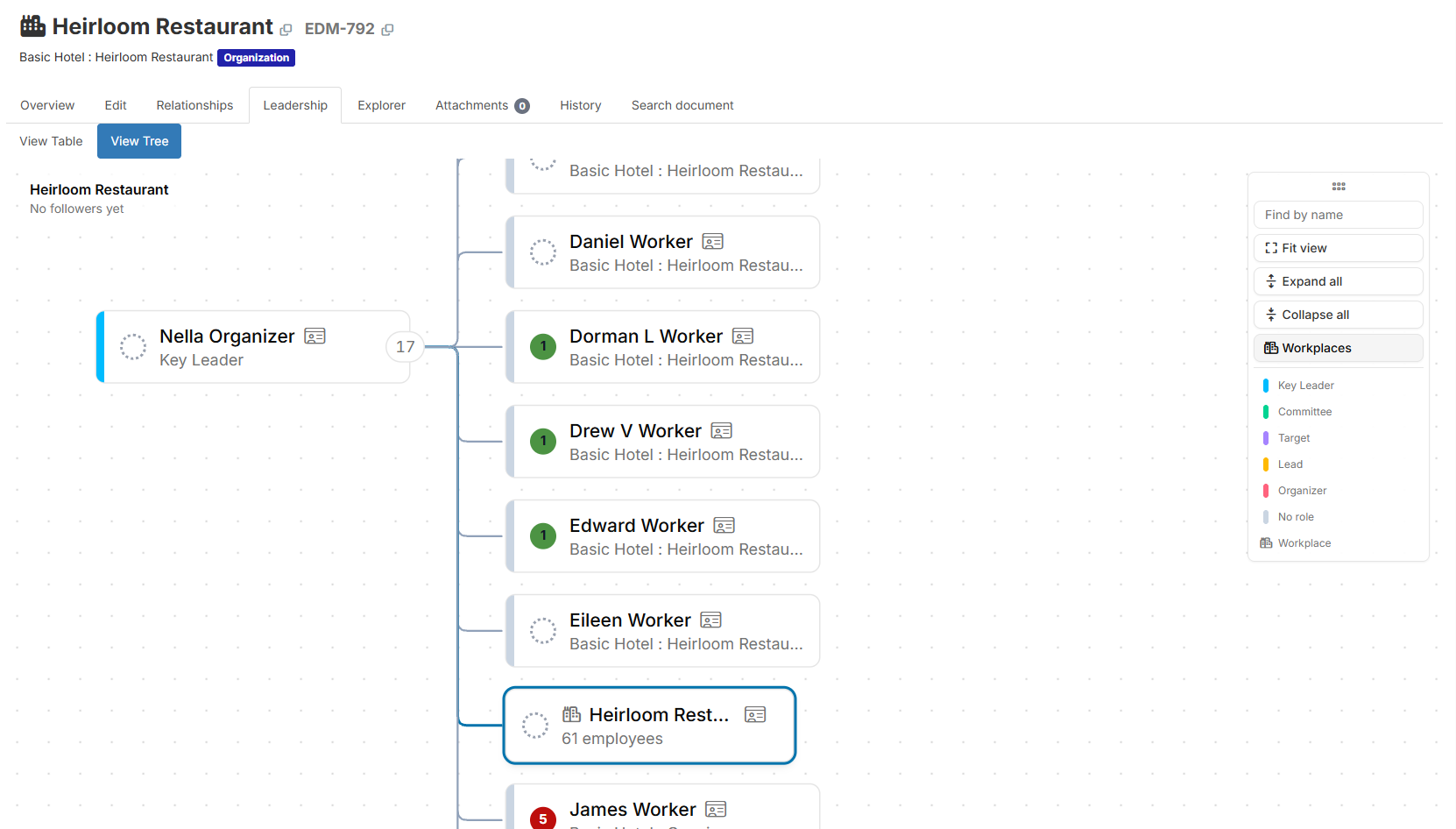
Opening the leader tree
- Navigate to any person’s or organization’s record page.
- Click the Leadership tab in the tab bar across the top of the page.
- Click View Tree in the navigation pills below the tab bar.
Reading the tree
Each card in the tree represents one person or workplace in the organizing structure. Person cards show the person’s name and their primary employer (or their leader role when they have no employer). A colored bar runs down the left side of the card showing their leader role. An assessment disc appears in the card’s leading slot, showing their current assessment code. Workplace cards show the workplace’s name and employee count. Workplaces have no role bar on the left side. When the project allows workplaces to be assessed, the assessment disc appears in the leading slot and a building icon appears next to the name. The focused card — the person or organization you opened the page for — is highlighted with a primary-color ring. The title block in the top-left corner of the canvas shows that entity’s name on the first line and counts the people and workplaces below them at any depth on the second line. Restricted cards show only a person’s name when limited visibility prevents you from reading their full record. These cards have no assessment disc, no quick view button, and no action row, but they do carry the role color on their left edge and show the collapse toggle when followers sit below them.Panning, zooming, and navigating
Click and drag the canvas background to pan the view. Scroll with the mouse wheel to zoom in and out. You can also use the zoom controls in the bottom-left corner of the canvas. Click any card to center it in the canvas. A minimap in the bottom-right corner shows the full shape of the tree and lets you pan by clicking and dragging inside it.Toolbar controls
The toolbar in the top-right corner holds the controls for the whole tree. You can drag the toolbar by its grip handle at the top to move it out of the way of any card you want to read. Use the arrow keys while the grip has keyboard focus to move the toolbar incrementally. The toolbar contains these controls, from top to bottom:- Find — a search box where you can type a name to find any person or workplace in the tree. Press Enter or click a match to center the canvas on that card. If the card is hidden under a collapsed leader, the tree expands only those collapsed leaders and centers on the card once it appears.
- Fit view — resets the canvas to show the entire tree at once.
- Expand all — expands every collapsed branch in the tree.
- Collapse all — collapses every branch except the root’s first level.
- Workplaces — a toggle that hides or shows workplace cards in the layout. Hiding workplaces declutters a large tree; the follower counts on each person’s card and in the title block continue to include workplaces whether they are shown or hidden.
- Legend — a column of chips below the divider, one per leader role plus “No role” and “Workplace”. Pressing a chip dims every card that is not in that role’s group. Press the same chip again to clear the filter. Only one chip can be active at a time.
Collapsing and expanding branches
When a person has followers, a small badge appears on the right edge of their card showing how many people and workplaces sit below them at any depth. Click the badge to collapse that person’s entire subtree — the followers disappear and the remaining cards close up. Click the badge again to expand the subtree. The Expand all and Collapse all buttons in the toolbar apply the action to the entire tree at once. “Collapse all” always leaves the root’s first level visible.Viewing details with quick view
Every person card (and every workplace card) has a quick view button () immediately to the right of the name. Click it to open a quick view popover for that person or workplace without leaving the tree. From the popover you can read the person’s full details, rename them, and open the organizing dialog to change their leader or role. Any edit you make in the quick view — a rename, a role change, or a change to their followers — automatically refreshes the tree.Card actions
Hover over any card (or move keyboard focus to it) to reveal a row of action buttons in the card’s bottom-right corner:- Manage followers — opens the organizing dialog for that person, where you can add or remove followers and change roles. This button appears only for people and only when you have edit access.
- Leader report — generates a PDF leader report for that person. This button appears only for people who have at least one follower.
- Open person or Open workplace — opens the person’s or workplace’s record page in a new tab, so you keep your place in the tree.
Logging a timeline item from a card
Click the assessment disc (or the building icon, on an unassessable workplace) in the leading slot of any card to open the timeline entry dialog for that person or workplace. You can record a new assessment or any other timeline item without leaving the tree. The tree refreshes after you save. Hover over an assessed disc to see a tooltip showing the code and who last set it and when.Drag to reassign a follower (editors only)
If you have edit access, you can drag any person card or workplace card onto another person’s card to reassign their leader. While you drag, the edge connecting the dragged card to its current leader turns dotted, so you can see which relationship the drop would end. Cards that would accept the drop are highlighted with a landing ring as you hover over them. When you release the card on a valid target, a confirmation dialog appears showing who will become whose new leader and who the current leader is. Click Reassign to save the change, or Cancel to leave the structure unchanged. A toast notification confirms the change when it saves. The tree refuses a drop in these cases:- The target is a workplace (only a person can be a leader).
- The target is already the dragged entity’s leader.
- The target is below the dragged entity in the same tree (which would create a cycle).
- The target is a person you cannot read due to limited visibility.
Keyboard navigation
The cards in the tree are in the tab order. When a card wrapper has keyboard focus, these keys navigate the tree:
The arrow keys skip any followers that are hidden under a collapsed leader. Tab moves focus between the cards and the action buttons inside each card, and the toolbar controls are also reachable by Tab.