

Overview
Each person’s record has an Employment tab where you can see every employment on file for that person, add a new one, end a current one, or delete one. The tab groups employments into two lists — current employments and terminated employments — each showing a count in its label (for example, 2 Current and 1 Terminated).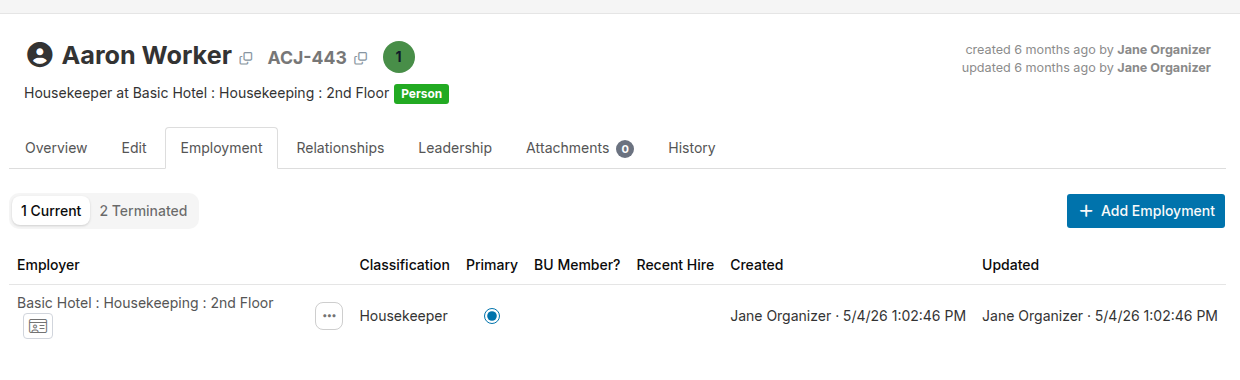
View current and terminated employments
Click the Current or Terminated tab label to switch between the two lists. The browser remembers which list you were viewing if you navigate away and return. Each employment row shows the employer name, classification (or job title, depending on your project settings), and other details. The employer name links to the organization record, and you can open a Quick View panel for the organization by clicking the Quick View icon () next to the name. Both the link and the Quick View icon appear even in read-only projects, because you can always view an organization regardless of whether you can edit it. On a narrow screen, such as a phone, each employment appears as a card instead of a table row. The card shows the employer name, any lock badge, the classification, the bargaining-unit-member flag, the recent hire date or end date, and a note showing when the employment was last updated.The locked badge
When an external system owns an employment and prevents edits, the row shows a badge that reads locked by [system name]. You can still view and read all of the fields for a locked employment, and you can still change which employment is primary (see below), but you cannot edit any other field.Set the primary employment
Each person has exactly one current employment flagged as primary. The primary employment is the one Broadstripes shows in search-result columns and uses when it needs a single employer for the person. The Primary column in the current table shows a radio button for each employment. Click the radio button on any current employment to make it primary. The change takes effect immediately, and the tab updates the radio buttons to reflect the new selection. You can make any current employment primary, including one that is locked by an external system.Add an employment
If you have permission to edit the record, an Add Employment button () appears above the current table. Clicking it opens an add form directly on the page. The form contains:- Department — the organization the person works for. Type at least two characters to search for a department or shop by name.
- Classification (or Job title, depending on your project settings) — the person’s role. You can choose an existing classification from the list by typing to filter it. If the classification you need is not in the list, type its name and choose Add “[name]” as a new [classification label] to create it and select it in one step.
- Employee number, Work location, Hours, Hourly rate, Employee status, Full / part time — text fields for additional employment details.
- Start date, Recent hire date, Date last paid, Seniority date — date fields. Enter a date or use the date picker.
- Bargaining unit member, TIP card — checkboxes.
End an employment
To end a current employment, open the row’s actions menu () and choose End employment…. A dialog opens and asks for:- Date ended — defaults to today’s date. You can change it.
- Reason ended — a free-text field.