

Getting to the phone interface
Open Broadstripes in your phone’s browser and sign in. When you sign in from the regular sign-in page, Broadstripes recognizes your phone and opens the phone interface. Tablets, including iPads, open the full web site instead. You can open the phone interface on any device from the full web site: every page of the full web site has a mobile site link in its footer, at the bottom of the page. Tap it to open the phone interface for the project you are in. To leave the phone interface, see Switching to the full web site. If your phone loses its connection, a line at the top of every screen says so. Nothing loads or saves until the connection returns.Choosing a project
If you belong to more than one project, the phone interface starts on the Choose a project screen. Each project shows when you last opened it on this phone. Type in the Find a project box to narrow the list, and tap a project to open it. If you belong to only one project, Broadstripes skips this screen and opens your project.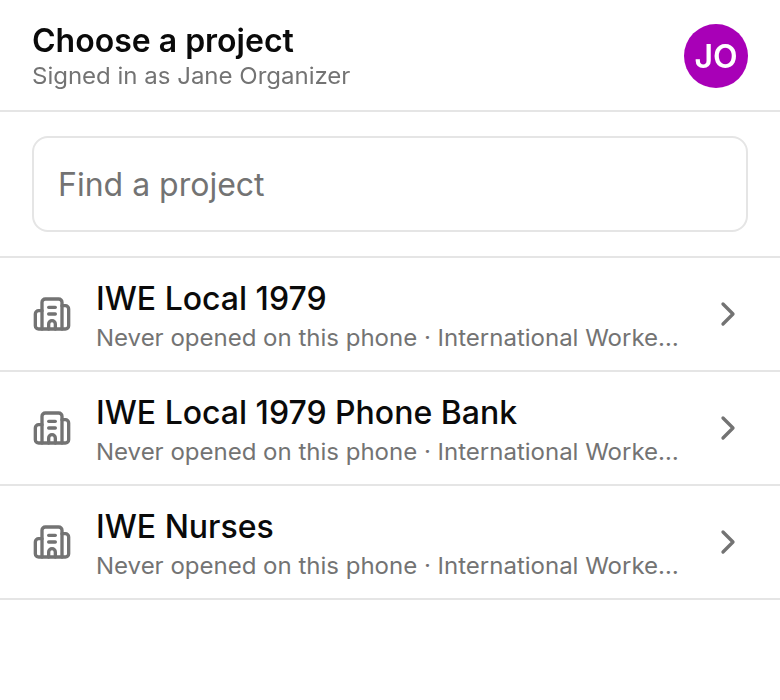
The home screen
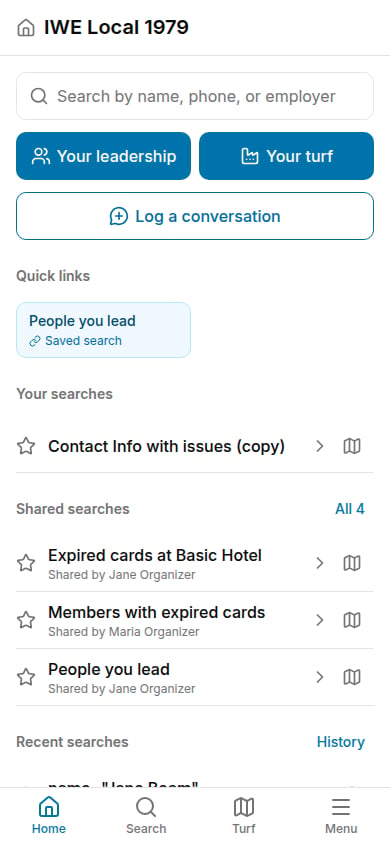
The home screen is where each project starts. From top to bottom, it shows:- The search field. Tap Search by name, phone, or employer to start a search.
- Your leadership and Your turf. These buttons open your followers and your turf. They appear only in projects that use labor organizing. Your leadership appears if you lead at least one person, and Your turf appears if you lead at least one workplace or have workplaces assigned to your turf.
- Log a conversation. Tap it to find the person you talked to. See Logging a conversation.
- Quick links. The saved searches your project admins added as quick links. Tap one to see its results. A quick link whose second line reads Map opens its results on a map instead. See Viewing contacts on a map.
- Your searches. Your own saved searches, with your favorites first. A filled star marks a favorite. Tap the map button at the end of a search’s row to see its results on a map.
- Shared searches. Saved searches other people shared with you. Tap All to see the whole list. These rows have the same map button.
- Recent searches. The searches you ran most recently, with when you ran them and how many people they found. Tap one to run it again, or tap History to see every search you have run in this project.
- Shortcuts. A New person link, if you are allowed to add people.
The menu
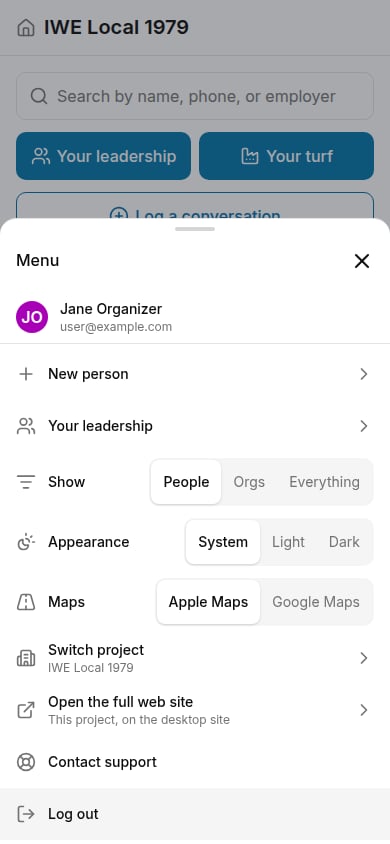
Tap Menu in the bottom bar to open the menu. It shows your name and email address, followed by these items:- New person, if you are allowed to add people.
- Your leadership, which opens your followers, if you lead anyone.
- Show, which chooses whether the phone searches for People, Orgs, or Everything. Broadstripes saves your choice on this phone. See Choosing what to search.
- Appearance, which switches between light and dark mode. See Dark mode.
- Maps, which chooses whether Map buttons open Apple Maps or Google Maps. An iPhone starts on Apple Maps. Broadstripes saves your choice on this phone. Android phones do not show this item, because they always open the phone’s default maps app.
- Switch project, which shows the project you are in and opens the Choose a project screen.
- Open the full web site, which opens the project you are in on the full web site.
- Contact support, which opens a chat with the Broadstripes support team.
- Log out.
Searching for people and organizations
Tap Search in the bottom bar, or tap the search field on the home screen. The arrow at the top left of the search screen takes you to the home screen, the same destination as the Home tab in the bottom bar. Type one or more words and tap your keyboard’s search key. What Broadstripes searches depends on the Show setting in the menu: under People, it finds the people whose name or employer contains every word you typed; under Orgs, it finds organizations by name; under Everything, it finds both. To find someone by phone, type the number or its last seven digits. A search that contains an operator, such asnotes:evenings, runs exactly as you typed it, so you can still use the search terms from the full web site, such as name: or assessment=.
As you type a name, Broadstripes suggests up to eight matching people or organizations under the field, based on your Show setting. Tap one to open their record, or tap your keyboard’s search key to see every match. Tap the x in the field to clear it. While you type, a row of buttons above the keyboard inserts the search operators =, :, !, <, and >, which most phone keyboards hide on a second page.
If your project lets you request access to people you cannot see, the search screen matches names and employers only, and it does not show the operator buttons.
Before you type, the search screen lists your recent lookups on this phone. If a search finds no one and you are allowed to add people, the screen offers a New person named button that starts a new person with the name you typed.
Choosing what to search
Open the menu and find the Show row to choose whether the phone searches for people, organizations, or both:- People searches people by name and employer. This is the default.
- Orgs searches organizations by name.
- Everything searches both people and organizations.
Choosing your columns
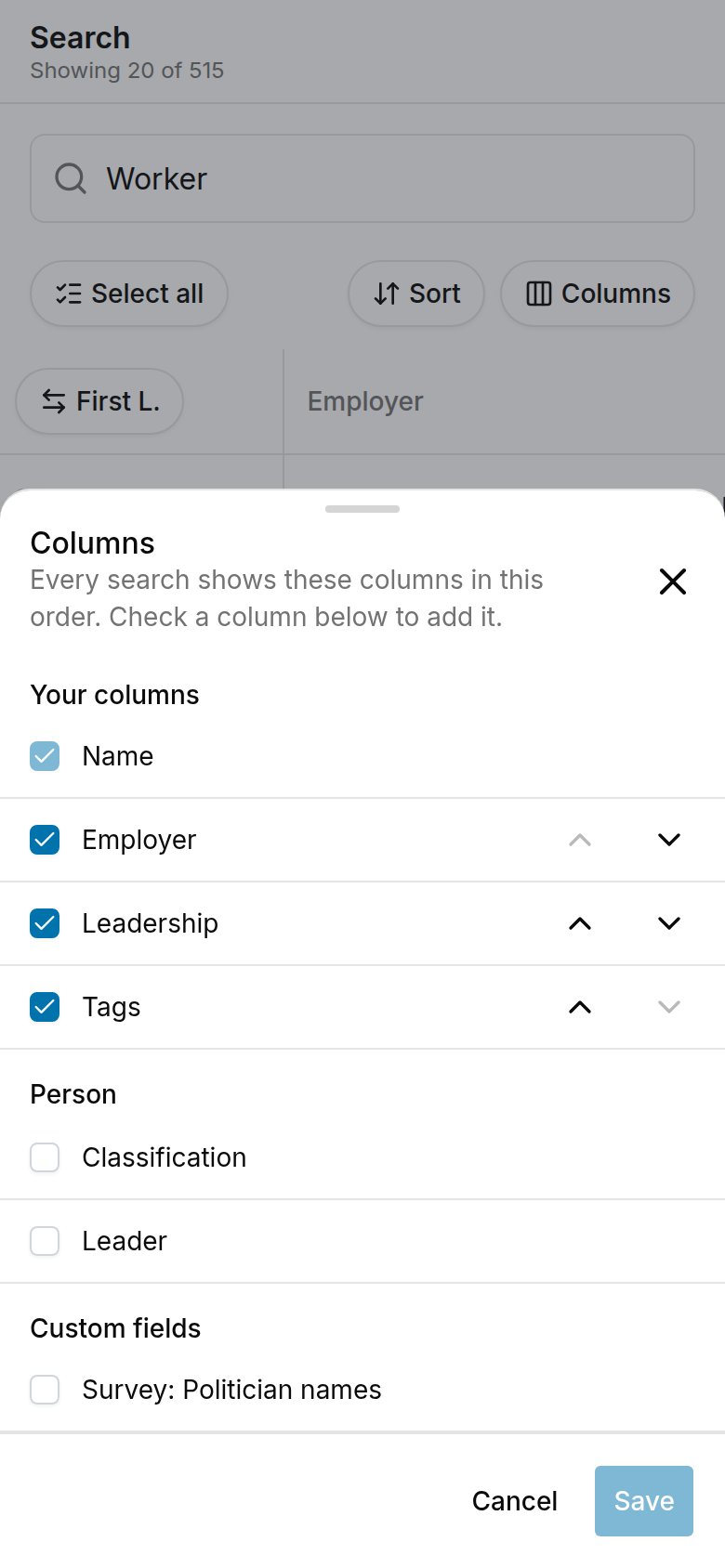
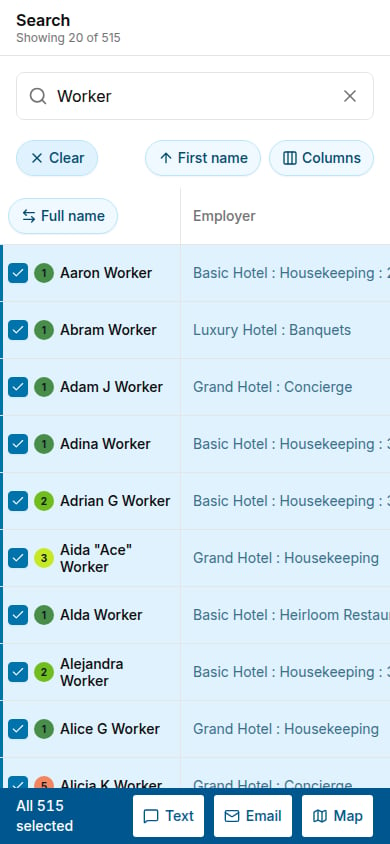
Search results appear in a table with the person’s name in the first column. To choose the other columns, tap Columns above the table. The column drawer lists:- Your columns. The columns the table shows, in order. Name always comes first. Uncheck a column to remove it, and use the up and down arrows beside a column to move it.
- Person, Custom fields, and Events. The columns you can add. Check a column to add it to the end of your columns. Under Events, you can add an event or its individual steps.
Sorting results
Tap a column’s header to sort the table by that column, and tap it again to reverse the order. The name column’s header changes how names appear instead. You can also tap Sort above the table. The Sort by list offers First name, Last name, each sortable column in your table, and Project default. Choose the sort that is already in effect to reverse it, or choose Project default to go back to your project’s standard order. The button shows the name of the sort you chose and an arrow for its direction.Favoriting a saved search
When you open a saved search, tap the three-dot menu at the top right of the results screen and tap Favorite this search. Your favorites appear first in Your searches on the home screen. To remove a favorite, tap Remove from favorites in the same menu. You cannot create a new saved search from your phone. Save searches on the full web site, and they appear on your phone.Viewing and editing a person
Tap any row in the results table to open that person’s record. The top of the screen shows the person’s assessment code, their name, their employer, and their leader. Below that are buttons to Call, Text, Email, or Map the person, and then the person’s tags.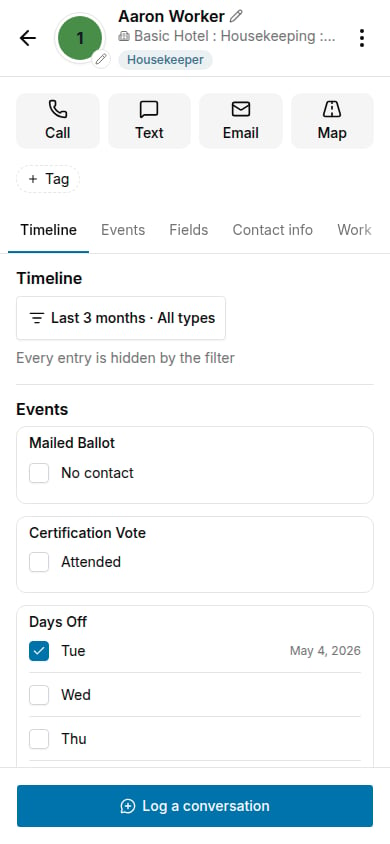
- Timeline shows the newest entries. Tap Show all for the rest, or use the filter to choose the entry types and the time period.
- Events shows the person’s event steps. Check a step to record it.
- Fields shows the person’s Broadstripes ID and any IDs from external systems at the top, each of which you can copy by tapping it, then the contact type and custom fields. A field or event marked Suggested is one the person’s contact type suggests you fill in.
- Contact info shows phone numbers, email addresses, and addresses. Use Add phone, Add email, and Add address to add more. Tap a phone number, email address, or address to copy it, and a message at the bottom of the screen shows what you copied.
- Work shows the person’s employments. Use Add employment to add one, and End employment or Make primary to change one. Ended employments appear under Past. You can add an employment without an employer, unless your access is limited to some people, in which case you must choose an employer first.
- More shows the person’s leader, leader role, and targeted role, their relationships, their attachments, and their general notes.
Editing the record
Tap Edit, Add, or Change next to anything you want to change. A panel opens from the bottom of the screen. Make your changes and tap Save, or tap Cancel to discard them. Fields you are not allowed to change show no edit link, and some custom fields show a Locked badge. To change the assessment code, tap the colored circle at the top of the screen and pick a new code. To change the person’s name, tap their name.Tags
To add a tag, tap Tag in the row under the buttons. Check each tag you want in the list that opens, or type in the filter box to find one, and tap Done. To remove a tag, tap the x on its chip. A message at the bottom of the screen lets you tap Undo if you removed the wrong tag. If the tag you want does not exist, type its name in the filter box and tap Create “name” tag… below the list. In the New tag panel, check the name, choose Personal (only you can use it) or Shared (everyone on the project can use it), pick a color, and tap Create tag. Broadstripes creates the tag and adds it to the person.Logging a conversation
From the home screen, tap Log a conversation, type the name of the person you talked to, and tap them in the list to open their record. If you already have the person’s record open, skip that step. Then tap Log a conversation at the bottom of the person’s screen. Choose the type of entry, set the date and time, add notes, and tap Save entry. To change or delete an entry you logged, tap it in the timeline.Viewing an organization
Tap an organization’s name anywhere it appears as a link — in a person’s Work section, in an organization’s Workers section, or in any results table when your Show setting includes organizations — to open that organization’s record. The top of the screen shows the organization’s assessment code (if it has one), its name, and its contact type or “Organization” if it has none. The three-dot menu at the top right opens the organization on the full web site. The record is divided into sections: Workers, Timeline, Events, Fields, Contact info, and More. Tap a section’s name in the row of names to jump to it, or scroll down.- Workers shows a chart of assessment codes for the workers at this organization and its children, a count of all workers, links to filter by code, a button to open all workers in the results table, and the organization’s parent and children in the project’s tree. Tap the parent or a child to open their own screen.
- Timeline shows the newest contact entries. Tap Show all for the rest, or use the filter to choose entry types and the time period. On a writable project, tap Log a conversation to add an entry.
- Events shows the event steps that are checked for this organization.
- Fields shows the organization’s custom fields.
- Contact info shows phone numbers, email addresses, and addresses.
- More shows the organization’s relationships, attachments, and general notes.
Adding a new person
Tap New person on the home screen or in the menu. Enter a first or last name, choose a contact type, and fill in any other fields your project shows, such as custom fields, employer, and leader. Broadstripes lists possible duplicates under the name as you type. Tap Create person to add the person. Add phone numbers, email addresses, and addresses on the new person’s screen afterward. You see New person only if you are allowed to add people in this project.Sending bulk texts and emails
To send a text or an email to many people at once, select them in any results table:- Check the box on each row you want, or tap Select all above the table to select everyone the search found, including people below the bottom of the screen.
- The bar at the bottom of the screen shows how many people you selected. Tap Text, Email, or Map.
- Write your message, or choose a template for an email, and tap the Send to button, which shows how many people will receive it.
Viewing contacts on a map
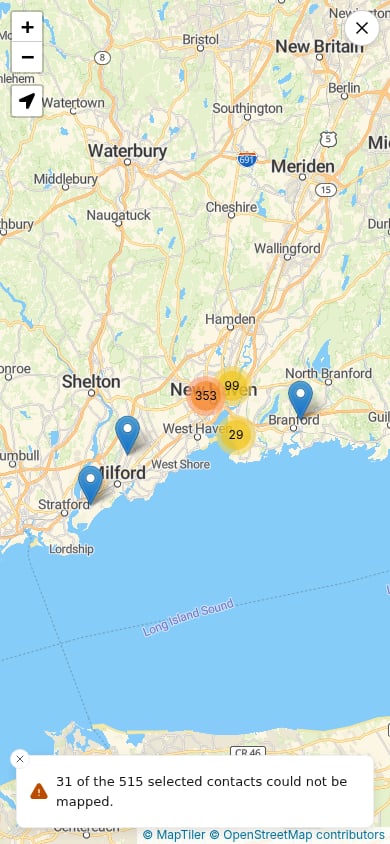
You can open a full-screen map of contacts in three ways:- From a results table. Select contacts, then tap Map in the bar at the bottom of the screen. The map shows the contacts you selected.
- From a map quick link. On the home screen, tap a quick link whose second line reads Map. The map shows every result of the quick link’s saved search.
- From a saved search’s map button. On the home screen, tap the map button at the end of a row under Your searches or Shared searches. The map shows every result of that saved search.
Moving around the map
The map has round buttons in three of its corners:- The back arrow in the upper-left corner closes the map and takes you back to the screen you opened it from. Pressing Escape does the same.
- The About this search button, an “i” in a circle in the upper-right corner, opens a sheet that describes the search. See About this search.
- The zoom buttons and the locate button are in the lower-right corner. When a contact’s sheet is open, they move up above it so that the sheet does not cover them.
About this search
Tap the About this search button to see:- The name of the quick link or saved search you opened the map from. When a quick link’s name differs from its saved search’s name, the saved search’s name appears on a smaller line underneath.
- The search text. Tap it to copy it. Long search text is shortened to three lines; tap Show more to see all of it.
- Which contacts the search shows, which comes from the Show setting in the menu: people only, organizations only, or both.
- How many results the search has, how many of them are people and how many are organizations, and how many are on the map. If you selected some rows of a results table yourself, rather than tapping Select all, the counts are of the contacts you selected, for example “12 selected from this search”.
Seeing a contact’s details
Each contact appears as a marker. Tap a marker to open a sheet from the bottom of the screen showing:- The contact’s name, which you can tap to open their record.
- Their address. If the address has notes, they appear on a muted line underneath, the same way they appear on the contact screen.
- A button with a road icon at the right of the address that opens it in your maps app.
- Their phone numbers and emails, each with a copy button and a button to call or email from your phone’s app.
- Their primary employer and, for a person, the employment’s classification.
- Their leader and role.
- Their tags, collapsed to two lines.
- Who created and last updated the contact.