

Change the number
-
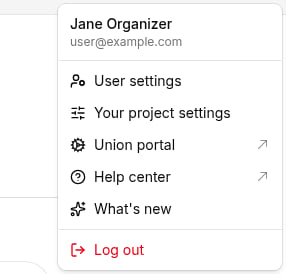
In the top-right navigation bar, click your user disc (the circle showing your initials or photo) to open the user menu, then select User settings.
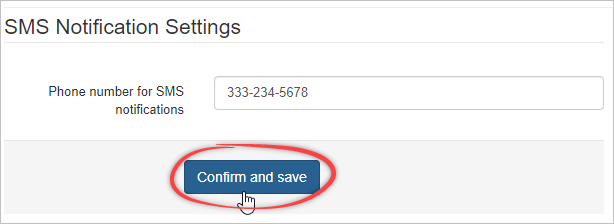
- In the SMS notification settings section, replace the number in the Phone number for SMS notifications field with your new number. The button below the field changes to Confirm and save.
-
Click Confirm and save.
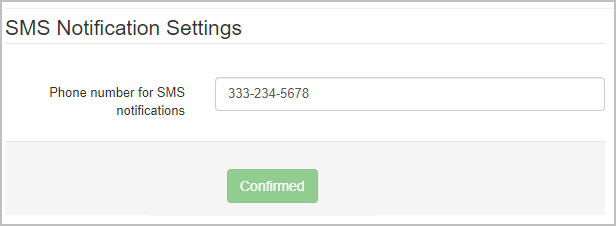
- Broadstripes texts the new number. Reply to that message with the word YES.
What changes when you switch numbers
- Your old number stops getting notifications right away. Broadstripes replaces it when you click Confirm and save, not when you reply YES.
- Replies that arrive before you confirm don’t reach your phone. Broadstripes doesn’t text you about them later, so reply YES promptly, then check your text conversations in Broadstripes for anything you missed.
- The new number applies to all your projects. The number belongs to your user account, not to a single project.
- Your virtual number doesn’t change. Workers keep texting the same virtual number, and they don’t see your cell number.
If it doesn’t work
- No confirmation text arrives. Check the number in the field. If it’s wrong, correct it and click Confirm and save. If it’s right, click Send again.
- The button reads Blocked. That number has opted out of messages from the Broadstripes notification number (by texting STOP, for example). Text UNSTOP to the notification number shown on the page. The button changes to Confirmed once Broadstripes receives your message.
- You see “You may not use this number for SMS notifications.” The number you entered is a Broadstripes virtual number. Enter a real cell number instead.
- You can’t log in because your security codes go to your old number. You need to be logged in to change the number yourself, so contact Broadstripes support for help.