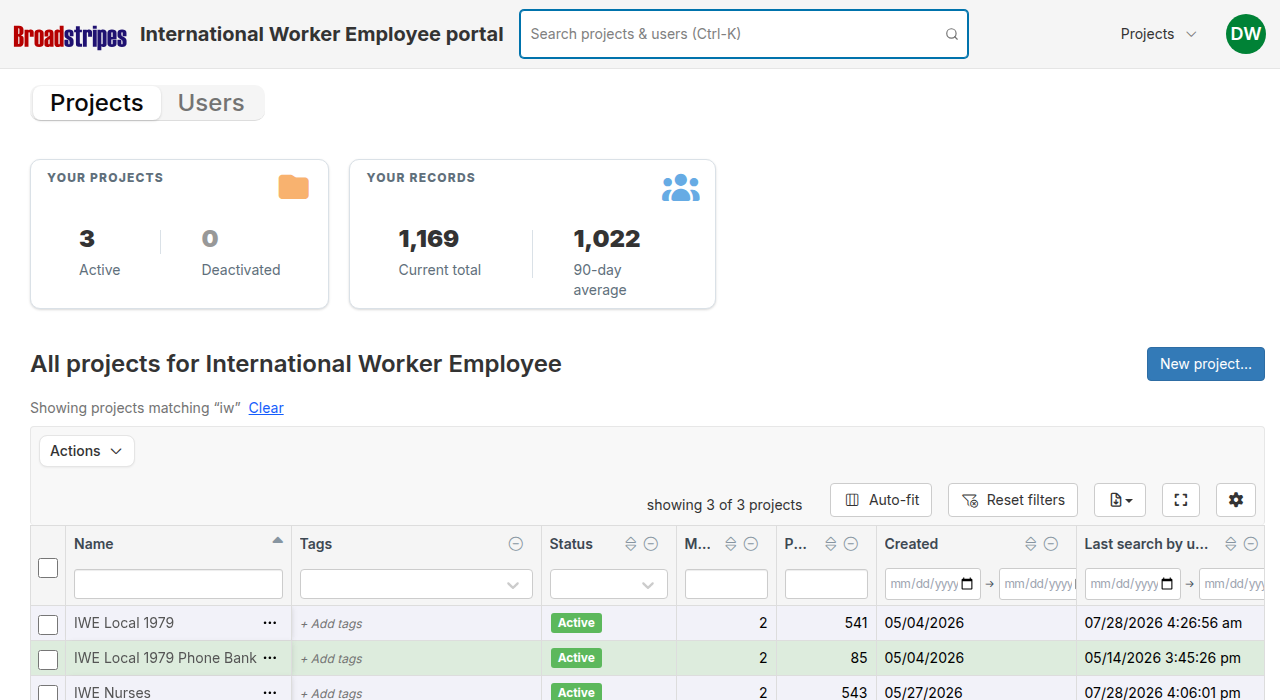
Open the search
Click the search bar in the union portal header, or press Cmd+K on a Mac or Ctrl+K on Windows and Linux to focus it from the keyboard.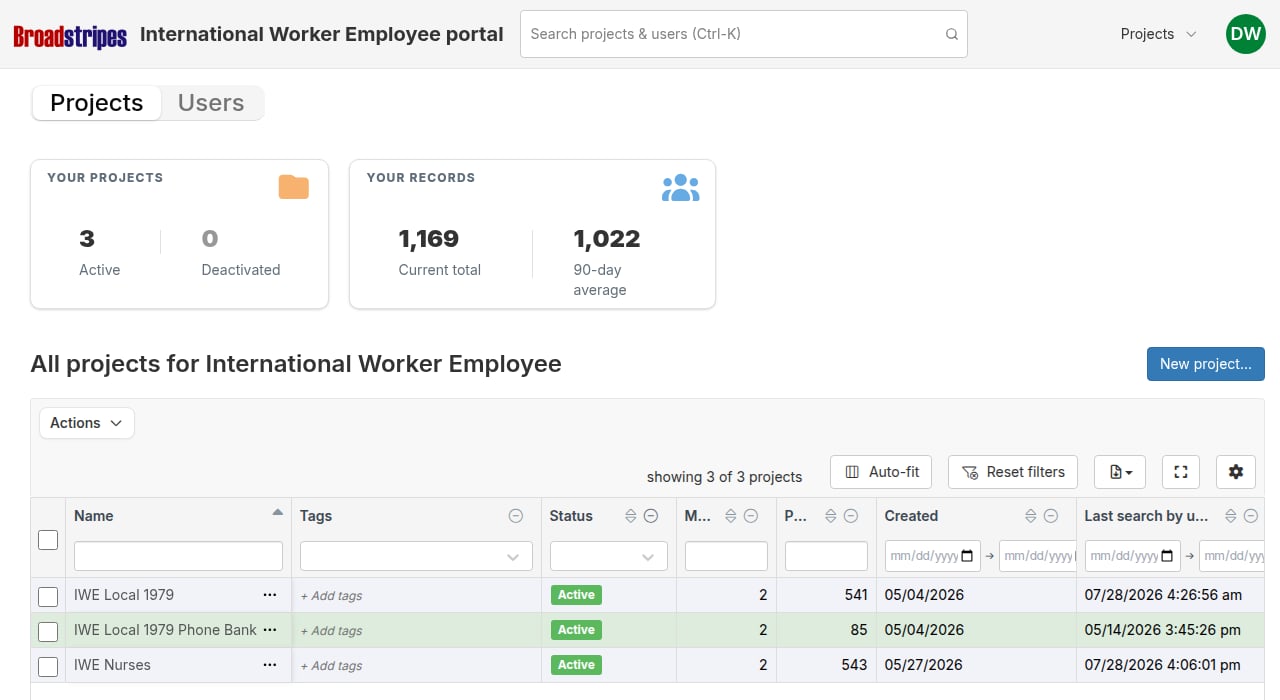
Search results
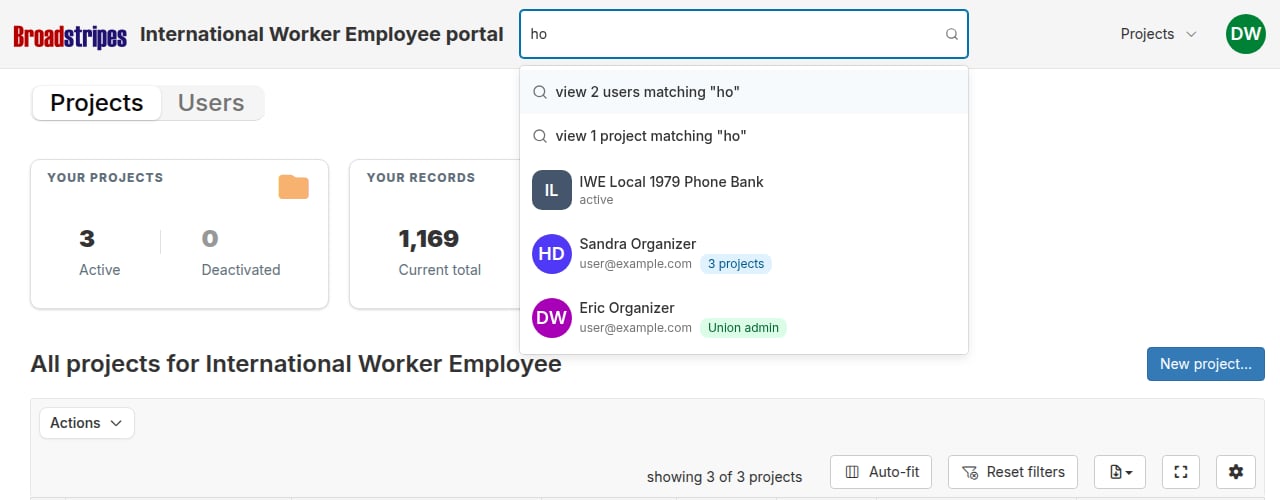
Results appear in a dropdown below the search bar. The dropdown shows up to 20 projects and up to 20 users. Projects appear first, followed by users. Each type of result row shows different information:- Project rows — a colored square badge showing the project’s initials, the project name, and the project’s current status (for example, Active or Organizing).
- User rows — the user’s avatar, their full name, email address, and either the number of projects in the portal they belong to, or a Union admin badge if they are a project group admin.
- “view N users matching …” — available when at least one user matches.
- “view N projects matching …” — available when at least one project matches.
Select a result
Selecting a project row opens that project’s general settings modal, where you can edit the project name and other settings without leaving the portal. Selecting a user row opens a “Projects for [Name]” modal showing all of the user’s memberships in the portal — the project name, role, status, last active date, invite date, and who invited them. From this modal you can toggle individual membership statuses or click Deactivate all memberships to remove the user’s access across every project at once. Selecting a “view N matching…” row switches to the Projects or Users tab and pre-filters that table to your search term. The filter runs on top of any column filters already in place in the table.Clear a table filter applied by search
When a “view N matching…” row has filtered a tab’s table, a notice appears above the table showing the active term. Click Clear in that notice to remove the filter and show all rows again.