

- A condition card sends the call to a different page depending on the person. For example, people on the night shift go to one page and everyone else goes to another.
- A Show only when section shows some of a page’s words only to some people.
How a condition decides
- A condition checks the person’s employer, department, or job title, the project’s custom fields, and the person’s event steps.
- A condition has one or more numbered paths, each with its own check. The paths are checked from top to bottom, and the first check that matches wins. Otherwise catches everyone the paths don’t match.
- The caller never sees the condition. When the caller presses a button that leads to it, the call goes straight to the page the matching path names.
Conditions use the person’s details as they were when the call started. An event step that a button checks off, or a field the caller fills in, doesn’t change which way a later condition goes in the same call.
Add a conditional button
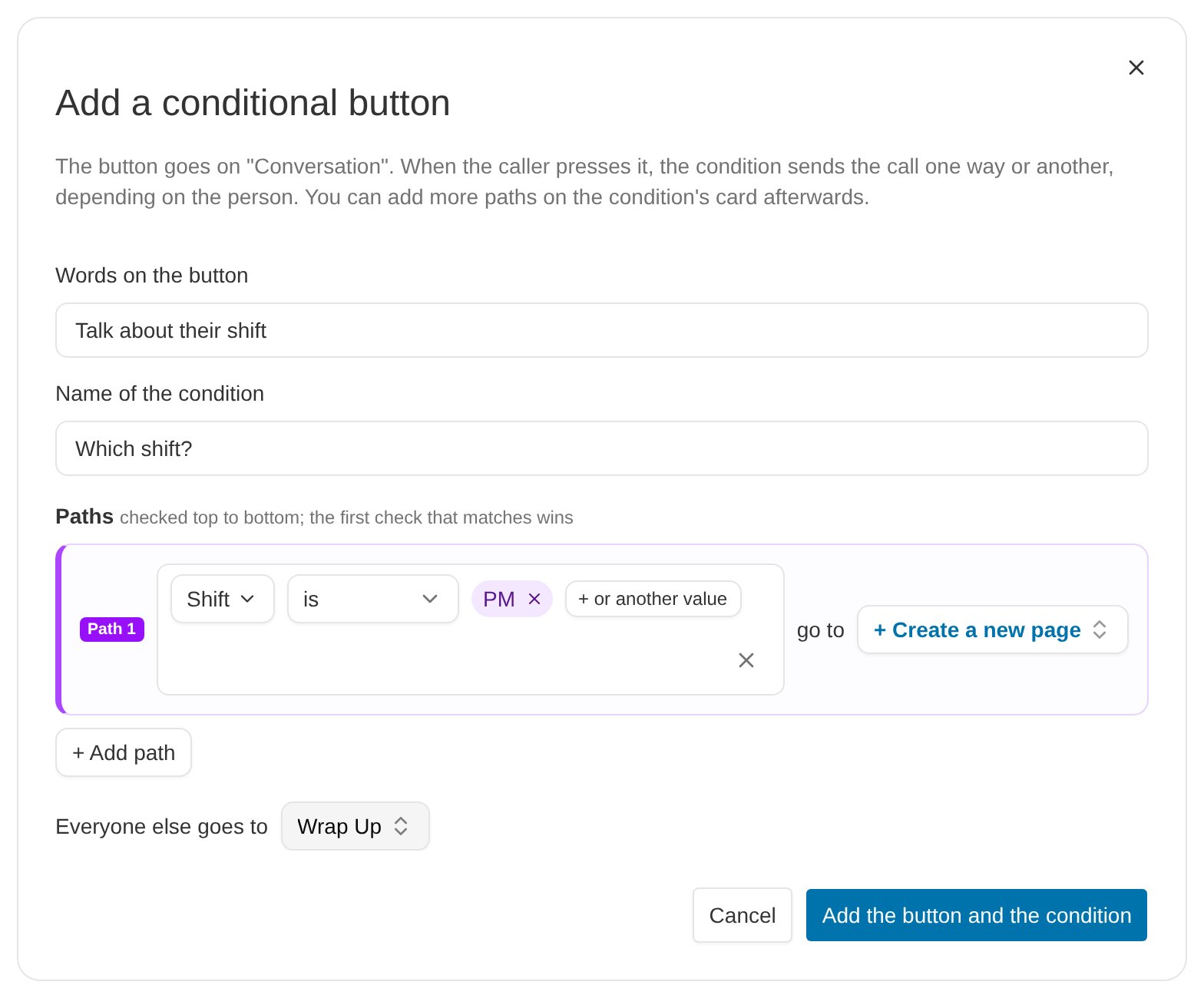
A conditional button adds a button and the condition it leads to in one step.- Open a page by clicking Edit on its card.
- In the page’s blocks, click Conditional button, or drag it onto the card. The Add a conditional button dialog opens.
- Fill in:
- Words on the button — what the caller presses.
- Name of the condition — a name for the condition’s card, such as “Which shift?”
- Path 1 — choose what to check, how to check it, and the value. Then choose the page this path goes to, or choose + Create a new page.
- + Add path — adds another path with its own check.
- Everyone else goes to — the page for people no path matches.
- Click Add the button and the condition.
Add a condition from the side panel
- In the side panel, click Condition under Blocks, or drag it onto the map.
- Write its paths, as described in Edit a condition.
- Point a button at it. In the button editor, the Goes to list shows the script’s conditions after its pages. You can also drag a button’s circle onto the condition’s card.
Edit a condition
Click Edit on a condition’s card to open it.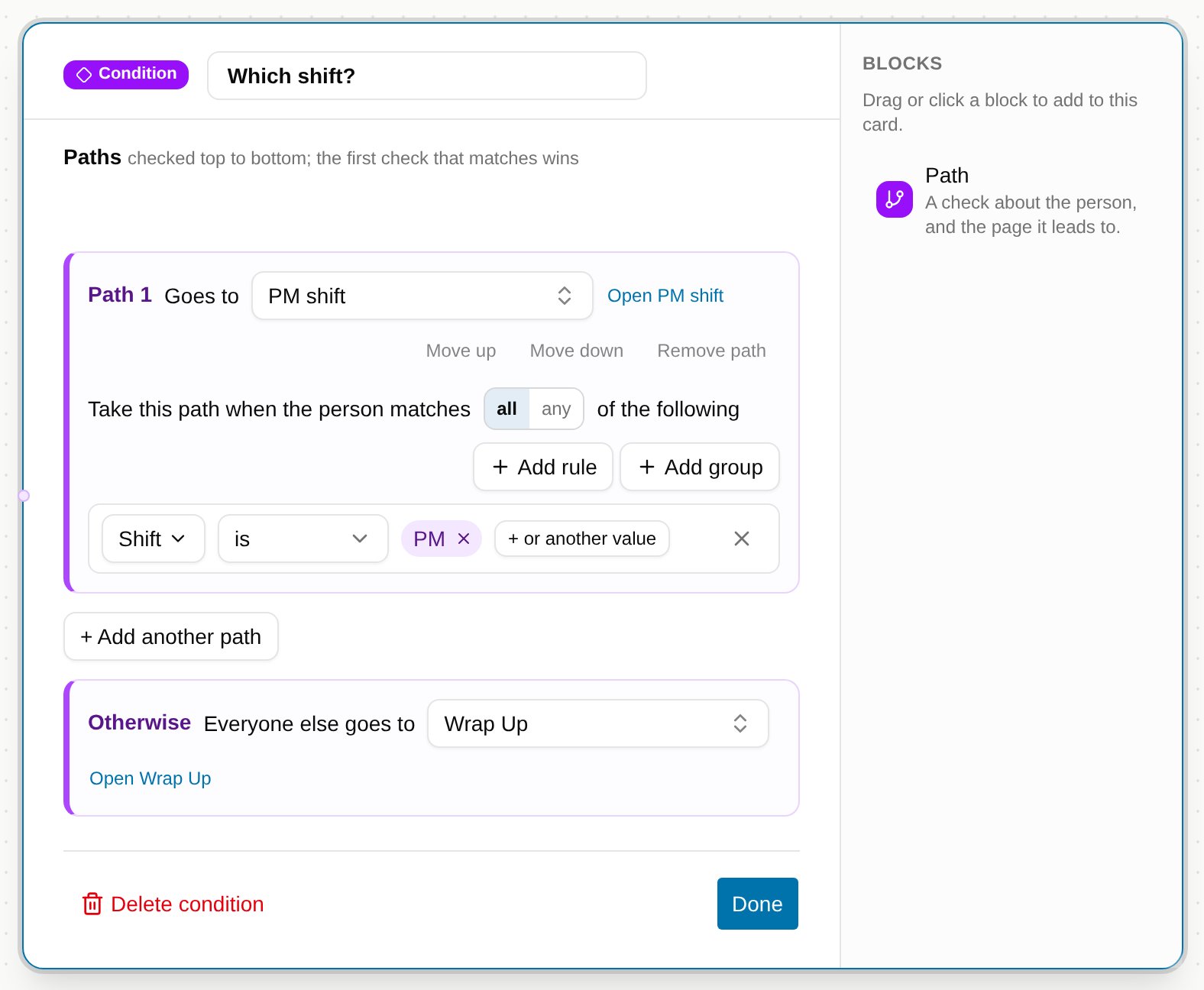
- Name — type in the box at the top to rename the condition. Buttons that lead to it follow the new name.
- Goes to — the page this path sends the call to. A path can only go to a page, not to another condition. Click Open and the page’s name to open that page.
- Move up and Move down — change the order the paths are checked in.
- Remove path — deletes the path. A condition needs at least one path; to stop using a condition, delete it.
- Take this path when the person matches all / any of the following — choose all when every rule must match, or any when one is enough.
- Add rule and Add group — add another rule, or a group of rules with its own all or any.
- + Add another path — adds a path at the bottom. The Path block in the card’s blocks does the same.
- Otherwise — the page for everyone no path matches.
- Delete condition — removes the condition after asking first. Buttons that led to it then go nowhere until you point them somewhere else.
What you can check
Each rule starts with What to check. The list has three sections:
To check for more than one value, click + or another value. The rule then reads is any of or is none of.
A Yes/No field takes Yes or No. Its has nothing saved matches only a person who has never had Yes or No saved. A caller who leaves the box unchecked on a page saves No.
Show words only to some people
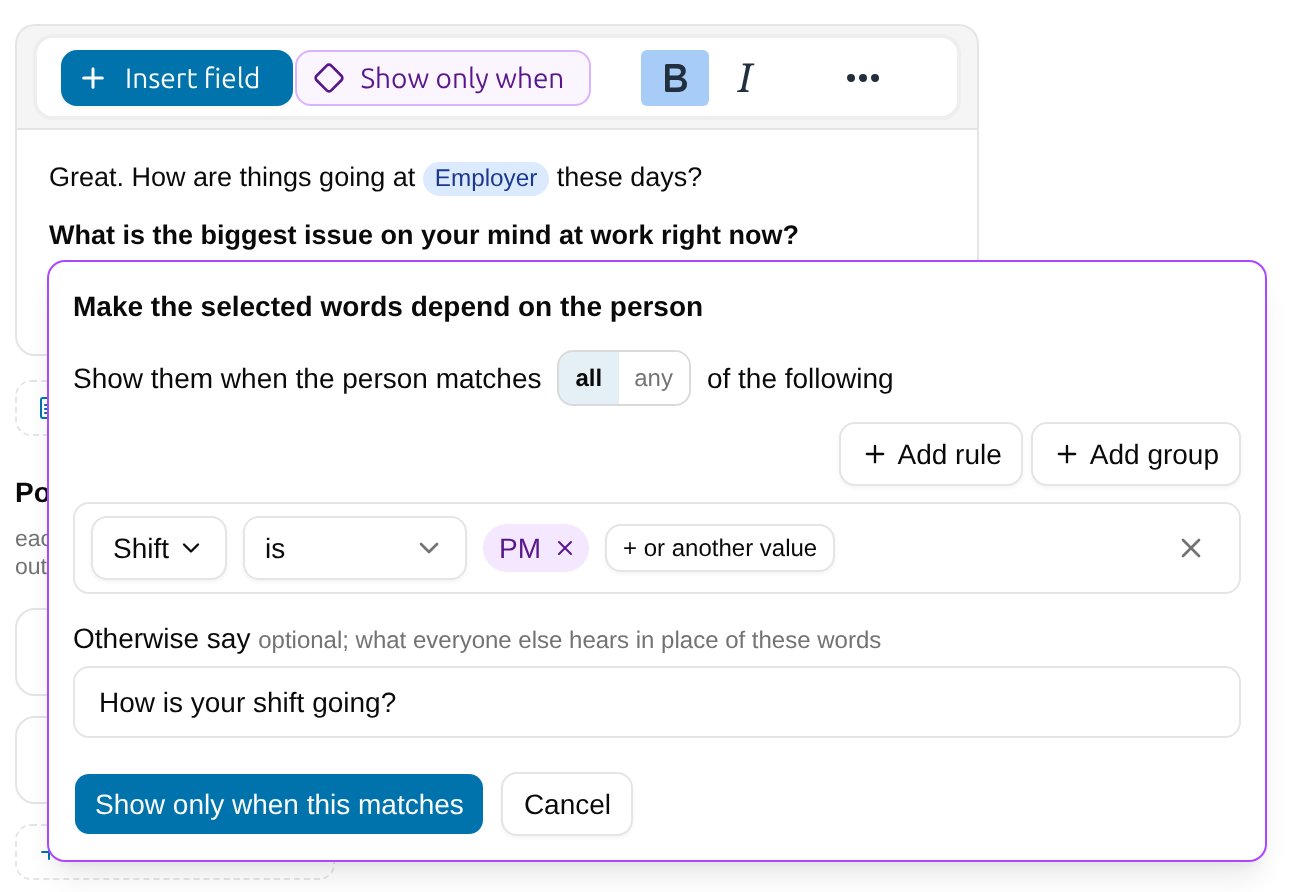
A Show only when section shows part of a page’s words only to the people who match its rules. You can also give the words everyone else hears in its place.- Open the page, and in What the caller will read, select the words. The selection must be inside one paragraph.
- Click Show only when on the toolbar.
- Choose all or any, and add rules as you would for a condition.
- Optionally, type the words everyone else hears in Otherwise say.
- Click Show only when this matches.
Checks written in code
If a check was written in code in a form the builder can’t show as rules, the rule editor shows the code itself, with Replace with rules and Edit in code. The check keeps working as written until you change it.Next steps
- Test and publish a call script to walk through each path before callers use it.