

Follow the checklist
The Your script checklist in the side panel says what the whole script still needs. The number next to the heading counts the lines that are done.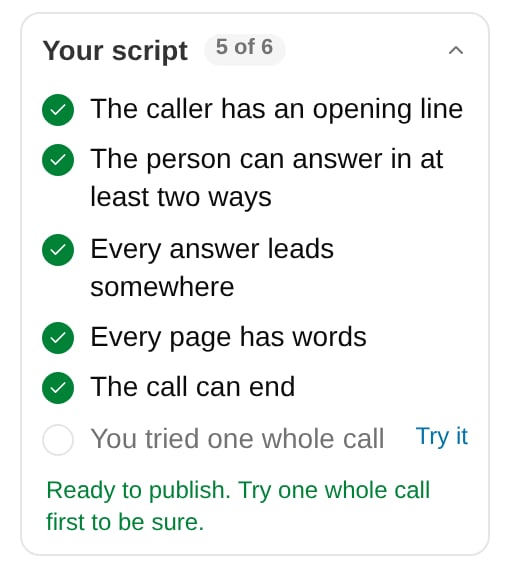
- The caller has an opening line
- The person can answer in at least two ways
- Every answer leads somewhere
- Every page has words
- The call can end
- Every condition is finished (shown when the script has a condition)
- You tried one whole call
Preview a page
Open a card and click the Preview tab to see the page the way the caller sees it. The details of a sample person, Maria Alvarez, fill in the chips. The caller’s buttons are shown but locked.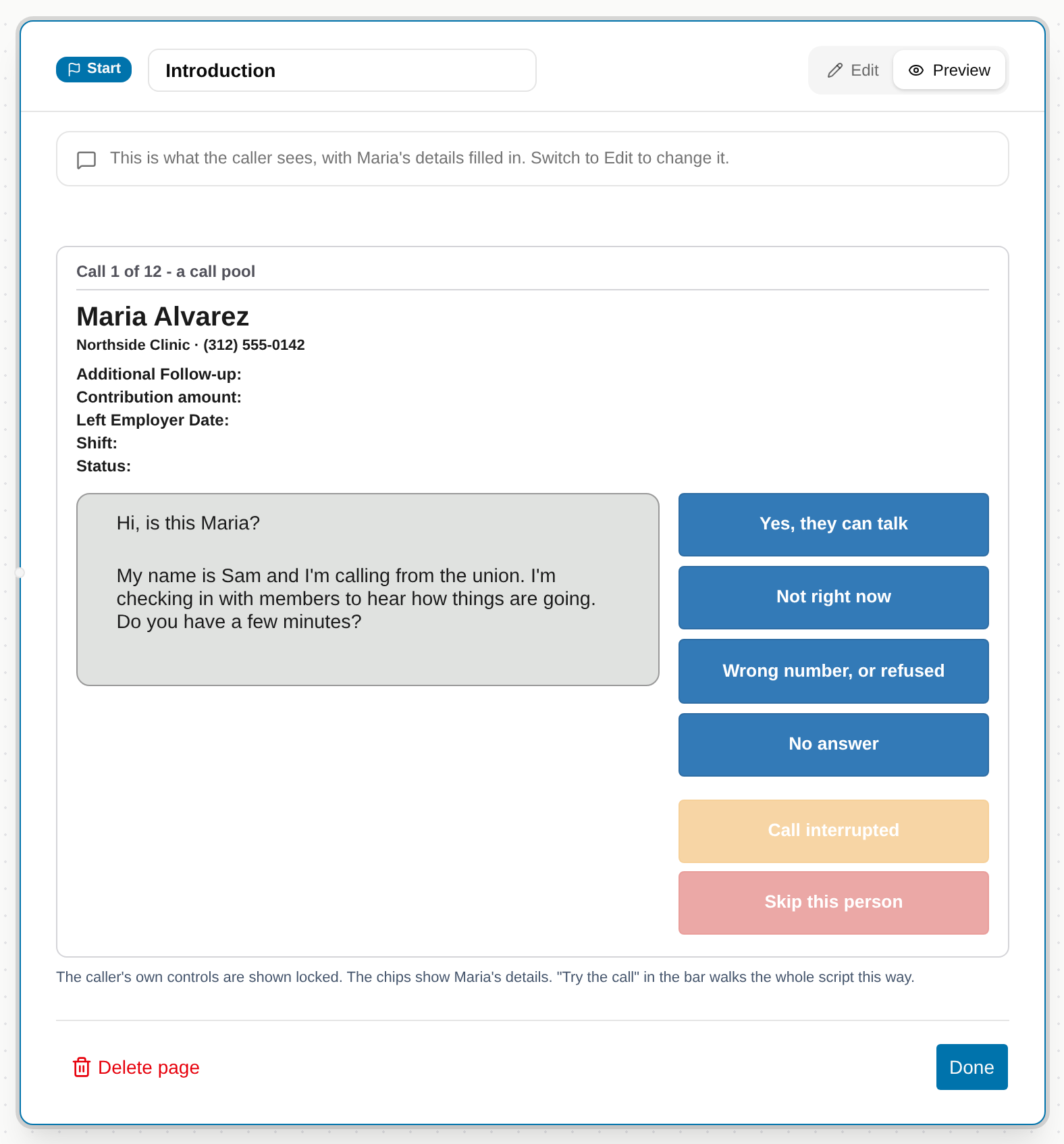
Try the call
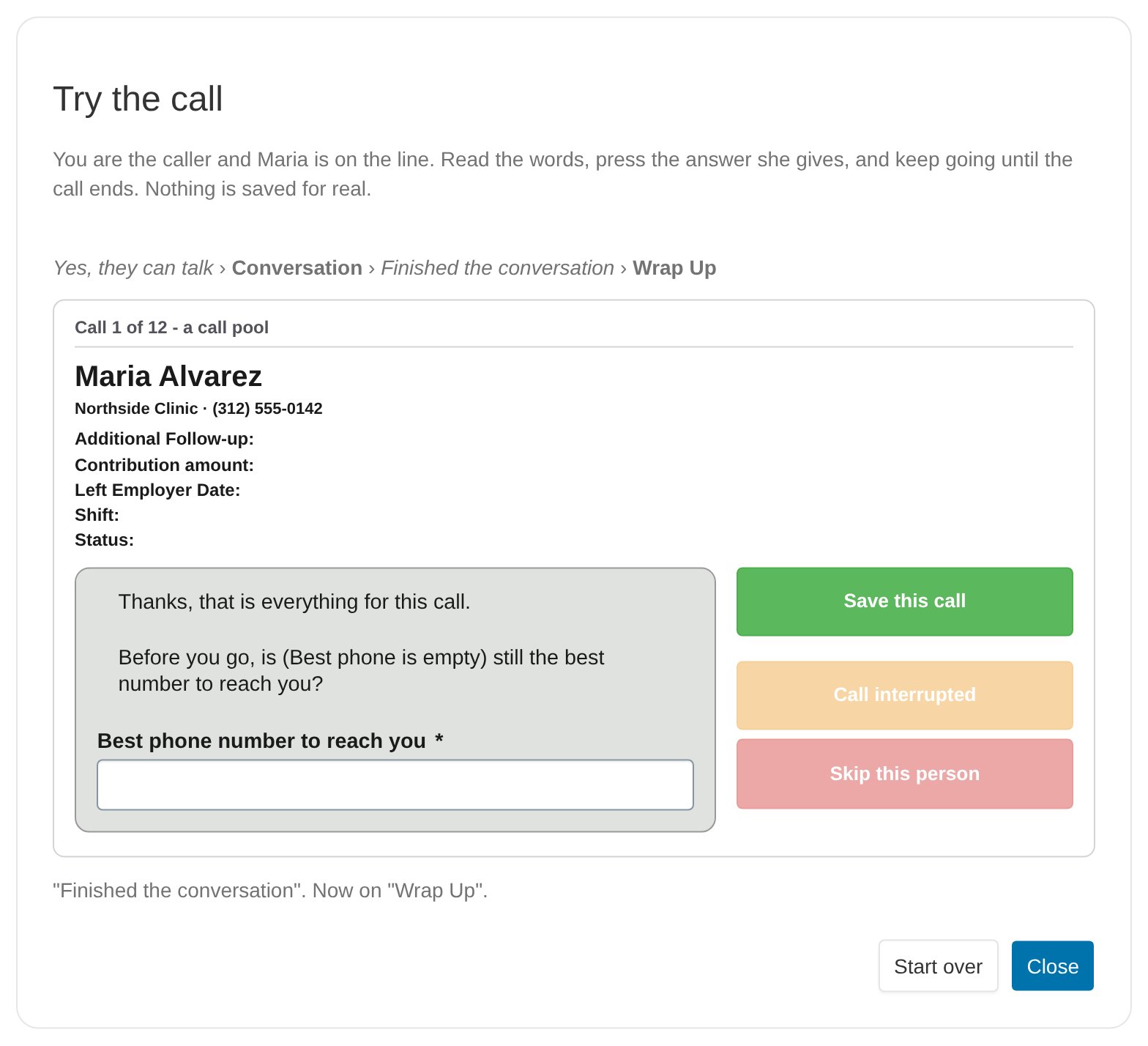
Try the call walks through the whole script as a caller would, with Maria on the line. Nothing is saved.- Click Try the call at the top of the builder.
- Read the words and click the button for what Maria says. The call moves to the next page, and The way here shows the buttons and pages you have been through.
- Fill in any fields on the page. As on a real call, you can’t go on while a required field is empty.
- Keep going until the call ends. The dialog says which outcome the call would be saved with, and whether Maria is done for this script.
- Click Start over to try another path, or Close to return to the builder.
Save a draft or publish
The line under the script’s name tells you what saving does for this script.- Save draft saves the script turned off, so no one calls with it yet. You can save a draft that isn’t finished.
- Publish checks the script, saves it, and turns it on.
If a call pool uses the script, a draft must pass the checks too, even if the pool is turned off. A pool keeps calling with its script after the script is turned off. The builder names the pools.
Fix what stops publishing
When something stops the script from publishing, the Publish button counts it, such as Publish (1 to fix). Click it to open the Before you publish list.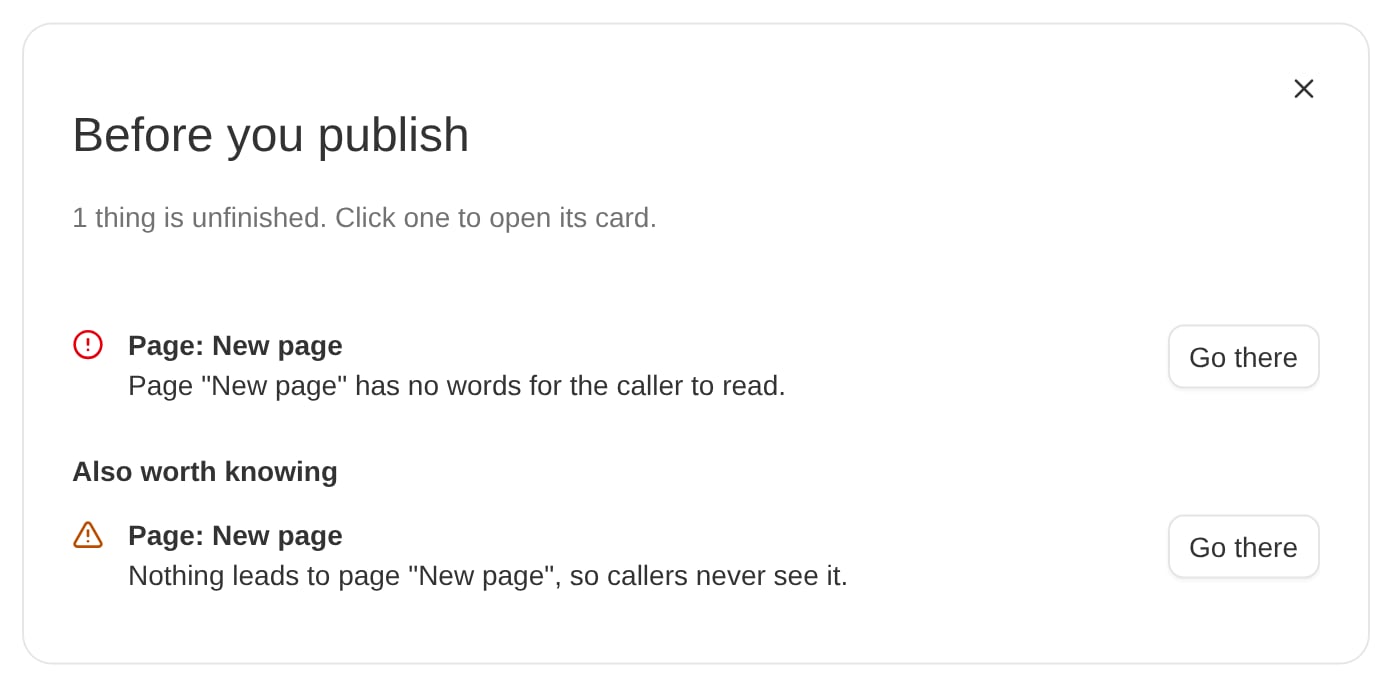
- Each problem names its page or condition. Click Go there to open that card.
- Also worth knowing lists warnings that don’t stop publishing, such as a page nothing leads to.
Print a map of the script
The Printable map draws the whole script as a chart you can print and share.-
Choose Printable map from the menu at the top of the builder. On the Scripts grid, choose it from the menu in the script’s Name column.

- The map opens in its own window. Click Print to print it.
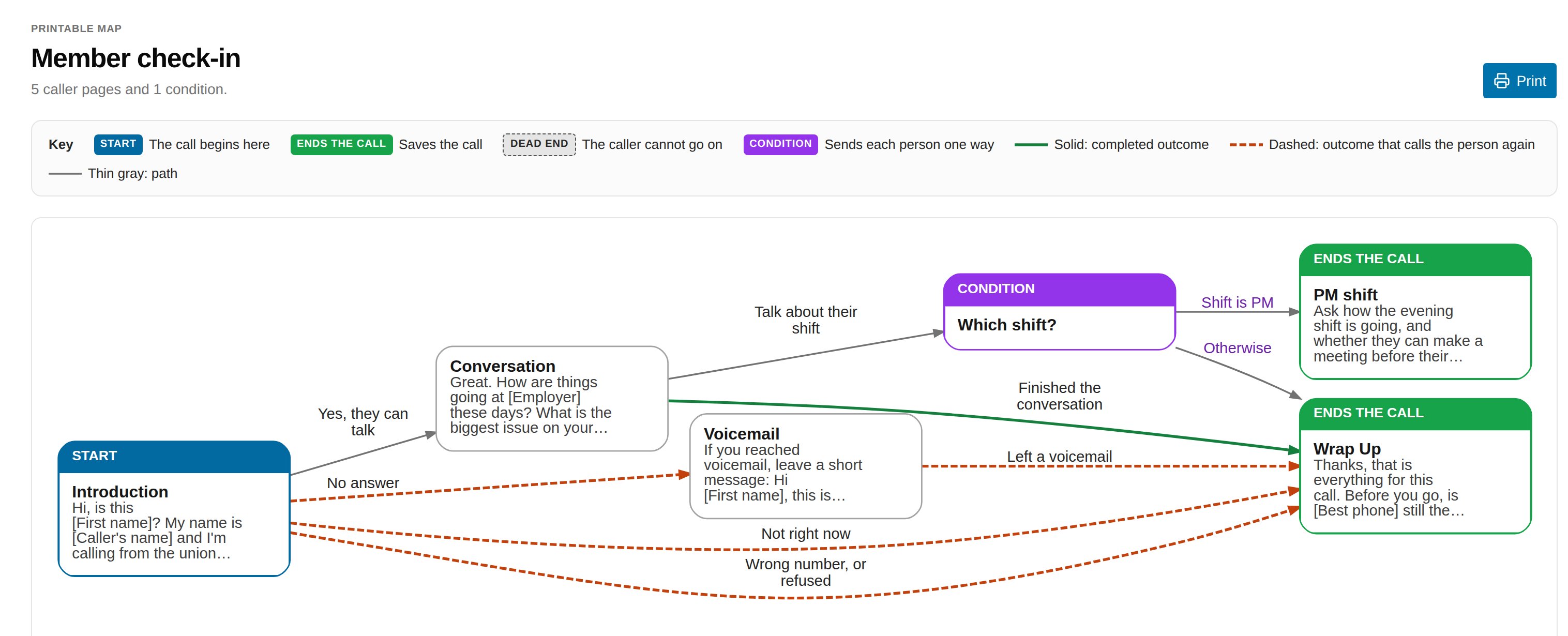
- The key explains the colored bands at the top of each card: Start, Ends the call, Dead end, and Condition.
- A solid green line is a button whose outcome is completed. A dashed orange line is a button whose outcome calls the person again. A thin gray line is a button with no outcome, or one of a condition’s paths.
- The map prints on US Letter paper turned sideways. A large script is split across numbered sheets, and each sheet says which page continues it.
Next steps
- Using call pools to choose who gets called with your script.