

Prefer writing scripts as text? Choose Edit as code (advanced) from the menu at the top right of the builder. The code uses Broadstripes Call Script Syntax (BCSS), described in the BCSS reference.
Start a new script
- Click the Project settings icon in the upper right corner of any page (or press Ctrl-K / ⌘K), then choose Scripts.
- Click New call script. The Start a new script dialog opens.
-
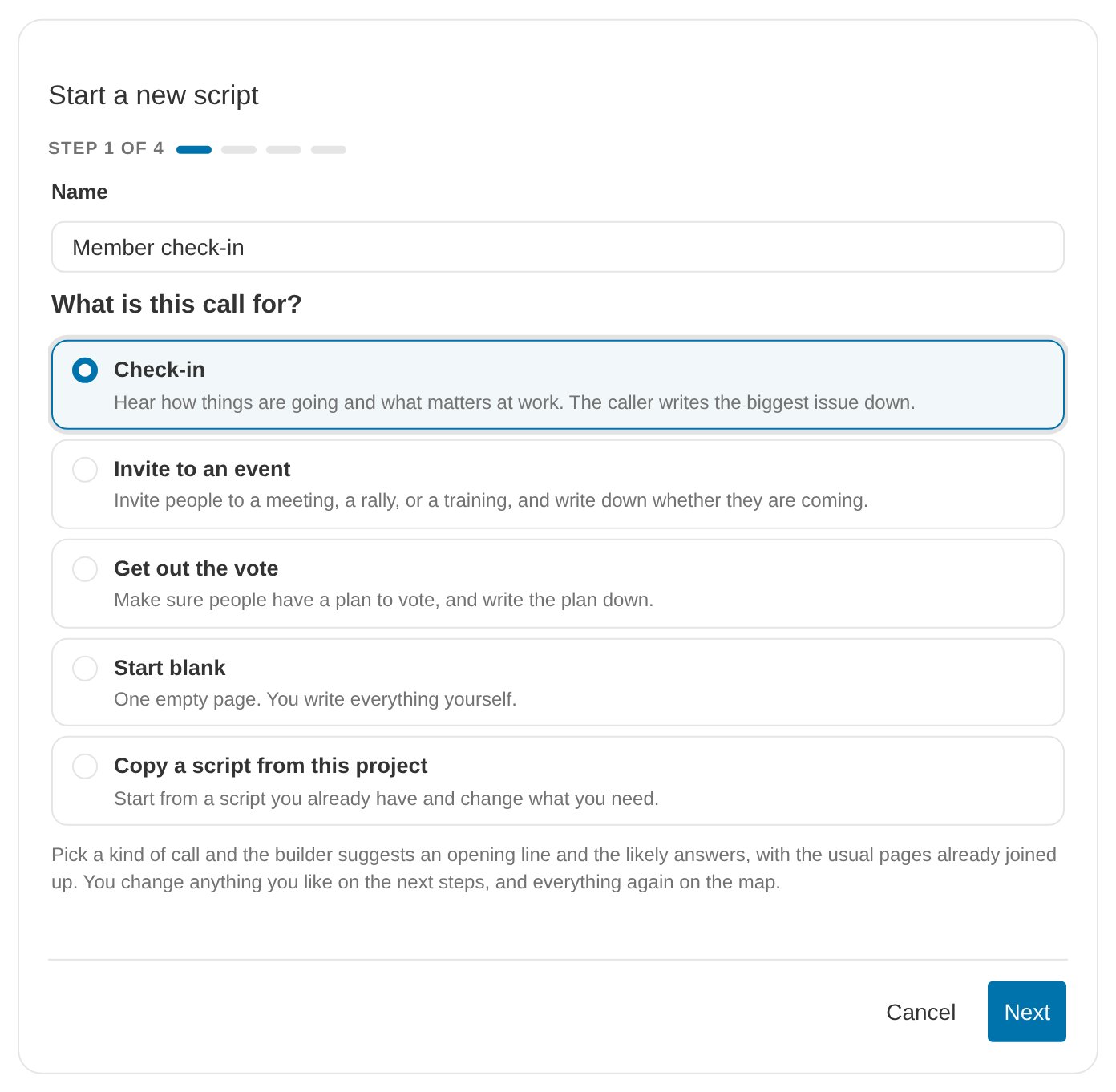
Type a Name for the script, then choose what the call is for:
- Check-in — hear how things are going and what matters at work. The caller writes the biggest issue down.
- Invite to an event — invite people to a meeting, a rally, or a training, and write down whether they are coming.
- Get out the vote — make sure people have a plan to vote, and write the plan down.
- Start blank — one empty page. You write everything yourself.
- Copy a script from this project — start from a script you already have. See Copy an existing script.
-
If you chose Start blank, click Start blank to open the map with one empty page. For the three kinds of call, click Next. The dialog suggests words you can change at each step:
- Step 2 asks who is calling and who you are calling. These words go into the opening line, as in “I’m calling from the union.”
- Step 3 shows the opening line the caller reads first. Edit it to say what you want. The blue chips, such as First name, fill in each person’s details when the call is made.
- Step 4 lists what the person might say back. Each response becomes a blue button on the caller’s screen. Next to each one, choose the page it Goes to and the Outcome it records.
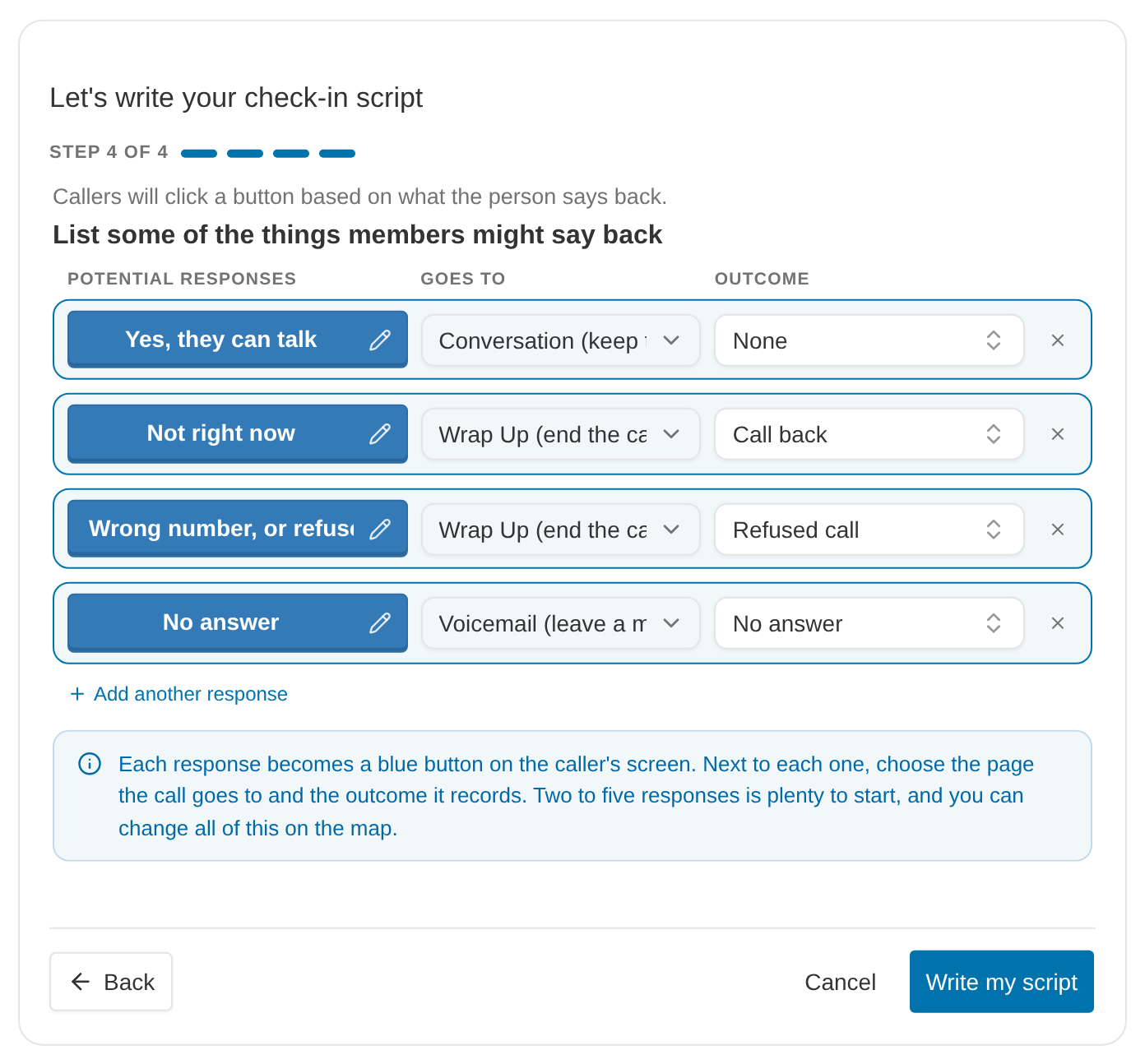
- Click Write my script. The builder writes an Introduction page with your responses as its buttons, adds Conversation, Voicemail, and Wrap Up pages when a response leads to them, joins them up, and opens the map.
Copy an existing script
To start from a script you already have, choose Copy a script from this project in the first step, pick the script, and click Make the copy. The copy keeps the original’s pages, buttons, words, and card positions, and opens on the map. To copy the script you are editing, choose Copy this script from the menu. This opens a new script with that copy already chosen. The option appears only on a saved script.Find your way around the builder
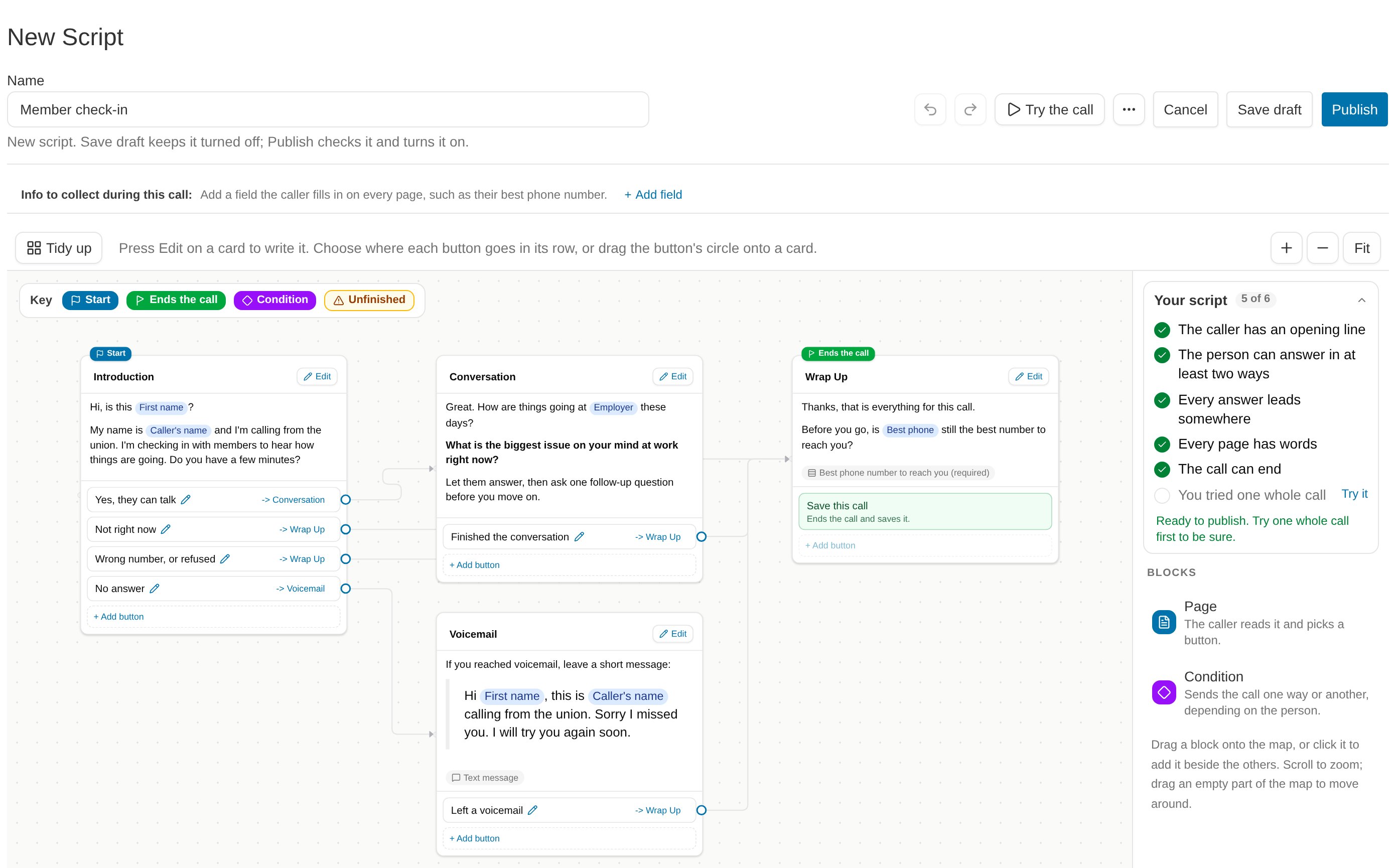
- Name and header buttons — the script’s name, Undo and Redo, Try the call, the menu, Cancel, Save draft, and Publish. The line under the name says whether the script is new or live.
- Info to collect during this call — fields the caller fills in on every page, such as the person’s best phone number. Click + Add field to add one. Click a field’s chip to change the label the caller sees or to stop collecting it.
- The map — every page and every condition is a card. Flags above a card mark the Start page (blue), a page that Ends the call (green), a Condition (purple), and anything Unfinished (amber). The amber flag names what is missing, such as “No words yet.” The Key in the corner of the map explains the flags.
- Toolbar — Tidy up arranges the cards in columns, starting from the start page. The + and − buttons zoom, and Fit shows the whole script.
- Side panel — the Your script checklist and the Blocks you can add to the map: a Page or a Condition.
Read a card on the map
A page’s card on the map shows:- The page’s name. Type in the box to rename the page; buttons that lead to it follow the new name.
- An Edit button, which opens the card. You can also click the card’s words.
- The words the caller reads, with the person’s details shown as chips.
- Chips for any fields the caller writes down and for the page’s text message.
- One row for each button, with its words, a pencil (), and an arrow naming the page it goes to. Click the arrow to open that page.
- A circle on the card’s right edge for each button, where its line starts.
- A green row on a page that ends the call.
- + Add button.
Add and change buttons
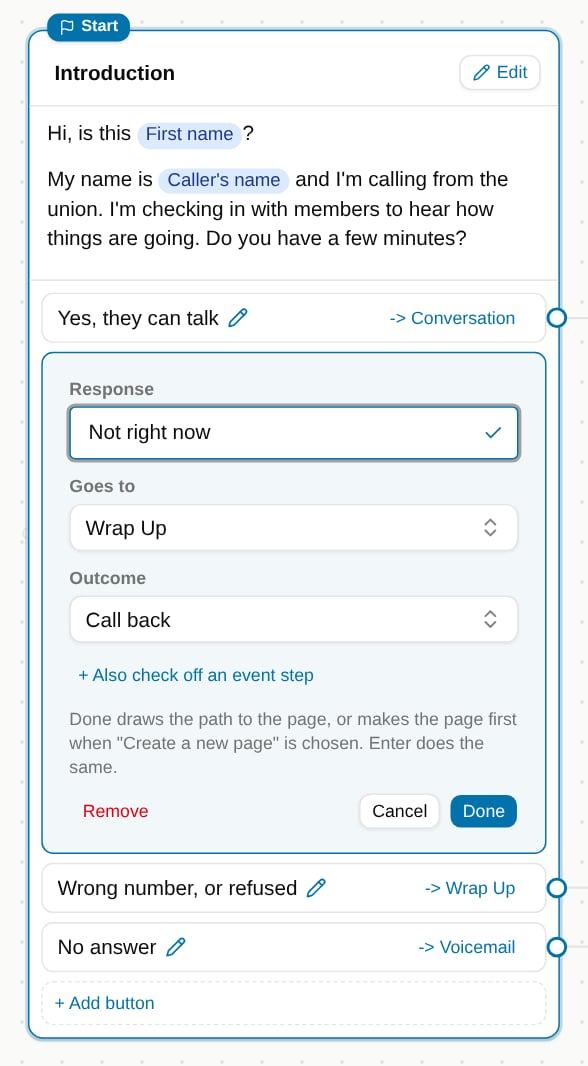
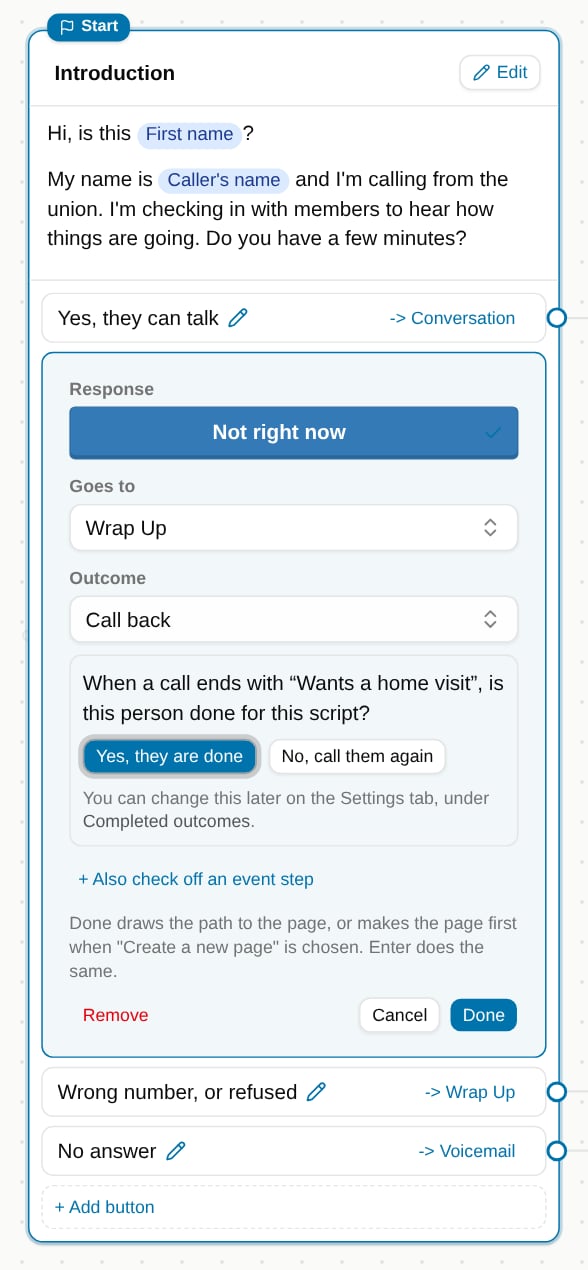
Each button is something the person might say. The caller presses the button that matches, and the call moves to the next page.- On a card, click a button’s words or its pencil () to change it, or click + Add button to add one. The button editor opens in the card.
- Fill in the boxes:
- Response — the words on the button.
- Goes to — the page or condition the call moves to. Choose + Create a new page to add a page named after the button’s words.
- Outcome — what the call records when this button is pressed. Each outcome in the list says completed (the person will not be called again with this script) or calls again. Choose None when the button doesn’t record an outcome.
- + Also check off an event step — choose an event step for this button to check off for the person, such as an RSVP.
- Click Done (or Add for a new button), or press Enter. Press Escape to cancel, or click Remove to delete the button.
Create a new outcome
- In the Outcome box, type a name that isn’t in the list, then choose Create outcome.
- The builder asks whether a person whose call ends with this outcome is done for this script:
- Yes, they are done adds the outcome to the project’s completed outcomes when you save the script. People whose call ends with it are not called again with this script.
- No, call them again records the outcome without completing the person.
Connect buttons by dragging
Drag a button’s circle onto another card to send the button there.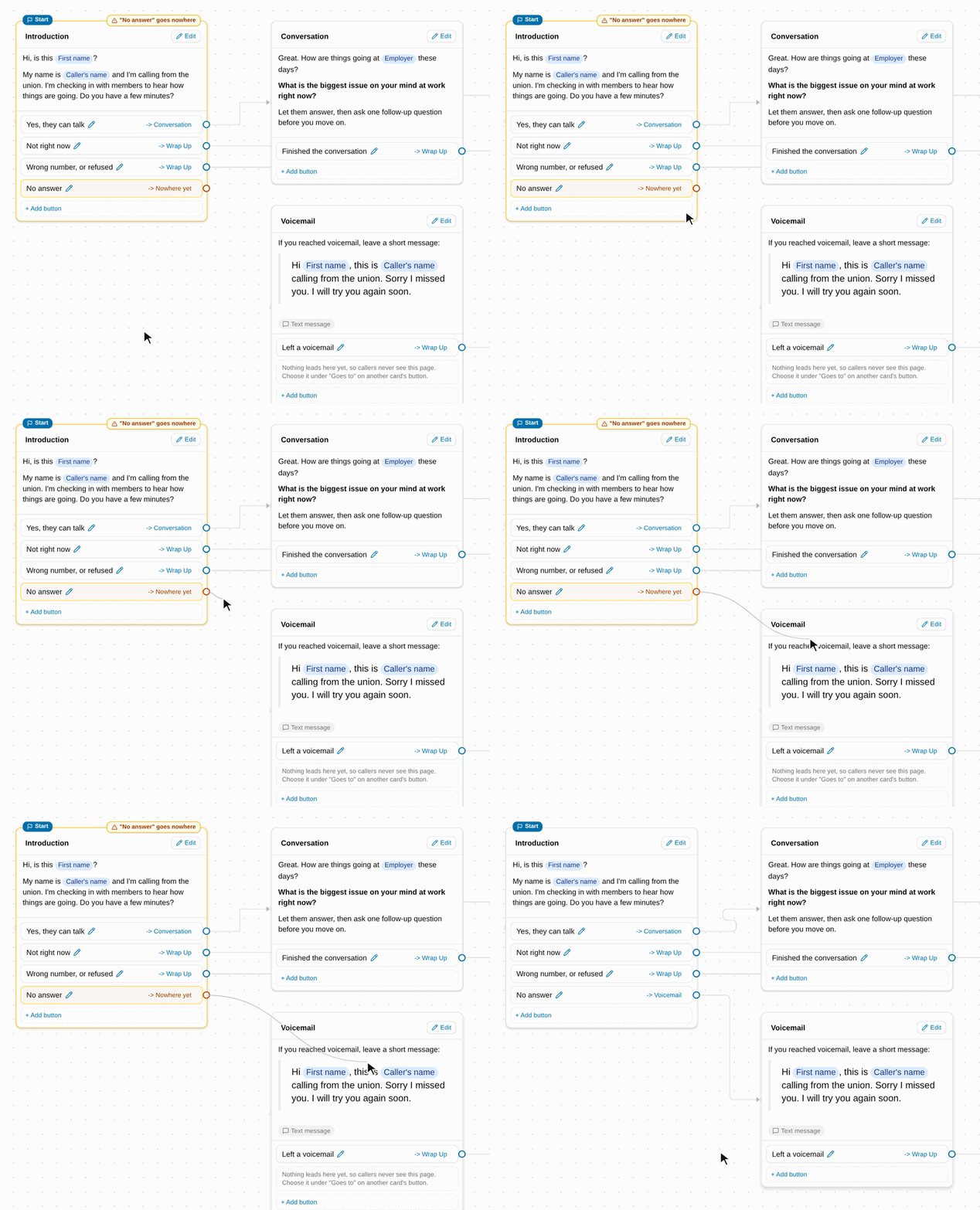
Write a page
Click Edit on a card. The card opens in place, with the page’s form on the left and its blocks on the right.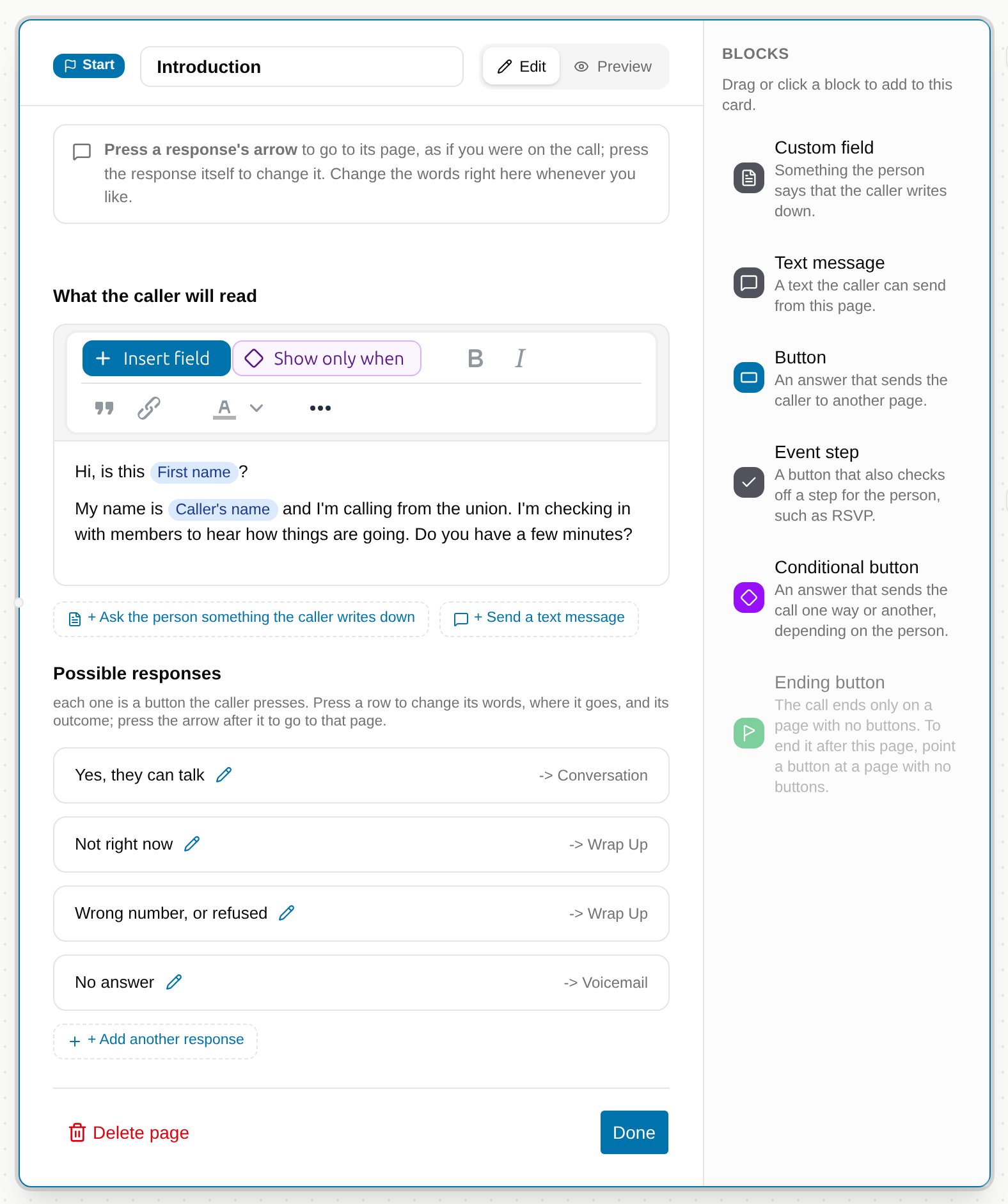
- What the caller will read — the words on the caller’s screen. Insert field puts a chip in the words that fills in the person’s details, such as their first name or employer, or the caller’s name. Show only when shows some words only to some people; see Add conditions to a call script. The rest of the toolbar formats the words: bold, italic, quotes, and links, with lists, text size, and more behind the button.
- + Ask the person something the caller writes down — adds a custom field for the caller to fill in. The label is what the caller sees; leave it blank to show the field’s name. Check Required if the caller can’t go on until the field is filled in.
- + Send a text message — adds a text the caller can send from this page, with the person’s details filled in.
- Possible responses — the page’s buttons. Click a row to change it, as on the map, or click + Add another response.
- Delete page — removes the page after asking first. Buttons that went to it then go nowhere until you point them somewhere else.
Blocks on an open page
The blocks on the right of an open page add things to it. Click a block, or drag it onto the card:- Custom field — something the person says that the caller writes down.
- Text message — a text the caller can send from this page.
- Button — an answer that sends the caller to another page.
- Event step — a button that also checks off a step for the person, such as an RSVP.
- Conditional button — a button that sends the call one way or another, depending on the person. See Add conditions to a call script.
- Ending button — the green button that saves the call and ends it.
End the call
A page with no buttons ends the call. The caller sees a green Call complete button, which saves the call with the outcome of the response that led there. To give the green button your own words, such as Save this call, add the Ending button block. A page either has buttons or ends the call, never both. To end a call after a page that has buttons, point one of its buttons at a page with no buttons.Fields you can’t ask on a call
The call screen can’t show a box for multi-select, ranked choice, or time of day custom fields, so you can’t add them for the caller to fill in. Admin-only fields aren’t offered either, because callers can’t see them.Add a page or a condition
In the side panel, click Page or Condition under Blocks to add one beside the other cards and open it. You can also drag a block onto the map where you want it. A new page needs a button that leads to it before callers can reach it. Point a button’s Goes to at it, or drag a button’s circle onto it.Undo, redo, and cancel
- Click Undo () or Redo (), or press Ctrl+Z and Ctrl+Shift+Z (⌘Z and ⌘⇧Z on a Mac). Undo covers moving cards, Tidy up, connections, and every change to a page. While you are typing in a text box, these keys undo your typing instead.
- Click Cancel to leave without saving. If you have unsaved changes, the builder asks before it discards them.
Use the map with a keyboard
- Tab moves through the cards and the circles on their buttons.
- Enter or Space opens a card. On a circle, Enter lists the places its button can go.
- The arrow keys move a card.
- Delete or Backspace removes a card, after asking first.
- Escape closes the button editor, then the open card.
Switch to code
Choose Edit as code (advanced) from the menu to see and edit the script as BCSS. Choose Open in the builder from the same menu to switch back.- Lines that start with
#are comments. They are kept when you save from code, but lost once you change a page in the builder, because the builder then writes the script again from its pages. - A few scripts open in code because they use something the builder can’t show. A blue box above the code lists the reasons.
Next steps
- Add conditions to a call script to send each person a different way.
- Test and publish a call script to check it and put it to work.
- Using call pools to choose who gets called with it.