

Only project administrators can set assessments in bulk. If you don’t see this option in the Actions menu, check with your project administrator.
Set the assessment for multiple contacts
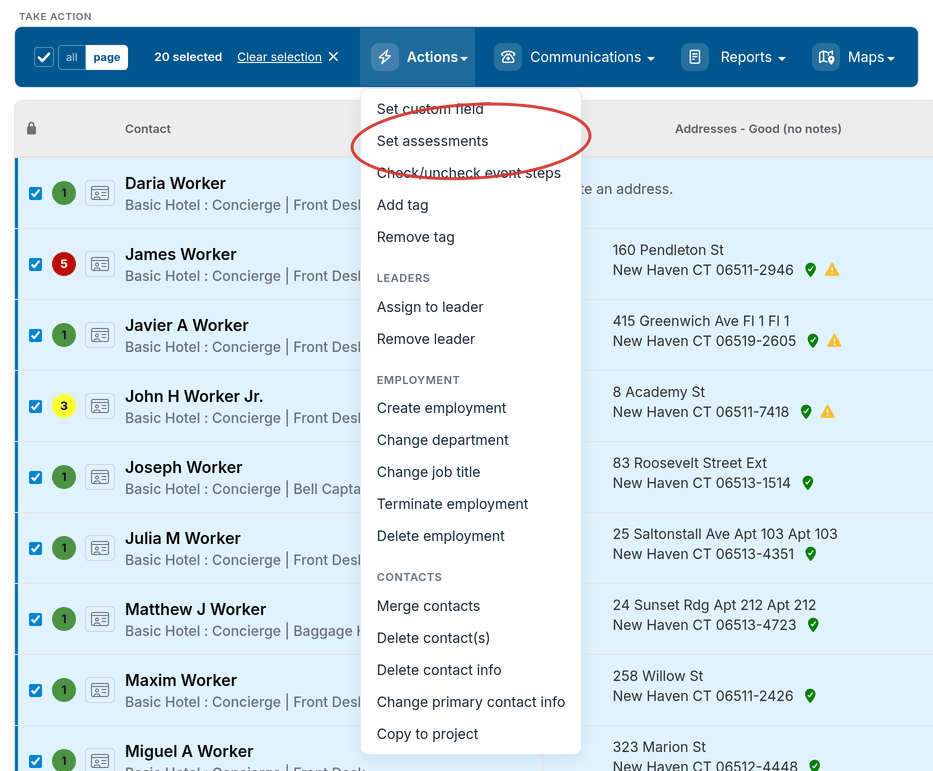
For this example, we’ll update a group of contacts who have just signed their cards and are now confirmed supporters, setting their assessment to “1 - Strong support.”- Run a search for the contacts whose assessments you want to update. From the Search Results page, select the contacts you want to update.
- Open the Actions drop-down menu and choose Set assessments (or Set codes, depending on your project’s settings).
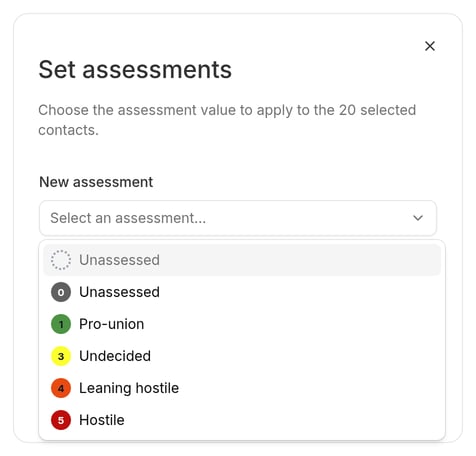
- The Set assessments dialog opens. It shows how many contacts you have selected.
- In the New assessment field, click to open the dropdown and choose the assessment code you want to apply to the selected contacts. Each option is shown with its colored disc and label so you can identify the right code at a glance. To clear the assessment from all selected contacts (leaving them unassessed), choose the Unassessed option at the top of the list.
- Optionally, enter a Timeline note in the text field. This note will be added to every selected contact’s timeline record along with the assessment change, so your team can see why the assessment was updated. If your project requires a timeline note whenever an assessment changes, this field is required.
- Click Set assessments to queue the update.
- A notification appears confirming that Broadstripes has queued the contacts for the update. No further action is needed — Broadstripes will automatically update all of the contact records you selected. When the job finishes, a second notification appears showing how many contacts were updated and how many were skipped (contacts already at the chosen value are skipped automatically).
Notes and limitations
- Contacts already at the target value are skipped. If a contact is already assessed at the value you chose, Broadstripes will not create a duplicate timeline entry for that contact. The completion notification tells you exactly how many contacts were updated and how many were skipped.
- Clearing an assessment sets the contact’s assessment field to blank. If your project has a default assessment code configured, that code is not re-applied automatically — the field is simply cleared.
- The timeline note is optional unless your project’s assessment settings require a timeline note on every assessment change. See Assessment codes for more about that setting.
Learn more
- Assessment codes — learn how to configure your project’s assessment scale and colors.
- Selecting contacts in search results — learn how to select all contacts, just the visible page, or specific individuals before applying a bulk action.