

If you belong to only one project, the project name appears as a plain label in the top navigation bar — there is no interactive button, and the project switcher does not open.
Open the project switcher
Click your current project name in the top navigation bar to open the project switcher. The button shows the name of the project you are currently working in (or “Projects” when you are in the admin portal) and a indicator. You can also open and close the project switcher with a keyboard shortcut: Cmd-. on a Mac, or Ctrl-. on Windows and Linux.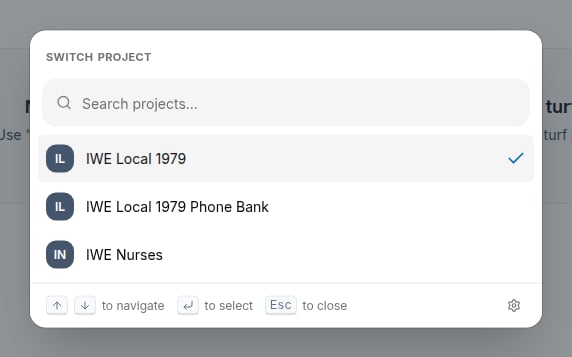
Find and switch to a project
When the project switcher opens, your projects appear in a list. Each project displays a colored badge with the project’s initials on the left. Your current project always appears at the top of the list, is highlighted with a subtle background, and is marked with a check mark () on the right. Type any part of a project name to filter the list. The list narrows as you type, scoring results by how well they match what you typed. Press Enter or click a project name to switch to it. If you have more than 100 projects, the switcher shows the first 100 and displays a hint at the bottom: “Showing first 100 of N — keep typing to narrow.” Continue typing to see more specific results.Sort your project list
The project switcher has a Sort alphabetically toggle you can access by clicking the Dialog settings gear at the right of the footer. When the toggle is on, projects are listed in alphabetical order. When it is off, projects are sorted by recency — the projects you have visited most recently appear first. Your sort preference is saved to your account, so it persists the next time you open the project switcher or log in.You can also change this setting from your user account page, in the Project switching section, using the How should the project switcher drop-down be ordered? menu.
Open a project in a new tab
Click the Dialog settings gear at the right of the footer to reveal the settings row, then turn on the Open in new tabs toggle to open each project you select in a new browser tab instead of navigating the current tab. Your current tab stays open on the project you are already working in. This preference is saved to your account and remembered between sessions.Open a single project in a new tab (without changing the toggle)
When the toggle is off, hovering over any project row reveals an arrow button at the right edge. Click it to open just that project in a new tab without flipping the toggle — useful when you want to quickly check one project while keeping your main tab where it is.Invert the toggle for a single selection
Holding the modifier key while selecting a project inverts the toggle for that one click only:- Toggle off + Cmd-click (Mac) or Ctrl-click (Windows/Linux): opens that project in a new tab (foregrounded).
- Toggle on + Cmd-click / Ctrl-click: navigates the current tab to that project instead of opening a new one.