

Overview
The search builder is a visual tool that helps you construct complex searches by selecting fields, operators, and values from dropdown menus. Instead of typing search syntax directly, you build your search one rule at a time. The search builder is especially useful when you want to filter by multiple criteria at once. For example, you might want to find:- Workers at a particular employer who have been assessed as “1s”
- People who attended a recent event but haven’t been contacted lately
- Members on a specific shift who haven’t signed a card
Open the search builder
Click the Search Builder button in the top navigation bar, next to the search icon.
Build a search with rules
When the search builder opens, a rule row appears ready for you to choose a field, operator, and value. The panel header reads SEARCH BUILDER.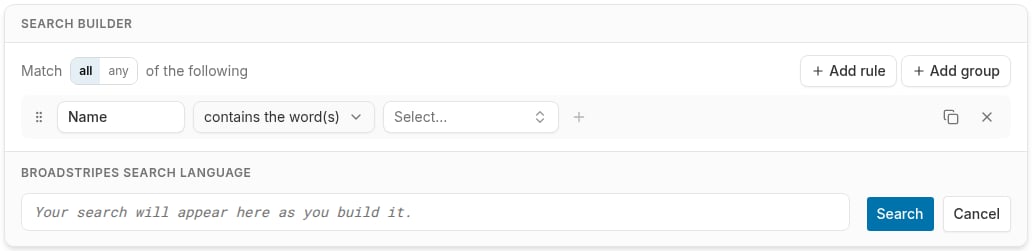
- Field — choose what to search by (e.g., Shift, Assessment, Employer, Name, events, custom fields)
- Operator — choose how to match (e.g., “contains the word(s),” “matches the text,” “equals,” “has any value”)
- Value — enter or select the value to match against (some operators like “has any value” don’t require a value)
Available search fields
Click the field button on any rule to open the field picker — a searchable popover listing all fields organized by category. Type to filter by name, or browse the groups. If you have run a search using the builder before, a Recently used group appears at the top, showing the fields from your most recent builder searches. The available categories are:- Custom fields — any custom fields configured for your project (e.g., Shift, Pay Rate)
- Events and event steps — events and their individual steps
- Contact info — address, email, phone number
- Contact timeline — timeline notes, dates, and authors
- General — name, assessment, contact type, notes, lists
- Department structure — employer, department, parent organization
- Employment — job title, work location, employee status, seniority date
- Leadership — leader assignments, turf, roles
- Relationships — related contacts, family members, grievants
- Email and texting — sent messages, delivery status, SMS history
- Call center — call outcomes, call pools, callers
- External IDs — IDs from external systems
- Contact types — your project’s configured contact types
- Shapes — geographic shape group membership
Add rules to narrow your search
Click + Add rule to add another condition. When using multiple rules, choose whether contacts must match AND (all rules) or OR (any rule) using the toggle at the top of the builder.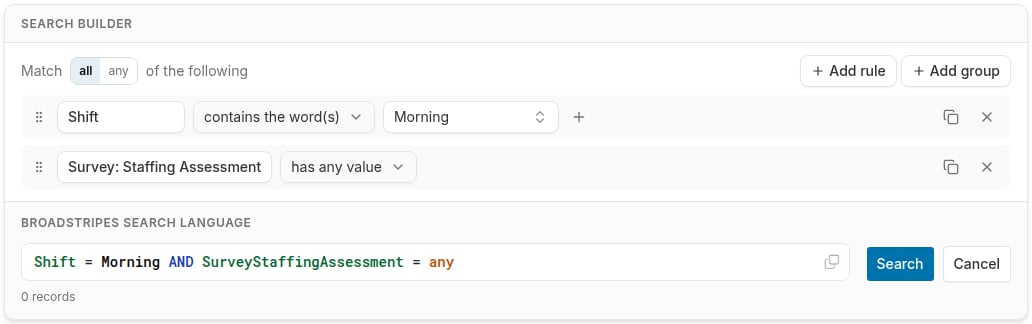
Add rule groups for complex logic
Click Add group to create a nested set of rules with its own AND/OR logic. Rule groups let you build searches like: “Find contacts at Employer X who are assessed as 1 AND (attended Committee Meeting OR signed a Card).”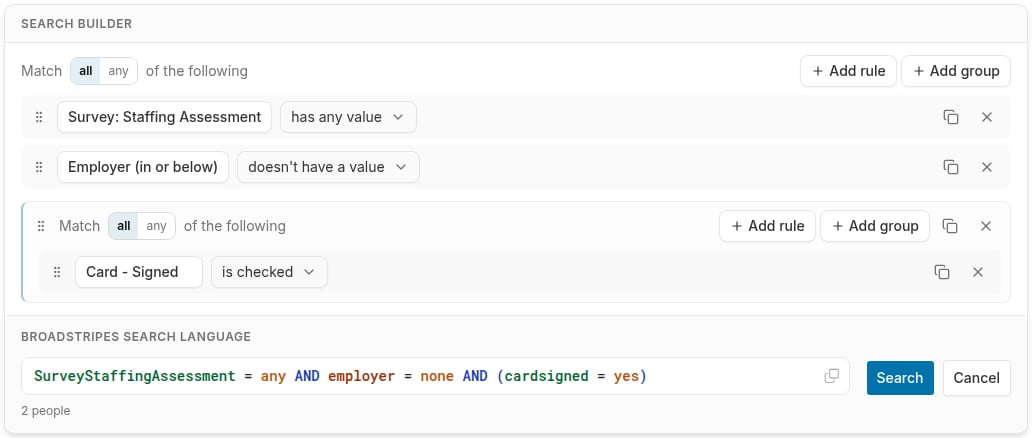
Subquery rules for relational fields
When you choose a relational field such as employer, employees, or leader, the search builder shows an inline subquery editor instead of a plain value box. Use the subquery editor to add conditions about the related contacts — for example, find contacts who work at an employer where a specific custom field has a certain value.For a detailed guide on using multiple rules and rule groups, see Search with multiple rules and Add rule groups to your search.
Remove a rule
Click the Remove button next to any rule to delete it from the search.Reorder rules
Drag any rule row by its drag handle to move it to a different position within its group.Live BSQL preview and match count
The footer of the search builder panel shows two live readouts as you build:- Broadstripes search language — a read-only preview of the BSQL text your rules will produce. Click the copy icon () to copy the text to your clipboard.
- Match count — the number of contacts your current search would return, updated automatically as you edit rules. When results include both people and organizations, the count breaks down by type — for example, 3 people, 2 orgs, 5 total records.
Execute your search
When your rules are ready, click Search to run the search. Broadstripes shows the results while keeping the builder open so you can refine your rules and search again. On the search results page, a Search and close button also appears. Click it to run the search and dismiss the builder in one step. Click Cancel to close the builder without running the search. After executing, Broadstripes displays your search results with colored filter badges showing your active search criteria.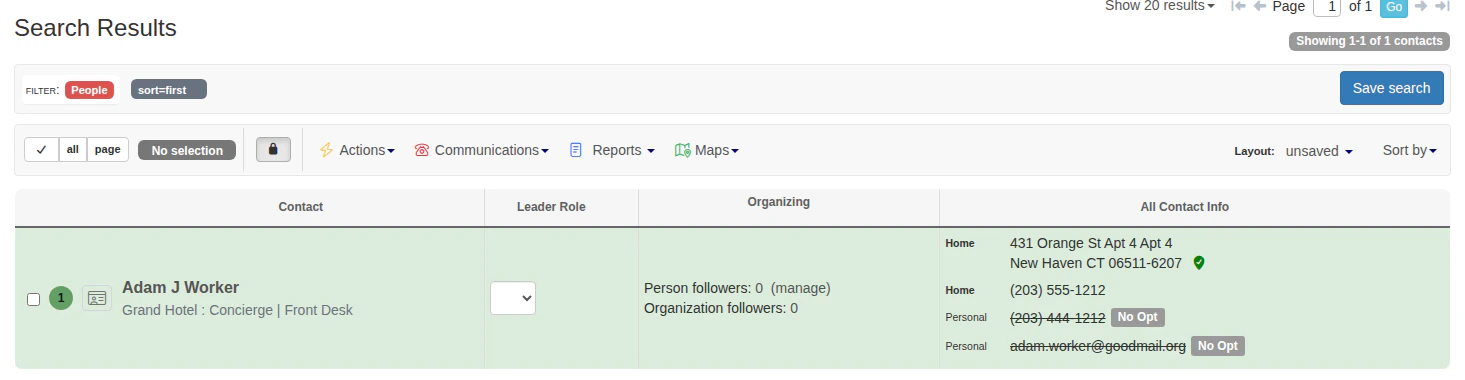
- Click a filter badge’s × to remove that criterion
- Click Save search to save the search for later
- Reopen the search builder to modify your search