Intro
One of the most helpful features of Broadstripes is how it can help organizers and other union leaders quickly find people they’re looking for. The Employer filter tool makes that even easier for you to do by narrowing your search to a certain group of workplaces or employments.Use the employer filter
- Get started by finding the Filter drop-down menu on the left side of the homepage’s search bar.
-
Clicking on it will produce the following menu:
-
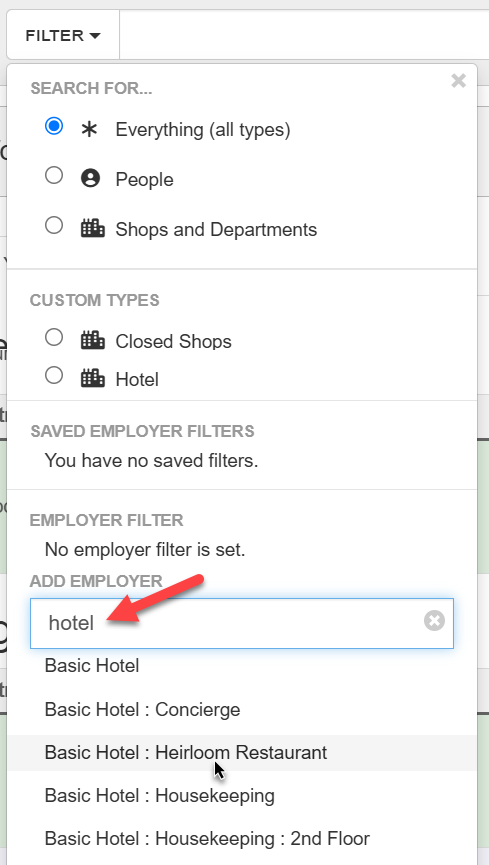
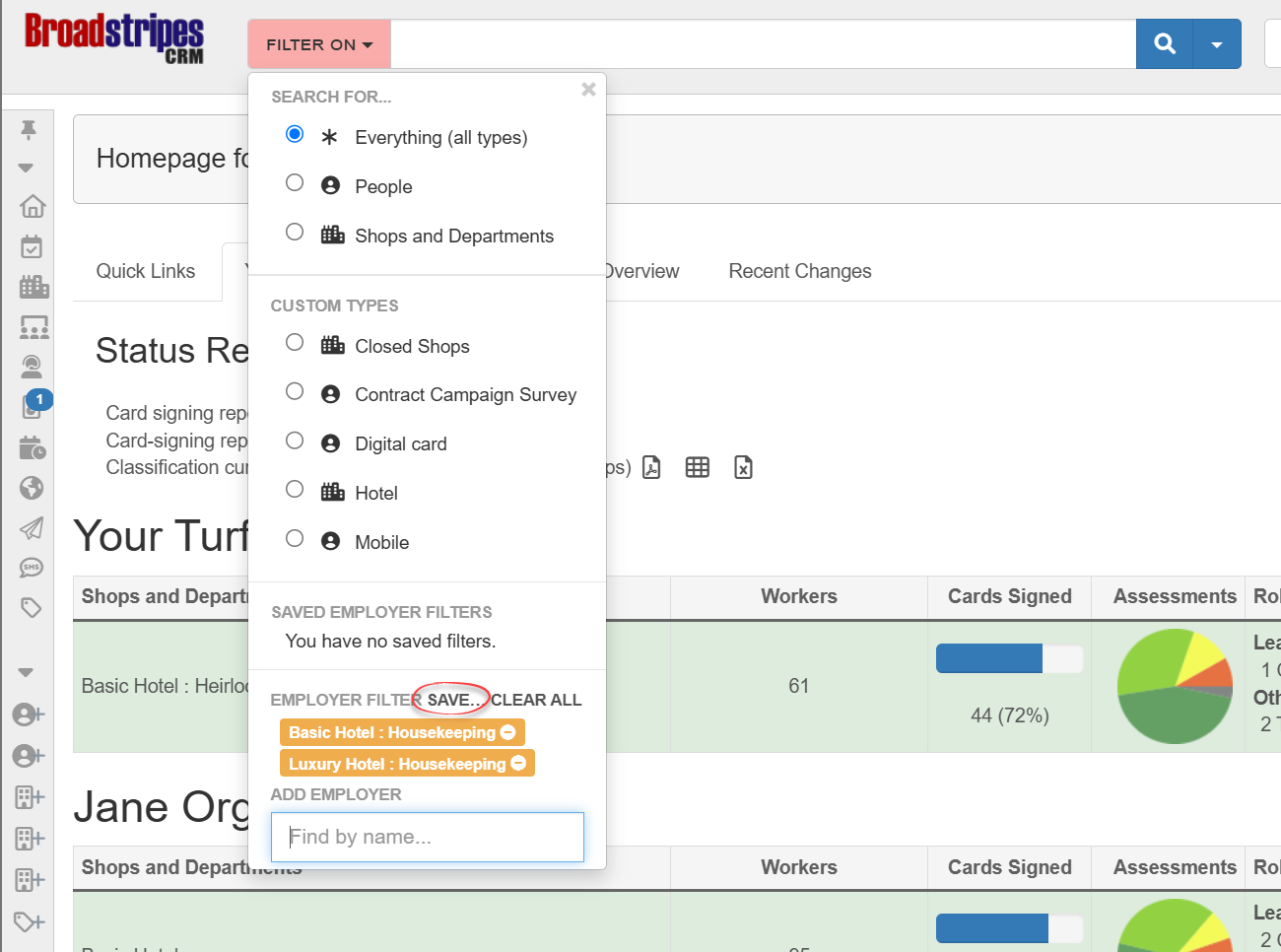
At the bottom of the Filter drop-down is a section called Employer filter. To filter by employer, search for an employer by name in the text box, then click on the correct suggestion.
-
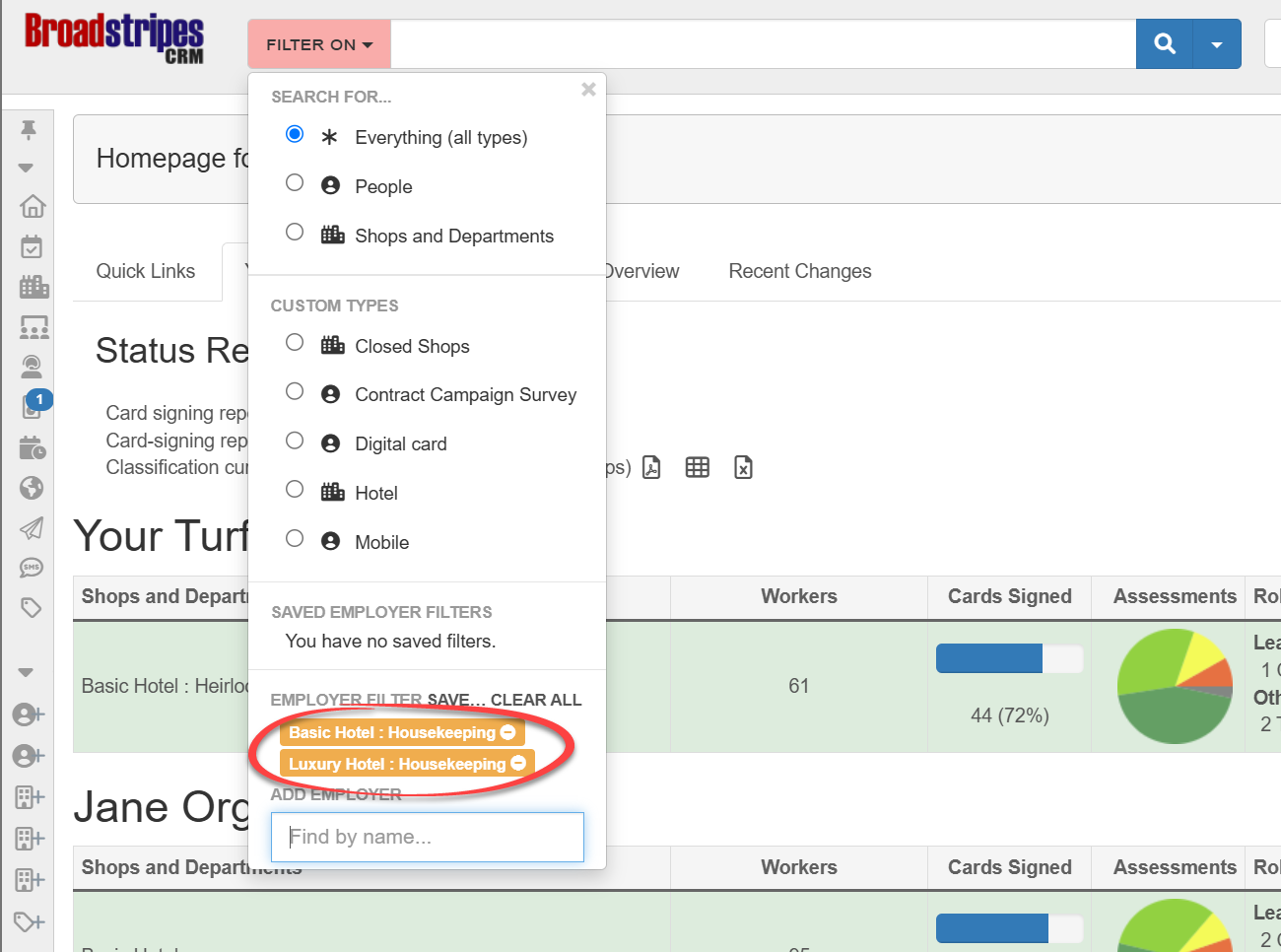
The workplace(s) you select will be added to the list of workplaces under the Employment Filter heading.
Save your employer filter
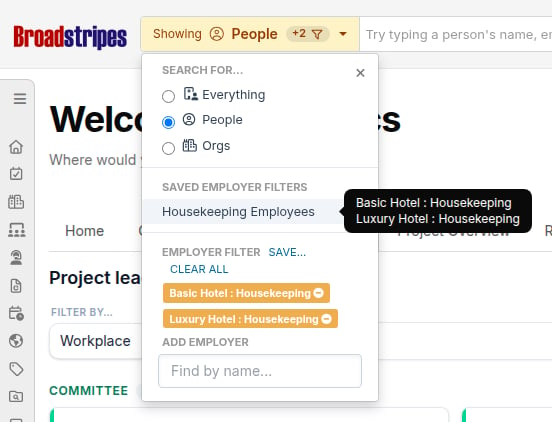
You can save your Employer filter choices for a later search.- Start by clicking the save button.
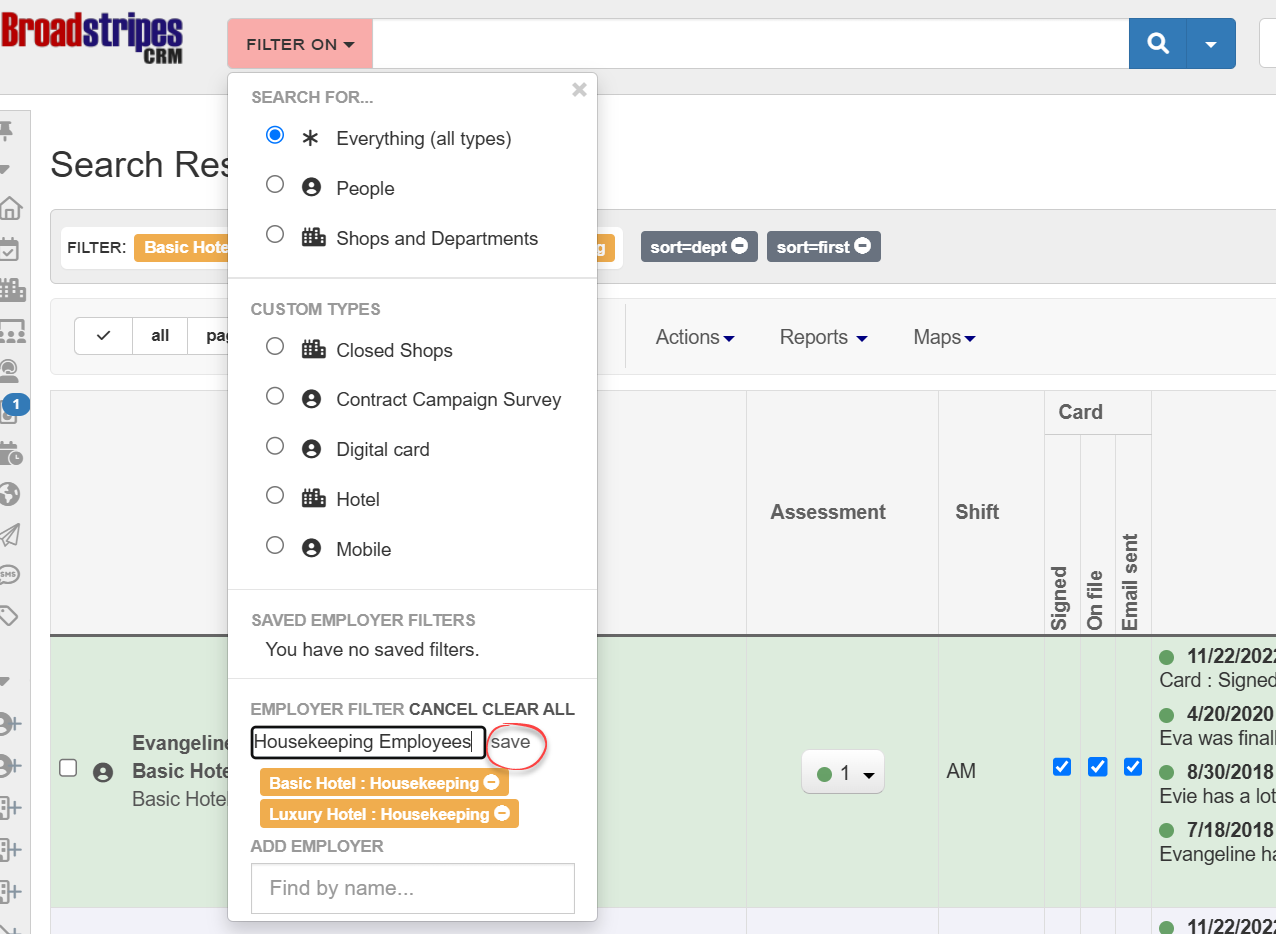
- Type a name for your saved filter in the box that appears and click save again. If your current employer names exactly match an existing saved filter, the name field pre-fills with that filter’s name so you can overwrite it without retyping. Saving under the same name replaces the existing filter. Saving under a name that matches an existing saved filter’s name in letter case only (for example, typing “My Filter” when “my filter” is already saved) shows the error “A saved filter with that name already exists.”
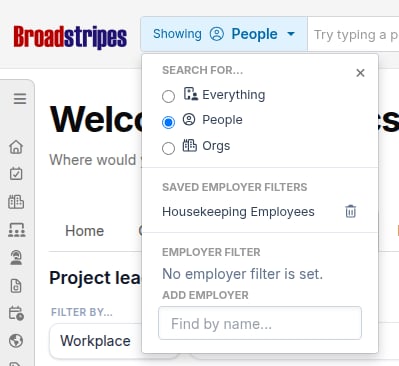
- The filter you just named and saved will now appear in the Saved employer filters list. Click the filter’s name to apply it to your search. Hovering over or focusing the name shows a tooltip listing the employer workplaces it includes. To delete a saved filter, click the trash icon () at the end of its row.