Overview
The Broadstripes search builder lets you search for very specific event-related information, including who has attended a rally in the last month or signed a card in the past week. In Broadstripes, that type of information is recorded as events and event steps. Keep in mind that events are created and customized by users and admins, so each project will have its own unique events. (Learn more in the creating events article.) In this article, we’ll show you how to search based on an event called “Card” to find all the people who have signed a card within a specific timeframe.Build a search to capture events in time
In another article, we built a search to look at people who had not yet signed cards. For this article, we’re going to assume it’s a week later, and we want to see how many new cards have been signed since we ran that previous search. Here’s how:-
Start a new search by clicking the Search Builder button to the right of the search box at the top of the page.

- A search building panel opens below the search box.
- Since we want to limit our search to workers who have signed a card in the last week, click the rule’s field button and choose the Card - Signed event step from the field picker.
- In the middle drop-down menu, select was checked on or after.
-
In the right-hand text box, type last week.
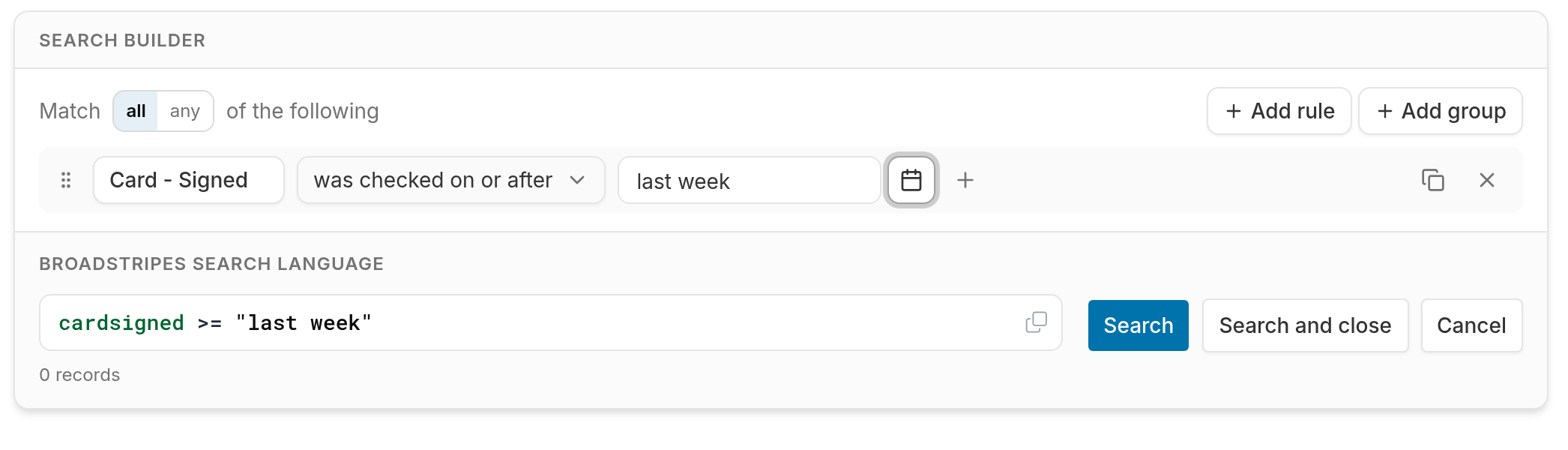
Broadstripes accepts natural language date terms like “last week,” “6 months ago,” or “yesterday.” You can also use a calendar date like “2/20/2025.”
- Click the Search button to run the search. All contacts who have had their card signed within the specified timeframe display in the Search Results page.
-
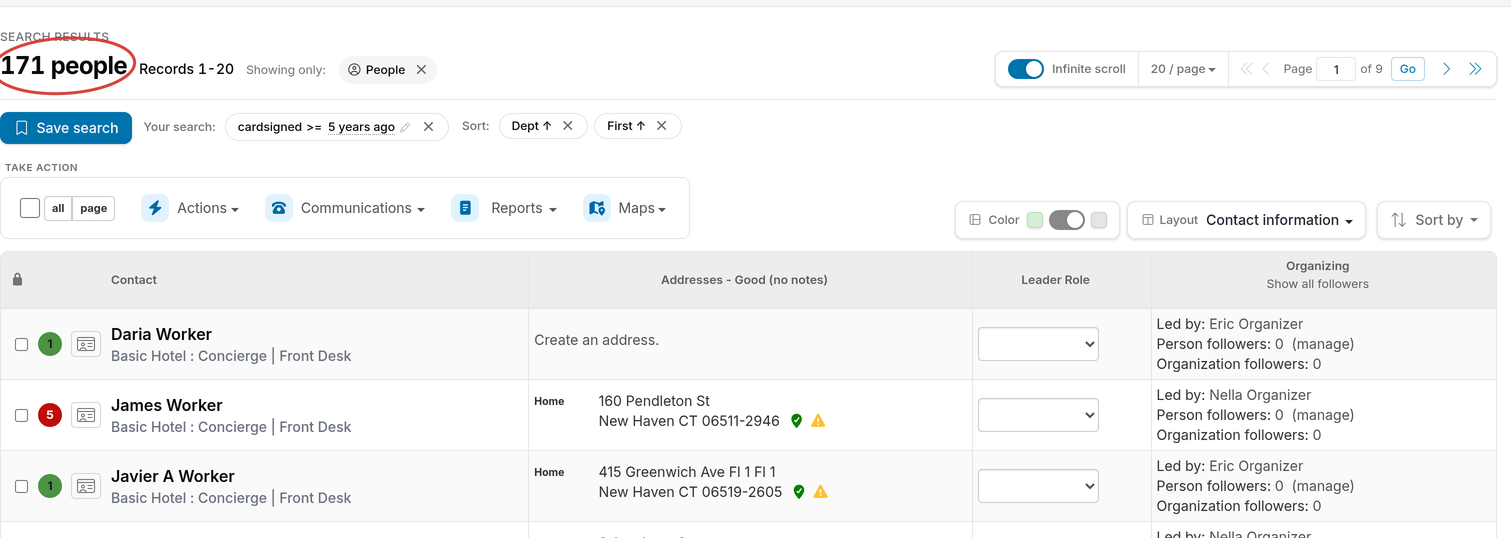
To see a count of the total number of contacts in the search results at a glance, check the bold count below the Search Results heading in the upper-left corner of the page (for example, “128 contacts”). Next to it, a Records 1-20 label tells you which portion of those results is on the current page.