

Overview
The Organization tab allows you to add an organization picker field to your public form. When enabled, form submitters can search for and select an existing organization from your project rather than entering free text.The Organization tab only appears for organization forms. Person forms do not have this tab.
Why add an organization picker?
An organization picker is useful when you want form submitters to associate themselves or their submission with an organization that already exists in your project. For example:- An employer wanting to register their company
- A shop representative identifying their workplace
- A community member selecting their neighborhood association
Configure the organization picker
Follow these steps to set up an organization picker on your public form:Step 1: Navigate to the Organization tab
Open the public form editor and select the Organization tab.Step 2: Enable the organization picker
Turn on the toggle in the Organization selection card at the top of the tab (“Let submitters pick an existing organization from the project”) to add the org picker field to your form. The Custom label and selection-method options below stay grayed out until this toggle is on.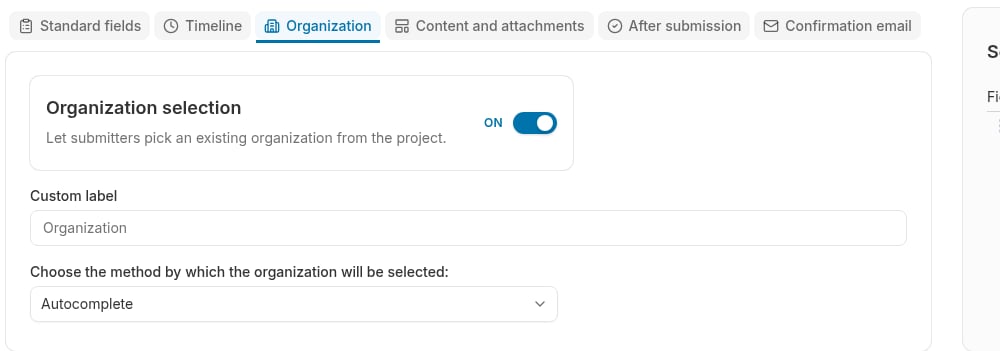
- An organization search field appears on the public form
- Submitters can search for and select an organization from your project
- The selected organization is recorded with the form submission
Step 3: Set a custom label (optional)
Enter a descriptive label for the organization picker field using the Custom label field. Default: “Organization” Custom label examples:- “Your workplace”
- “Select your employer”
- “Which chapter are you with?”
- “Your local”
Step 4: Choose the selection method
Use the “Choose the method by which the organization will be selected” dropdown to control how submitters search for their organization. Three options are available:Tiered drop-downs
Submitters choose from cascading dropdown menus, starting at the top of the organization hierarchy and drilling down to sub-organizations. How it works:- Multiple dropdown menus appear on the form
- The first dropdown shows top-level organizations
- Subsequent dropdowns show child organizations within the selected parent
- The hierarchy depth matches your project’s organization structure
- Projects with a clear, well-known organizational hierarchy
- Forms where you want to guide submitters step-by-step through the structure
- Structured data entry prevents typos and name variations
- Works well when submitters know their place in the hierarchy
- Can be slow or confusing if the hierarchy is deep or unfamiliar to submitters
Autocomplete
Submitters type into a search field and select a matching organization from the suggestions. Matches against organization names at all levels of the hierarchy. How it works:- A text input with autocomplete appears on the form
- As the submitter types, matching organization names appear in a dropdown
- The submitter selects their organization from the list
- Projects with many organizations
- Submitters who know their organization’s name but not its place in the hierarchy
- Mobile-friendly forms
- Submitter types “union”
- Autocomplete shows: “Union Local 42”, “Tri-State Union”, “Union Hall West”
- Submitter selects the correct one
- Fast and intuitive
- No need to understand the full organizational hierarchy
Autocomplete, matching only against the lowest level of the org structure
A variant of autocomplete that only suggests organizations at the lowest (leaf) level of the hierarchy. Parent and intermediate organizations are excluded from the results. How it works:- Same text-input autocomplete as above, but search results only include organizations with no children
- Projects where submitters should always be linked to a specific location rather than a parent umbrella organization
- Avoiding ambiguity when parent and child organizations have similar names
- Organization hierarchy: Regional Council > Local 42 > Shop Floor B
- Regular autocomplete would show all three when the submitter types “42”
- Leaf node autocomplete only shows “Shop Floor B”
- Prevents submitters from accidentally selecting a parent instead of their specific location
- Produces cleaner, more precise data
- Requires a well-structured organization hierarchy in Broadstripes
- May return no results if the hierarchy has not been set up correctly